Groups and Labels
Organize users and knowledge sources with powerful grouping and labeling tools for streamlined management and access control.
Table of Contents
Overview
Groups and Labels provide essential organizational tools for managing your knowledge base. Groups help cluster people and files together for streamlined access control, while labels add another layer of categorization for quick filtering and identification. This dual approach is especially useful for large organizations where different teams work on distinct sets of documents.
Groups Purpose
Logically cluster files and team members for streamlined management and access control
Labels Purpose
Tag and classify uploaded sources for better filtering, semantic grouping, and visual categorization
Key Benefits: Enhanced organization, improved content discovery, streamlined access control, and better team collaboration through structured categorization.
Workflow
Access the Groups and Labels functionality through your knowledge base configuration. Each section provides dedicated tools for creating, managing, and organizing your content structure.
Groups Access Path
Login → AI Assistant → <your bot> → Knowledge base → Configure → Groups tab
Labels Access Path
Login → AI Assistant → <your bot> → Knowledge base → Configure → Labels tab
Groups Management
Groups allow you to logically cluster both files and team members for streamlined management and access control. This is especially useful for large organizations where different teams work on distinct sets of documents.
Groups Interface
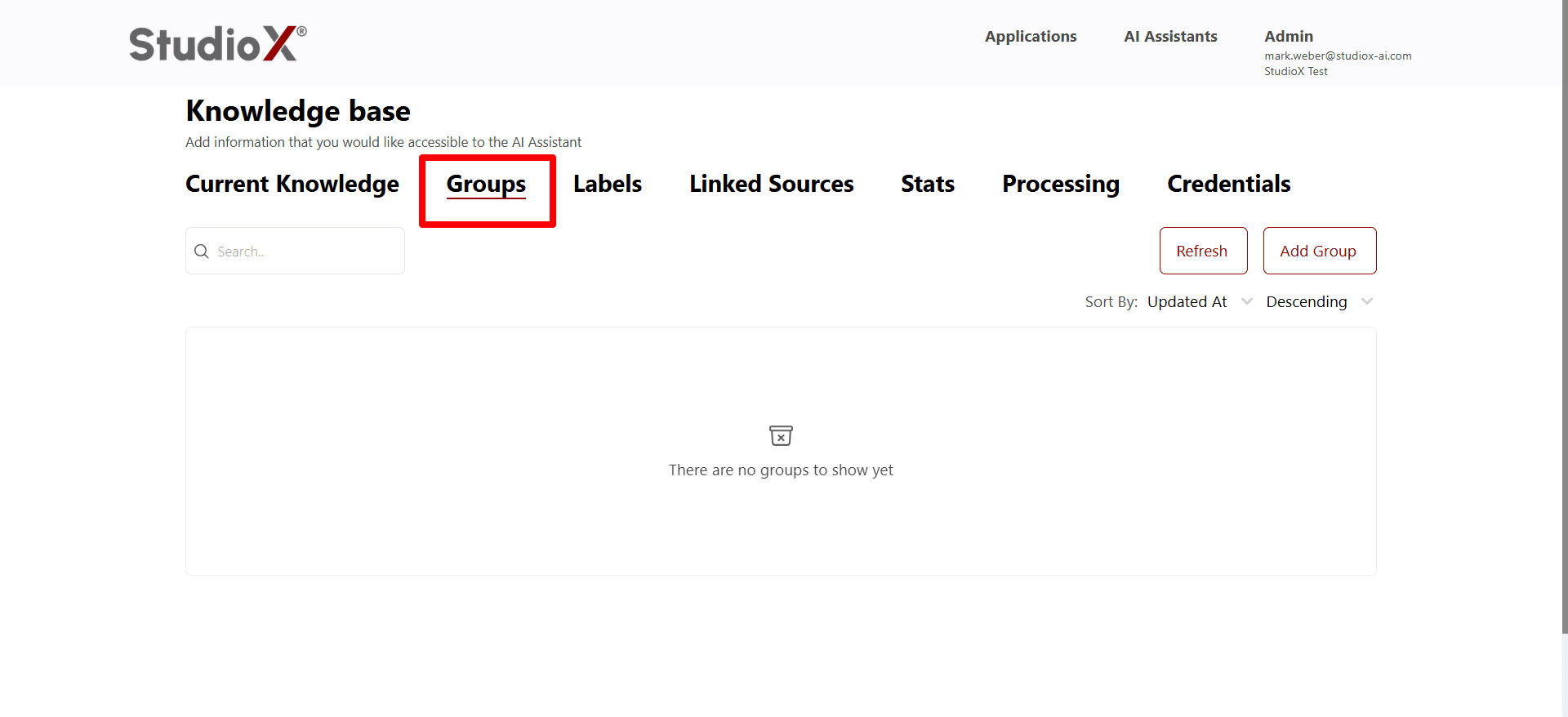
Groups Key Features
- Cluster files and team members together
- Streamlined management and access control
- Ideal for large organizations with multiple teams
- Different teams can work on distinct document sets
Creating Groups
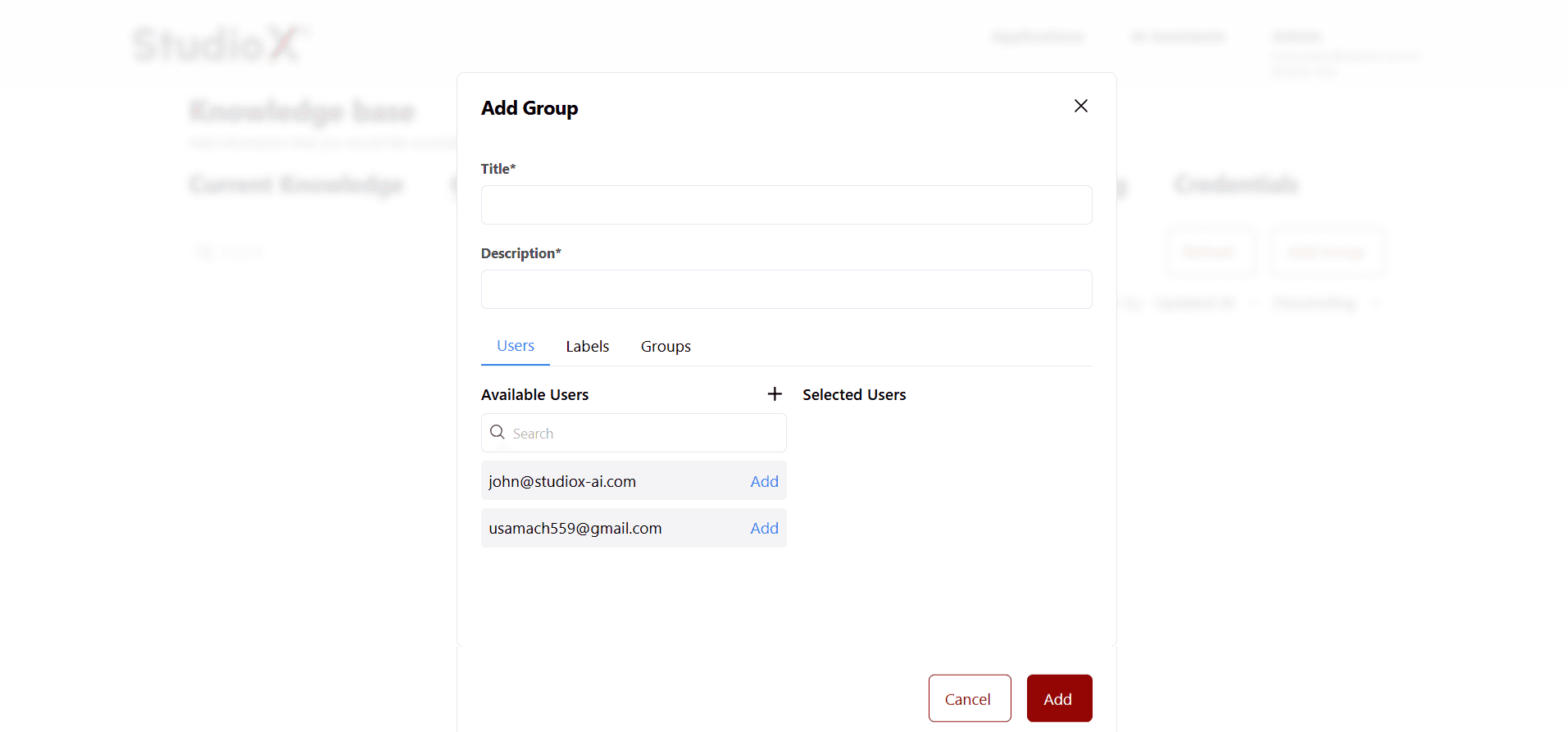
Create new groups to organize users and establish access control for specific sets of documents. The group creation process allows you to define membership, assign labels, and link to specific categories.
Add Group Dialog
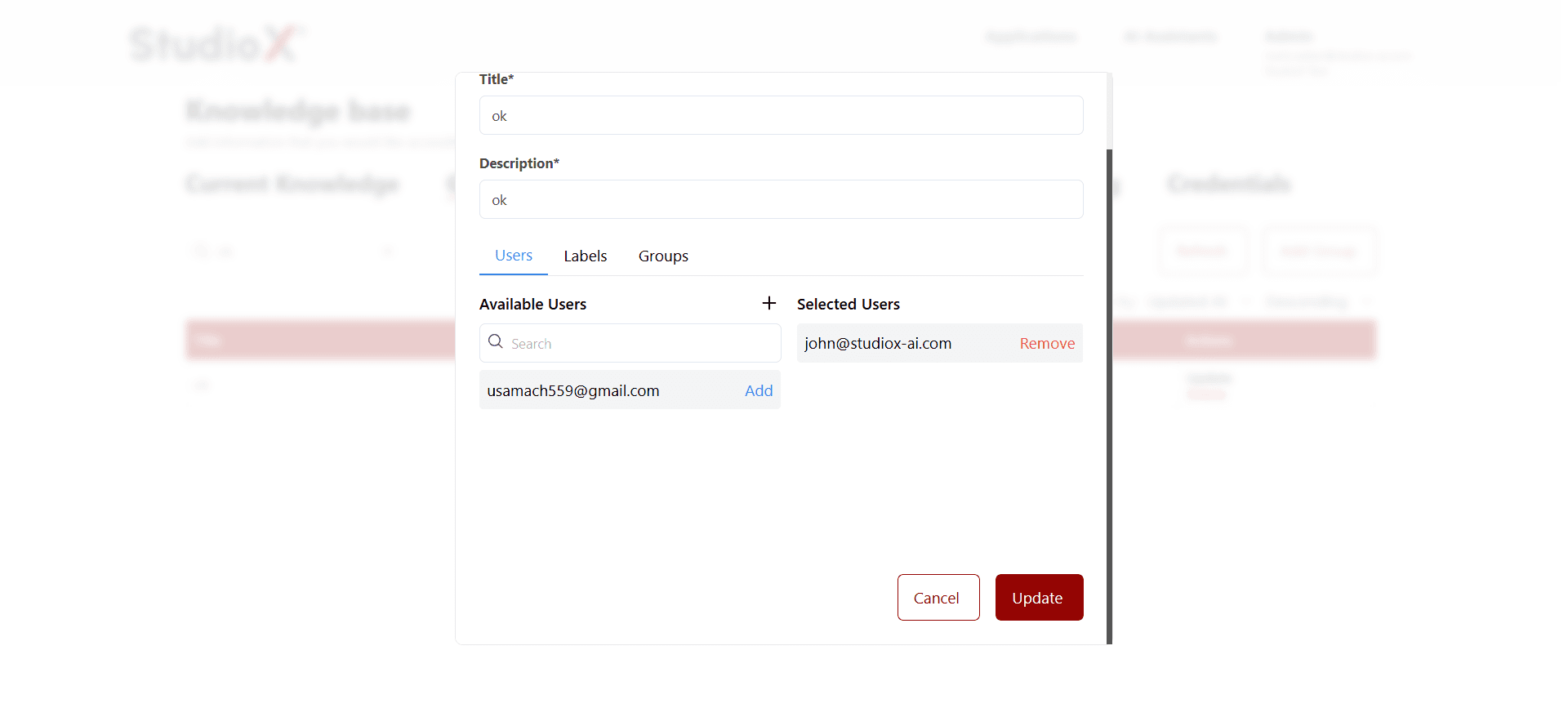
Update Group Dialog
Group Creation Steps
Click Add Group
Start the group creation process by clicking the Add Group button
Enter Group Details
Provide a meaningful title and description for the group
Select Users
Choose which users should be members of this group
Assign Labels and Categories
Link the group to relevant labels and specific categories
Group Actions
Manage existing groups with comprehensive search, sort, update, and delete functionality. Groups can be organized by title or last updated time for easy management.
Group Search
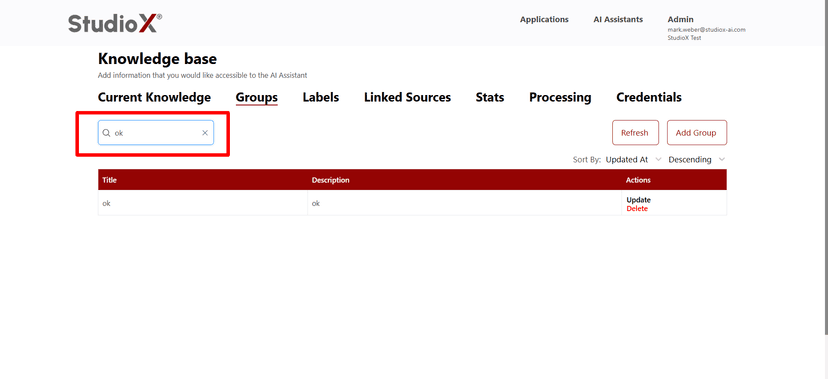
Group Sort Options
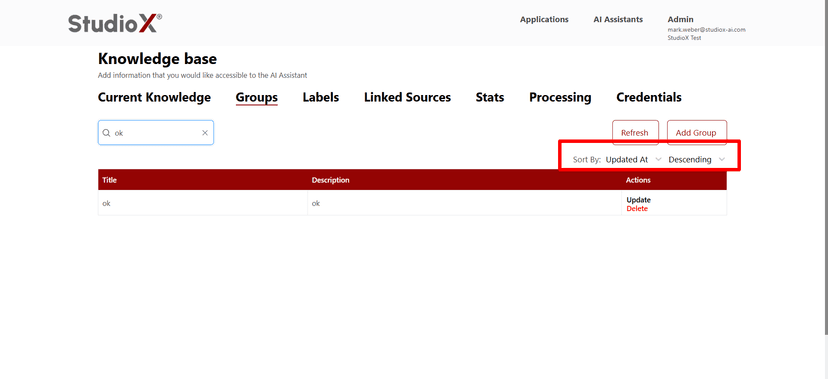
Available Group Actions
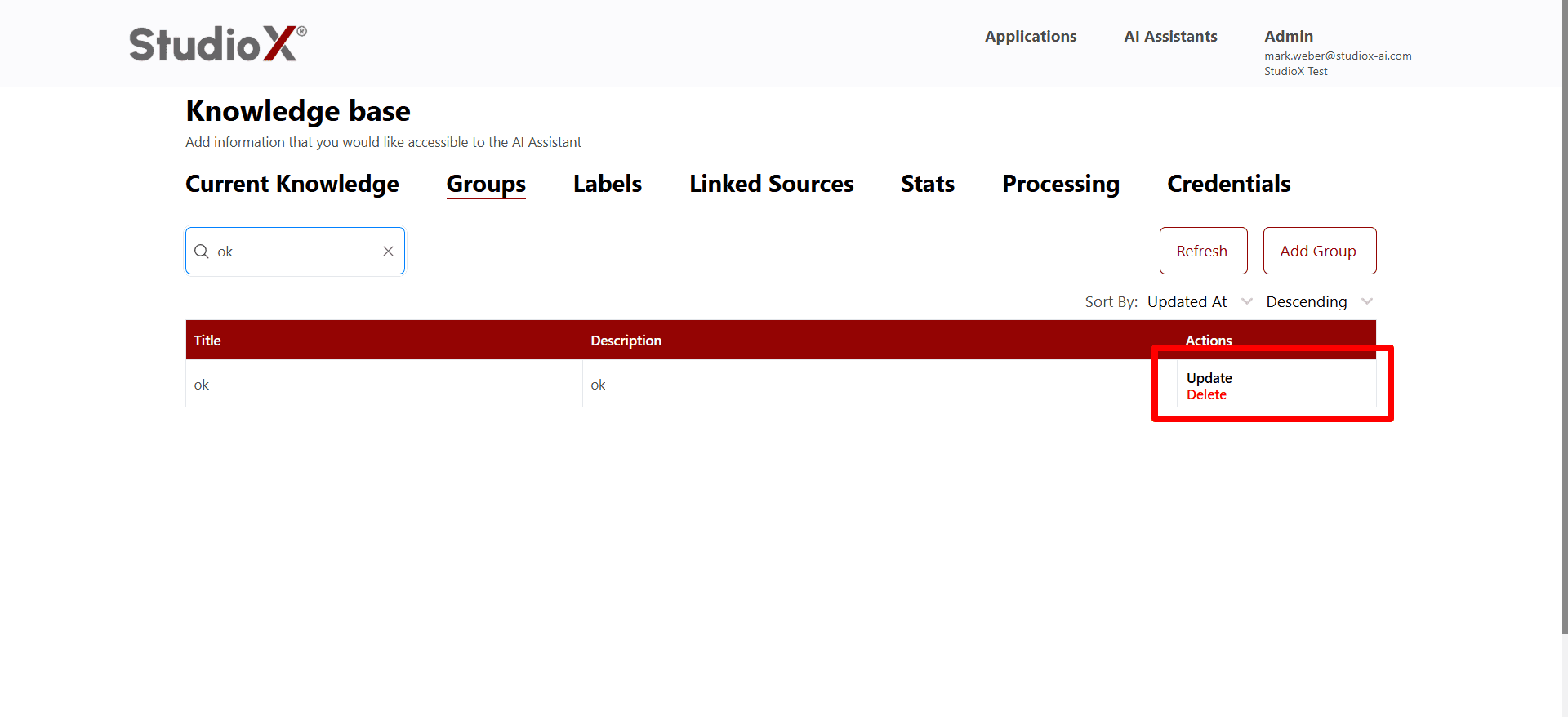
Available Group Operations
Update Group
Modify group details, membership, and associated labels
Delete Group
Permanently remove groups that are no longer needed
Refresh Groups
Reload the groups table to see latest changes
Sort Groups
Organize groups by title or updated time
Labels Management
Labels help tag and classify uploaded sources for better filtering, semantic grouping, and visual categorization. Using labels ensures your content is easily discoverable and organized according to your business needs.
Labels Interface
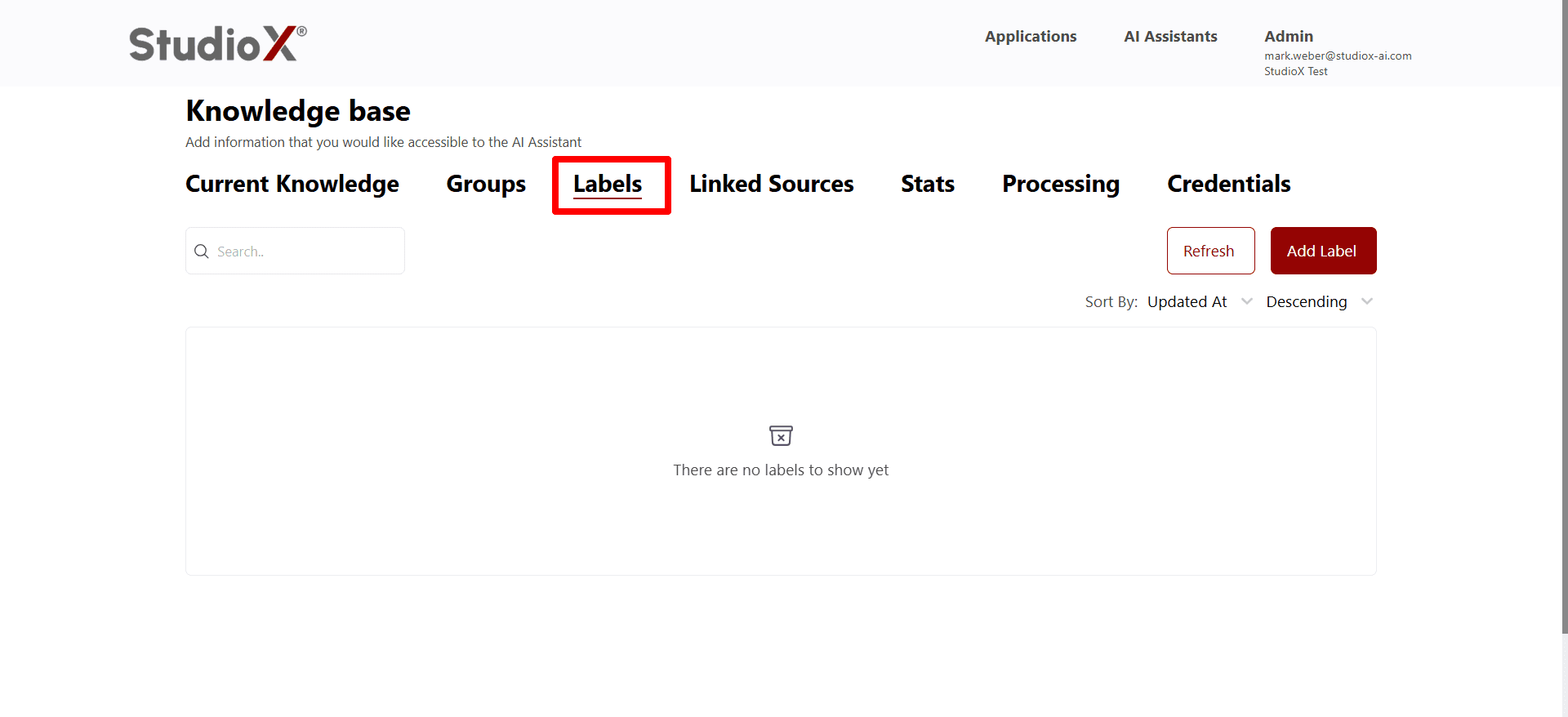
Labels Key Features
- Tag and classify uploaded sources
- Enhanced filtering capabilities
- Intelligent semantic grouping
- Clear visual categorization
- Makes content easily discoverable and organized
Creating Labels
Create new labels to categorize and organize your knowledge sources. Labels can be enhanced with semantic filtering capabilities for automatic content tagging based on content analysis.
Add Label Dialog
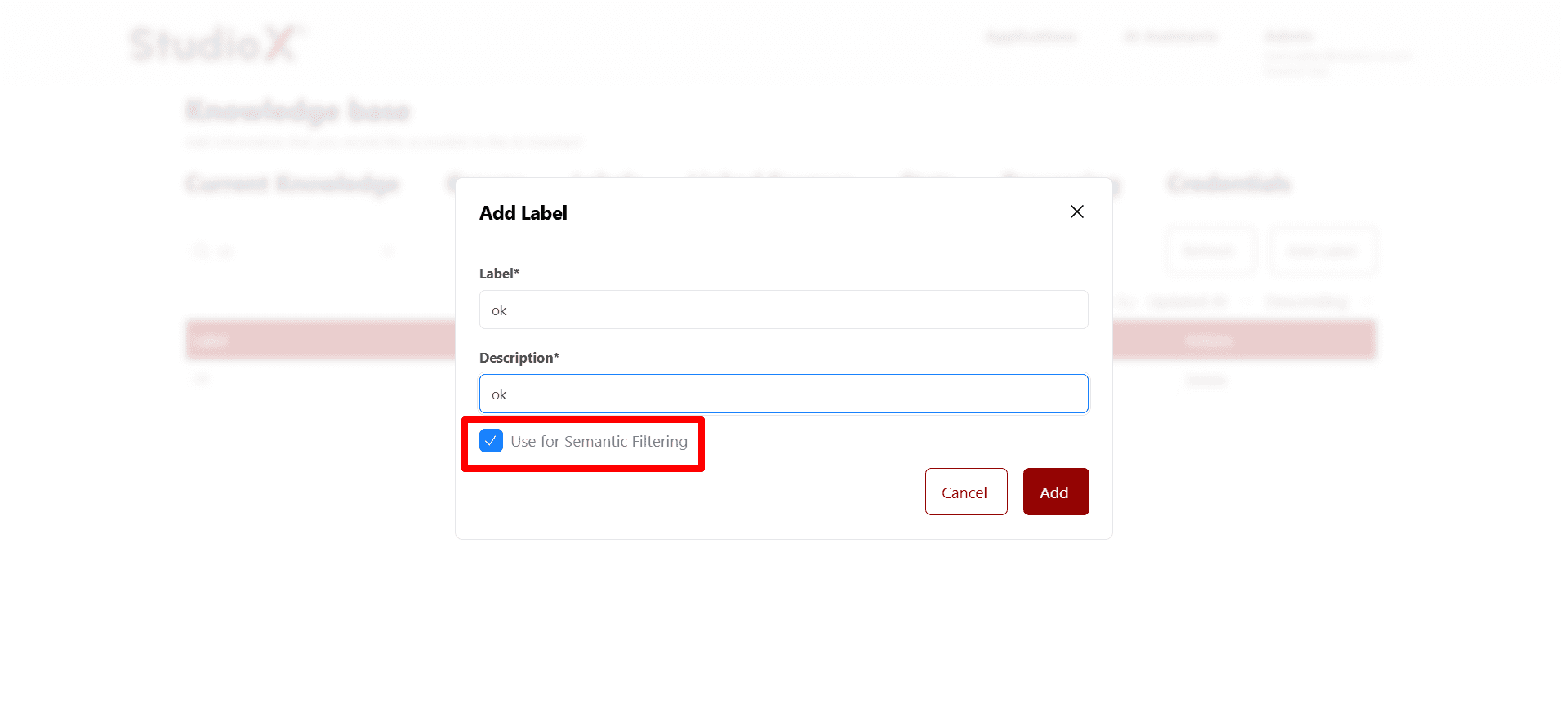
Semantic Filtering Option
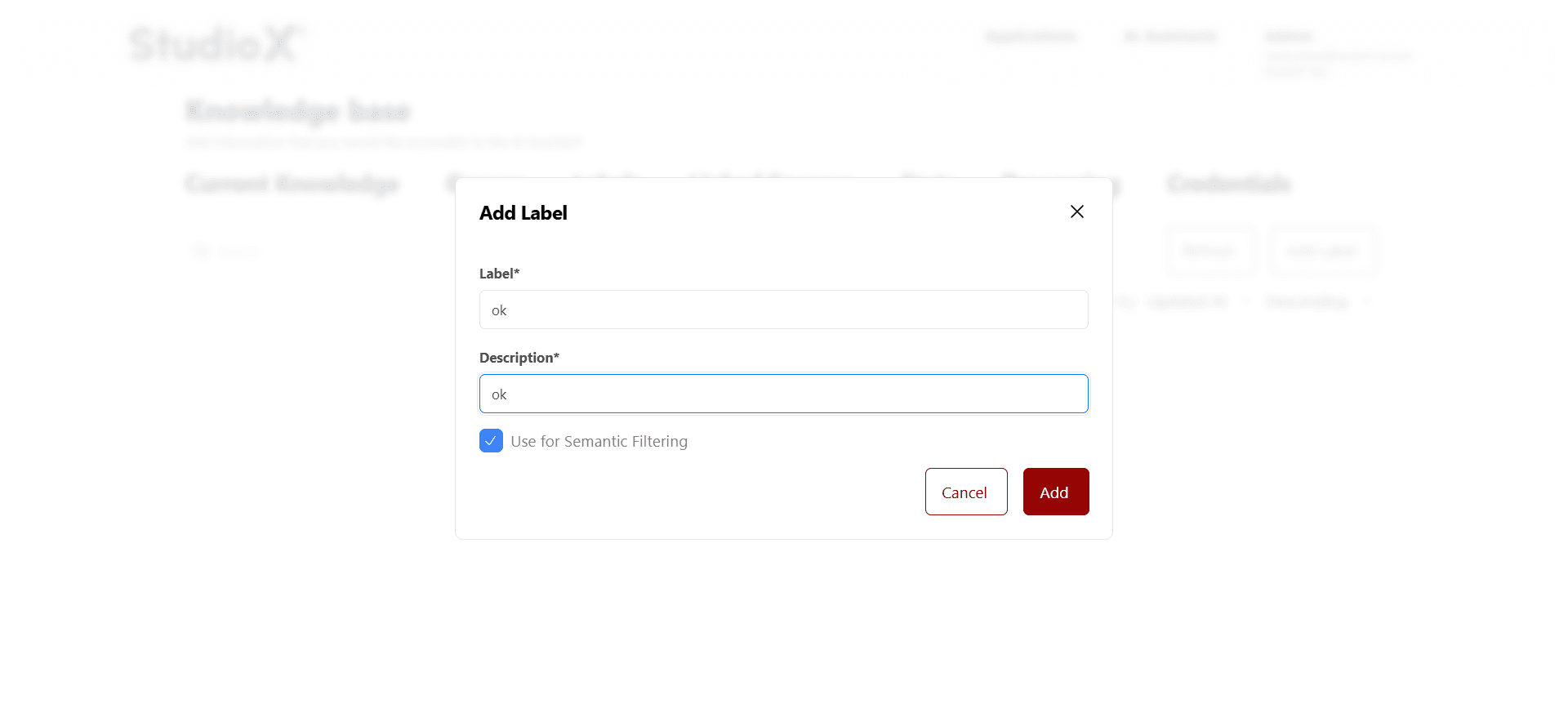
Label Creation Steps
Click Add Label
Begin creating a new label by clicking the Add Label button
Enter Label Details
Provide a descriptive label name and detailed description
Enable Semantic Filtering
Optionally enable automatic content tagging based on semantic analysis
Label Actions
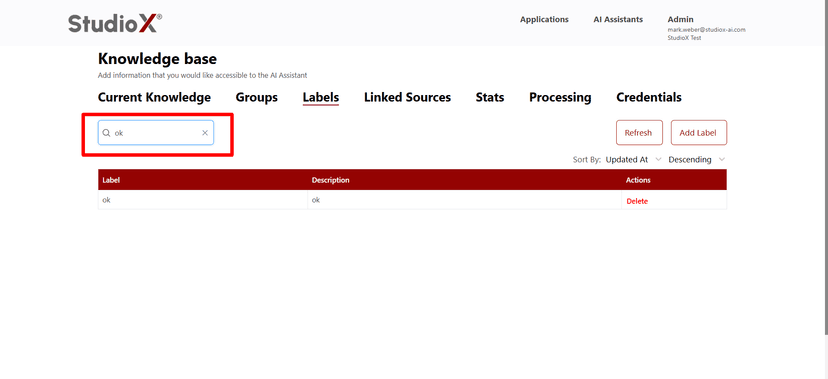
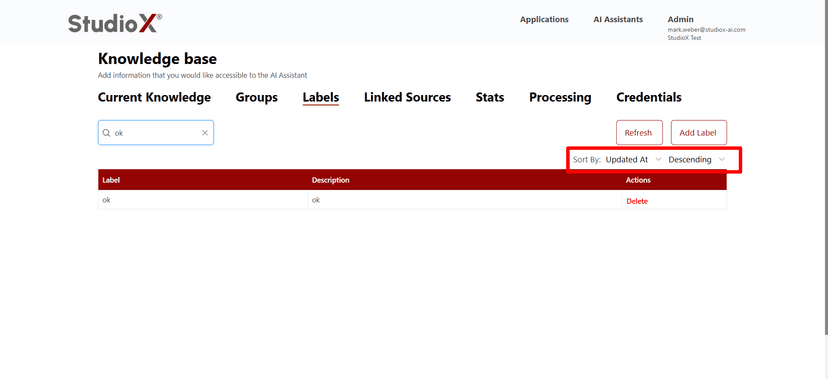
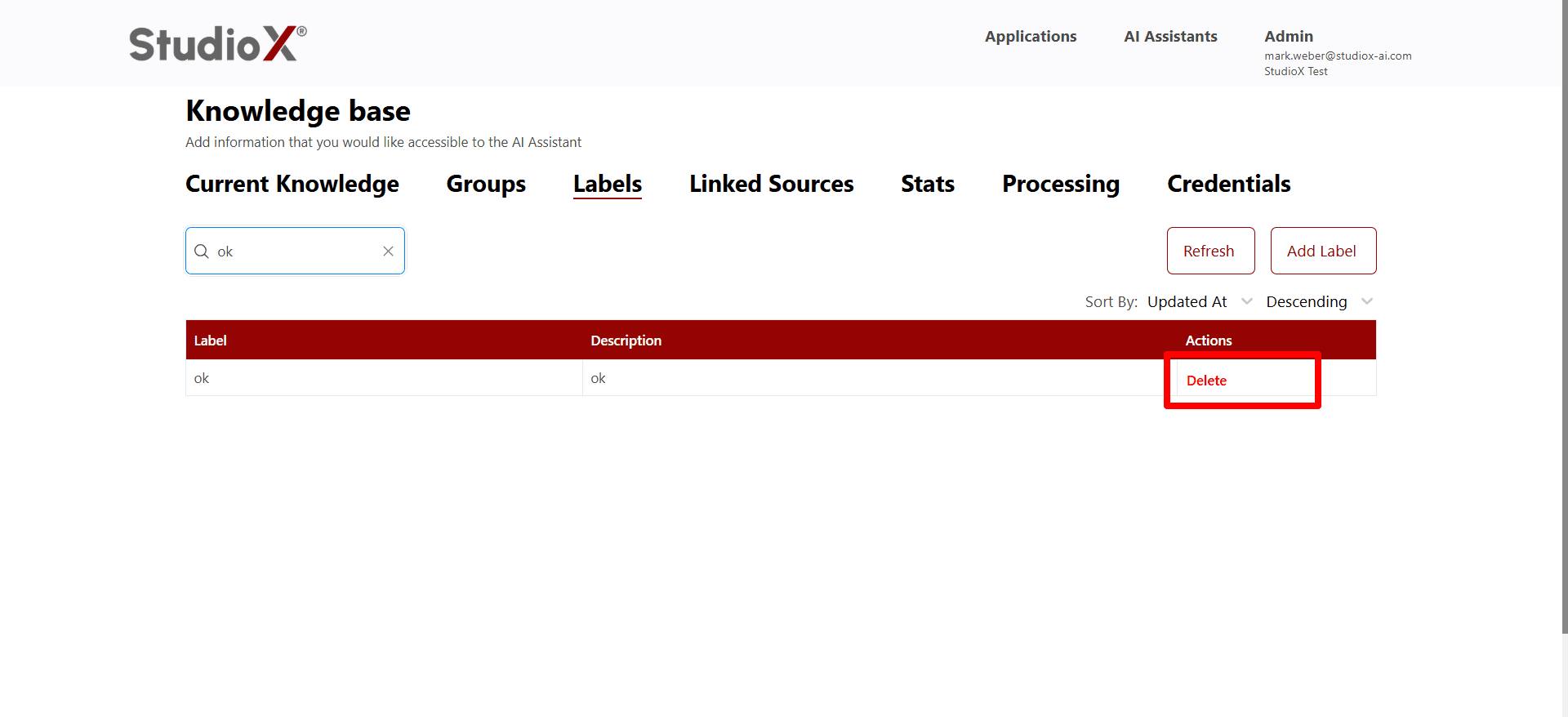
Manage your label system with search, sort, edit, and delete capabilities. Labels can be organized by title, category, enabled state, or last updated time for efficient management.
Label Search
Label Sort Options
Label Delete Actions
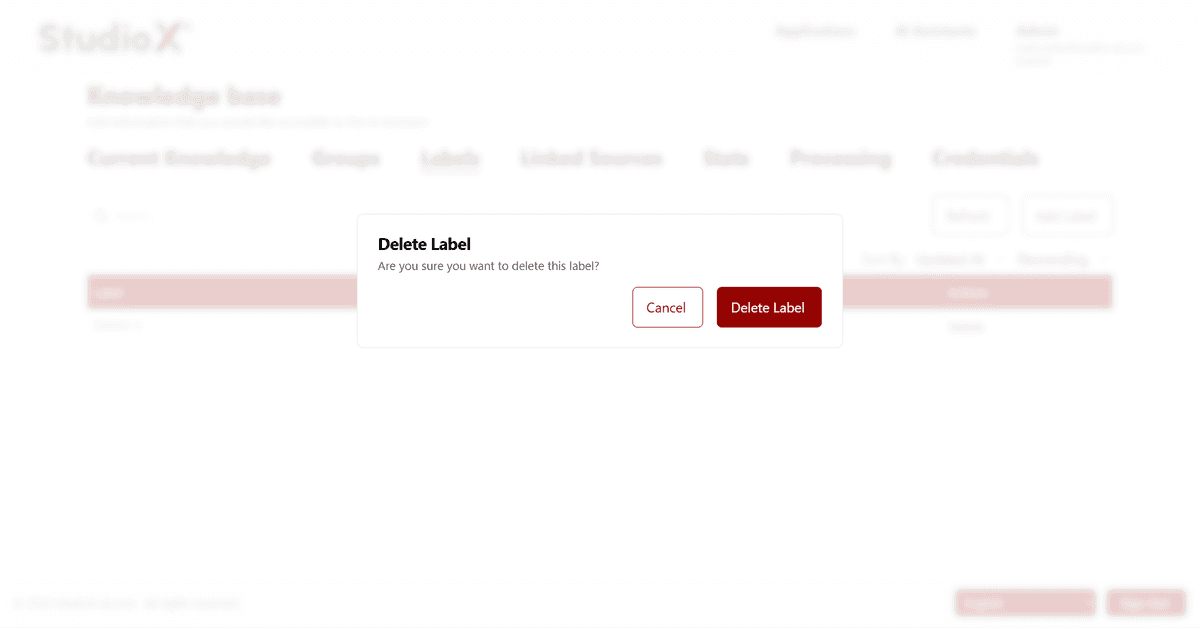
Delete Confirmation Dialog
Available Label Operations
Add New Labels
Create new labels with descriptions and semantic filtering options
Delete or Edit Labels
Remove outdated labels or modify existing ones
Refresh Labels
Reload the labels table to see latest updates
Sort Labels
Organize labels by title, category, enabled state, or last updated
Semantic Filtering
Semantic filtering enables automatic content tagging based on intelligent analysis of document content. When enabled, labels can automatically identify and tag relevant content without manual intervention.
Semantic Filtering Benefits
- Automatic content tagging based on content analysis
- Intelligent categorization of uploaded documents
- Enhanced content discovery and organization
- Reduced need for manual labeling and categorization
Semantic Filtering Tip: Enable semantic filtering for labels that represent broad concepts or themes. This allows the system to automatically identify and tag relevant content, saving time and improving consistency in your knowledge organization.