Access Control
End users only need permissions for your main workflow - they don't need access to the invoked workflows
Table of Contents
Overview
Access Control for Knowledge ensures that the bot only utilizes information users are authorized to access when answering queries. This capability safeguards sensitive data and aligns with organizational security policies.
Key Features:
- Granular control over knowledge access for individuals, groups, and roles
- Flexible configuration options tailored to organizational needs
- Integration with existing platforms (e.g., SharePoint) to enforce access rights automatically
Sensitivity of Knowledge
Knowledge within an organization is often sensitive, containing critical data that must be carefully managed to prevent misuse or unauthorized exposure.
Key Characteristics
Universal Access
Not all knowledge is universally accessible within the organization
Different Access Levels
Different users have access to different documents and data sources
Permission Basis
Permissions are determined by roles, responsibilities, and organizational policies
How the Bot Handles Knowledge
The bot can be configured to ensure it only uses knowledge that the user is authorized to access. This means the bot validates user permissions before retrieving or referencing any information, ensuring compliance with organizational access policies. If a user does not have access to a particular document or data source, the bot excludes that content entirely—even from being used to form its responses.
Examples
Internal Release Notes: When a user asks 'Internal release notes for version 20': Even if the user is authorized to ask about release notes, the bot will not use the specific document for version 20 if the user does not have access to it.
Financial Summary: When a user asks 'What's the financial summary for Q3?': If the user lacks access to financial documents, the bot ensures that this data is entirely excluded, and no response is generated based on restricted content.
Sales Metrics: When a user asks 'What are the sales metrics?': The bot retrieves and shares metrics only if the user is authorized to access the relevant sales data. If the user lacks permissions, the bot will not use or reference the restricted content.
Compliance Benefit: By respecting access controls, the bot ensures secure, compliant, and role-appropriate knowledge sharing.
Persona
Only business-admin can configure the access control for Knowledge. Once a particular source access is configured for an uploaded source file, only allowed business-users/users/groups can access the information in the chatbot.
Important Note: Only business administrators can configure access control settings for knowledge sources.
How It Works
Access control ensures that only authorized users can access specific knowledge sources. The bot uses a robust framework to validate permissions and enforce restrictions, enabling secure and compliant interactions.
Key Steps in Access Control
User Authentication
The bot verifies the user's identity, ensuring they are logged in and validated.
Permission Validation
Before responding, the bot checks the user's access rights for the requested knowledge source.
Knowledge Filtering
Restricted content is excluded entirely from the bot's response and reasoning if the user lacks permissions.
Compliance Enforcement
The bot operates within the boundaries of organizational access policies, ensuring sensitive information is protected.
Access Configuration Options
Public Access
Anyone can view the document without logging in.
Authenticated Access
Only users who are logged in can access the document.
Business Account Access
Access is restricted to users who have valid accounts within the organization.
Email-Specific Access
Access limited to specific users based on their email addresses.
Group Access
Only users in designated groups (e.g., SharePoint groups) can access the document.
Configuring Access
To configure access to any source file in knowledgebase, administrator can follow these steps:
Single Source Configuration
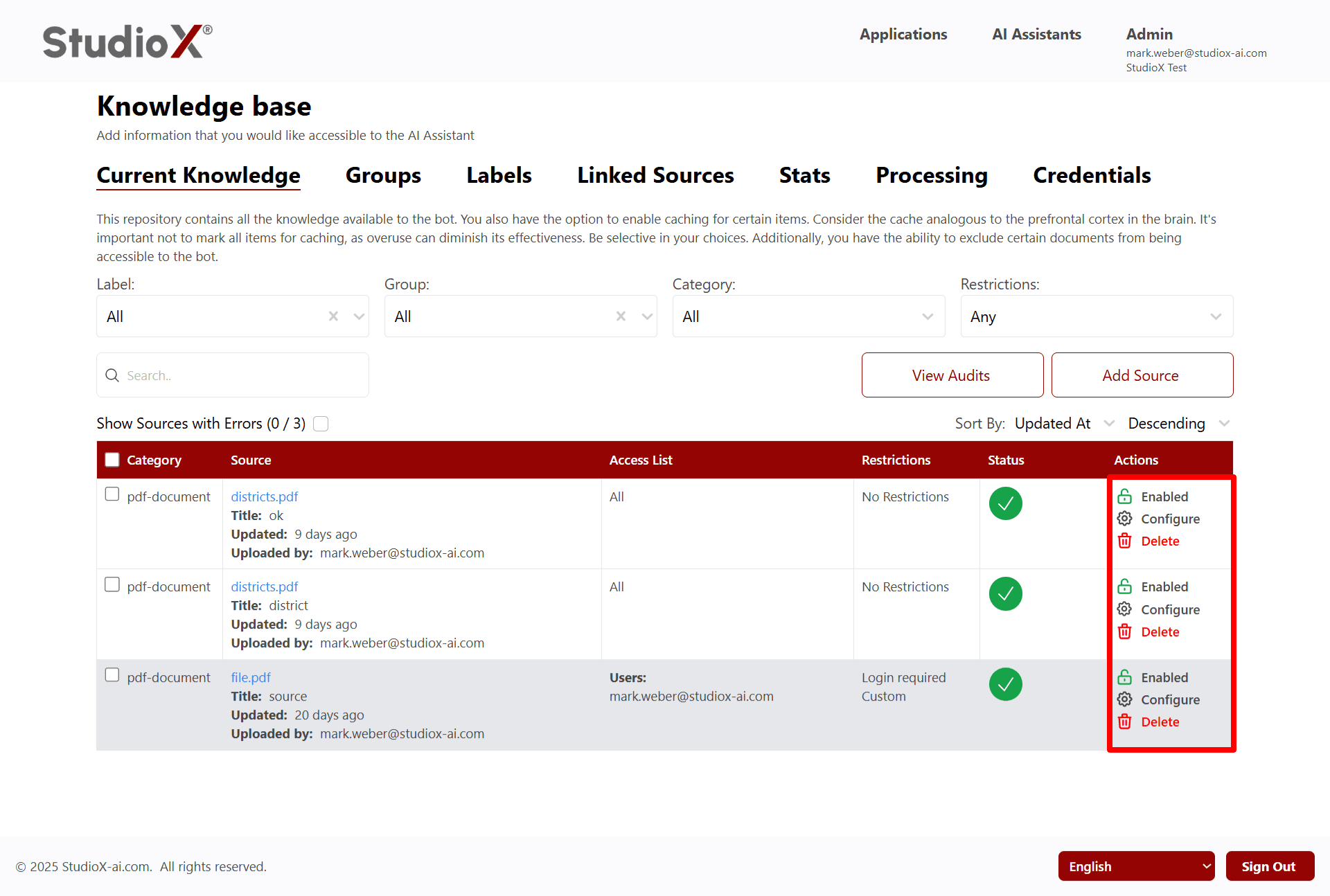
Single Source Configuration Steps:
- Click on AI Assistants in top menu
- Click on Configurations for the desired AI Assistant under Business Assistants
- On the Knowledge page, Click on Configure under Knowledge base
- Click on the Configure button for the desired source file that you want to configure
Multiple Sources Configuration

Multiple Sources Configuration Steps:
- Select multiple source files by clicking the check boxes under category column
- Click on the Manage Sources button
- Select Manage Access from the dropdown
Types of Access Configurations
To configure the source file select the appropriate checkbox/values to change the configuration level. The knowledge will be used by bot to answer a question only if user privileges match this access level.
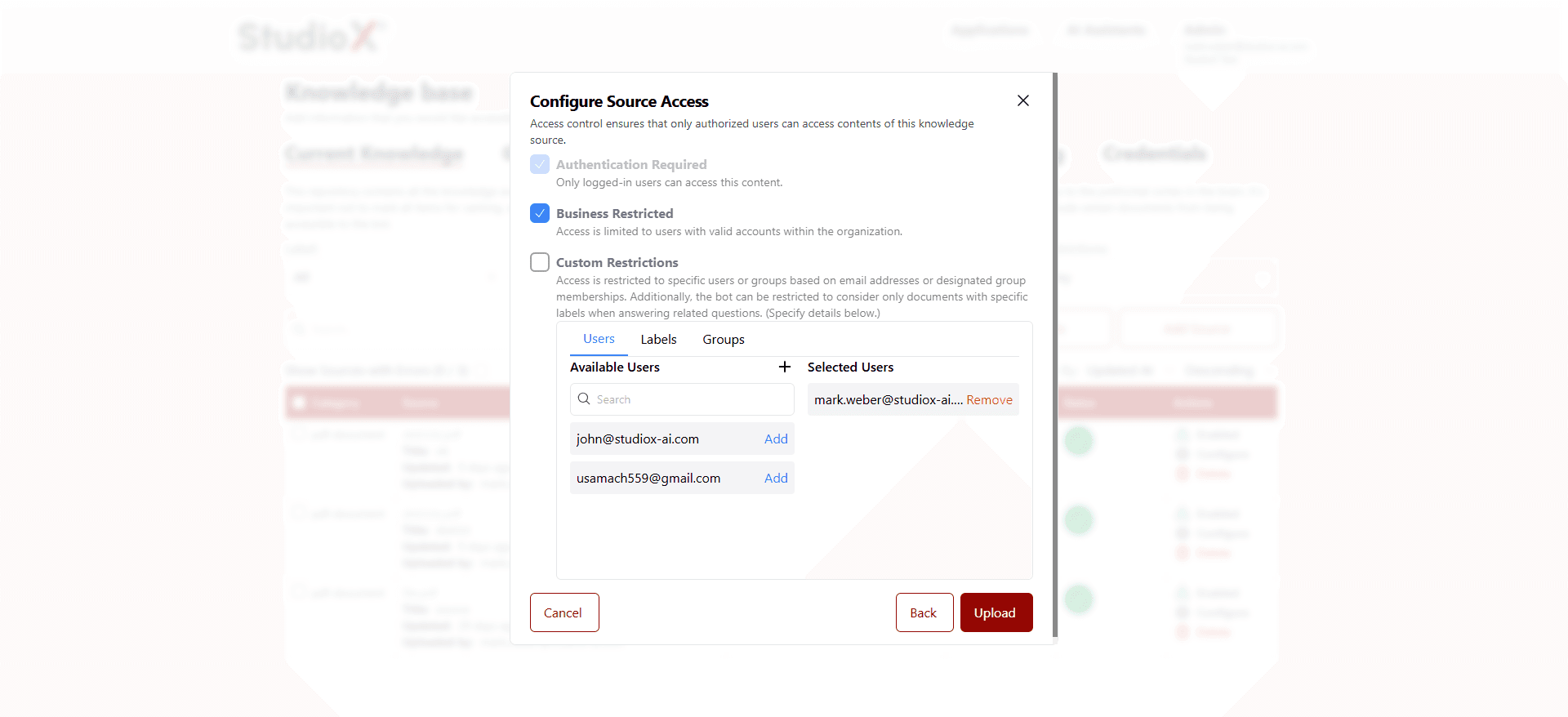
Basic Access Levels
- Authentication Required
Only logged-in users can access this content.
- Business Restricted
Access is limited to users with valid accounts within the organization.
- Custom Restrictions
Access is restricted to specific users or groups based on email addresses or designated group memberships.
Advanced Features
- Email Specific Access
Limit access to specific users based on their email addresses.
- Group Based Access
Control access through group memberships and organizational hierarchies.
- SharePoint Integration
Access rights for documents from SharePoint are auto-fetched and restricted with the email of users who have access.
Important: Access rights for documents from SharePoint are auto-fetched. Those documents are 'label restricted' with the email of the users who have access.