Sidekick
AI-powered email productivity enhancement for Microsoft Outlook with intelligent summarization and smart reply generation.
Table of Contents
Overview
Sidekick is an Outlook add-in that enhances email productivity with AI-powered features like smart email summarization and intelligent reply generation. Designed for organizations, it integrates with your Outlook and requires setup by business administrators. Once deployed, users can access Sidekick directly in Outlook to streamline email tasks and boost efficiency.
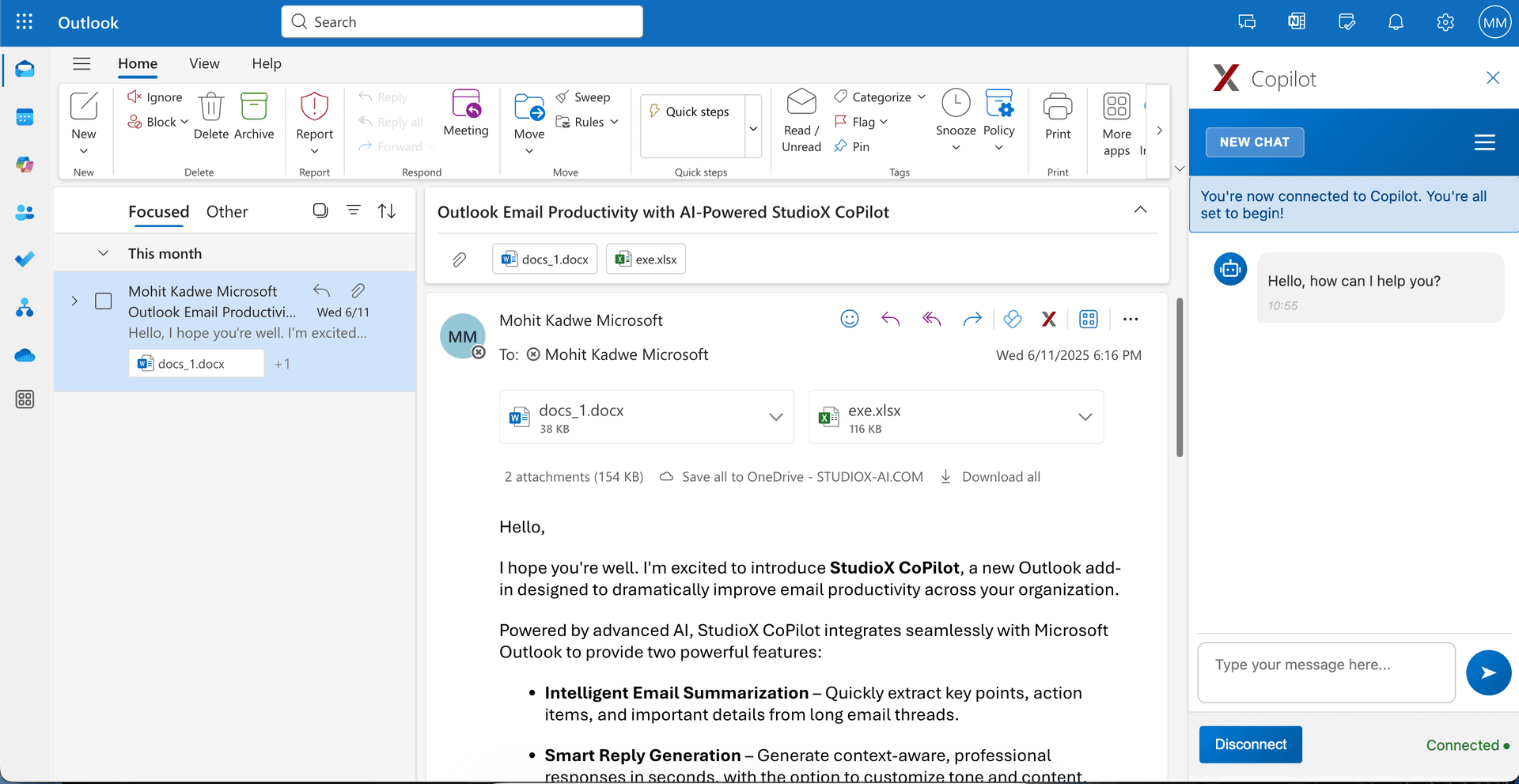
Key Features:
- AI-powered email summarization
- Intelligent Reply Generation
- Seamless Outlook integration
- Business-grade security
Transform hours of email management into minutes with AI-powered efficiency, helping users focus on what matters most while maintaining professional communication standards.
System Requirements
Before deploying Sidekick, ensure your organization meets the following requirements for both Microsoft 365 and the platform.
Microsoft 365 Requirements
- Active Microsoft 365 subscription
- Outlook Web or Desktop application
- Application Administrator role
- Global Administrator access
The Platform Requirements
- Active The Platform subscription
- Business Administrator account
- Configured AI Assistant
- API key generation access
Administrator Setup
Business administrators must complete a multi-step setup process to enable The Platform Sidekick for their organization. This process involves configuring both the Platform and Microsoft 365 settings.
Setup Workflow:
- Enable Sidekick on your AI Assistant
- Configure the secret key in your Business settings
- Assign required Microsoft admin roles
- Deploy the Outlook manifest file
- Verify deployment success
The complete setup process typically takes 15-30 minutes and requires coordination between the Platform and Microsoft 365 administrative settings.
Enable AI Assistant
The first step in deploying Sidekick is enabling the feature on one of your existing AI Assistants. Only Business Administrators can perform this configuration.
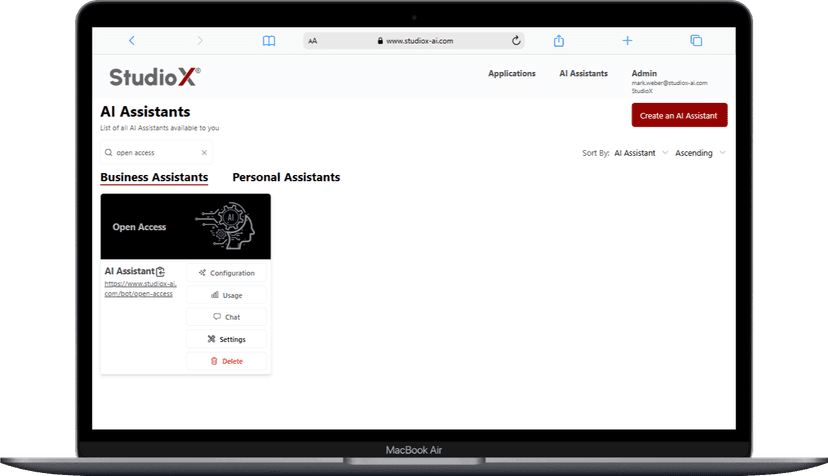
Step 1: AI Assistants Page
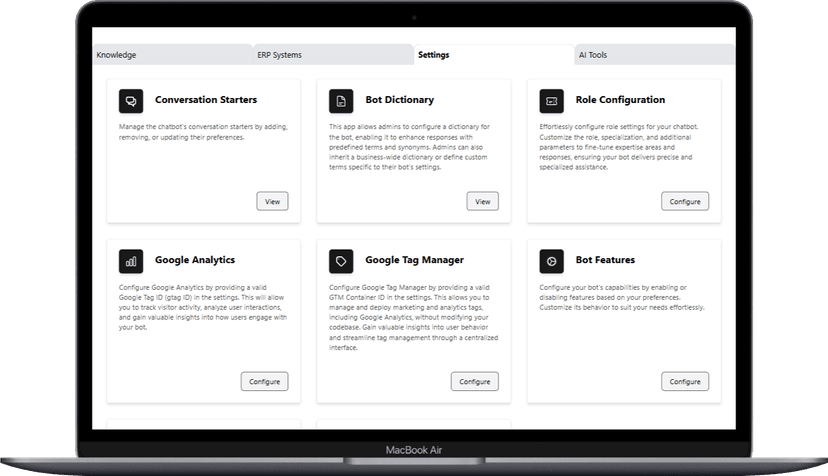
Step 2: Bot Features Configuration
Detailed Steps
- Login with your Business Admin account to https://www.studiox-ai.com
- Navigate to 'AI Assistants' in the header bar
- Select the AI Assistant that will power Sidekick
- Click the configuration button for that assistant
- Go to Settings → BOT Features
- Enable the 'Sidekick' toggle
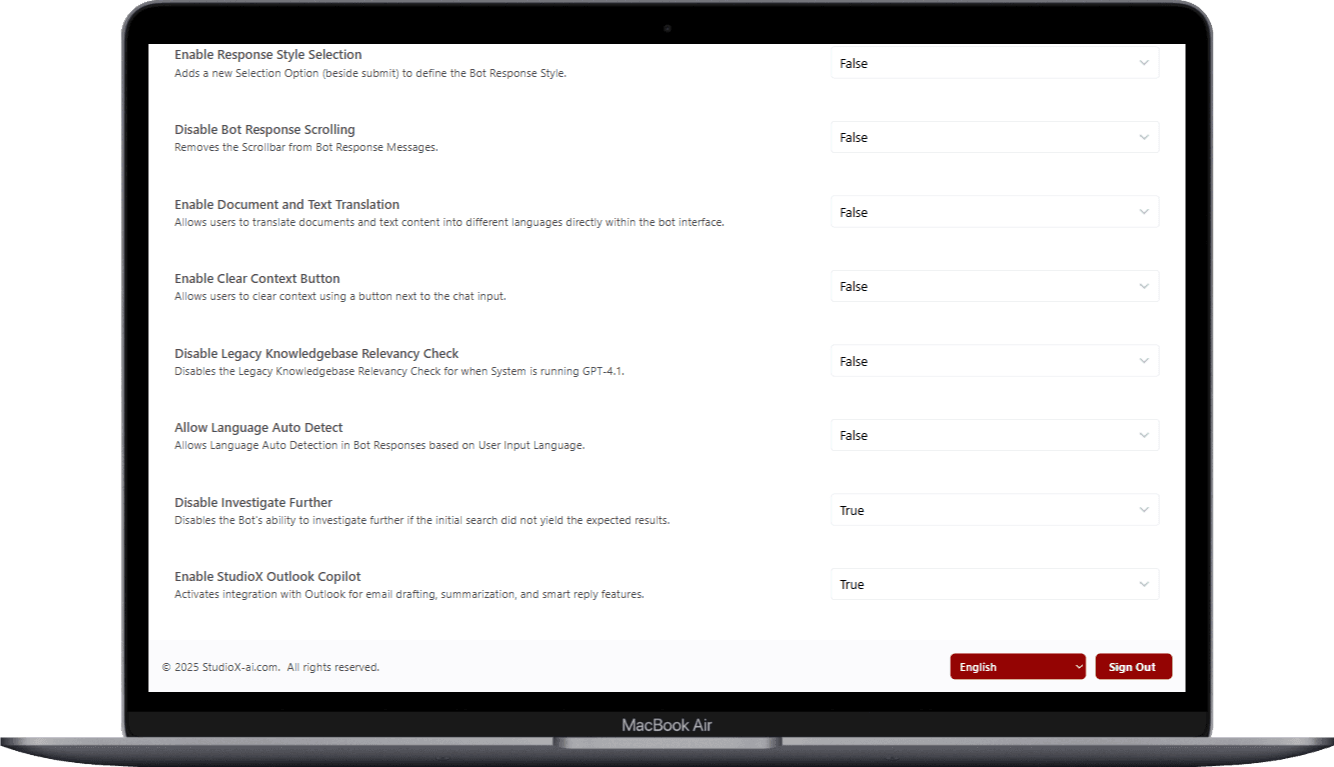
Important Note: Sidekick settings are business-specific. Each business must enable this feature separately for their organization.
Configure Secret Key
Business Administrators must configure a secret key for API key generation, which enables secure communication between Sidekick and your AI Assistant.
Navigate to Businesses
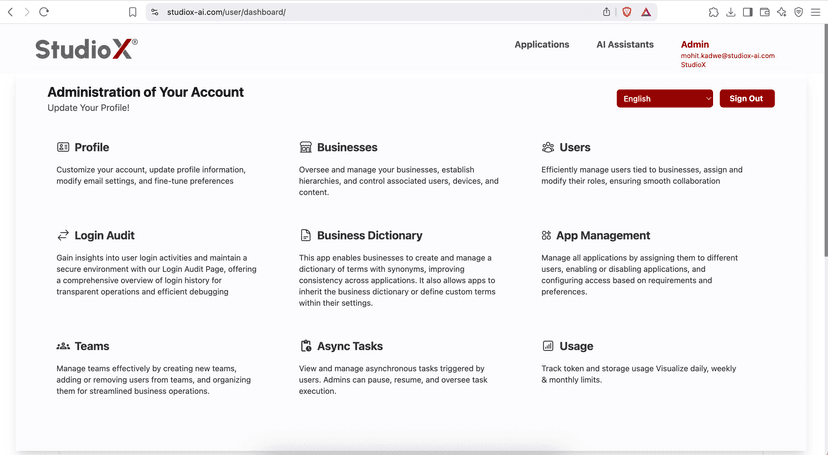
Configure Features Access
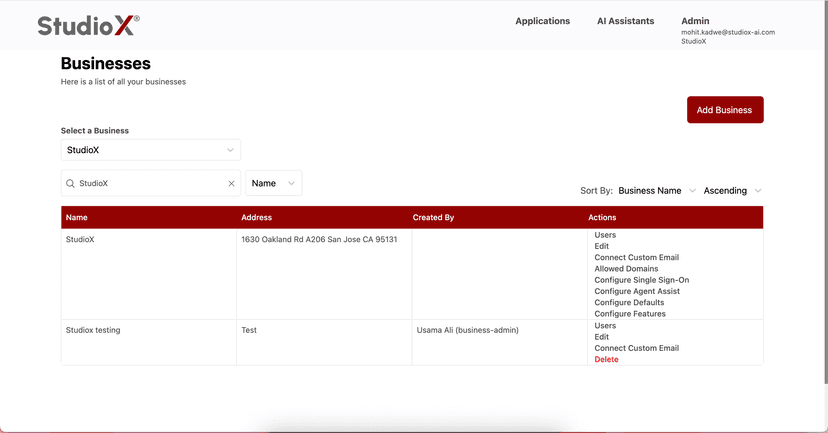
API Key Configuration
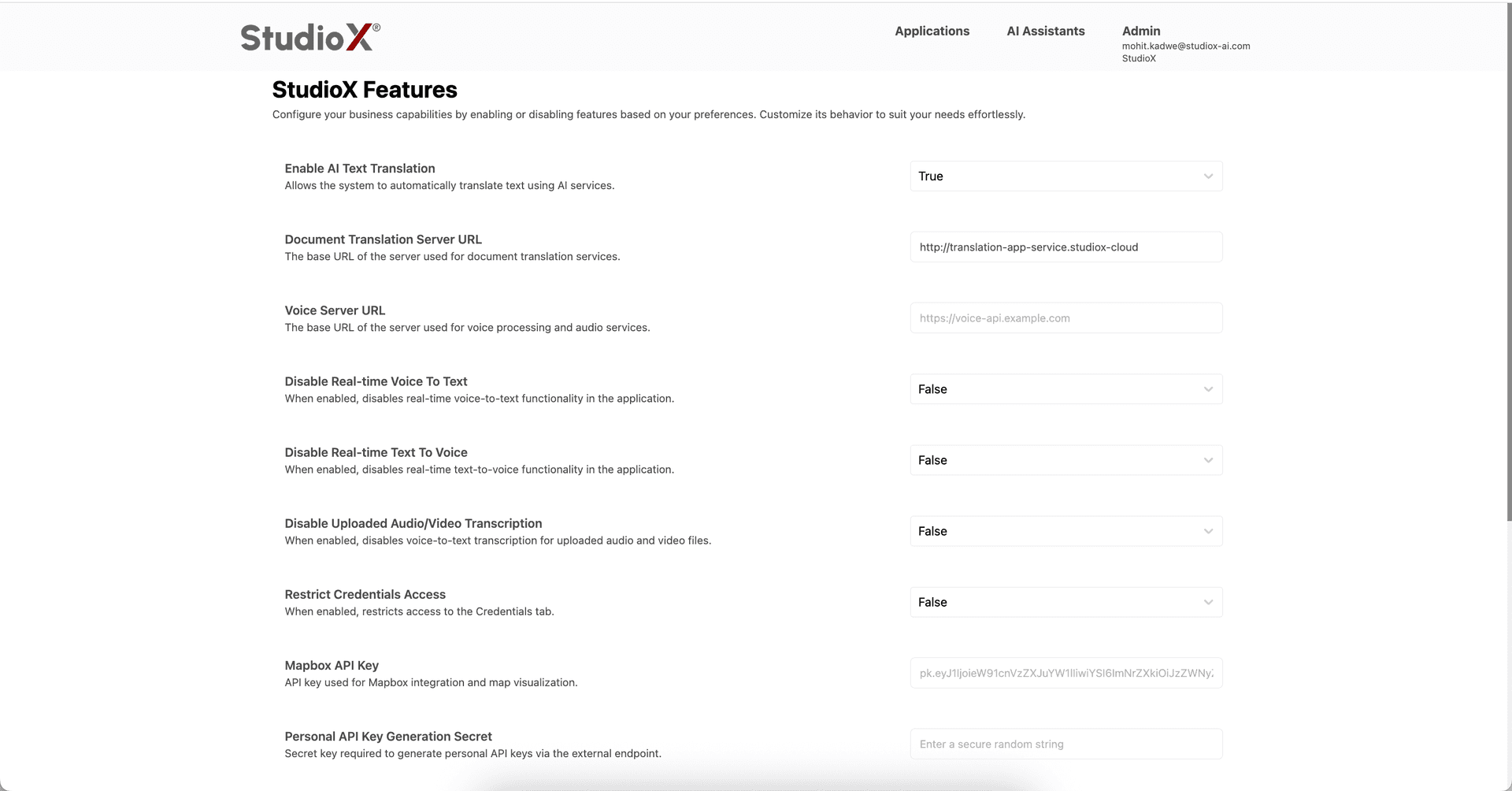
Step-by-Step Process
- Hover on your username in the top right corner
- Navigate to the 'Businesses' section
- In the Action column, click 'Configure Features'
- Locate the 'Personal API Key Generation Secret' field
- Enter the secret key provided by the StudioX team
- The key will be saved automatically upon entry
Security Warning: Keep your secret key confidential and do not share it outside your organization. This key enables secure API access for your Sidekick integration.
Microsoft Admin Roles
To deploy the Sidekick manifest file, you need an Application Administrator role in Microsoft Entra. If you don't have this role, follow these steps to assign it.
Microsoft Entra Access
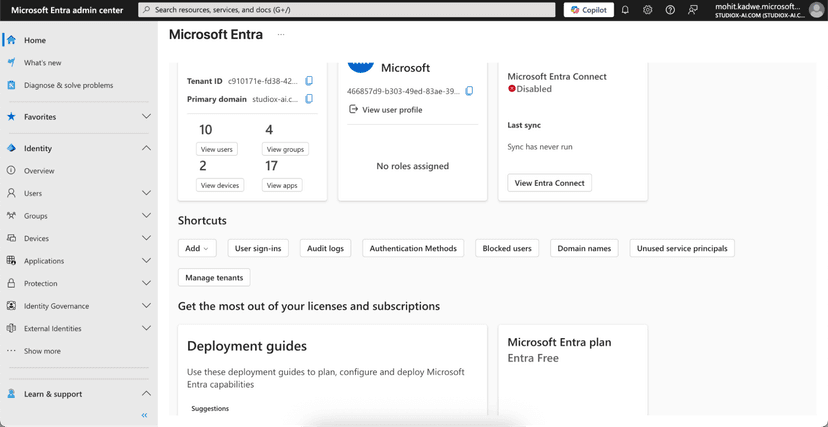
User Management
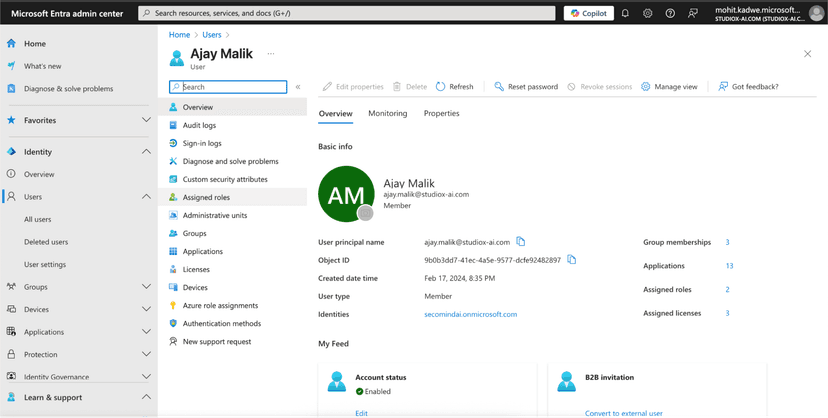
Assigned Roles
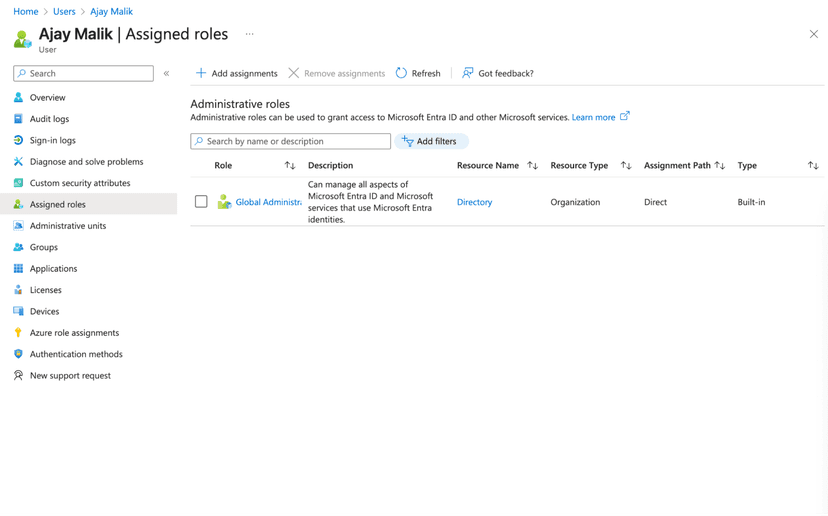
Directory Roles Selection
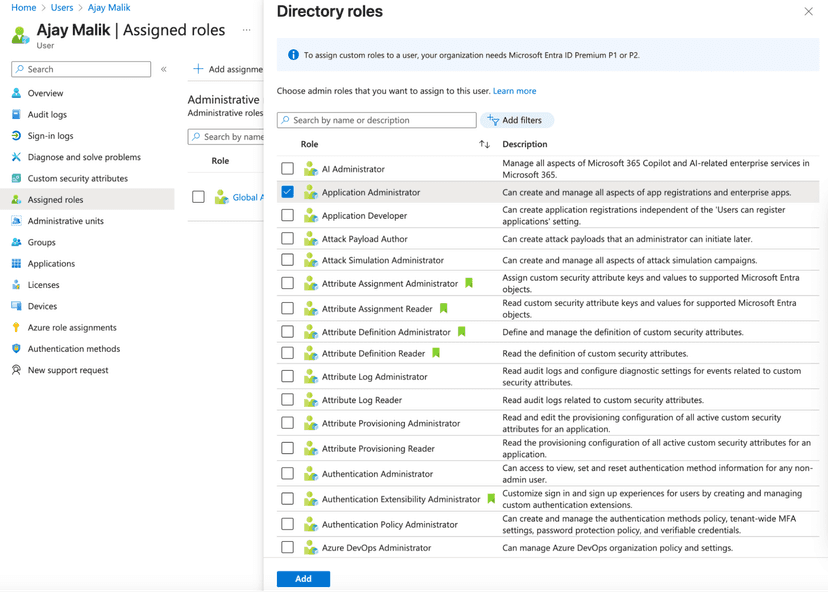
Role Assignment Process
- Navigate to Microsoft Entra using https://entra.microsoft.com/
- From the left sidebar, click Users → All users
- Click on the username who needs access
- From the left sidebar, click 'Assigned Roles'
- Click 'Add assignments'
- Select 'Application Administrator' role
- Click 'Add' to confirm the role assignment
Required Role: The Application Administrator role is required to deploy custom add-ins to your Microsoft 365 organization.
Deploy Manifest File
The final step involves deploying the Sidekick manifest file through the Microsoft 365 Admin Center to make the add-in available to your organization's users.
Manifest URL Format:
https://www.yourdomain.com/microsoft-sidekick/manifest.xml
Important: Replace 'yourdomain' with your organization's actual domain name.
Microsoft Admin Center
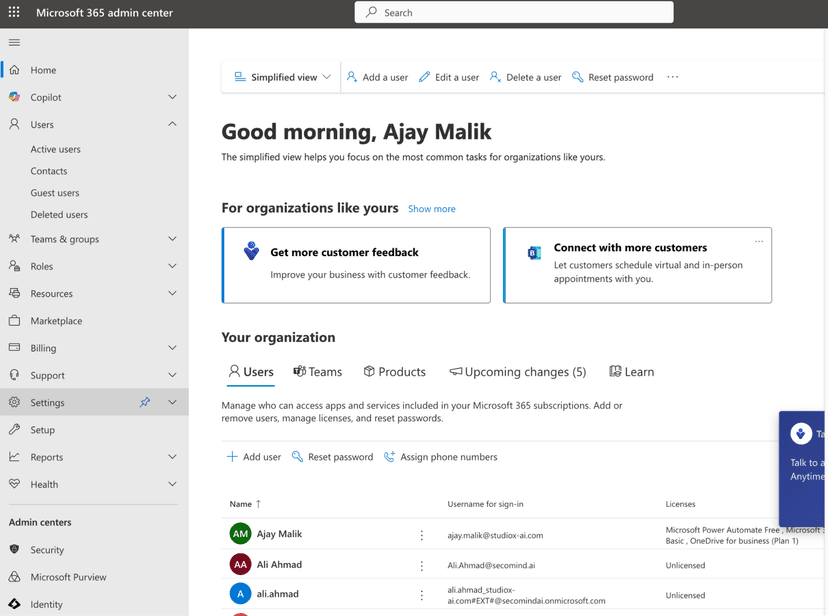
Integrated Apps
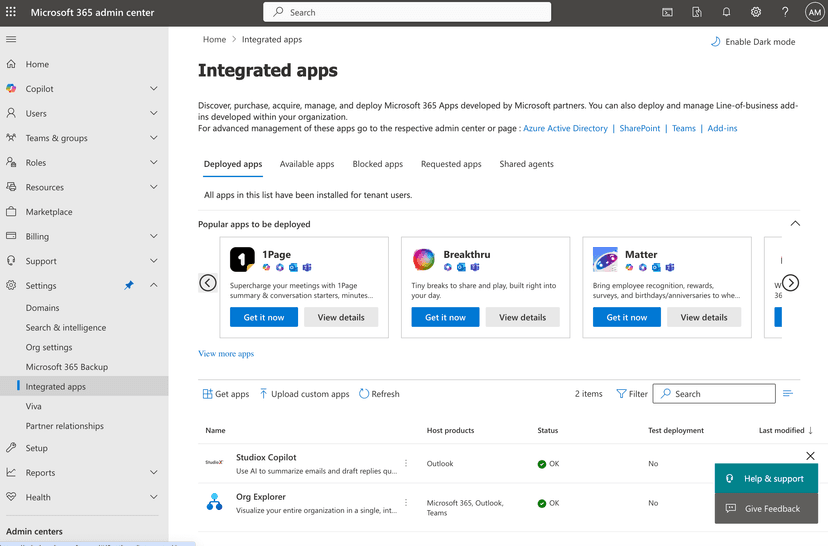
Deploy Add-in Process
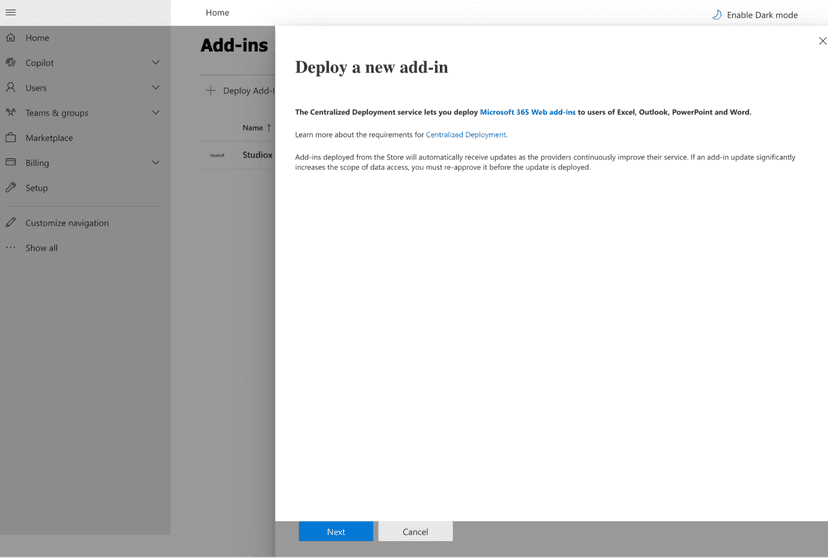
Upload Custom Apps
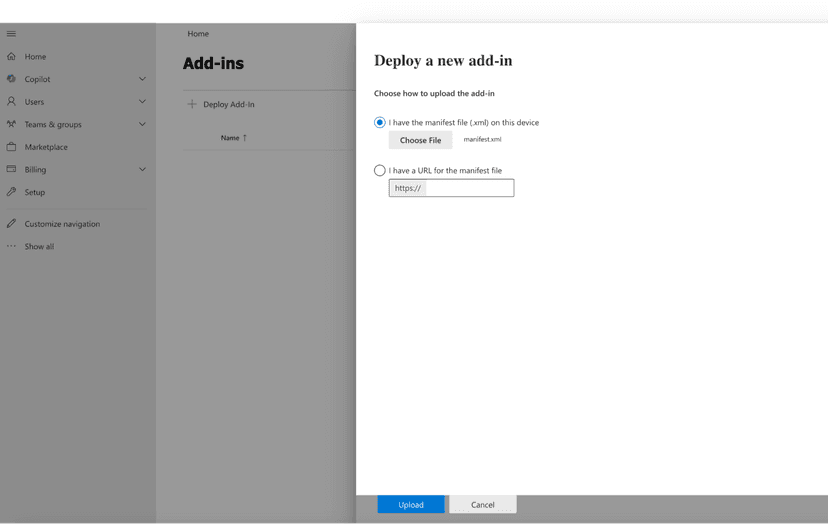
Deployment Steps
- Download the manifest file from your domain URL
- Navigate to Microsoft Admin Center (https://admin.microsoft.com)
- Click 'Show all' in the left sidebar
- Click Settings → Integrated apps
- Click the 'Add-ins' option in the top right corner
- Click 'Deploy Add-in' (opens sidebar)
- Click 'Next' then choose 'Upload custom apps'
- Upload the manifest file and click 'Upload'
- Complete the deployment process
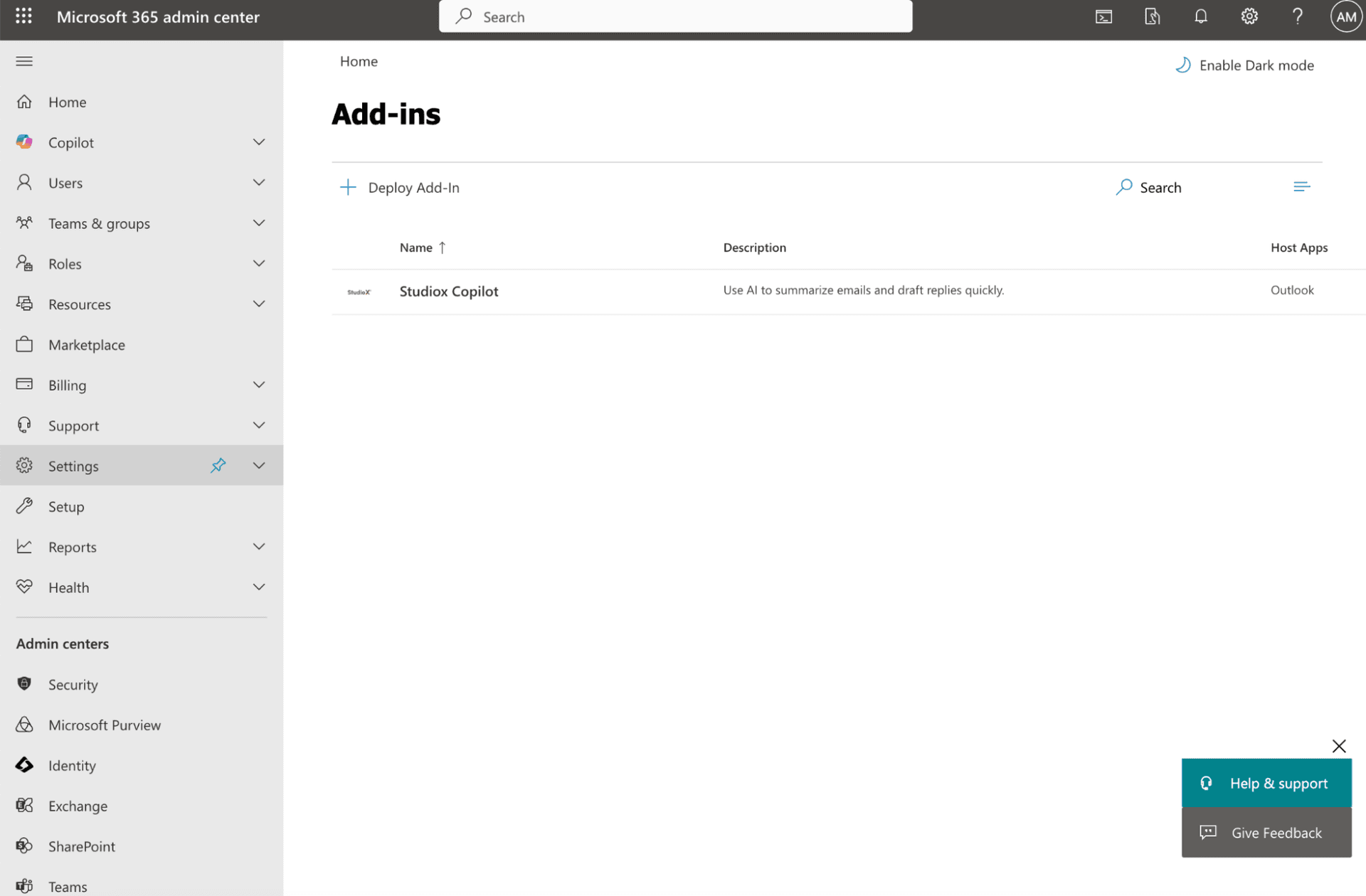
Deployment Timeline: Sidekick will be available to all users in your organization within 24 hours of successful deployment.
User Guide
Once deployed by administrators, users can access Sidekick directly from their Outlook interface. Here's how to get started with the powerful AI features.
Accessing Sidekick
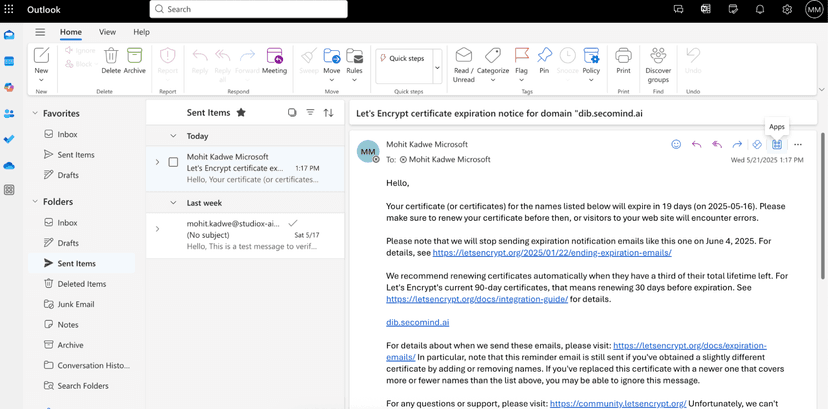
Sidekick Interface
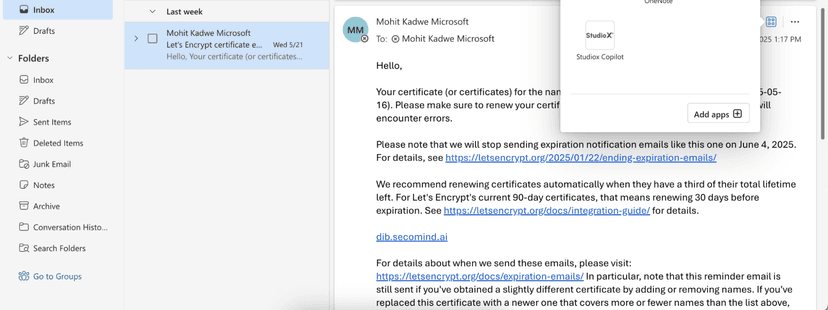
Access Instructions
- Open any email in Outlook (Web or Desktop)
- Locate the 'Apps' icon in the top-right corner
- Click the Apps icon to view available add-ins
- Select 'Sidekick' from the list
- Sidekick will launch in a right-side panel
Once the Sidekick panel is open, you'll need to authenticate your account before using the AI features.
User Authentication
The bot verifies the user's identity, ensuring they are logged in and validated.
Settings Access
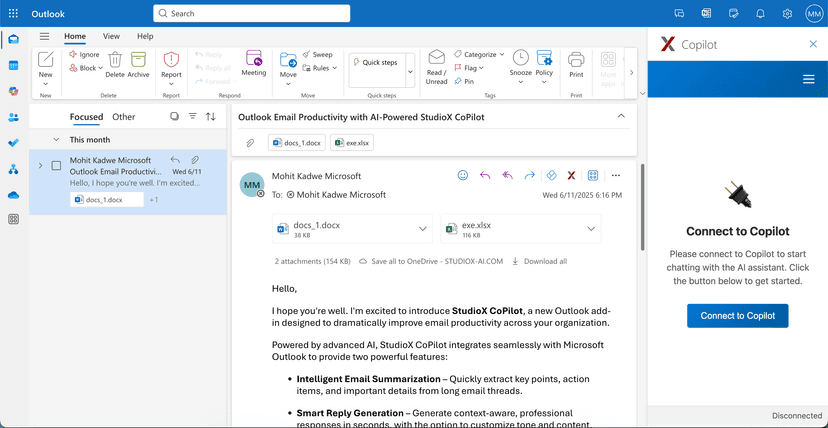
Connection Status
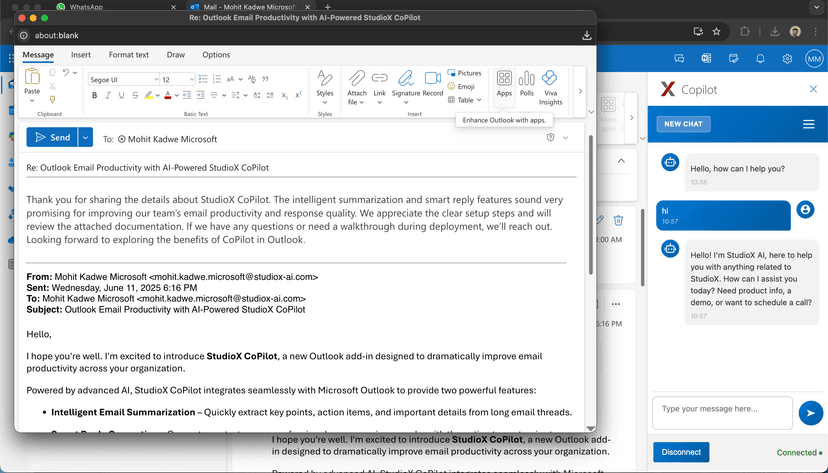
Authentication Steps
- Open the Sidekick add-in from your email
- Click the 'Settings' button in the Sidekick panel
- Select 'Connect to the Platform'
- Verify the connection status shows 'Connected'
- Return to the main screen to access features
Authentication Note: This authentication step is only required on first use. Once connected, the system will remember your credentials for future sessions.
Email Summary Feature
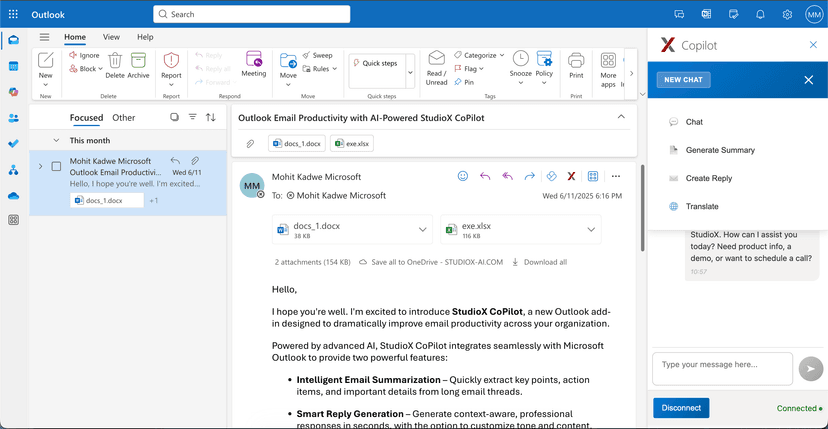
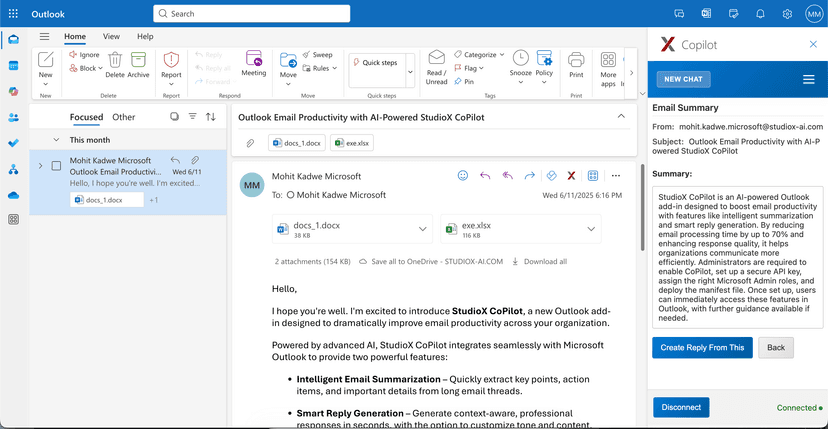
The Email Summary feature uses AI to analyze email content and generate concise, actionable summaries that highlight key information, action items, and important details.
Generate Summary Button
Summary Results
How to Use Email Summary
- Select the email you want to analyze
- Click the 'Generate Summary' button
- Wait for AI processing (typically 2-5 seconds)
- Review the generated summary
- Copy the summary text if needed
Summary Capabilities
- Extracts key points and main topics
- Identifies action items and next steps
- Highlights important dates and times
- Extracts contact information and references
- Presents information in a concise, professional format
Smart Reply Feature
The Smart Reply feature generates intelligent, context-aware email responses based on the original email content. You can customize replies with specific instructions or use standard professional responses.
Create Reply Button
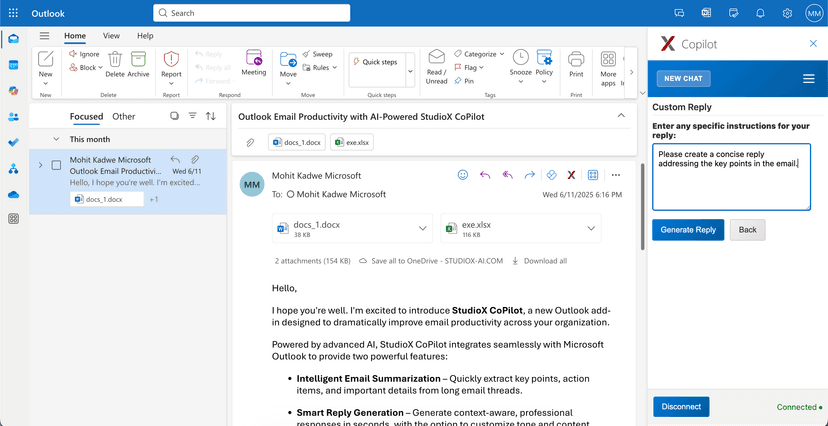
Custom Instructions
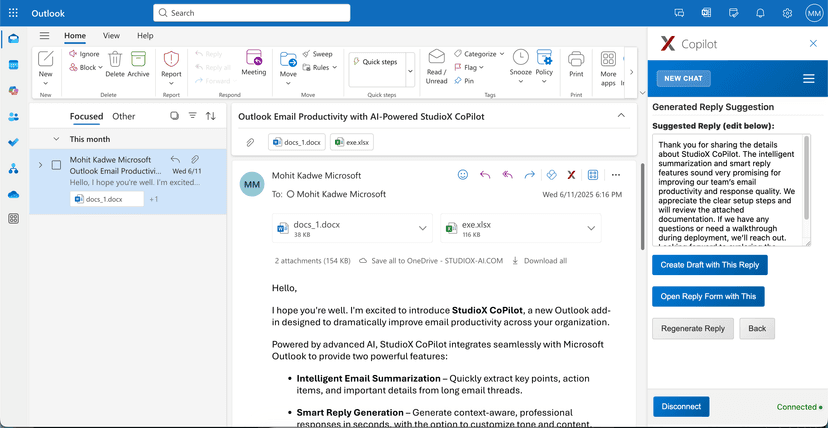
Reply Generation Process
- Click 'Create Reply' from the main screen
- Add specific instructions for a tailored response (optional)
- Click 'Generate Reply' button
- Review the AI-generated response
- Choose your preferred action from the available options
Reply Action Options
- Edit - Refine the suggested text before sending
- Regenerate Reply - Get a new response with different wording
- Open Draft - Move the reply to Outlook's compose window
- Create Reply - Send the response directly
Smart Reply Benefits: Transform email management from a time-consuming task to an efficiency advantage with intelligent automation at every step.
Features Overview
Sidekick provides two core AI-powered features designed to dramatically improve email productivity and communication quality.
AI-Powered Summarization
- Instant email analysis and key point extraction
- Key information and action item identification
- Actionable insights and important detail highlighting
Intelligent Reply Generation
- Context-aware response generation
- Customizable instructions and tone matching
- Professional tone and style consistency
Seamless integration with parent workflow logic
- Native Outlook experience with familiar interface
- Enterprise-grade security and compliance
- Single-click access and easy deployment
Productivity Benefits
- Reduce email processing time by up to 70%
- Improve response quality and consistency
- Maintain professional communication standards
- Enhance overall communication efficiency
Troubleshooting
Common issues and solutions for Sidekick deployment and usage. Most problems can be resolved by following these troubleshooting steps.
Sidekick Not Appearing in Outlook
- Verify that deployment was completed successfully in Microsoft Admin Center
- Allow up to 24 hours for the add-in to propagate to all users
- Confirm the user has appropriate licenses and permissions
- Clear browser cache and restart Outlook
Authentication Failures
- Verify the secret key is correctly configured in Business settings
- Check that Sidekick is enabled on the AI Assistant
- Confirm the user has access to the correct Business in the Platform
- Retry the connection process from Sidekick settings
Features Not Working Properly
- Ensure successful authentication to the Platform
- Check internet connectivity and firewall settings
- Verify the email content is not too short or too long
- Try the feature with different email content
Support Contact: If issues persist after following these steps, contact StudioX support with specific error messages and screenshots.
Best Practices
Follow these guidelines to ensure smooth and effective shutdown procedures.
Administrator Best Practices
- Test deployment with a pilot group before organization-wide rollout
- Provide user training and documentation for optimal adoption
- Monitor usage analytics and gather user feedback
- Keep secret keys secure and limit access to authorized personnel
- Regularly review user permissions and access levels
User Best Practices
- Always review AI-generated content before sending
- Use custom instructions for more personalized responses
- Use the features with appropriate business email content
- Maintain your organization's professional communication standards
- Provide feedback to help improve the AI models
Optimization Tip: Maximize Sidekick's value through regular usage and by exploring both summary and reply features for different types of email communications.