Users
User Management in the Platform allows business-admins to manage user access and permissions across multiple businesses. Users can be added individually or in bulk through Excel import.
Table of Contents
User Management Overview
User Management in the Platform allows business-admins to manage user access and permissions across multiple businesses. Users can be added individually or in bulk through Excel import. Each user can be assigned a specific role - Business-Admin, Business-Support, or User - that determines their access privileges within the platform. Admins can view, edit, and delete user records, search and sort them, and switch between businesses to manage users in context.
Access Path:
- Login to the Platform
- Go to Admin in the header navigation
- Select the Users option
User Roles
The Platform supports three main user roles, each with different levels of access and permissions:
Business Admin
- Full access to all administrative features and settings
- Can manage all users, teams, and organizational settings
- Access to usage analytics and billing information
- Can configure system-wide settings and integrations
- Full access to audit logs and security settings
- Can create and manage business dictionary entries
- Access to all applications and features
Business Support
- Can view and manage users within their assigned scope
- Access to basic usage analytics and reports
- Can assist with user onboarding and training
- Limited access to audit logs for troubleshooting
- Can access most applications but with restricted administrative functions
User
- Access to core applications and features
- Can create and manage their own content and settings
- Can participate in teams and collaborate on projects
- Limited administrative access - primarily self-service functions
View Users
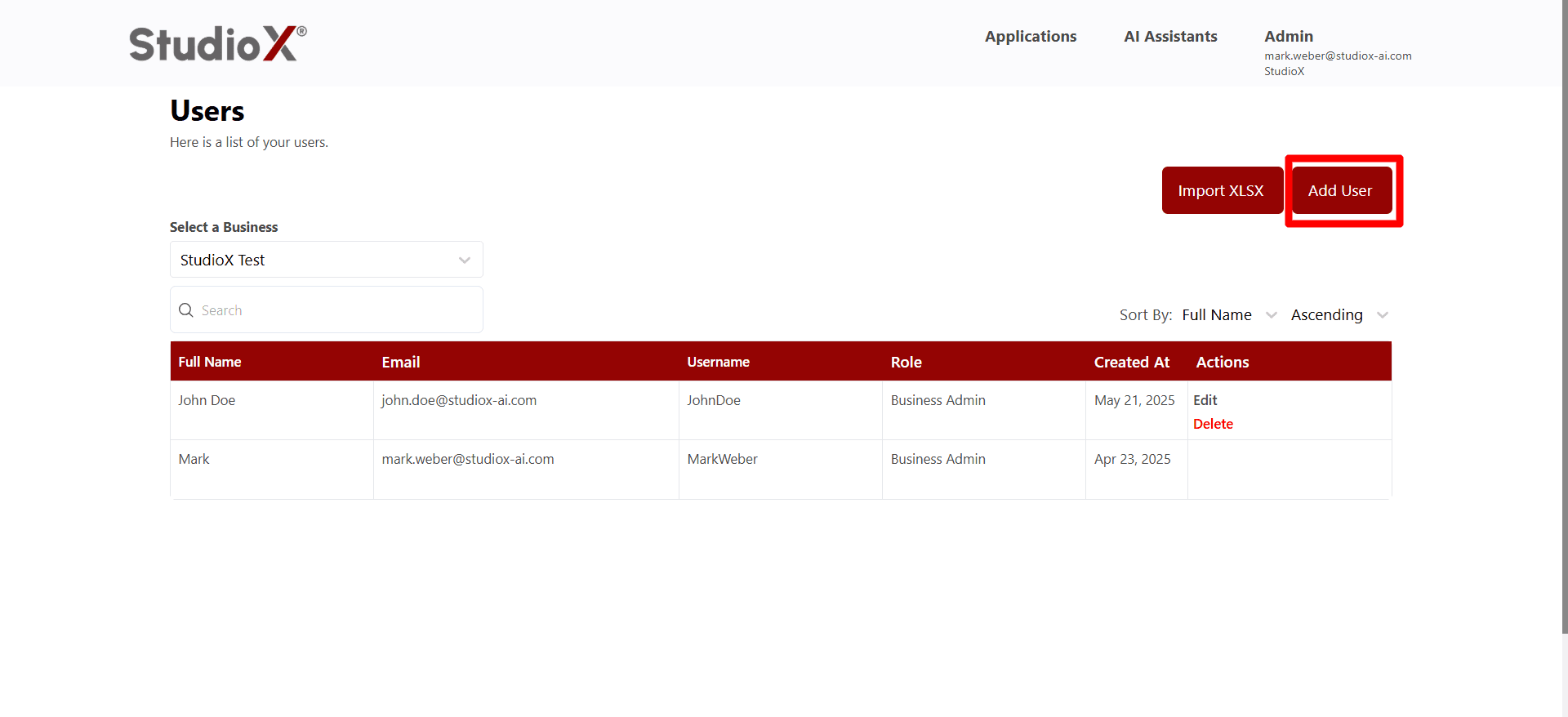
This is the main page to see all users in the business. Business-admin can see a comprehensive list of all users with their details.
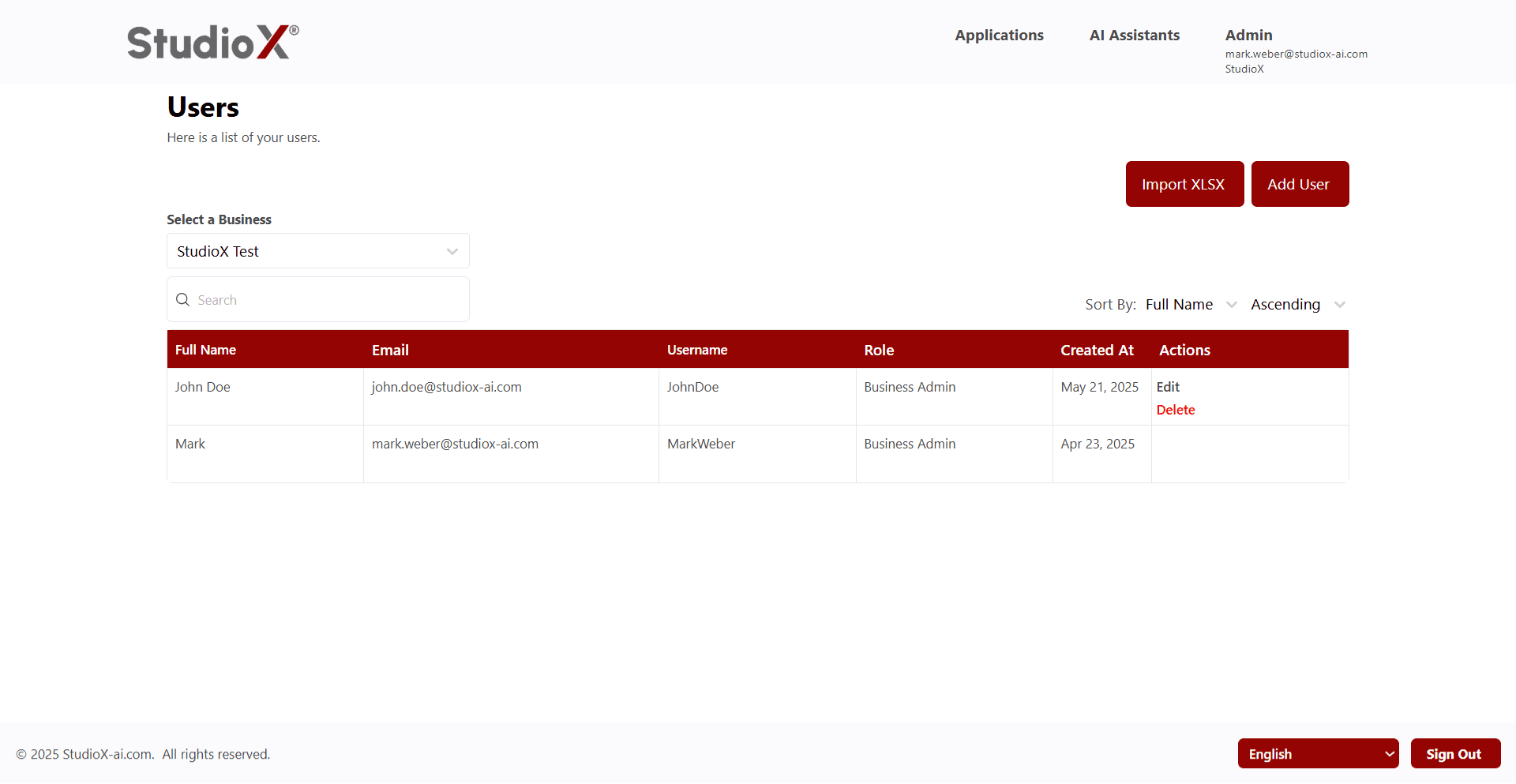
The list of users are presented in a table format that includes the user's name, email address, username, role, created at and action. This table helps business-admins with a list of users.
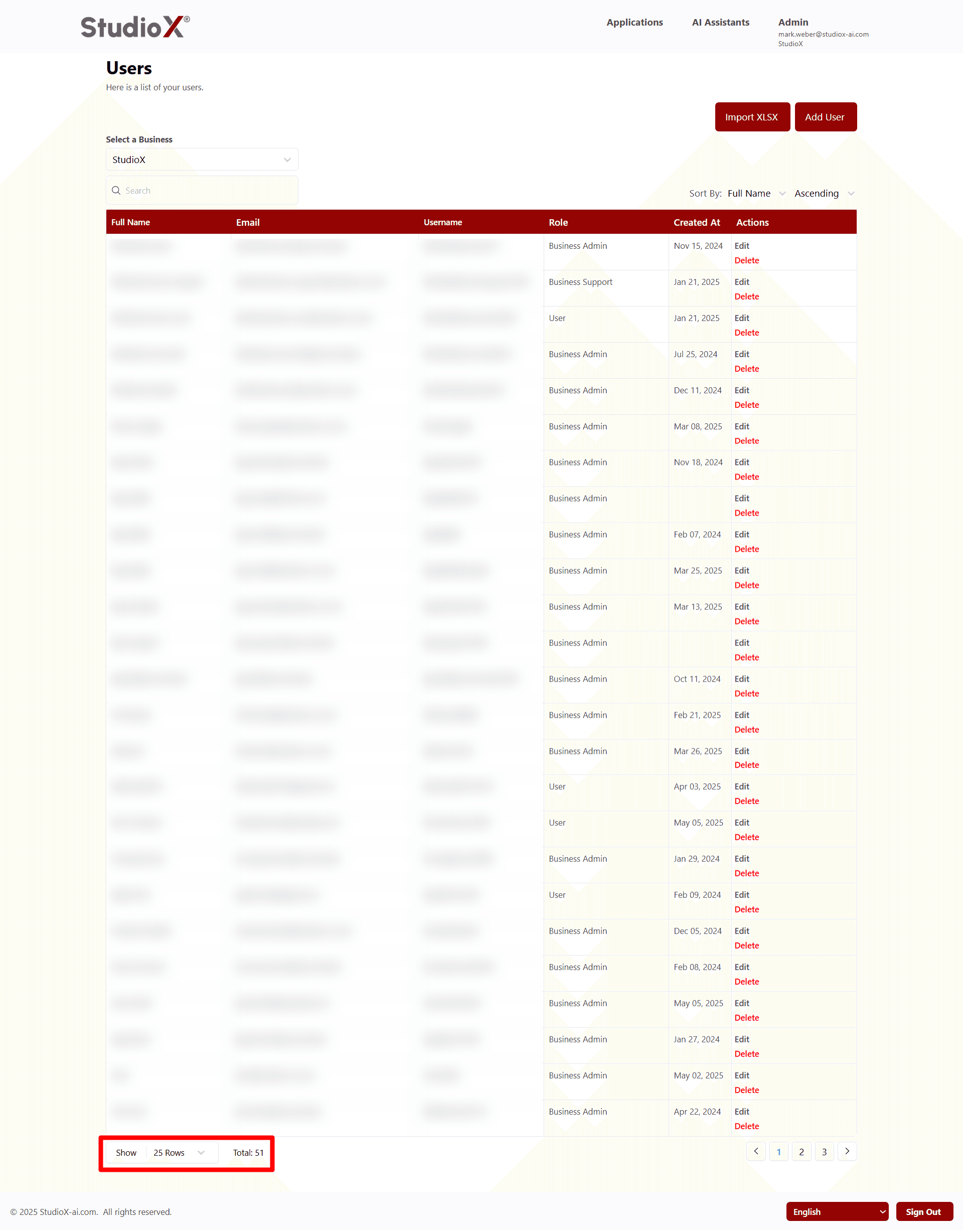
Pagination for Users Table
The users table supports pagination to ensure a clean UI when handling large user lists. Users can navigate between pages direct page numbers. Additionally, there is an option for business-admin to adjust how many users are displayed per page.
Search and Sort User
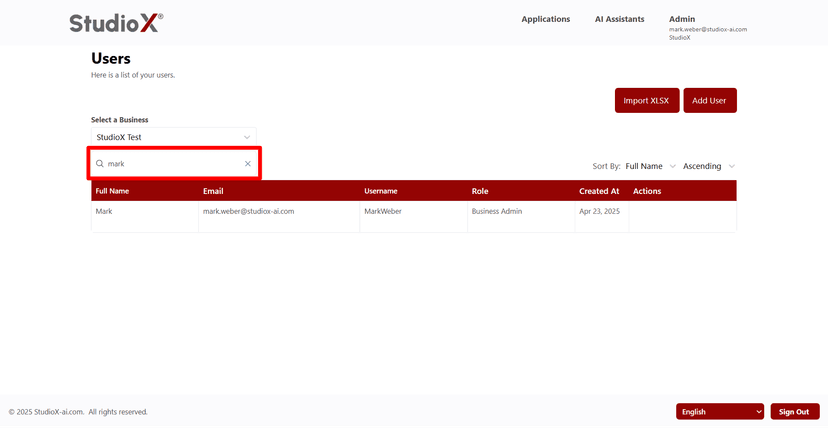
Easily locate any app using the search space at the top of the page.
Search Functionality
Sort Functionality
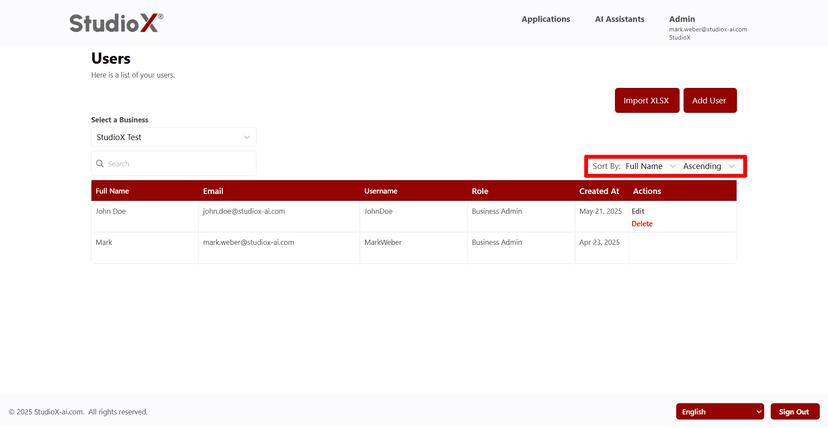
The users table allows business-admins to sort the displayed list based on user role, full name, email and username.
Add User
From the Users page, Business-admin can Add Users. Business-admin can add a single user or can import xlsx to add bulk users.
Add Single User
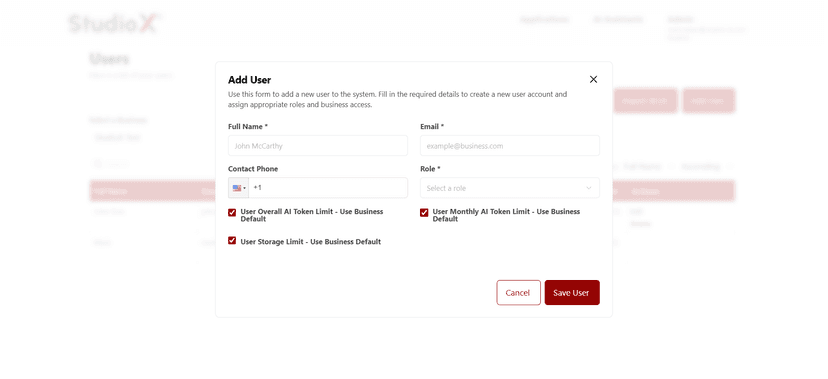
Add users require specific information to create a new user account.
Required Fields:
- The business-admin needs to full name like John McCarthy
- The business-admin needs to enter a valid Email. Like example@business.com
- The business-admin needs to enter a valid Phone number with a country code
- Role selection: Business-Admin, Business-Support, or User
Add User Form
Owner Option
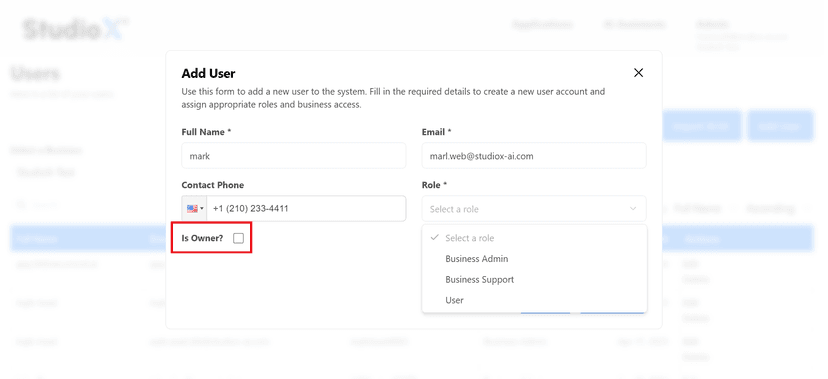
The business-admin can also make any user an owner so they can see the personal assistant of all the business.
Add Users with Import XLSX
Business-admin can import a complete sheet of users with their full name, email, phone number and business slug. The import option imports the users based on a certain role (Business-Admin, Business Support, and Users) and sets the role to the entire sheet data.
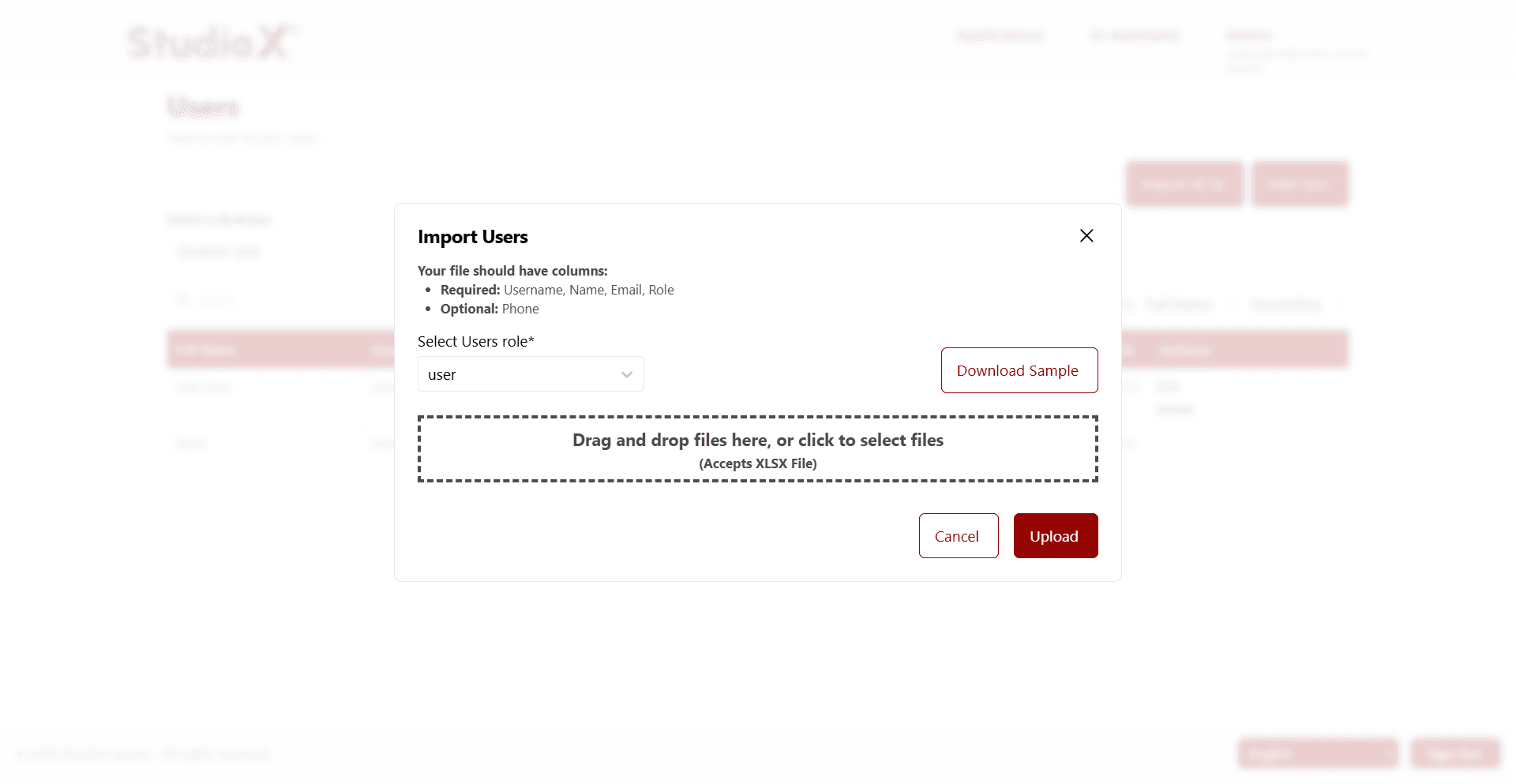
Import Requirements:
- Required: Username, Name, Email, Role
- Optional: Phone Number
- File Format: XLSX files only
- Sample file available for download
The user can download the sample file and then update the data there and then reupload the file again. The user can also see the last imported file result like either the total rows and imported rows and which rows are skipped there, the user can also drag and drop the files there but it only accepts the xlsx file.
Edit User
Each individual user can be edited and deleted. In Edit, users can edit full name, email, user name, contact number, and can also update the role.
Edit Action
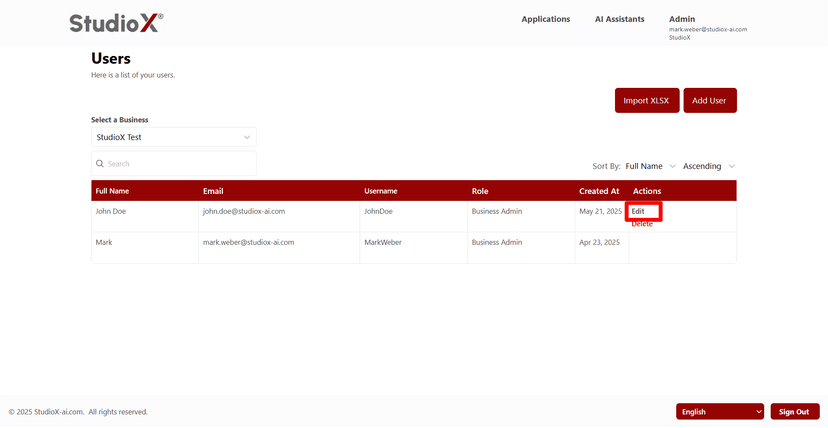
Edit User Form
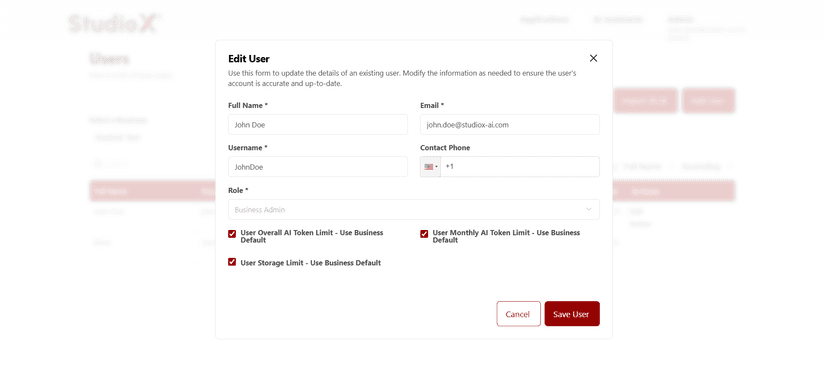
Users can modify all user information including personal details, contact information, and role assignments.
Delete a User
When a user should no longer have access to a business, they can be removed from the system using the 'Remove' action beside their name in the user table.
Delete Action
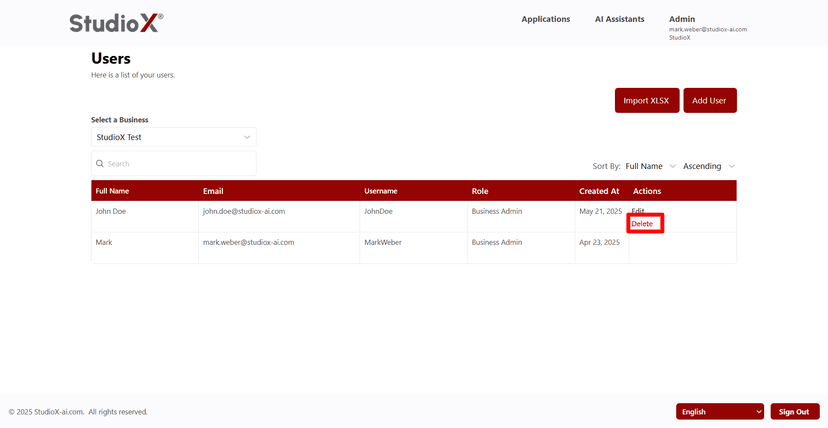
Delete Confirmation
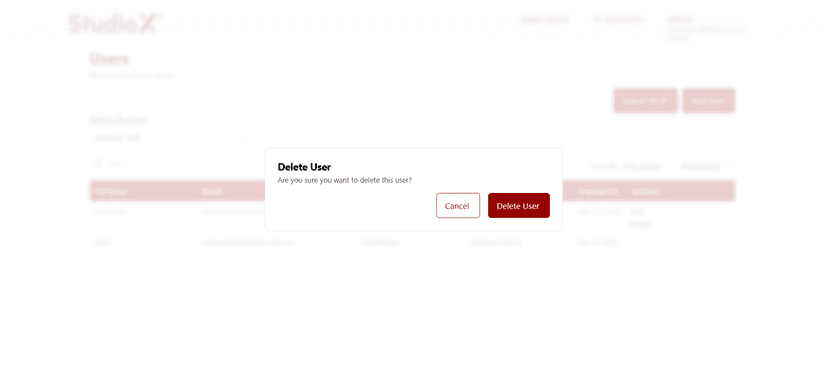
Warning: Upon clicking this option, a confirmation prompt appears to ensure that the action is intentional. The user is immediately disassociated from the business.