Teams
Teams Management in the Platform allows business-admins to efficiently manage team structures by creating teams, adding users, and organizing them for streamlined business operations.
Table of Contents
Teams Management Overview
The Teams feature in the Platform allows Business-admins to efficiently manage team structures. Business-admins can create new teams by adding a name and description, add or remove users or other teams, and edit team details. Users or teams can be searched and assigned to teams easily. Teams can also be deleted if no longer needed. The import function supports uploading teams using a CSV file with user data, including email, name, and phone. Admins can view team members, sort teams by name or date, and switch between different businesses to manage their teams.
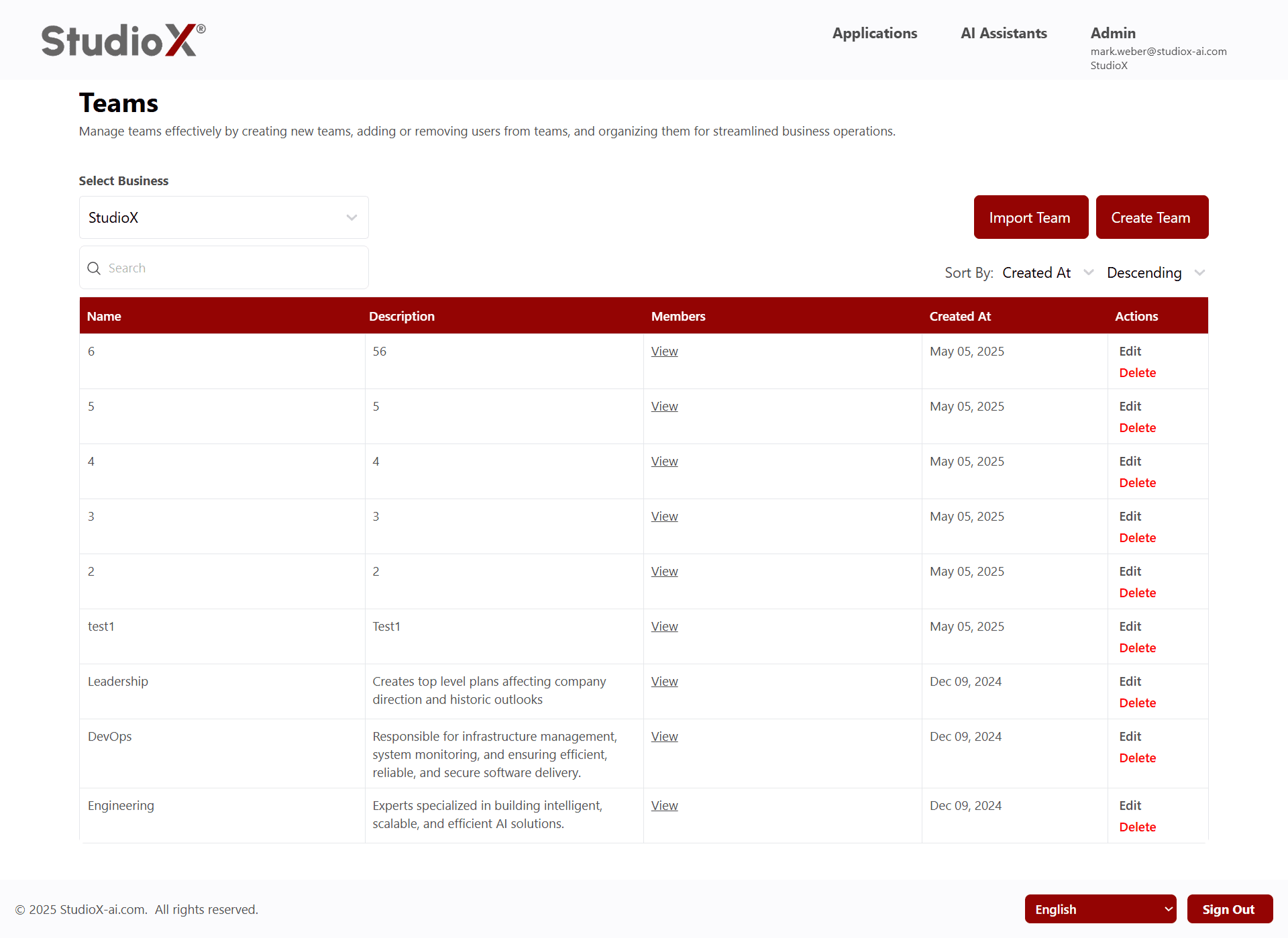
Access Path:
- Login to the Platform
- Go to Admin in the header navigation
- It shows a menu that has multiple options. Select Teams
Business Selection
When a business-admin is associated with multiple businesses, a dropdown selector allows switching between businesses.
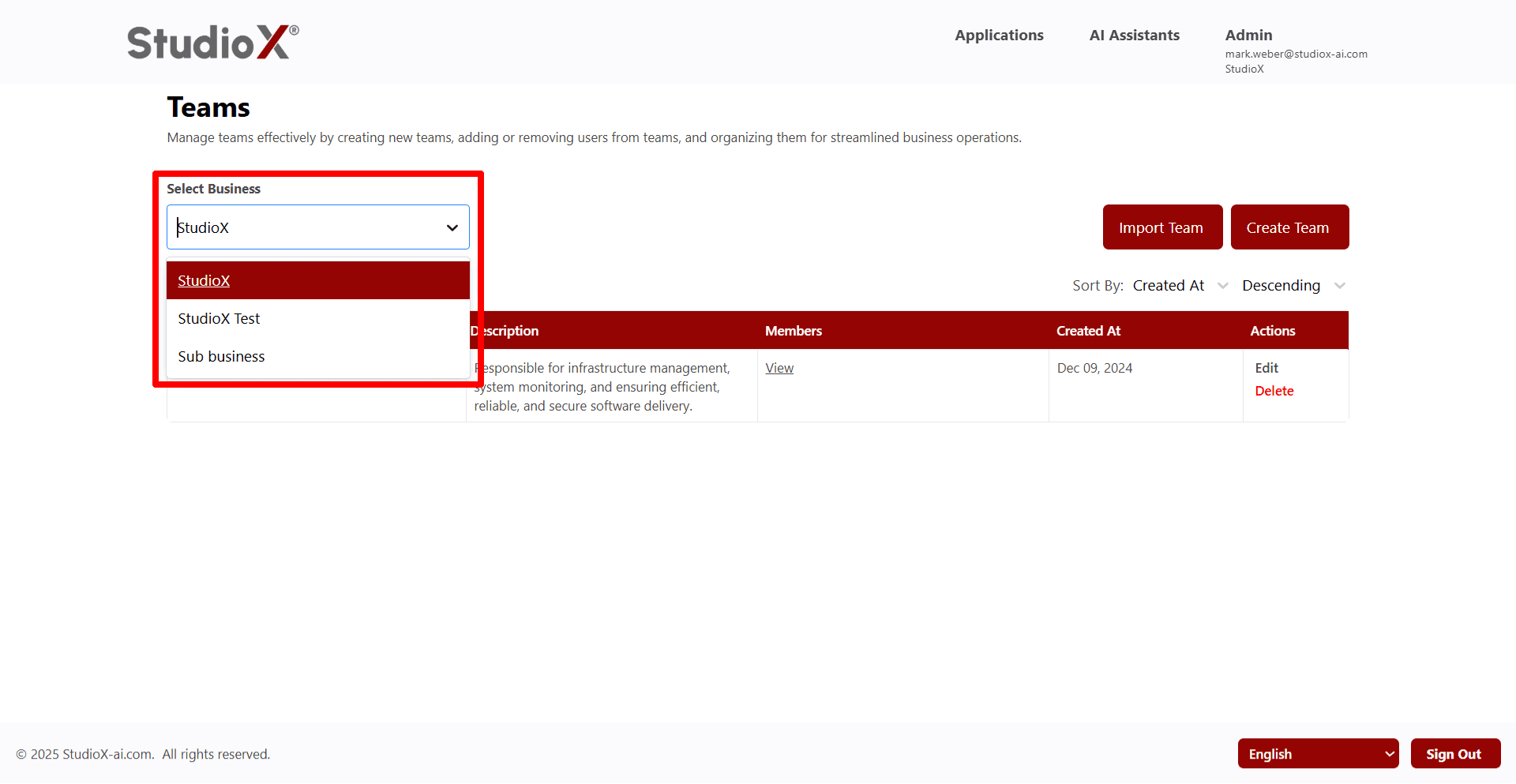
- Use the dropdown selector to switch between businesses
- Upon selecting a different business, the page refreshes and loads details of the selected business
View Teams
The list of teams are presented in a table format that includes name, description, members, created at, and actions.
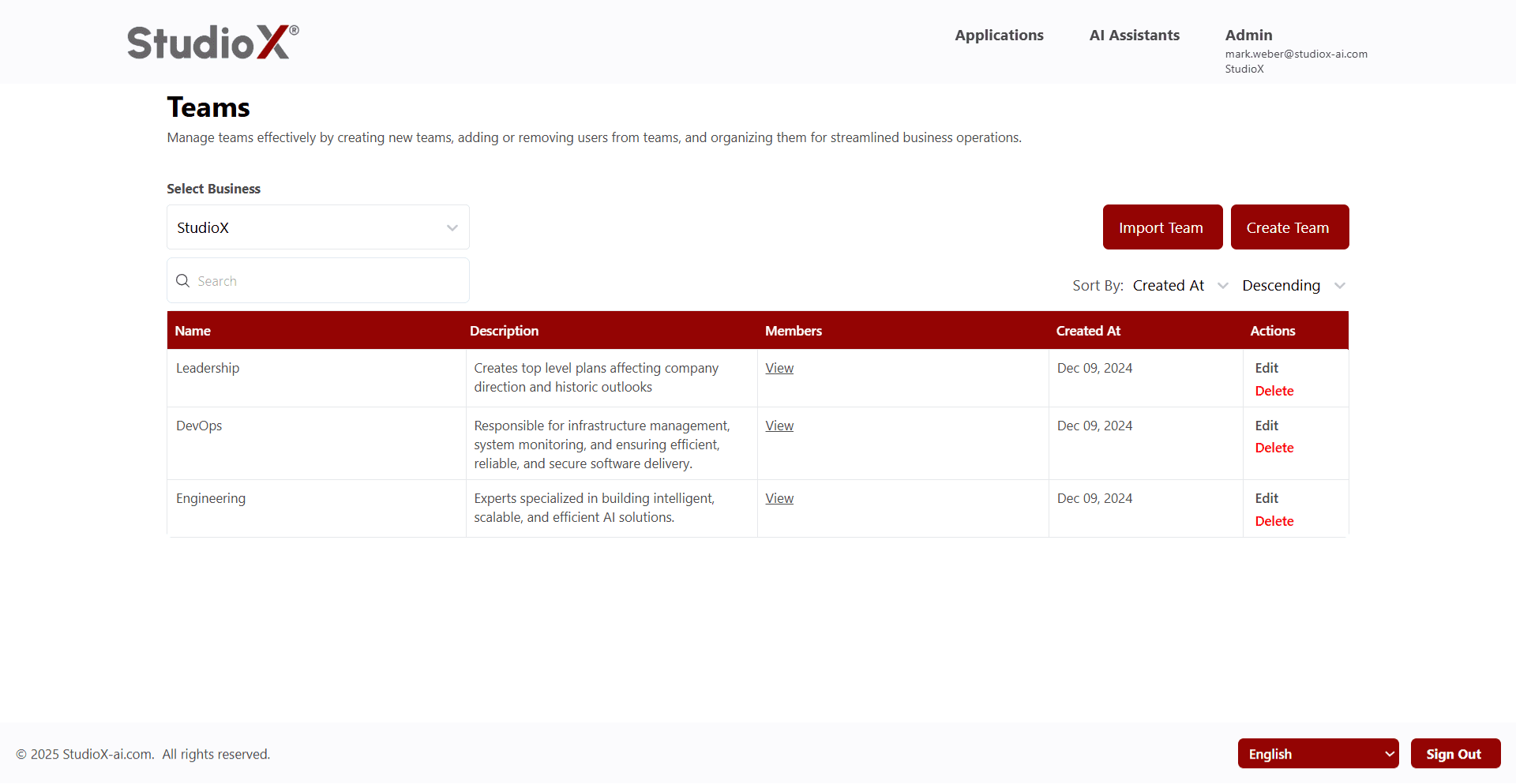
- Table format showing comprehensive team information
- Includes team name, description, member count, creation date, and available actions
Search and Sort Teams
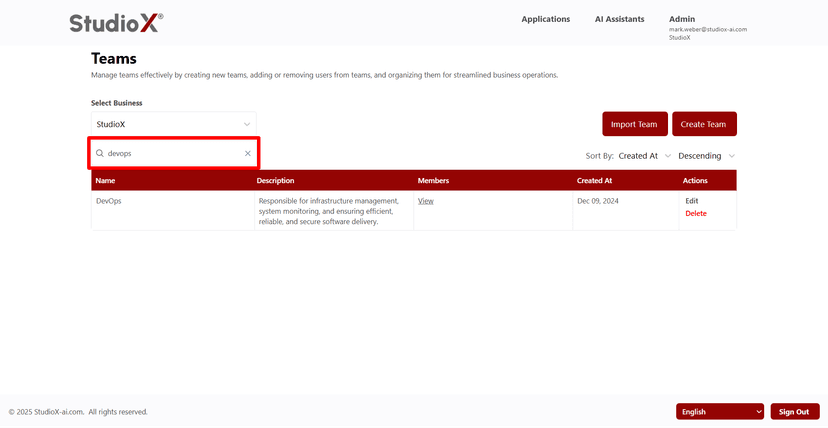
When managing a large number of teams, built-in search and sorting features help locate specific teams quickly.
Search Functionality
Sort Functionality
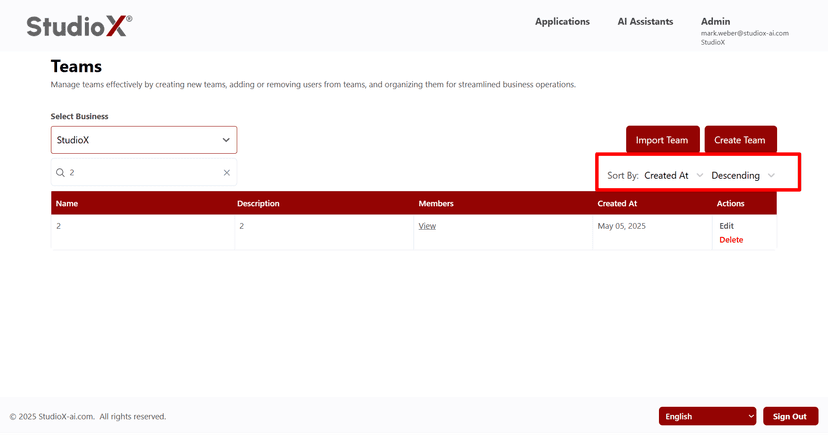
Search Functionality
- Search based on team names, descriptions, or members
- Find any user or team using the search option
Sort Functionality
- Sorting options available on columns like team name or created date
- Results can be viewed in ascending or descending order
Efficient tools for managing large numbers of teams
Create Team
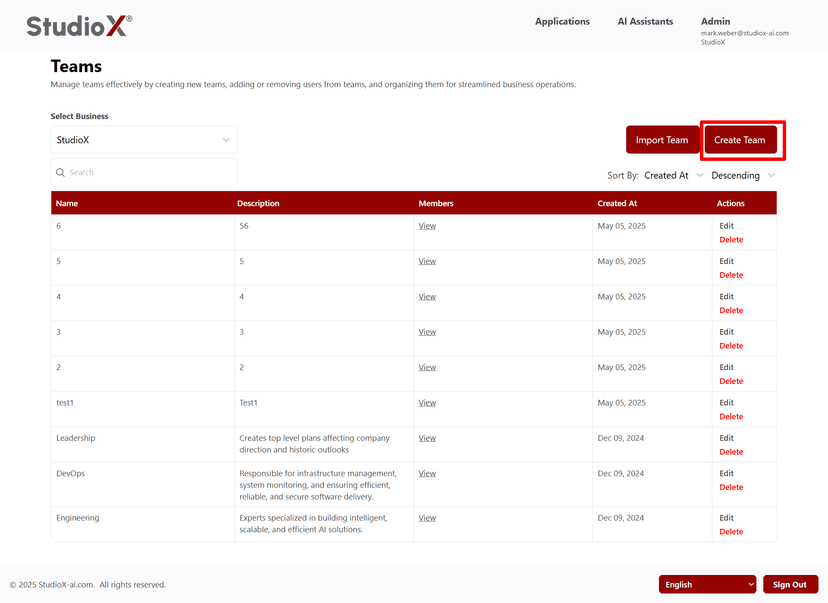
Business-admins can create new teams by providing a team name and description.
Click the 'Create Team' button to start creating a new team
Add a Team Name and Description to create a new team
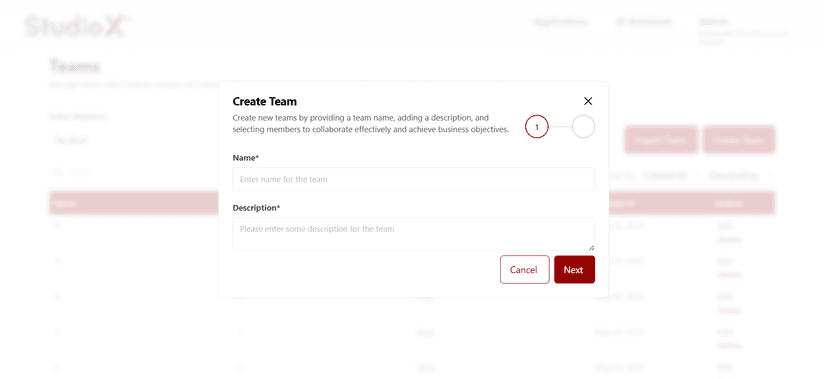
Required Fields:
- Team Name is required
- Team Description is required
Team Creation Steps
- Click the 'Create Team' button to start creating a new team
- Add a Team Name and Description to create a new team
Add Users to Team
Business-admins can add users with email addresses and assign specific roles (business-admin, support, or user).
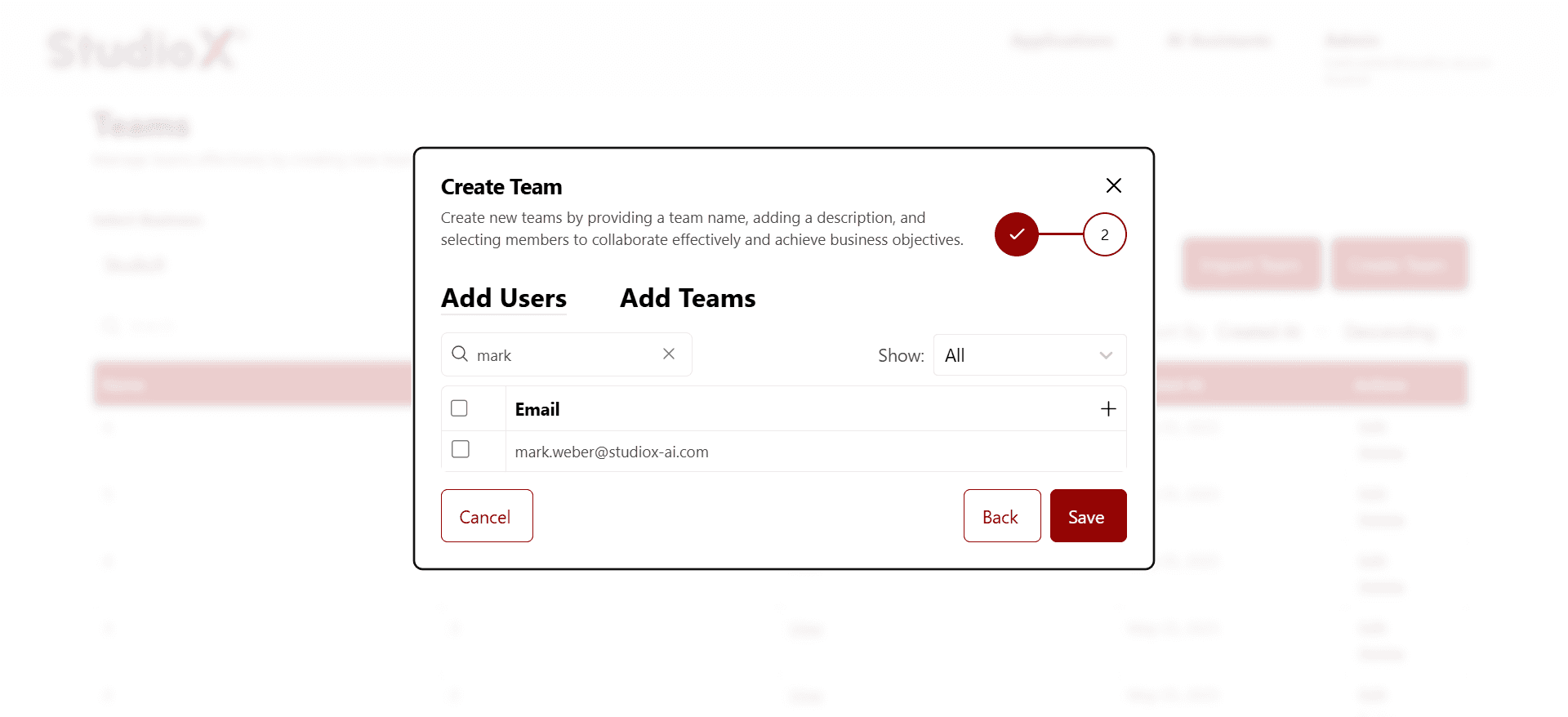
- Search for users and add them to the team, then save the changes
- Search functionality to find specific users
Add Teams to Team
Business-admins can add existing teams to new teams for hierarchical organization.
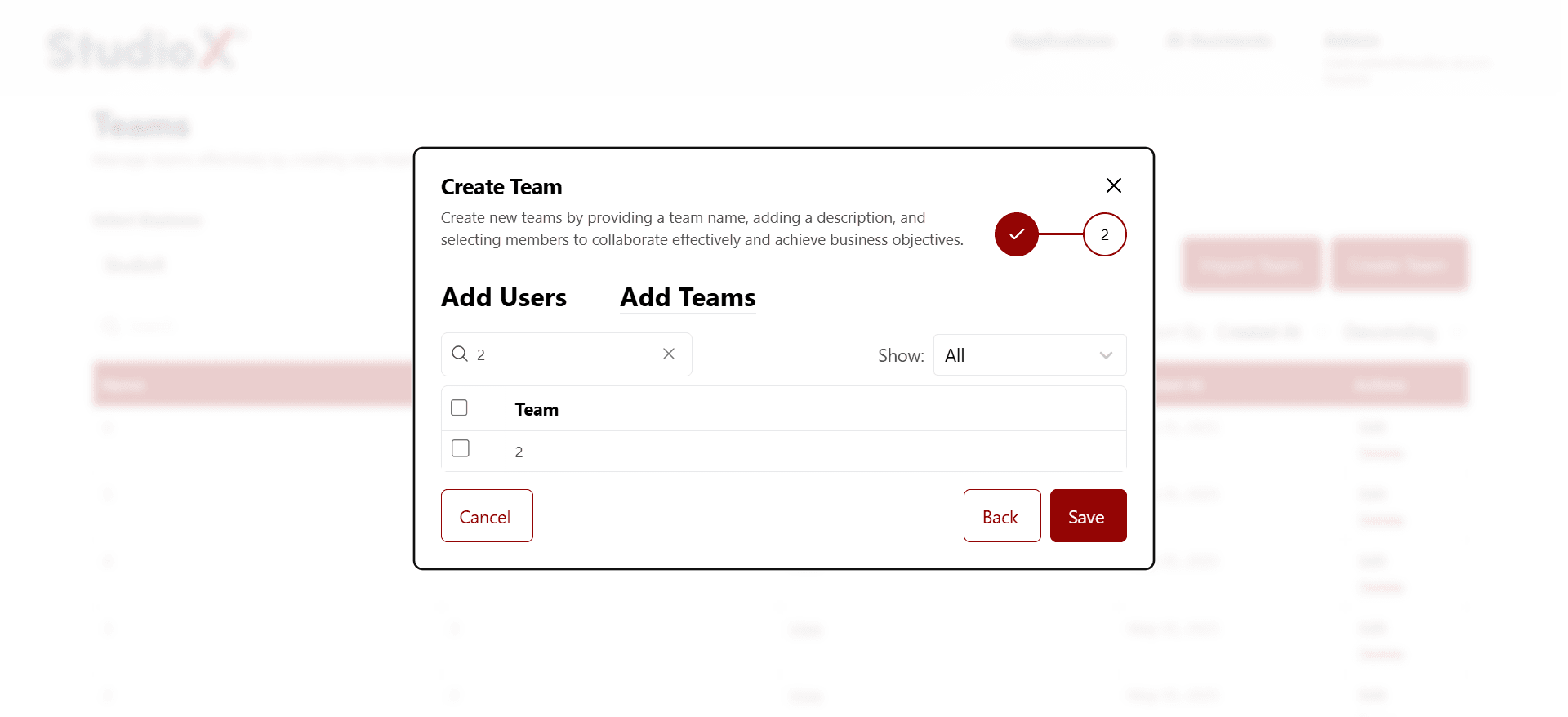
- Select teams from the list and add them to the new team
- Create team hierarchies by adding teams to other teams
Edit Team
Business-admins can update team name, description, or members at any time.
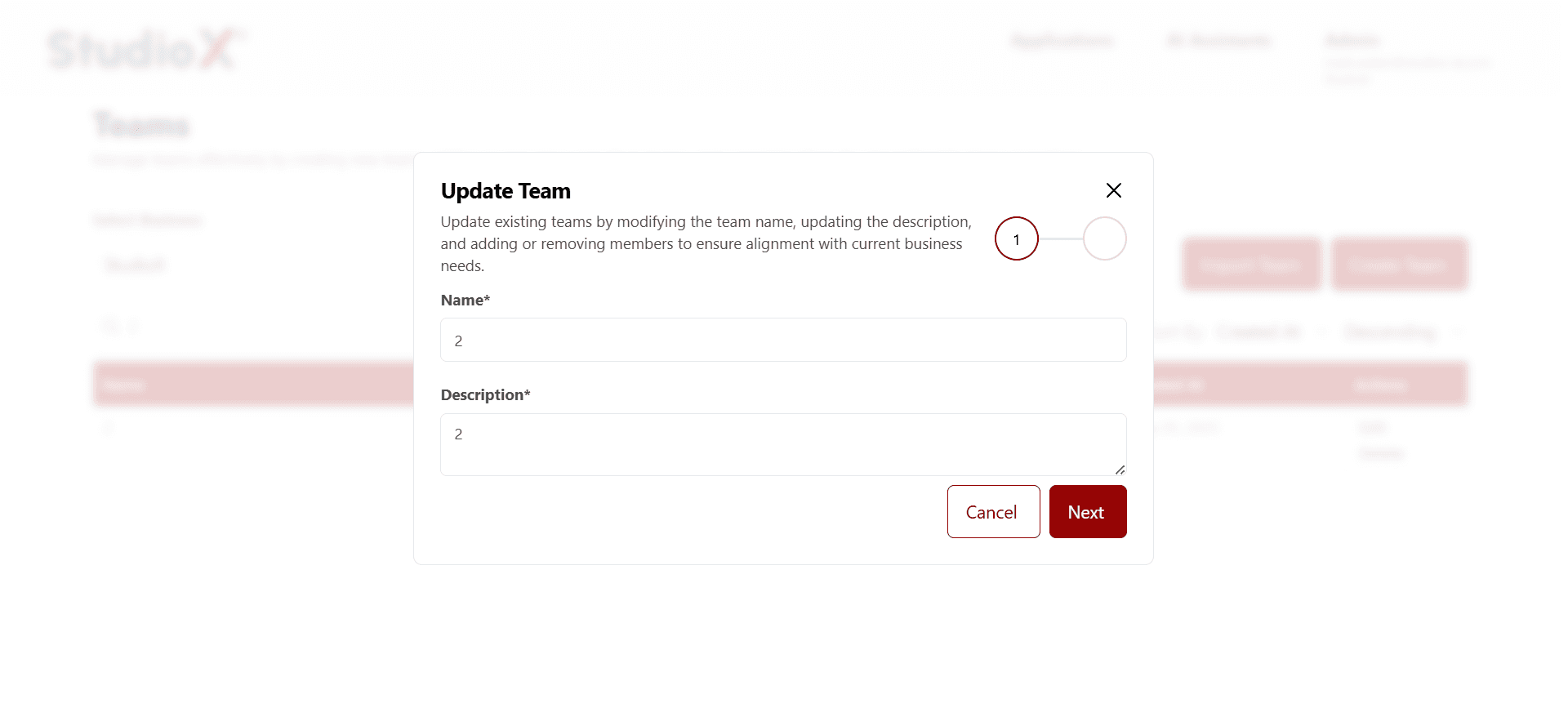
Click on edit for any team, then modify name, description, and add or remove users or teams
- Click on edit for any team, then modify name, description, and add or remove users or teams
- Update teams to align with current business needs
- Click save to apply changes to the team
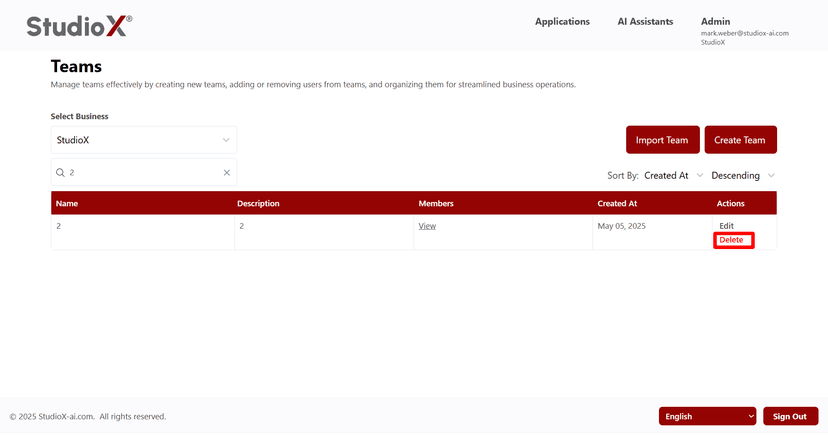
Delete Team
Remove teams that are no longer needed.
Click on the delete button to remove any team
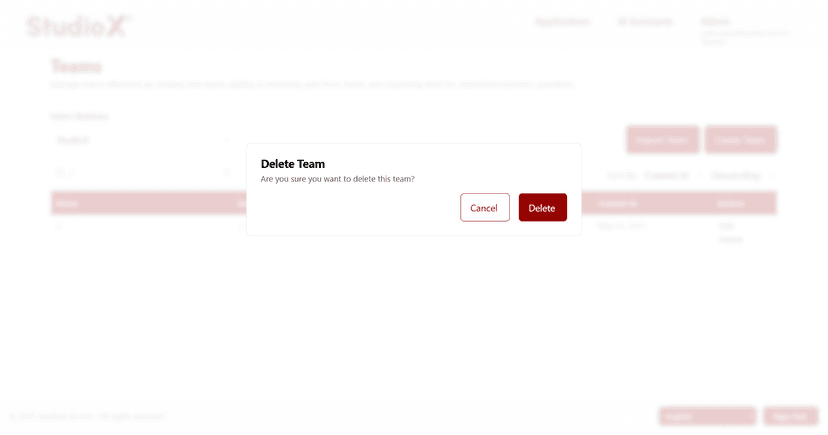
Confirmation required before deleting a team
- Click on the delete button to remove any team
- Confirmation required before deleting a team
Warning: Deleted teams cannot be recovered
Import Teams
For bulk operations, the Platform supports importing teams via an XLSX file.
Import Teams
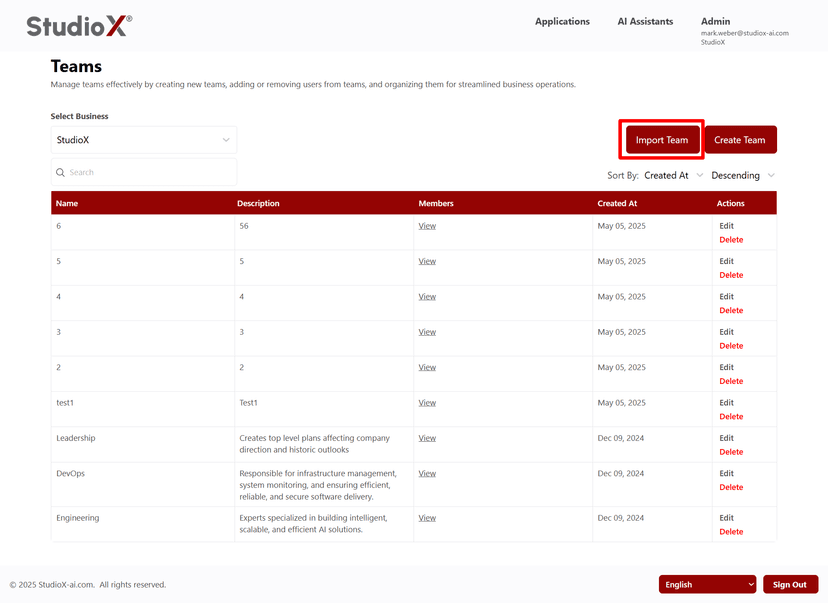
Upload a structured sheet containing name, role, and user emails
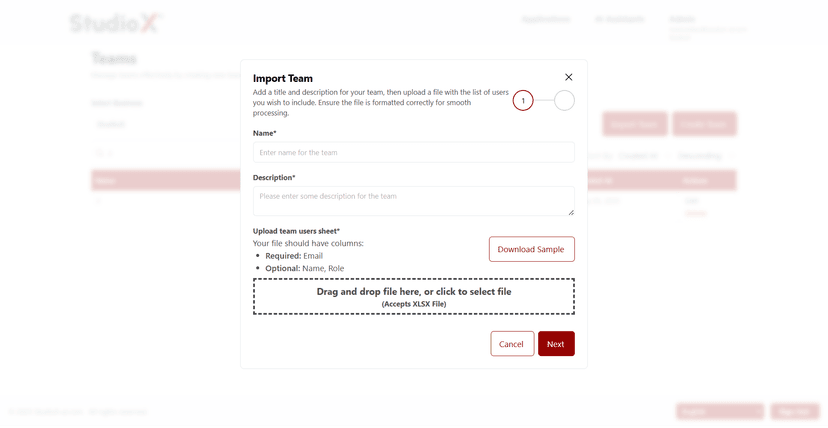
Import Requirements:
- Upload a structured sheet containing name, role, and user emails
- A sample template is available to download
- Import feature supports XLSX file format
Efficient way to create multiple teams at once
View Team Members
See a list of all users who are part of a team.
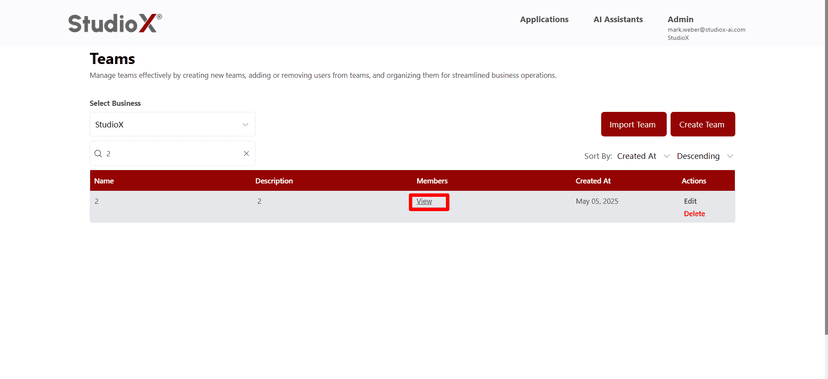
Check the members column and click on 'View' to see all users in a team
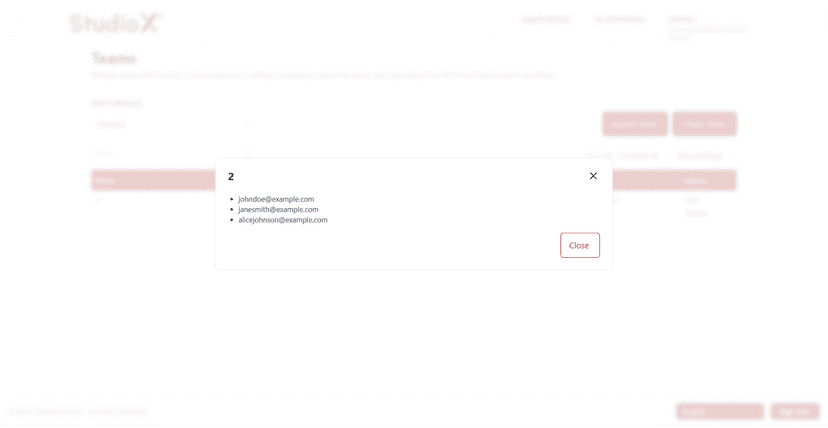
Complete list of team members with their details
- Check the members column and click on 'View' to see all users in a team
- Complete list of team members with their details