Login Audit
View and manage login history with detailed audit trails, security monitoring, and comprehensive login attempt tracking.
Table of Contents
Login Audit Overview
The Login Audit feature in the Platform allows Business-Admins and users to view a detailed history of login attempts across the platform. This feature captures key data points such as the email used, login status message, IP address, user agent, source domain, and whether the request was made by a bot or a real user. Additional features include search, sort, pagination, error filtering, and refreshing the logs.
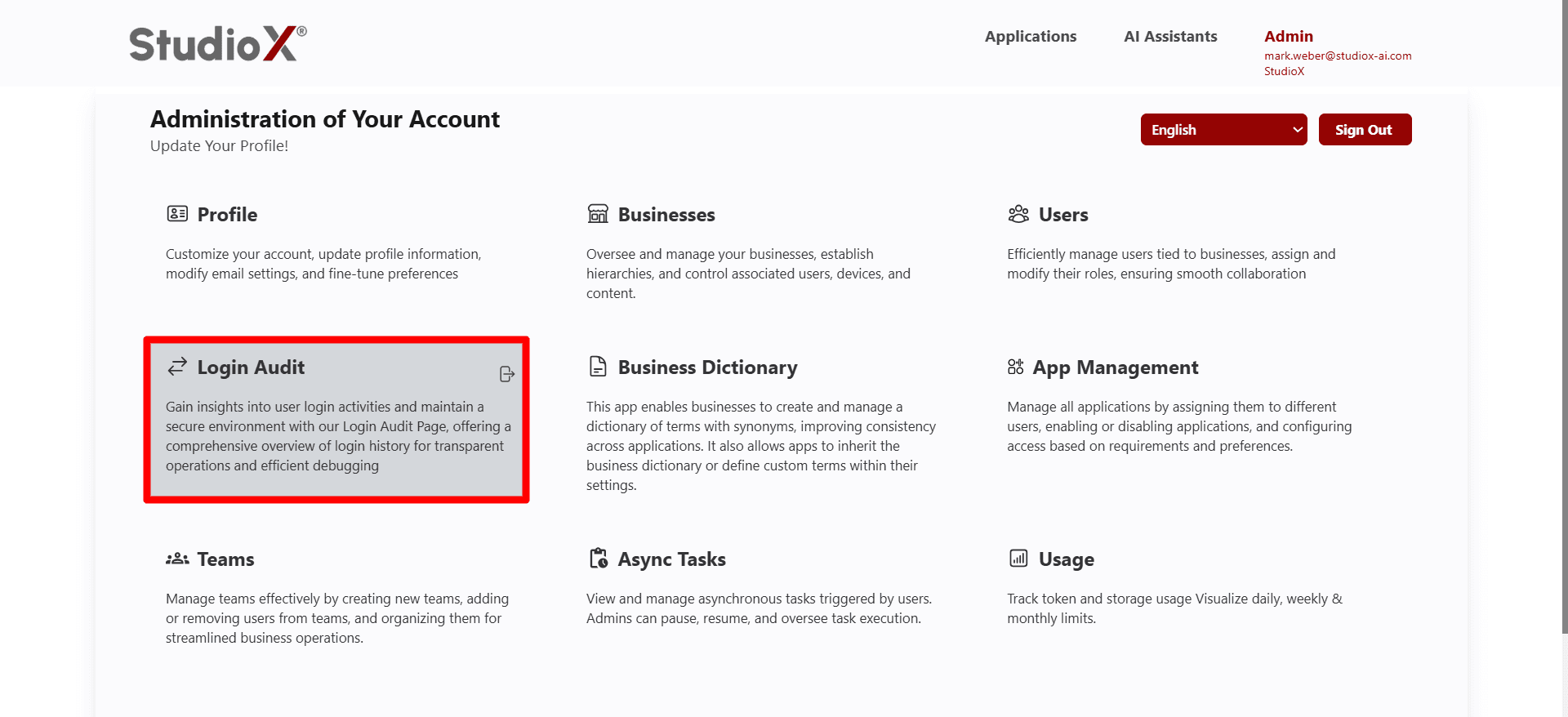
Access Path:
- Login to the Platform
- Go to Admin in the header navigation
- It shows a menu that has multiple options. Select Login Audit
Additional features include search, sort, pagination, error filtering, and refreshing the logs for comprehensive login monitoring and security analysis.
Login Audit Workflow
The workflow involves accessing the login audit feature through the admin panel and performing various operations to monitor and analyze login activities.
And perform various operations for monitoring and analyzing login activities across the platform.
Show Login Audits
All login activity is displayed in a structured table format. Each row shows a separate login attempt with comprehensive details including email, action message, user agent, IP address, source domain, bot detection, and timestamp.
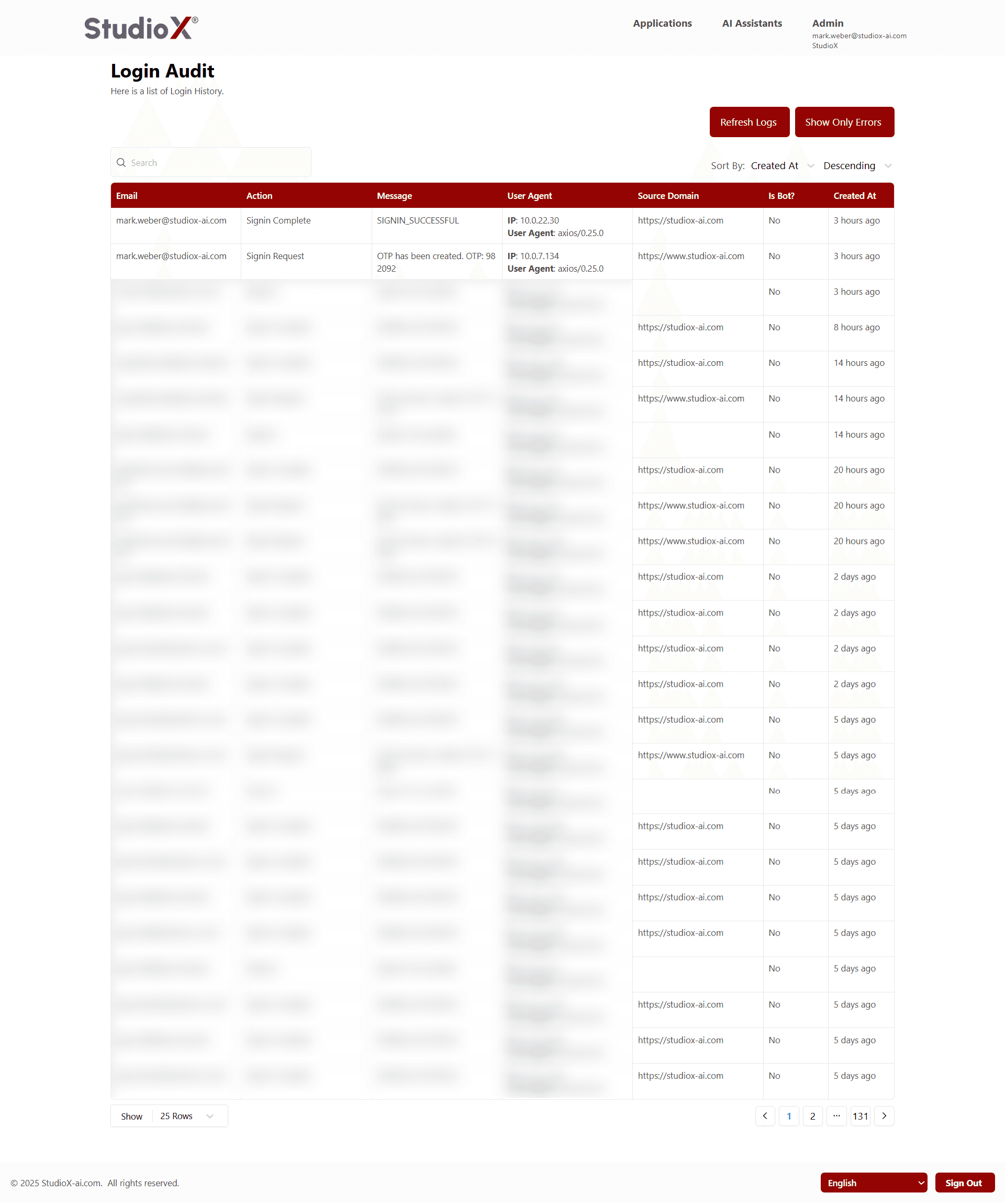
Login Audit Data Points
- Email used for the login attempt
- Action Message (e.g., 'Sign in successful', 'OTP sent', 'Signed out')
- User Agent and IP Address from which the login attempt was made
- Source Domain showing the domain from where the login originated
- Bot or Not indicating if the login was made by an actual user or an automated bot
- Created At showing the exact date and time of the login event
Table View and Structure
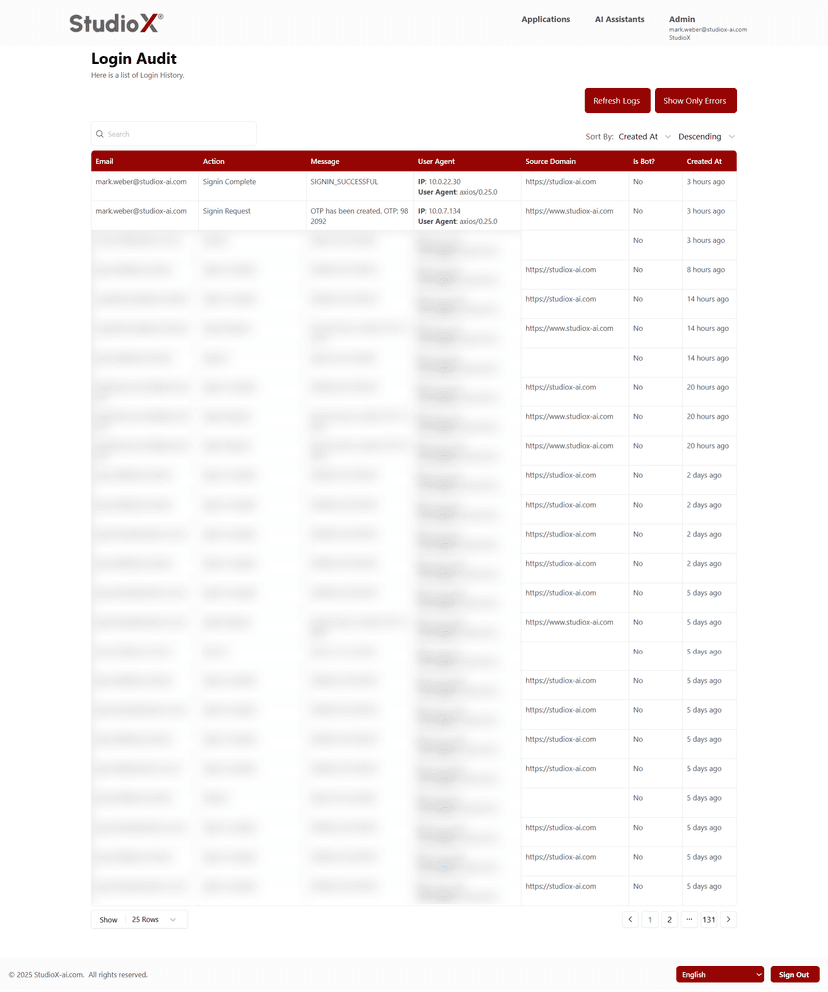
All login records are displayed in a table with comprehensive columns showing business context, user details, login actions, technical information, and timestamps with pagination support.
Table View
Pagination Feature
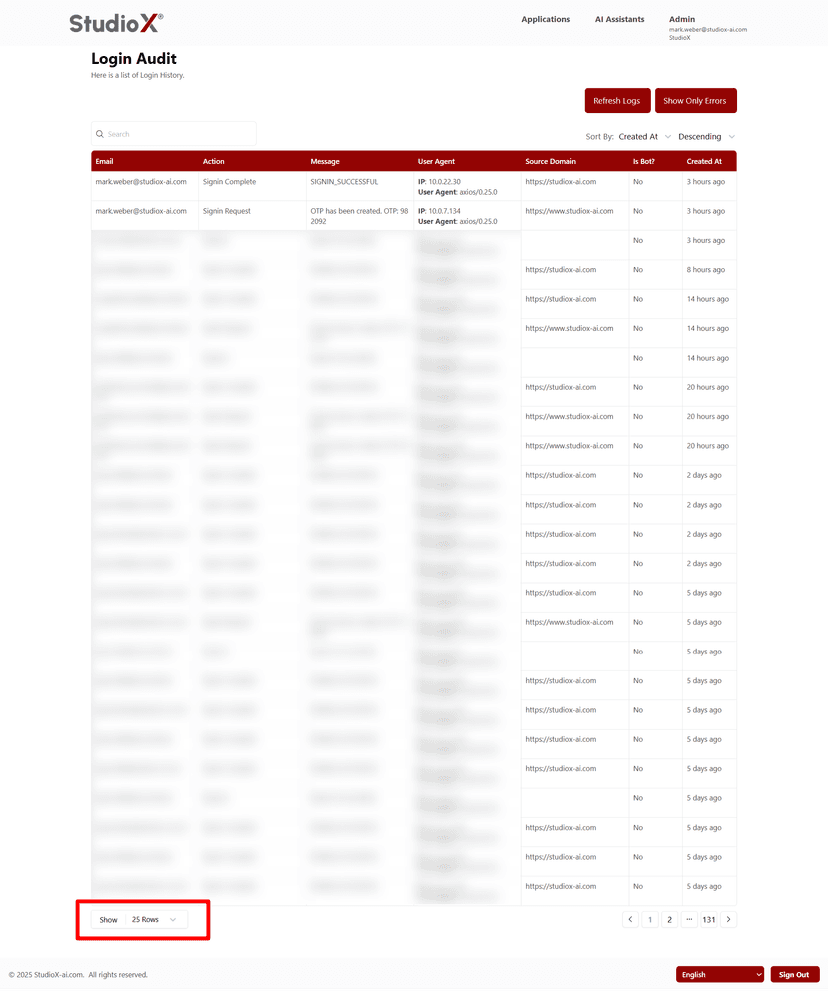
Table Columns
- Email - Email address used for login attempt
- Action - Type of login action performed
- Message - Status message or result of login attempt
- User Agent - Browser and device information
- Source Domain - Domain origin of login attempt
- Is Bot? - Indicates if request was from a bot
- Created At - Date when the term was added
Pagination Information: Default: 25 entries per page. You can adjust to display up to 100 records per view. Navigate using the pagination controls at the bottom of the table.
Search and Sort
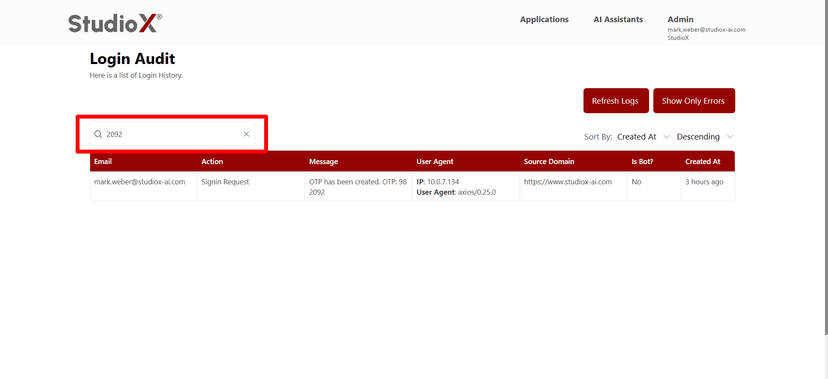
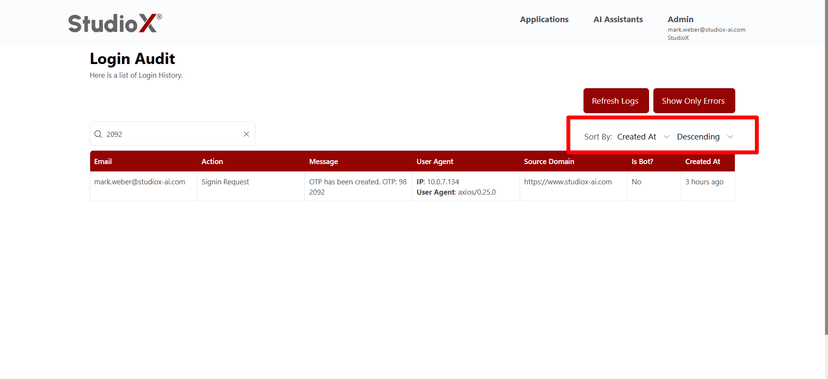
Users can quickly locate specific login records using search functionality and sort the data by various criteria for better analysis and monitoring.
Search Functionality
Sort Functionality
Search Capabilities
- Search by email address or related keywords
- Search by user agent information
- Search by message content or status
Sort Capabilities
- Sort by Created At (date)
- Sort by email address
- Sort by action type
- Choose ascending or descending order
Refresh Login Audit
Click the Refresh button to reload the latest logs in real-time. This ensures that you are always viewing up-to-date login activity.
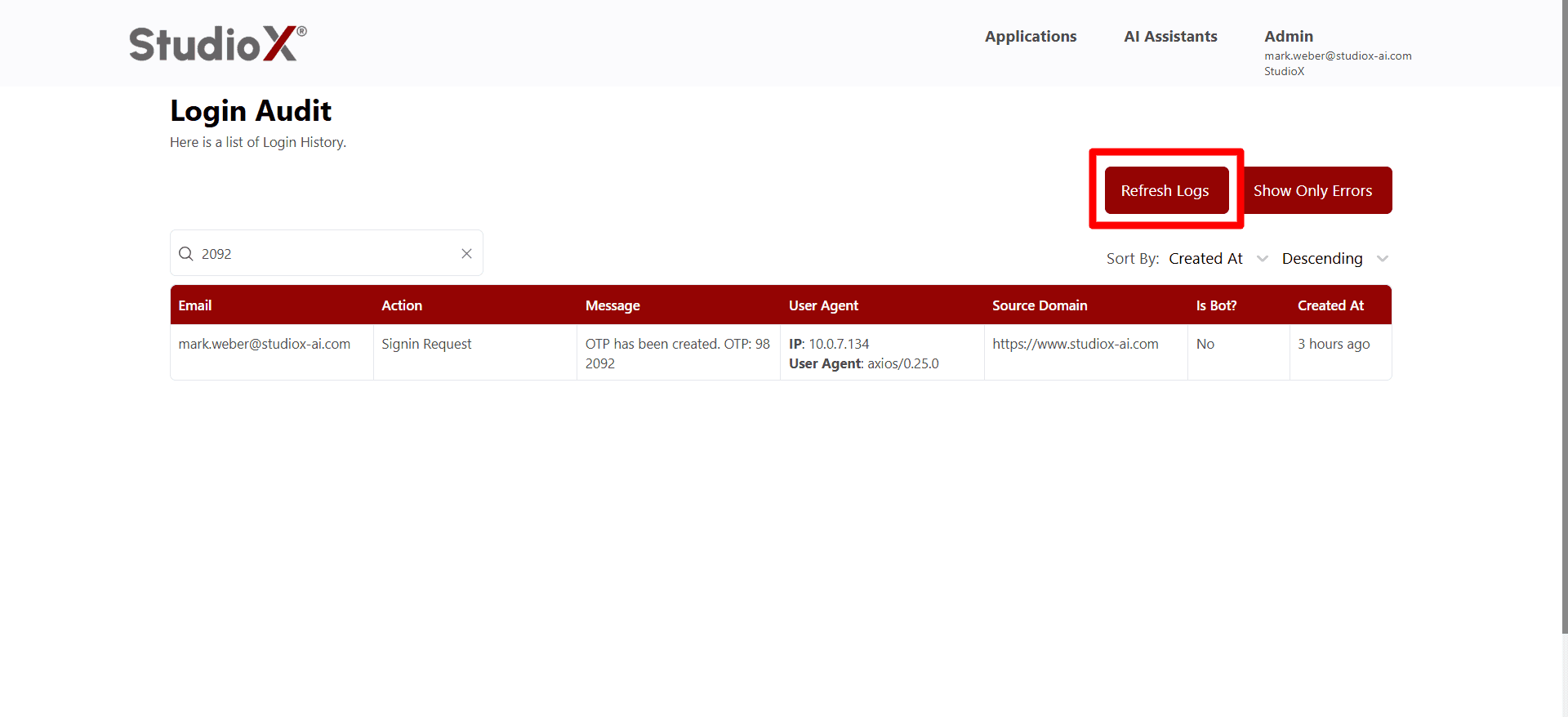
Real-time Updates: This ensures that you are always viewing up-to-date login activity and can monitor security events as they happen.
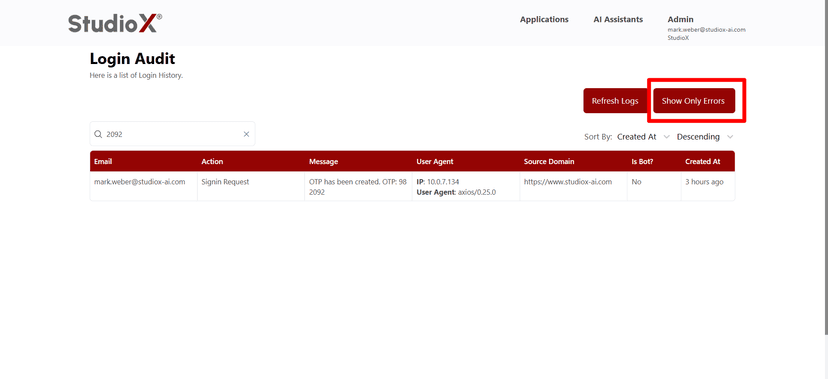
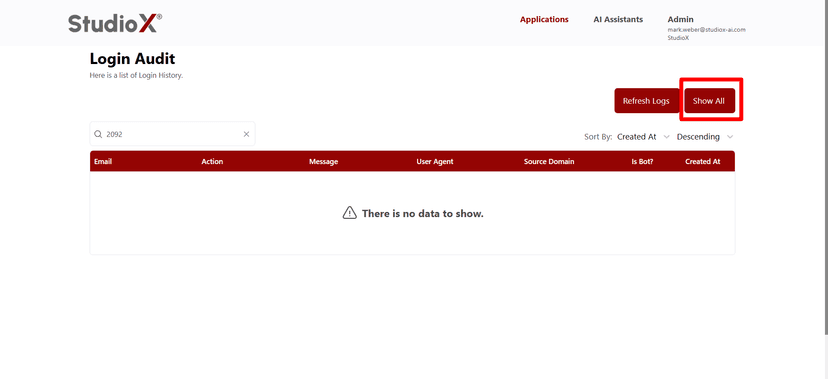
Show Only Errors or Show All
Filter login attempts to view only failed authentications or see all login activity. This helps focus on security issues or get a complete overview of login patterns.
Show Only Errors
Show All Logs
Filtering Options
- Show Errors Only - Display only failed login attempts and authentication issues
- Show All - Display complete login history including successful and failed attempts
- Filter to view only failed login attempts and security incidents
Security Focus: Filtering helps administrators quickly identify security issues and focus on problematic login attempts that may require attention.