Business Dictionary
The Business Dictionary in the Platform helps you standardize terms across different apps within a business. Business-Admins and Support roles can maintain a list of terms and their synonyms.
Table of Contents
Business Dictionary Overview
The Business Dictionary in the Platform helps you standardize terms across different apps within a business. Business-Admins and Support roles can maintain a list of terms and their synonyms that are accessible to other applications within the Platform. Business dictionaries are specific to each business, but they can also be inherited or extended by apps.
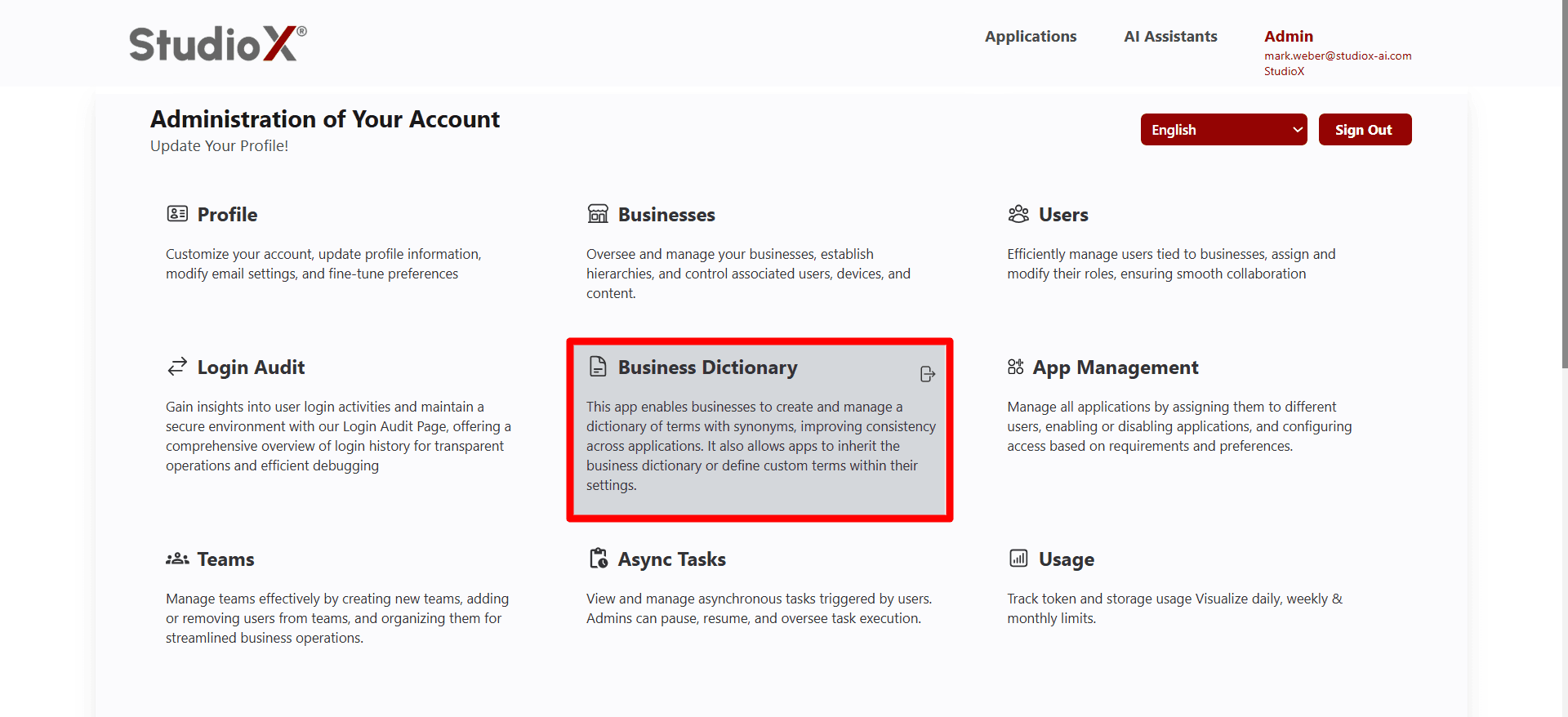
Access Path:
- Login to the Platform
- Go to Admin in the header navigation
- It shows a menu that has multiple options. Select Business Dictionary
Key actions include adding new terms, editing existing ones, and deleting outdated terms. Users can also switch between businesses to view and manage different dictionaries, if you are working with multiple businesses.
Business Dictionary Workflow
Business-admins can perform various operations to maintain and organize business terminology effectively.
Key Actions Available
- Adding new terms with descriptions and synonyms
- Editing existing terms and their synonyms
- Deleting outdated terms that are no longer required
- Switching between businesses to manage different dictionaries
Business-Specific Feature: Business dictionaries are specific to each business, but they can also be inherited or extended by apps.
Business Selection
When a business-admin is associated with multiple businesses, a dropdown selector allows switching between business dictionaries.
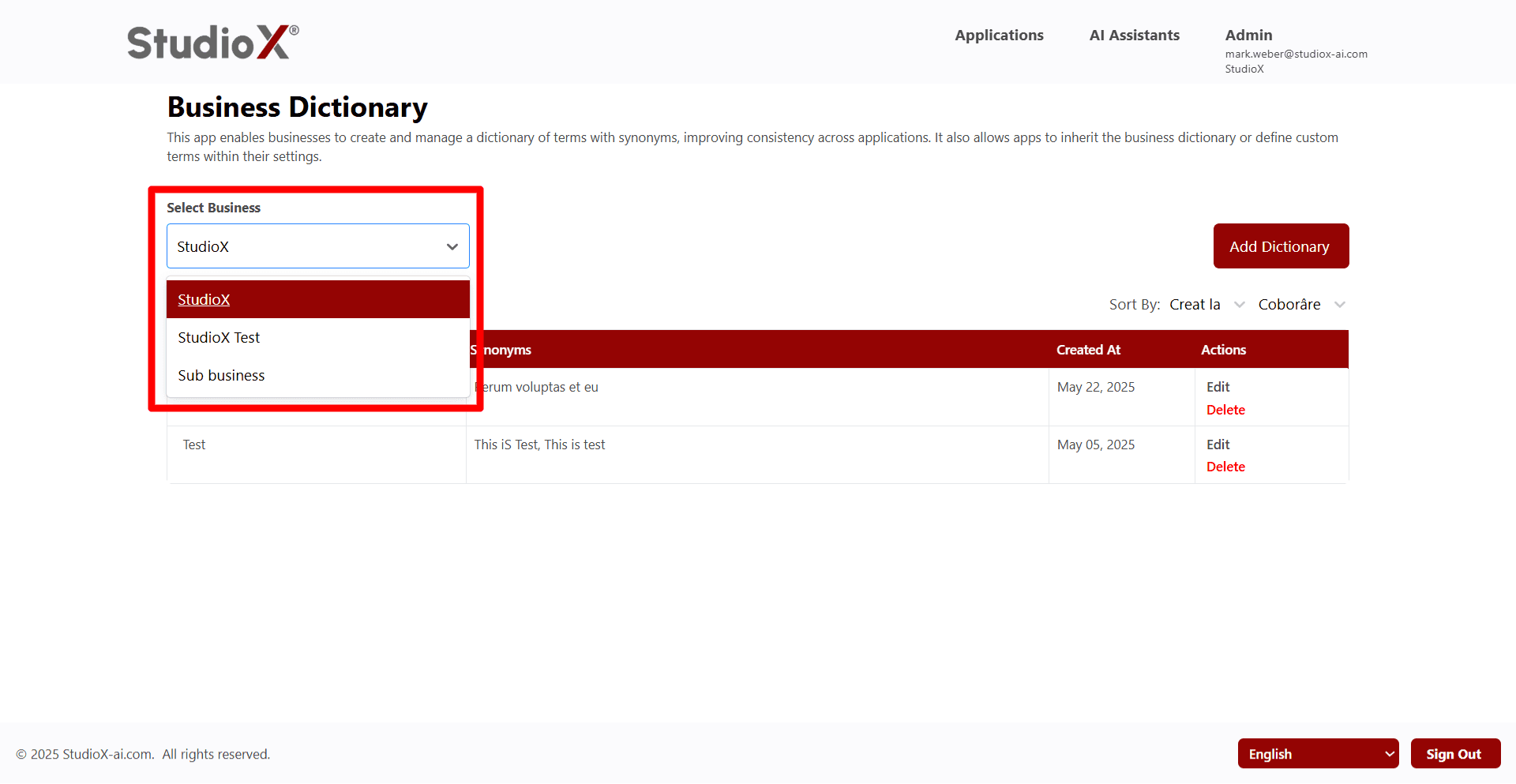
- Dropdown selector at the top allows switching between businesses
- Upon selecting a different business, the page refreshes and loads details
- Each business maintains its own dictionary of terms and synonyms
Add Dictionary
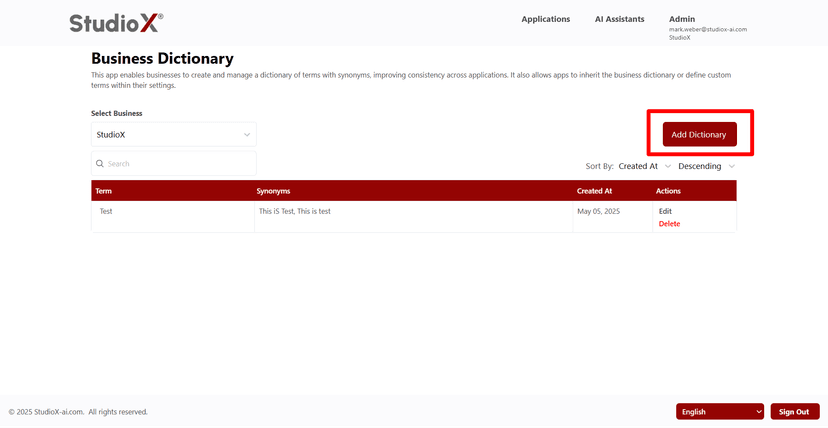
Business-admins can add new terms (called directories) to the business dictionary using the 'Add Dictionary' button.
Add Dictionary Button
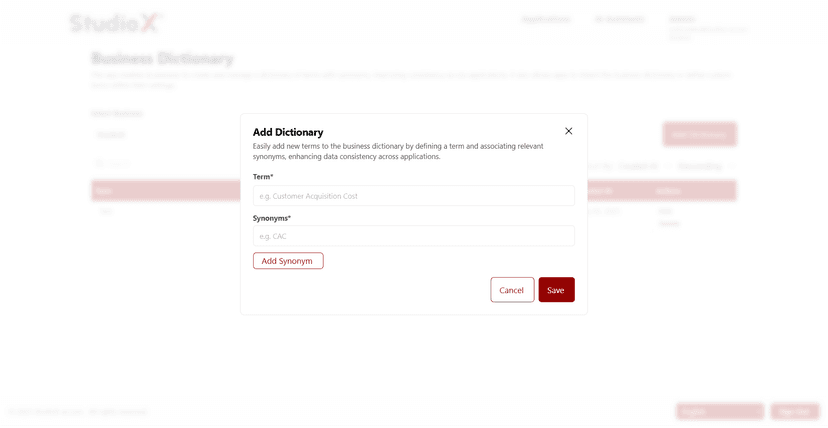
Add Dictionary Dialog
Dictionary Features
- Create and Manage Terms: Enter a term and its description or meaning
- Add Synonyms: Add multiple synonyms to enhance discoverability and context across apps
- Cross-App Usage: Once created, these terms can be accessed by supported apps or inherited in custom dictionaries within individual apps
Add Synonym Feature: Use the 'Add Synonym' button to include multiple alternative terms for better searchability across applications.
Edit Dictionary
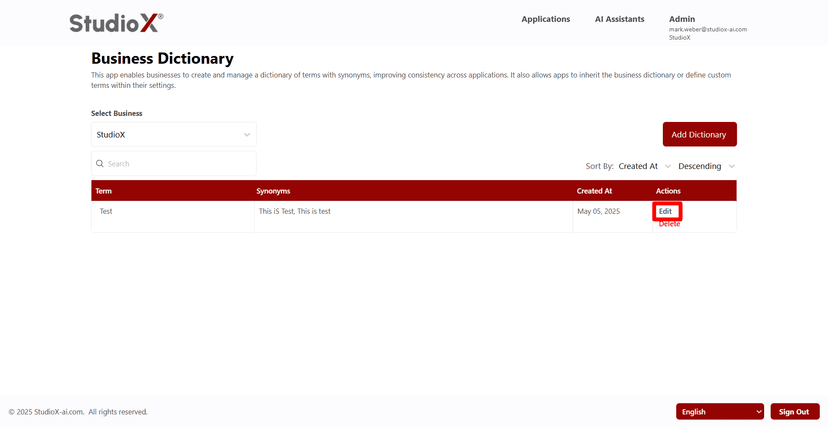
To update a term or its synonyms, click the Edit icon in the actions column. You can modify the term itself, update the meaning, or add/remove synonyms.
Edit Dictionary Action
Edit Dictionary Dialog
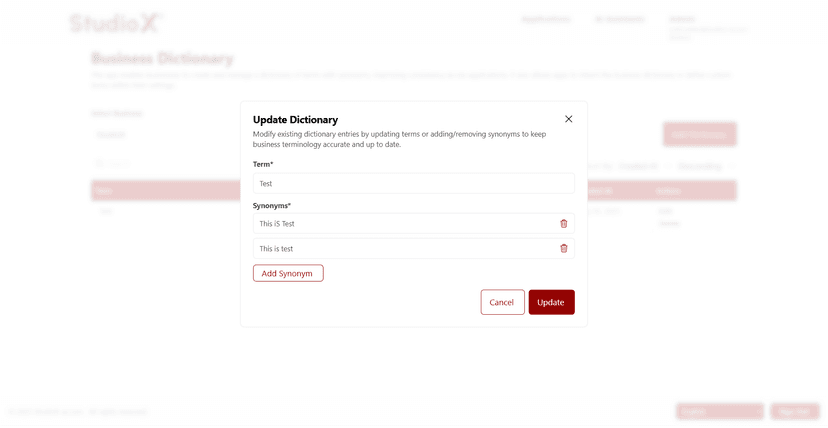
Editable Elements
- Modify the term itself
- Update the meaning or description
- Add or remove synonyms
- Keep terms up to date with current business terminology
Remove Dictionary
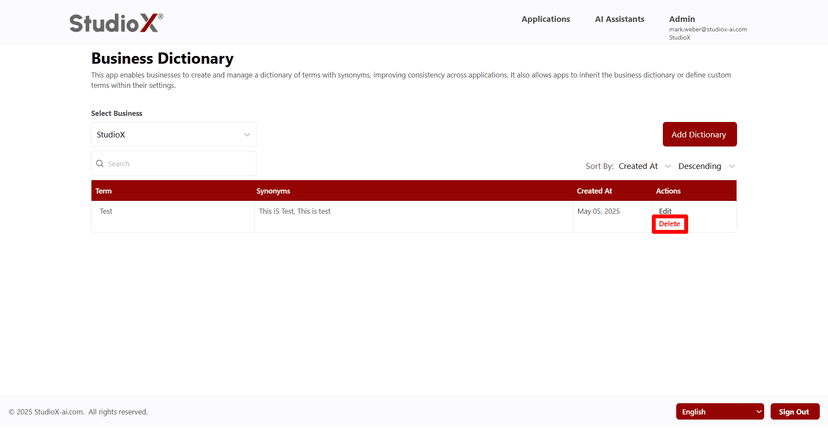
To delete a term that is no longer required, click the Delete icon in the actions column. You'll be prompted to confirm deletion to avoid accidental loss of data.
Delete Dictionary Action
Delete Confirmation Dialog
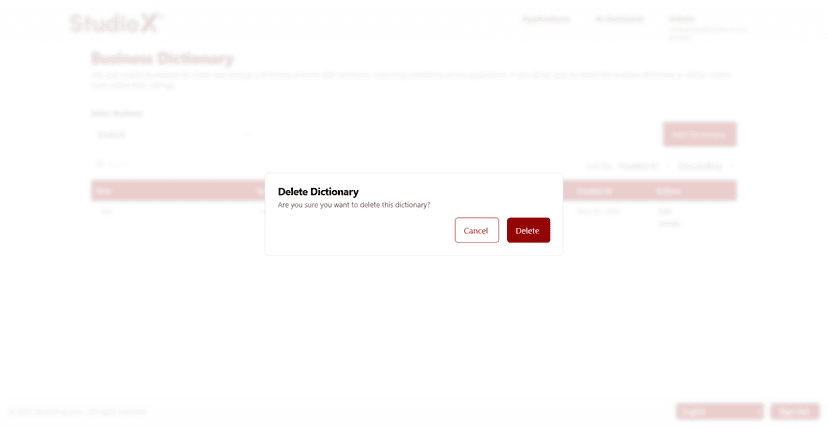
Warning: You'll be prompted to confirm deletion to avoid accidental loss of data.
Search and Sort
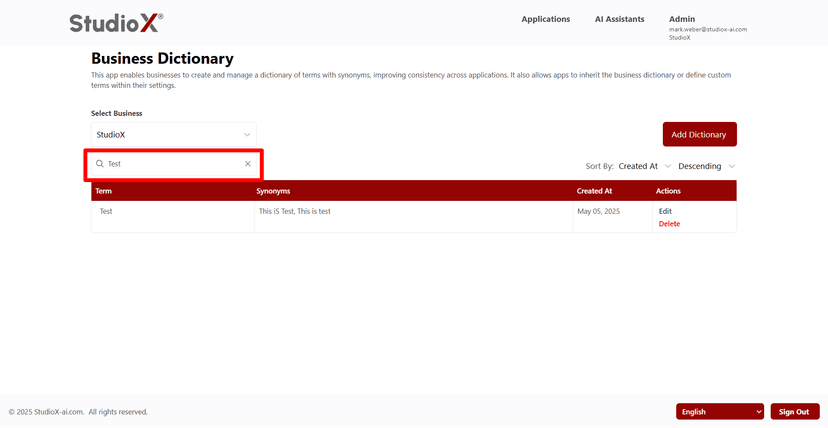
Users can search and sort the dictionary to quickly locate terms using various criteria.
Search Functionality
Sort Functionality
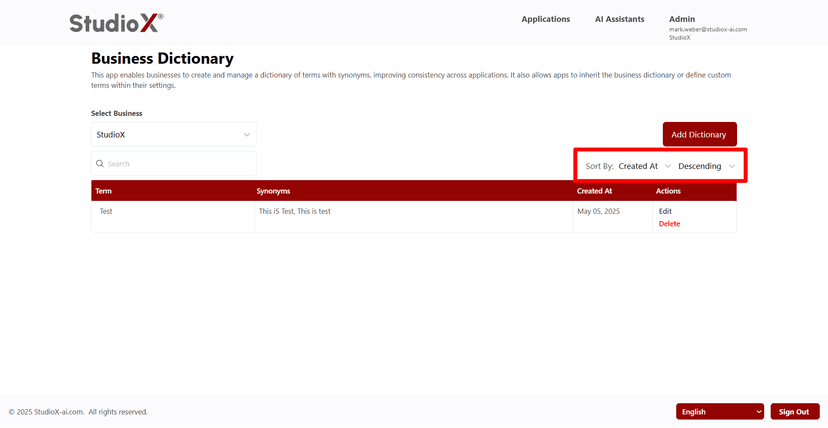
Search Capabilities
- Search by term using the top search bar
- Search by synonym to find related terms
- Quickly locate specific terms without browsing the entire list
Sort Capabilities
- Sort by Created At (date)
- Sort by Term Name alphabetically
- Sort data alphabetically or by date
- Choose ascending or descending order
Table View and Structure
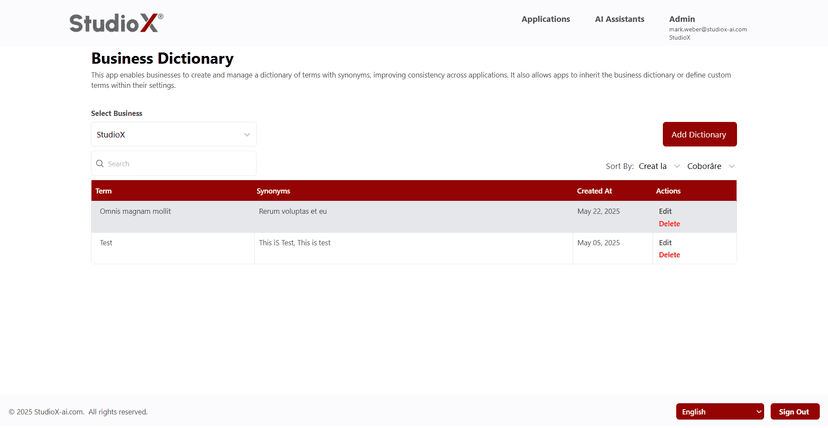
The dictionary terms are displayed in a structured table format showing comprehensive information about each term.
Table View
Pagination Feature

Table Columns
- Term - The business term or phrase
- Synonyms - Alternative terms with the same meaning
- Created By - User who created the term
- Created At - Date when the term was added
- Actions - Edit and Delete options
Pagination Information: By default, 25 terms are shown per page, and users can choose to view up to 100. Navigate between pages using the numbered controls at the bottom.
Switch Between Businesses
When a business-admin is associated with multiple businesses, they can easily switch between different business dictionaries.
Switching Process
- Select a different business from the dropdown selector
- The page refreshes automatically
- Loads the dictionary data for the selected business
This feature enables efficient management of terminology across multiple business entities.