Businesses
Manage businesses and sub-businesses with comprehensive controls for users, settings, and configurations.
Table of Contents
Business Management Overview
Business Management in the Platform allows business-admins to manage businesses and sub-businesses. Business-admins can create businesses, configure branding (logo, colors), manage Azure OpenAI keys, and add users with specific roles (admin, support, user). You can also set up custom email, allowed domains, SSO, file upload limits, and agent assist integration.
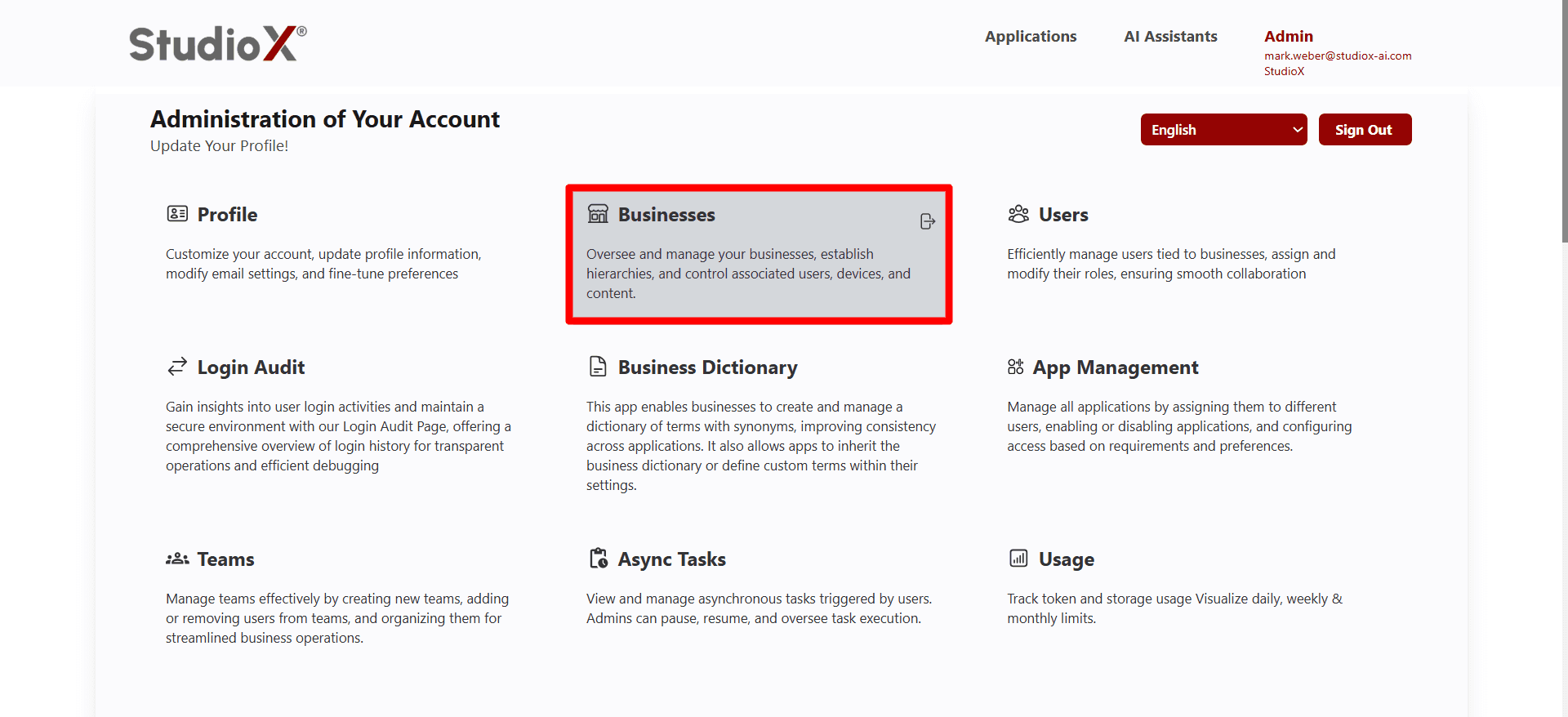
Access Path:
- Login to the Platform
- Go to Admin in the header navigation
- Select Businesses
Businesses can be viewed in a sortable and searchable table, with details like name, address, and phone. Business-admins can edit business details, select apps, and assign AI key types. Only business-admins can modify business data, ensuring control over user access, settings, and advanced features.
Add Business
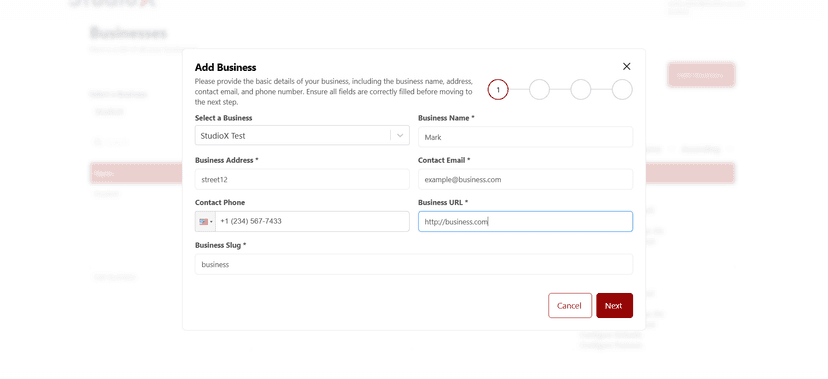
Business-admins can add a new business using a guided, four-step form for onboarding. Enter basic business information, configure AI keys, select apps, and set up branding elements.
Step 1: Basic Information
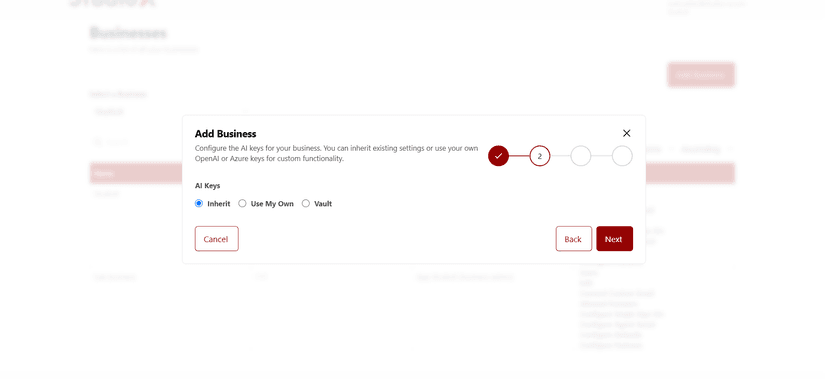
Step 2: AI Key Configuration
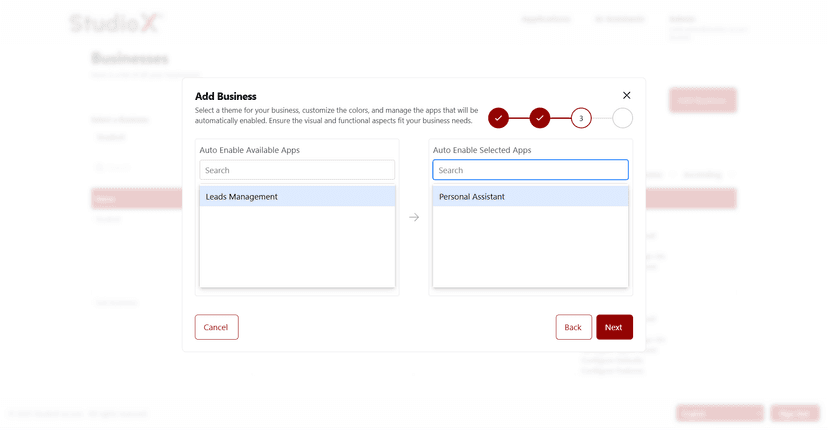
Step 3: App Selection
Step 4: Branding Setup
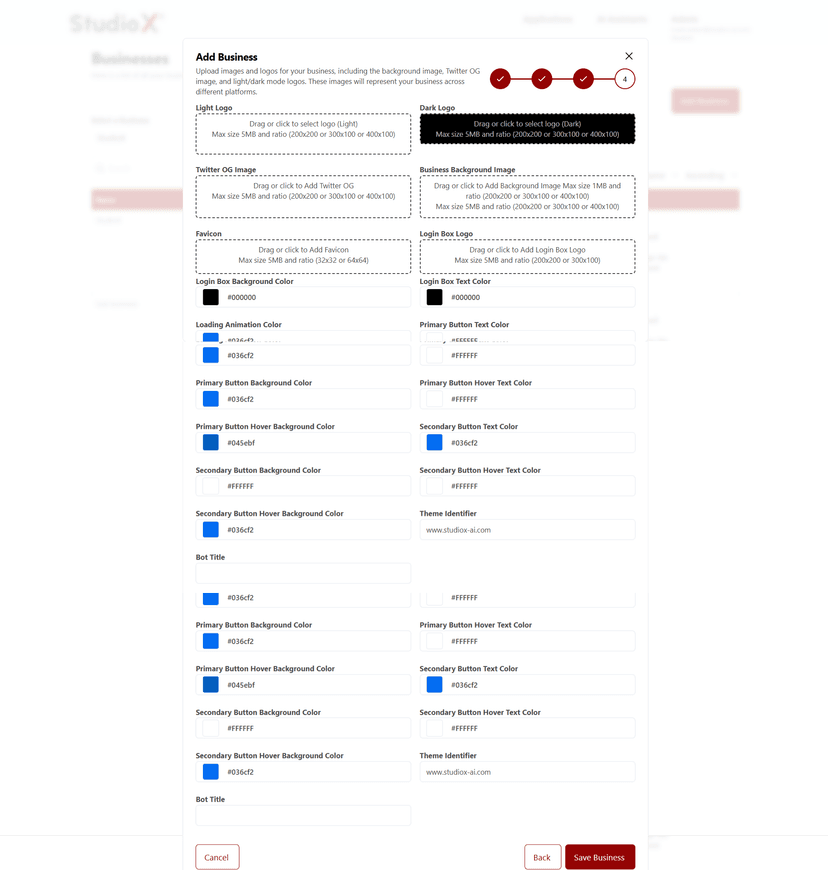
Four-Step Process:
- Enter business name, address, email, phone, and unique slug
- Select and configure AI key type (Inherit, Use My Own, Vault)
- Choose from available apps to associate with business
- Configure logos, colors, and theme elements
Throughout the process, form validation ensures data integrity, and visual previews help confirm selections.
Edit Business
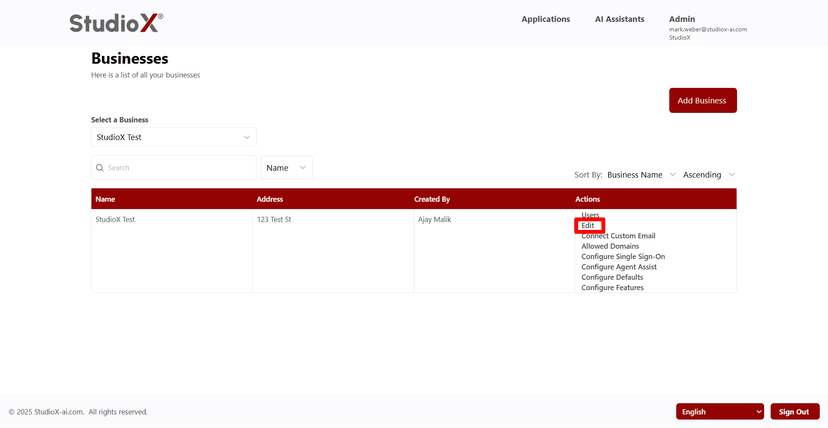
The Edit Business function allows business-admins to modify details of an existing business. Access this feature from the actions column of the business table.
Edit Business Access
Edit Business Form
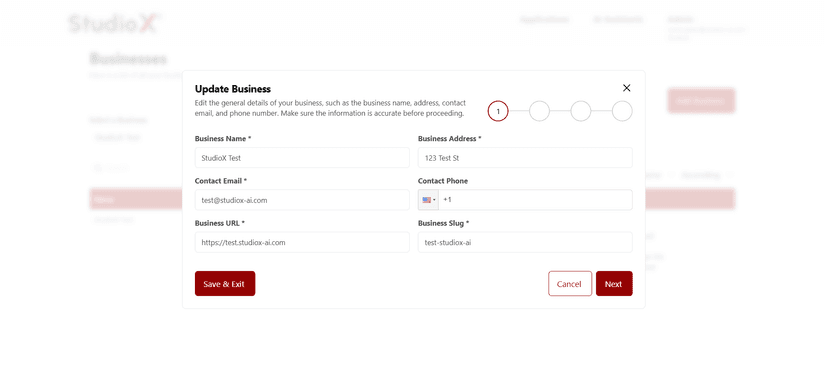
- Change contact information (name, address, email, phone)
- Modify the list of associated apps
- Reconfigure AI key settings if necessary
- Update branding elements and theme colors
All changes are saved instantly, and updated data is reflected in the business table.
Business Selection
When a business-admin is associated with multiple businesses, a dropdown selector allows switching between businesses.
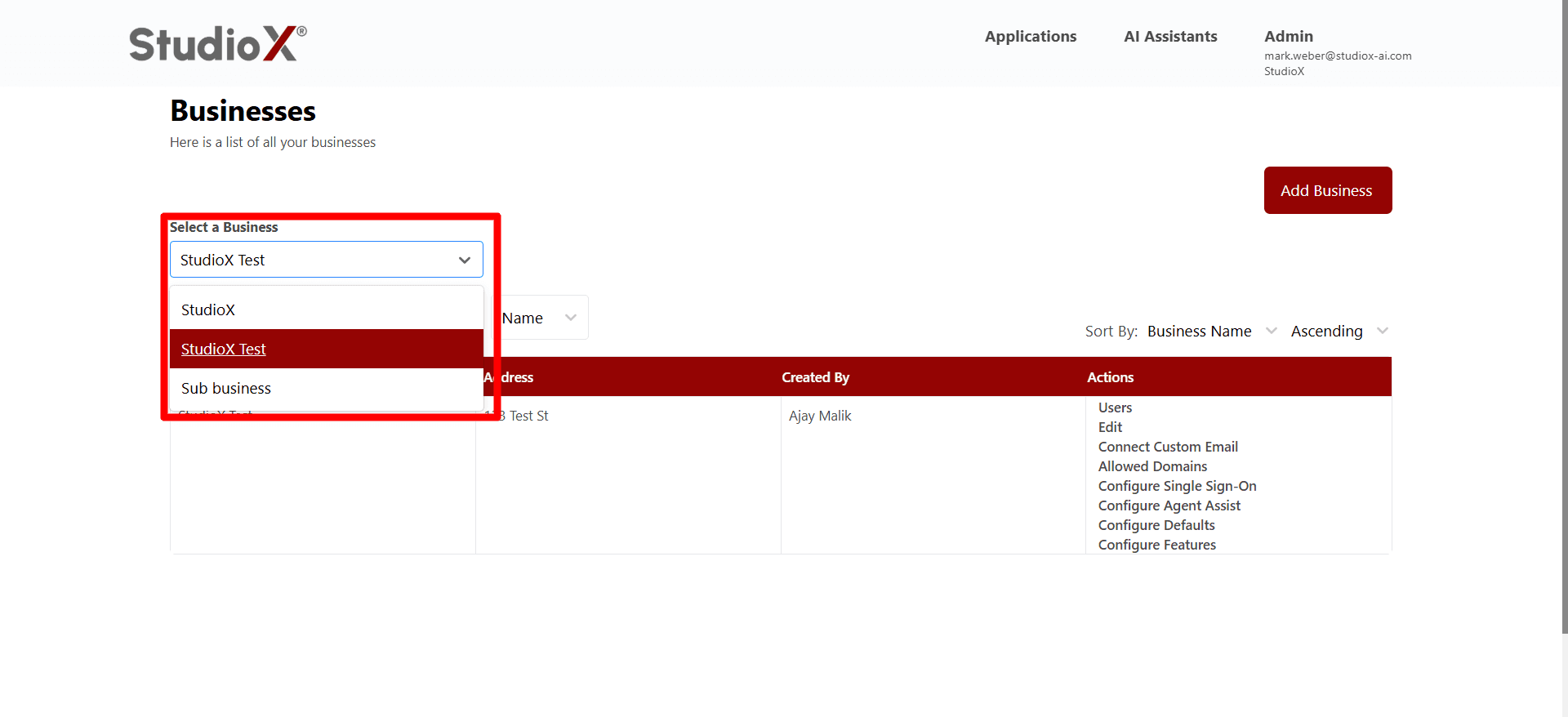
- Dropdown selector shows all accessible businesses
- Page refreshes and loads details of selected business
- This feature enables efficient management of terminology across multiple business entities.
Business Table Structure
All businesses are displayed in a table view that provides a clear overview of business data and available actions.
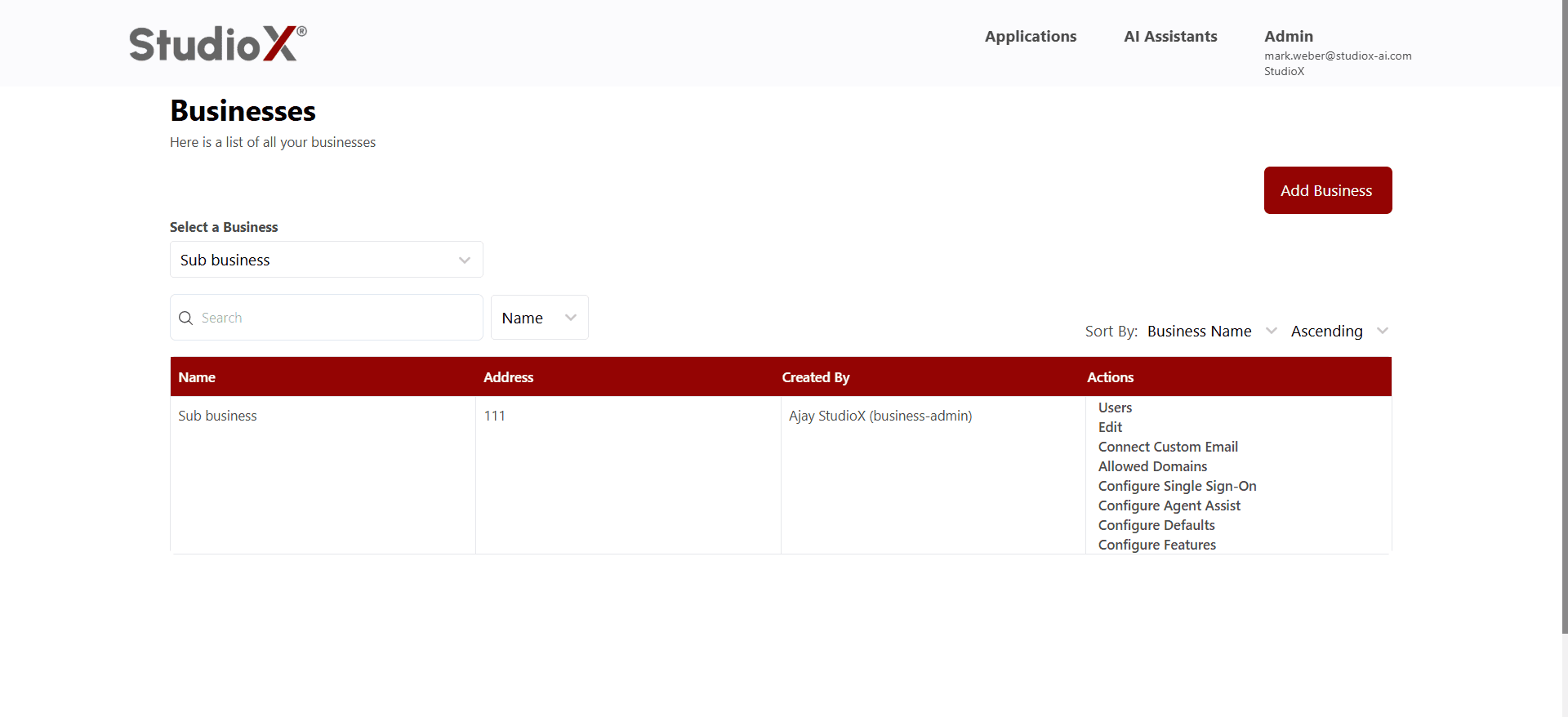
Table Columns
- Business Name - Display name of the business
- Address - Business location details
- Created By - User who created the term
- Actions - Edit and Delete options
The actions column offers quick access to editing a business, viewing its users, and accessing configuration options.
Search and Sort Businesses
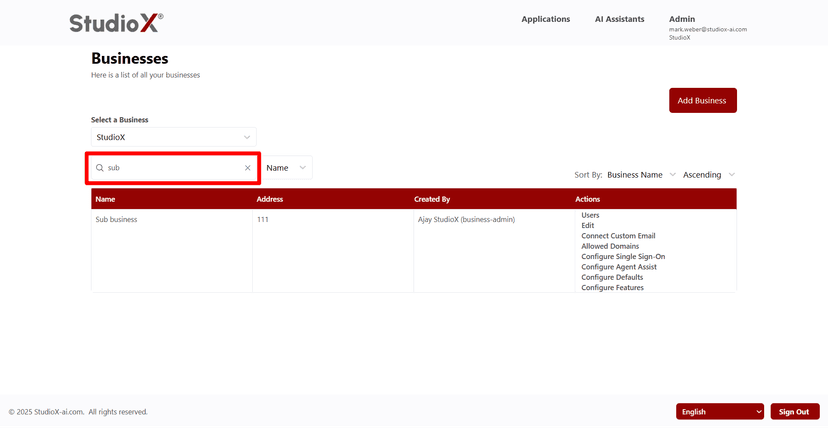
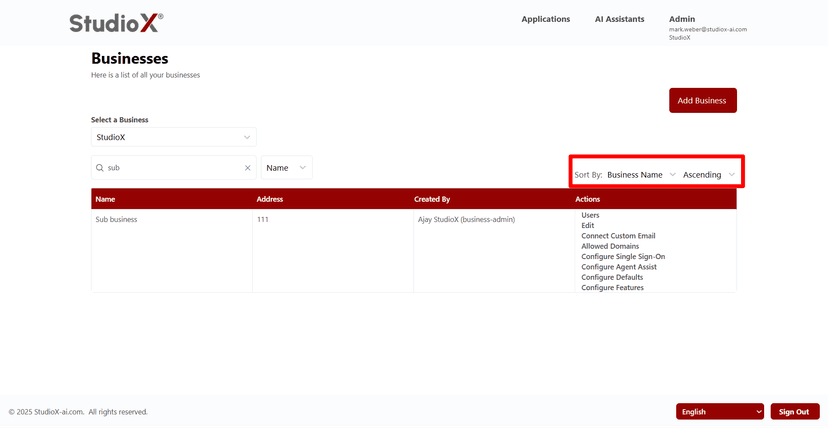
Users can search businesses based on multiple criteria and sort the table view for better organization.
Search Functionality
Sort Functionality
Search Criteria
- Search by business name
- Search by business address
- Search by phone number
Sort Options
- Sort by business name (ascending/descending)
- Sort by address (ascending/descending)
- Toggle between ascending and descending order
Efficient tools for managing large numbers of teams
Business User Management
Each business has its own group of users, which can be accessed by selecting 'Users' from the actions menu in the business table.
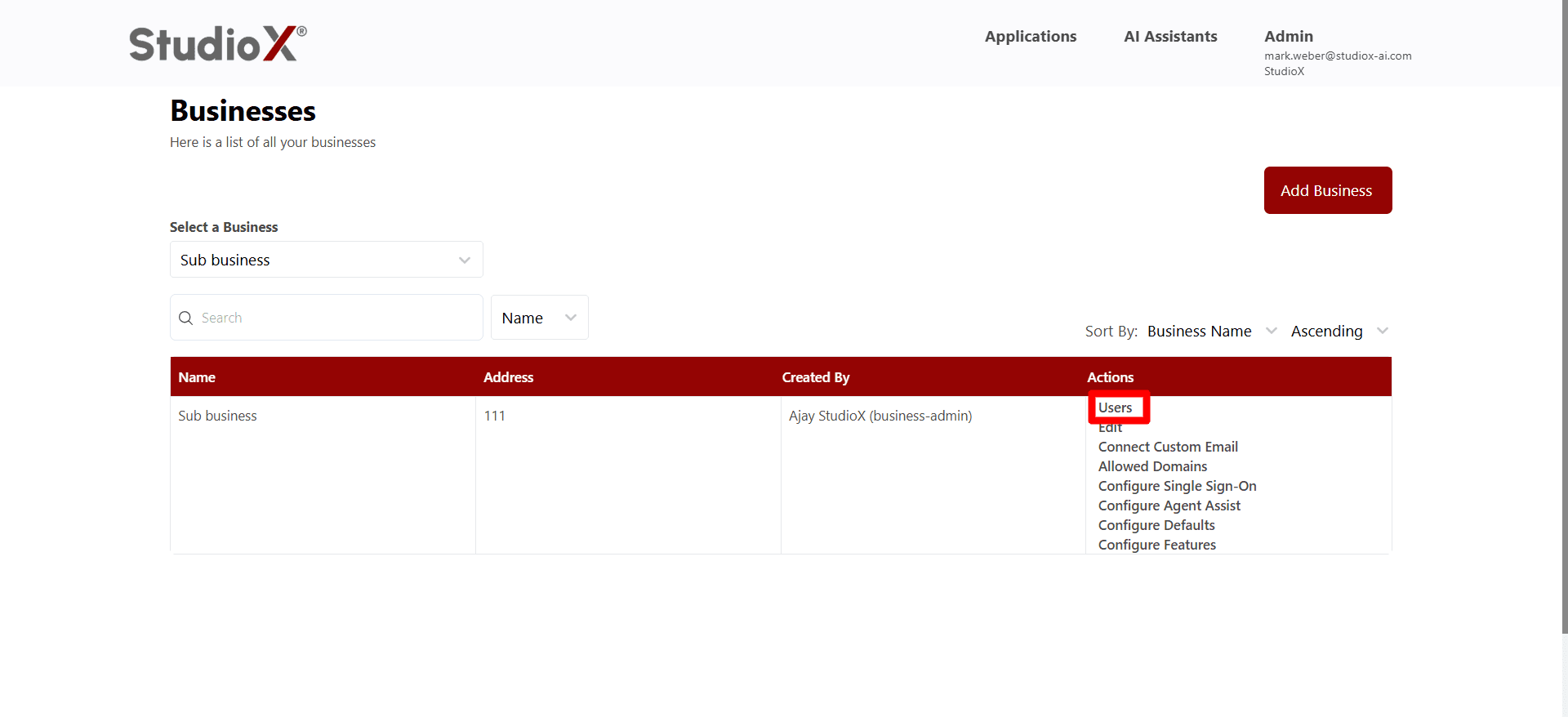
User Management:
- Select 'Users' from the actions column in business table
- System redirects to dedicated user management interface
- View, add, edit, and remove users for the business
From the user management interface, admins can see all current users of the business, add new ones, or update/remove existing users as needed.
Add Users to Business
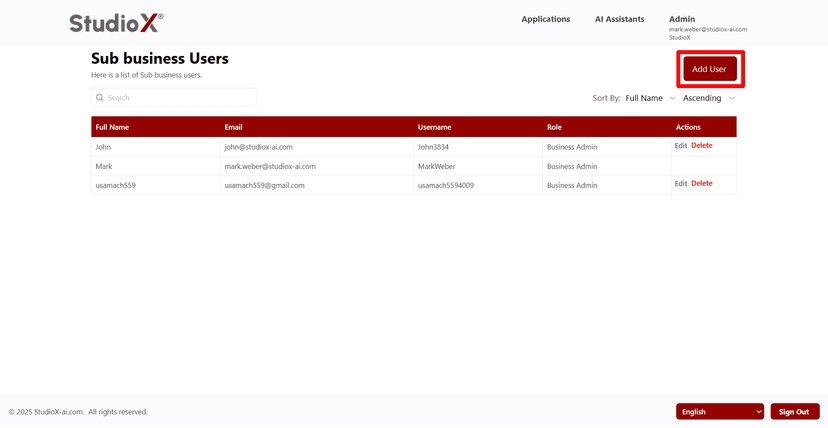
Business-admins can add users with email addresses and assign specific roles (business-admin, support, or user).
Add User Button
Add User Form
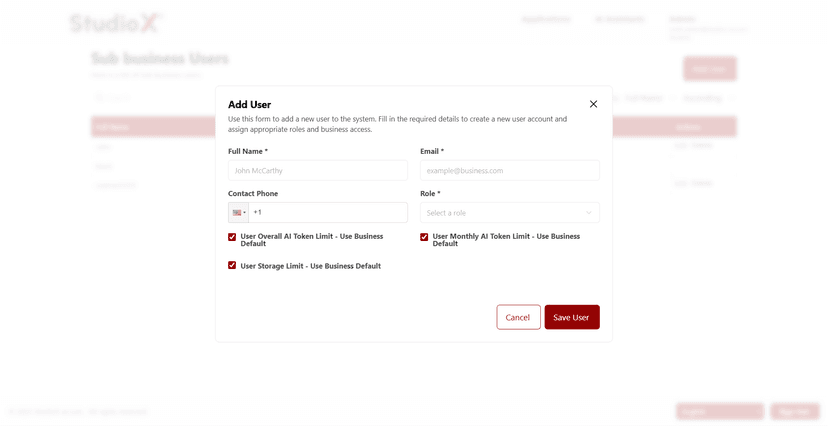
Required Fields:
- Full Name (required)
- Email Address (required)
- Role Selection (required)
- Contact Phone (optional)
Available User Roles
- Business Admin - Full access to business management
- Business Support - Limited administrative access
- User
Once added, users appear in the business's user list and gain access to relevant features based on their assigned role and token limits.
Edit Business Users
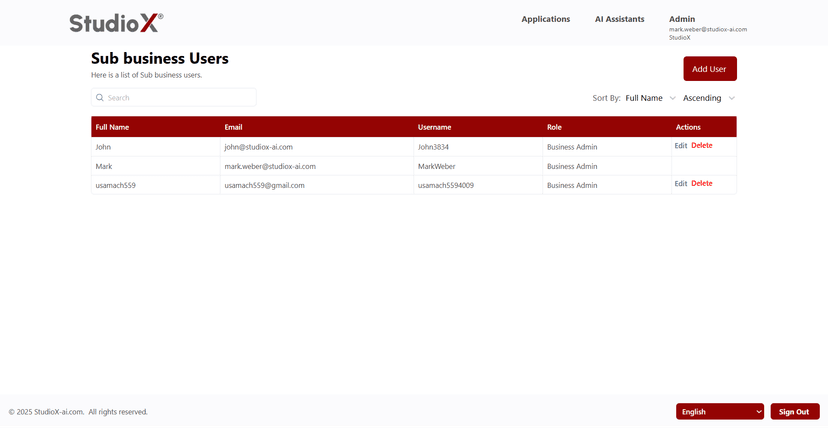
Each individual user can be edited to update their information and role assignments.
User Table View
Edit User Form
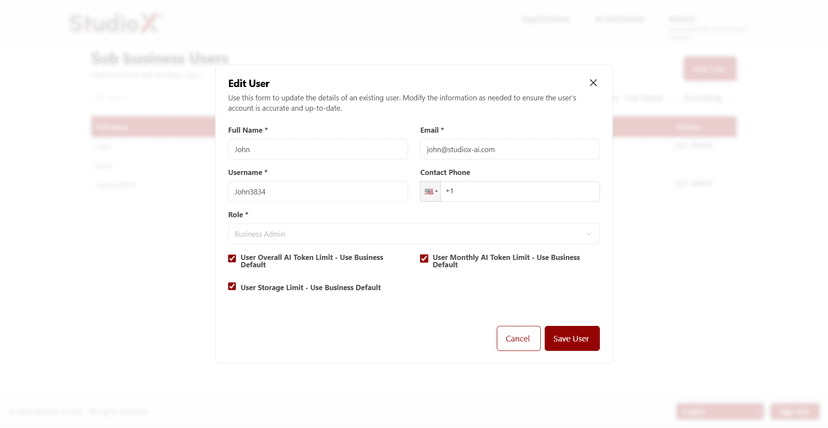
Editable User Fields
- Full Name
- Email Address
- Username
- Contact Phone Number
- User Role
- AI Token and Storage Limits
The user table includes search functionality and sorting options for efficient user management.
Delete Business Users
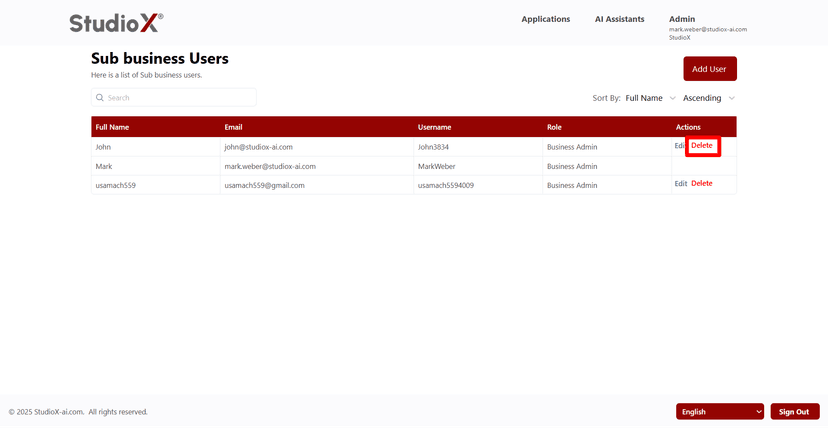
When a user should no longer have access to a business, they can be removed using the 'Delete' action beside their name.
Delete User Action
Delete Confirmation Dialog
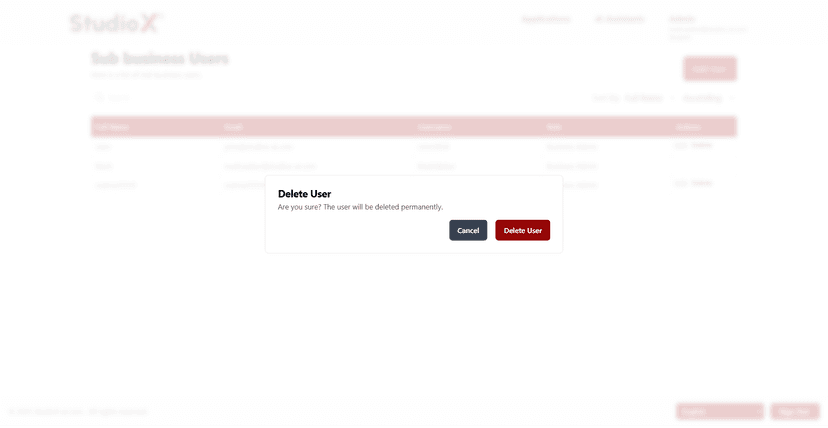
Warning: User deletion is permanent and cannot be undone. The user will be immediately disassociated from the business.
Upon confirming deletion, the user is immediately removed from the business and loses all associated access.
Connect Custom Email
Business-admins can set up custom email configurations to connect Google or Outlook email accounts for business communications.
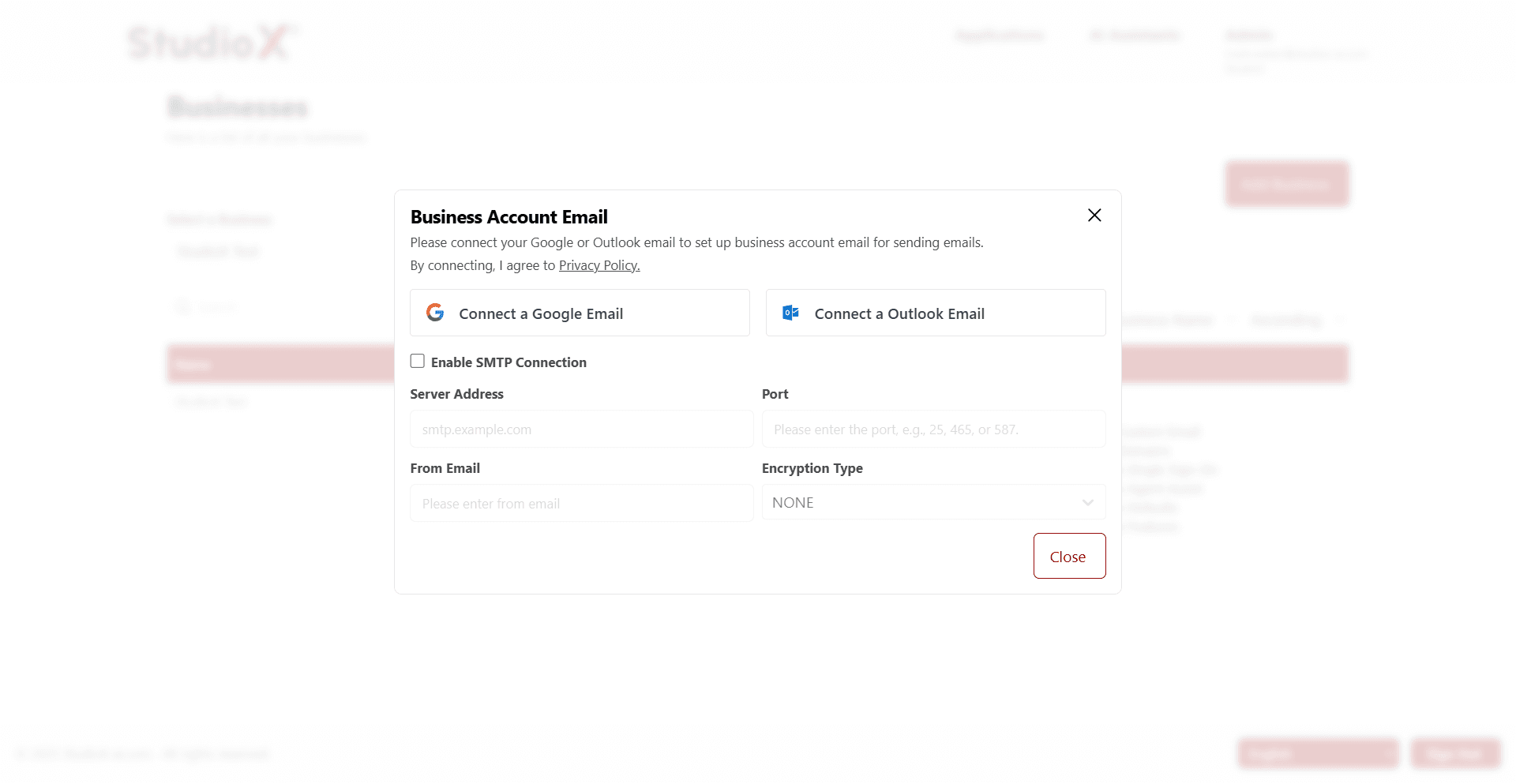
Supported Email Providers:
- Google Gmail integration
- Microsoft Outlook integration
- SMTP connection option
This feature enables businesses to use their own email accounts for sending automated emails and notifications through the platform.
Allowed Domains
Business-admins can configure domains that are permitted to sign in, ensuring only trusted entities have access.
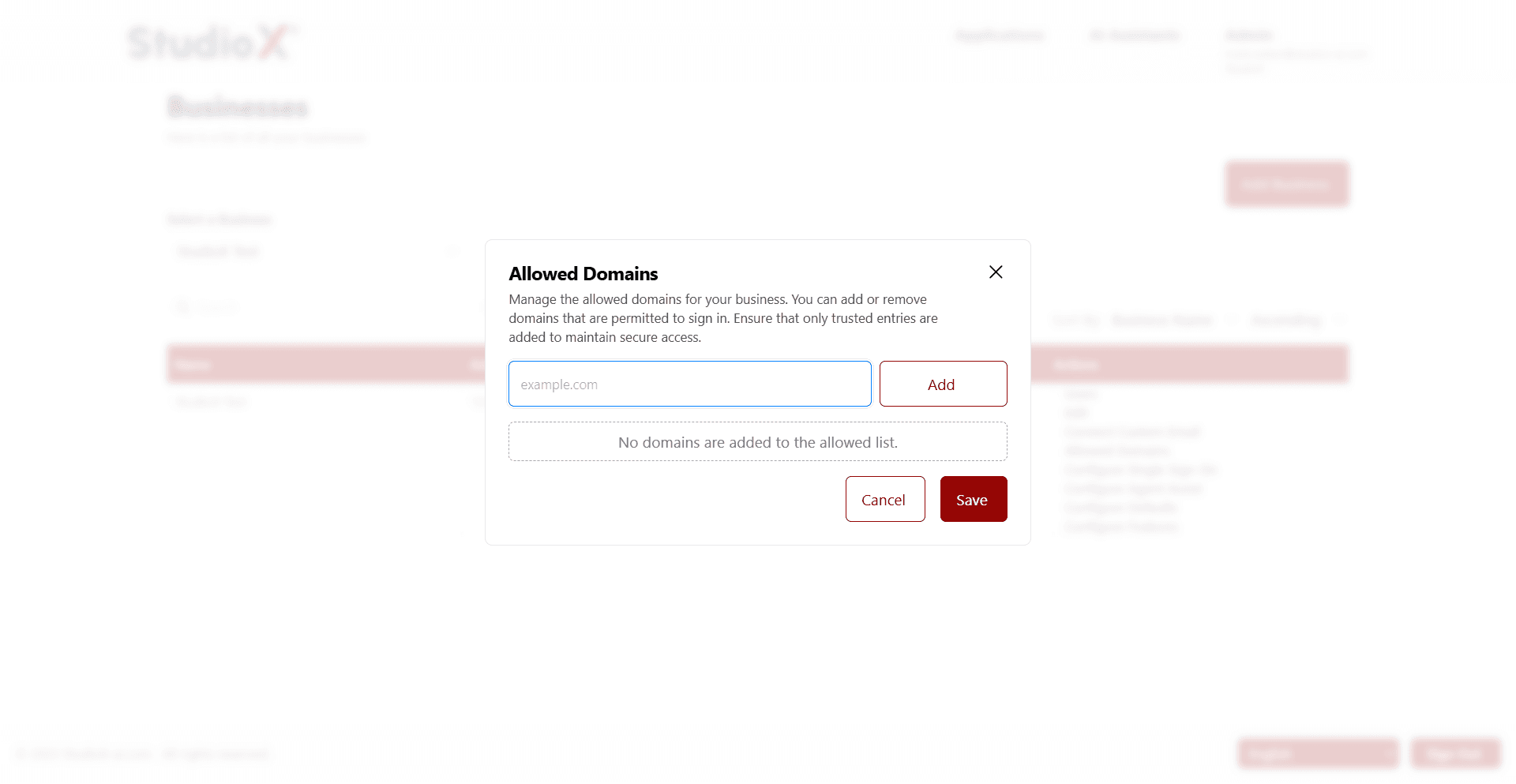
Domain Management Features
- Add trusted domains to the allowed list
- Remove domains from the allowed list
- Domain validation and verification
- Secure access control based on email domains
Security Note: Only users with email addresses from allowed domains can access the business, maintaining secure access control.
Configure Single Sign-On
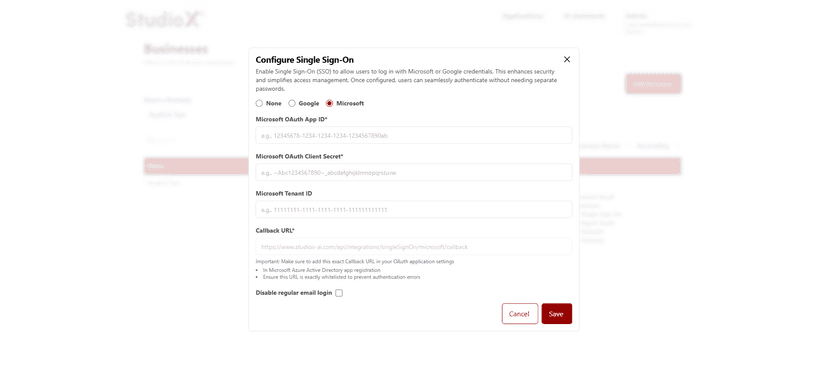
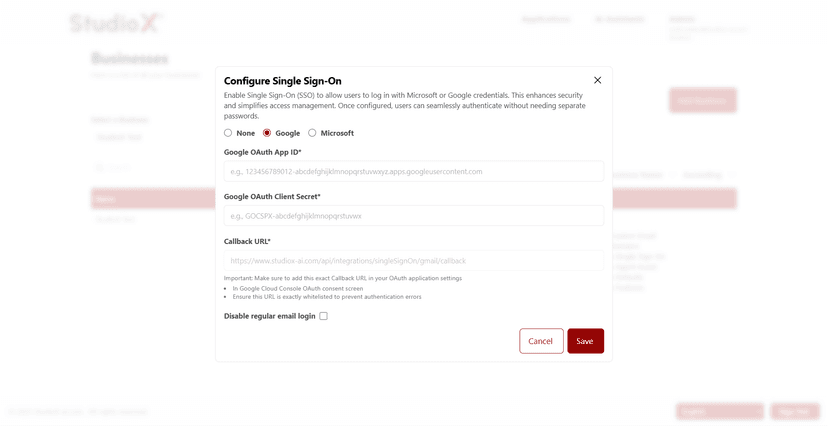
Single Sign-On (SSO) can be configured to allow users to authenticate using their existing Microsoft or Google credentials.
Microsoft SSO Setup
Google SSO Setup
Supported SSO Providers:
- Microsoft Azure Active Directory
- Google Workspace
- Option to disable regular email login
Once configured, users are redirected to their respective identity provider during the login process for seamless authentication.
Configure Agent Assist
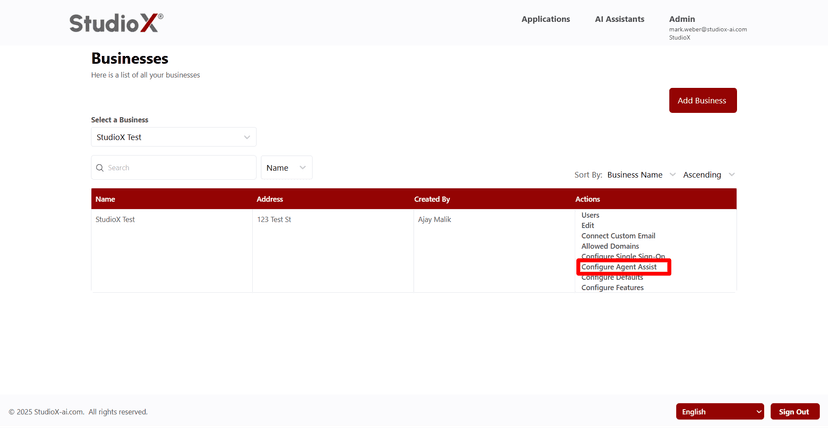
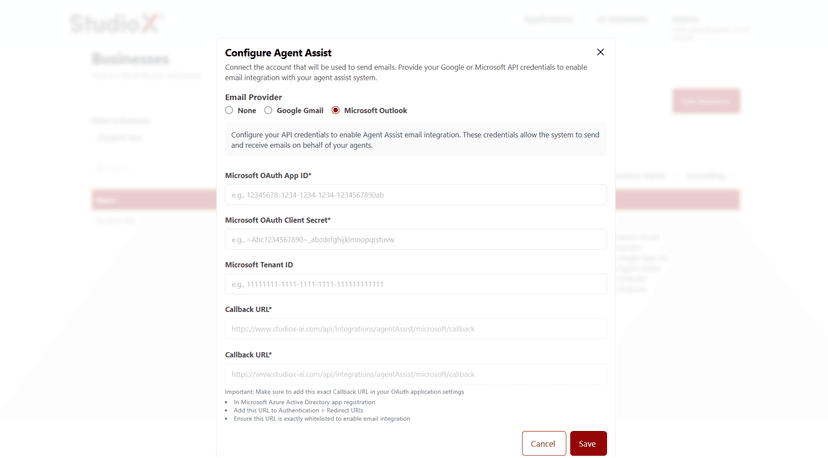
To integrate email with your agent assist system, connect the Google or Microsoft account that will be used for sending emails and provide the required API credentials.
Agent Assist Email Providers
Agent Assist Configuration
Setup Requirements
- API credentials for Google or Microsoft accounts
- Email integration configuration
- Callback URL setup for OAuth applications
- OAuth application settings in respective platforms
This integration enables automated email sending and receiving through agent assist systems.
Configure Upload Limits
Business-admins can set maximum sizes for files and folders, as well as configure AI token limits and storage restrictions.
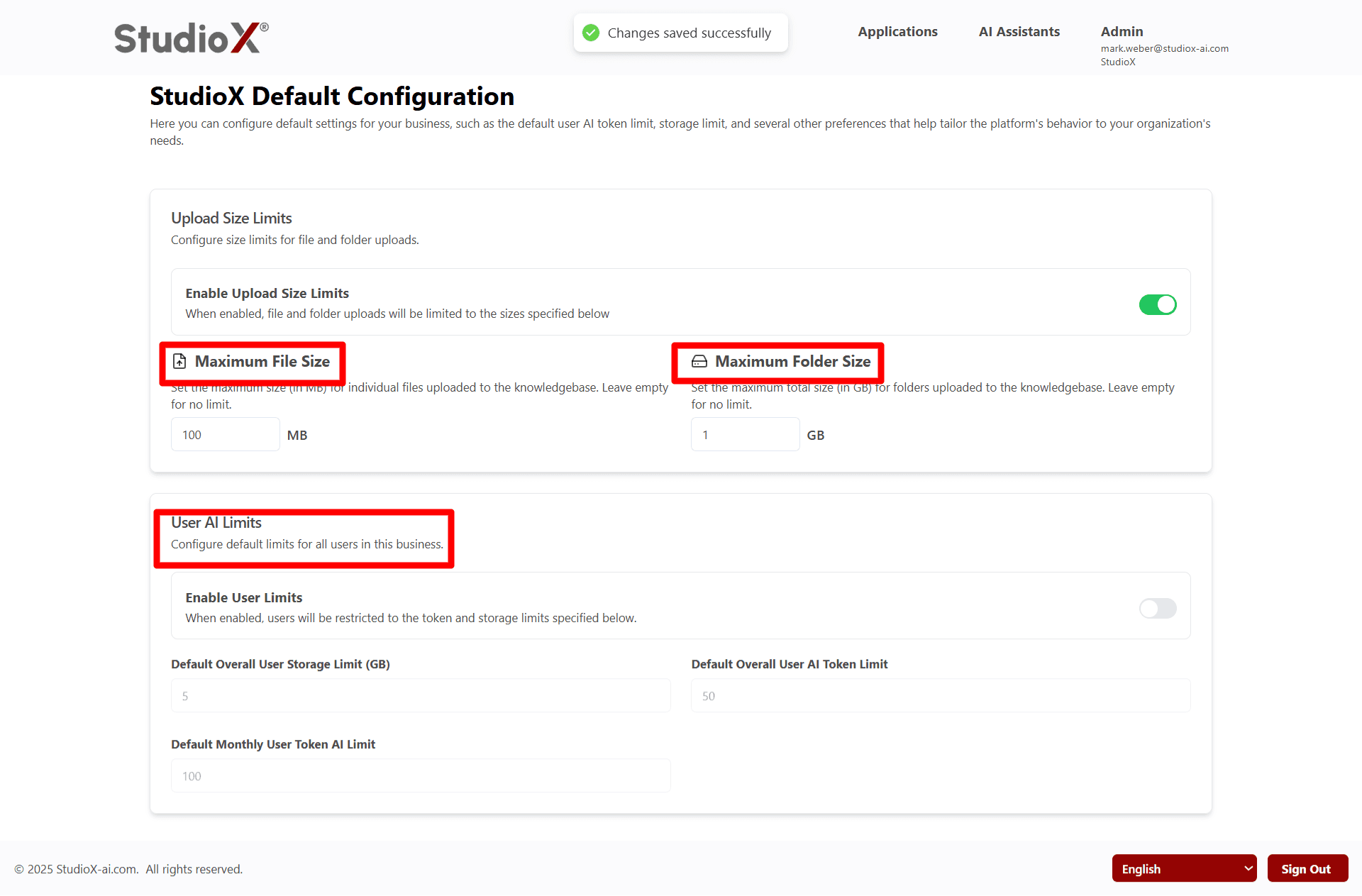
Configurable Limits
- Maximum File Size (per individual file)
- Maximum Folder Size (total folder content)
- Overall Storage Limit (per user)
- AI Token Limits (overall and monthly)
- Monthly Usage Restrictions
Limit Enforcement: These limits apply to all users within the business and help manage resource usage effectively.
Configure Business Features
Business-admins can enable or disable various features to customize the platform behavior according to their business needs.
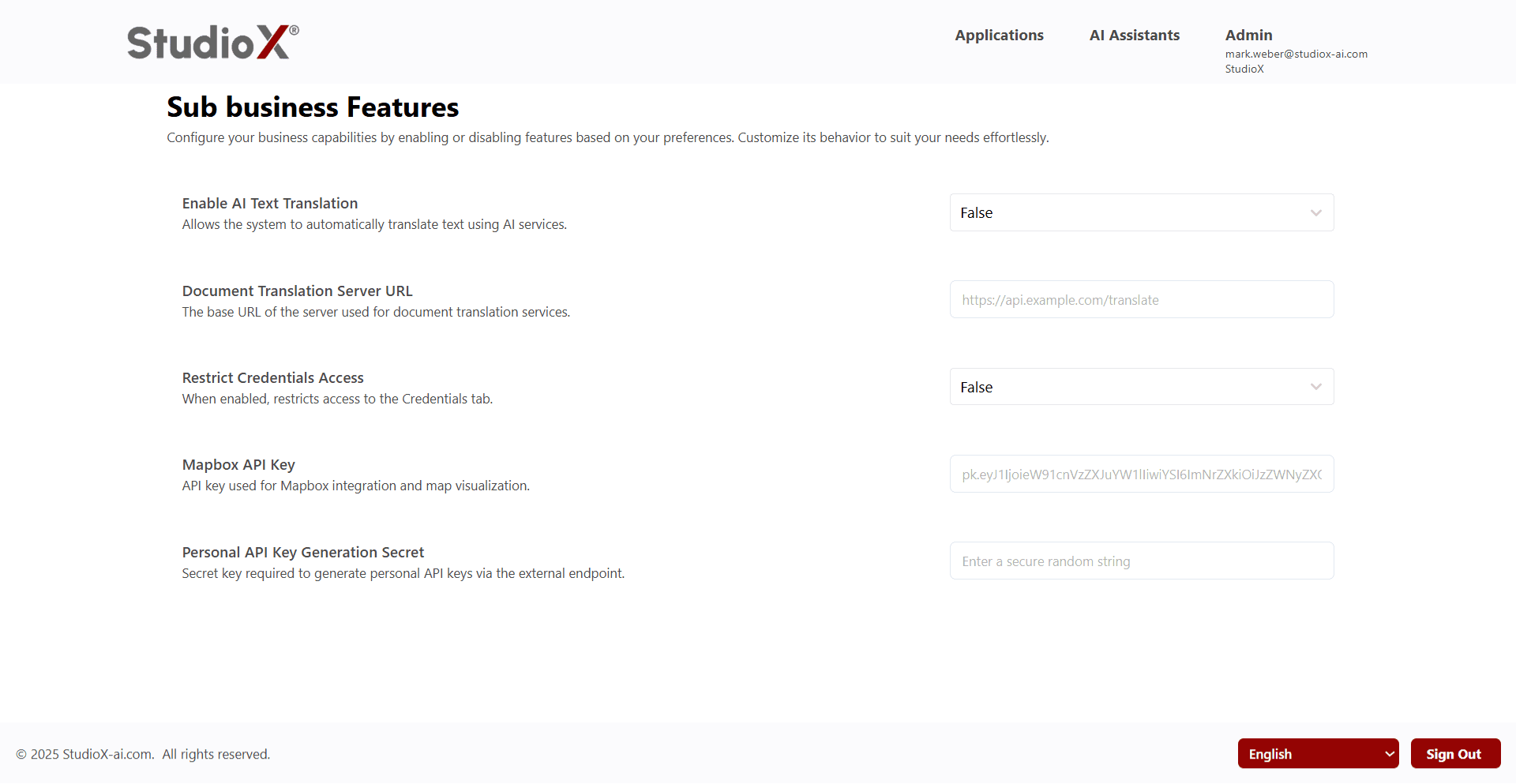
Available Features
- AI Text Translation - Enable automatic text translation
- Document Translation Server URL configuration
- Restrict access to the Credentials tab
- Mapbox API Key for map visualization
- Personal API Key Generation Secret
Feature Customization: Enable or disable features to tailor the platform's behavior to your organization's specific needs and security requirements.