Asynchronous Tasks
View and manage asynchronous tasks triggered by users. Admins can pause, resume, and oversee task execution.
Table of Contents
Asynchronous Tasks Overview
The Asynchronous Tasks feature in the Platform allows Business-Admins to view and manage background tasks triggered by users. Admins can pause, resume, and oversee task execution across the system. This provides comprehensive control over system resources and user activities.
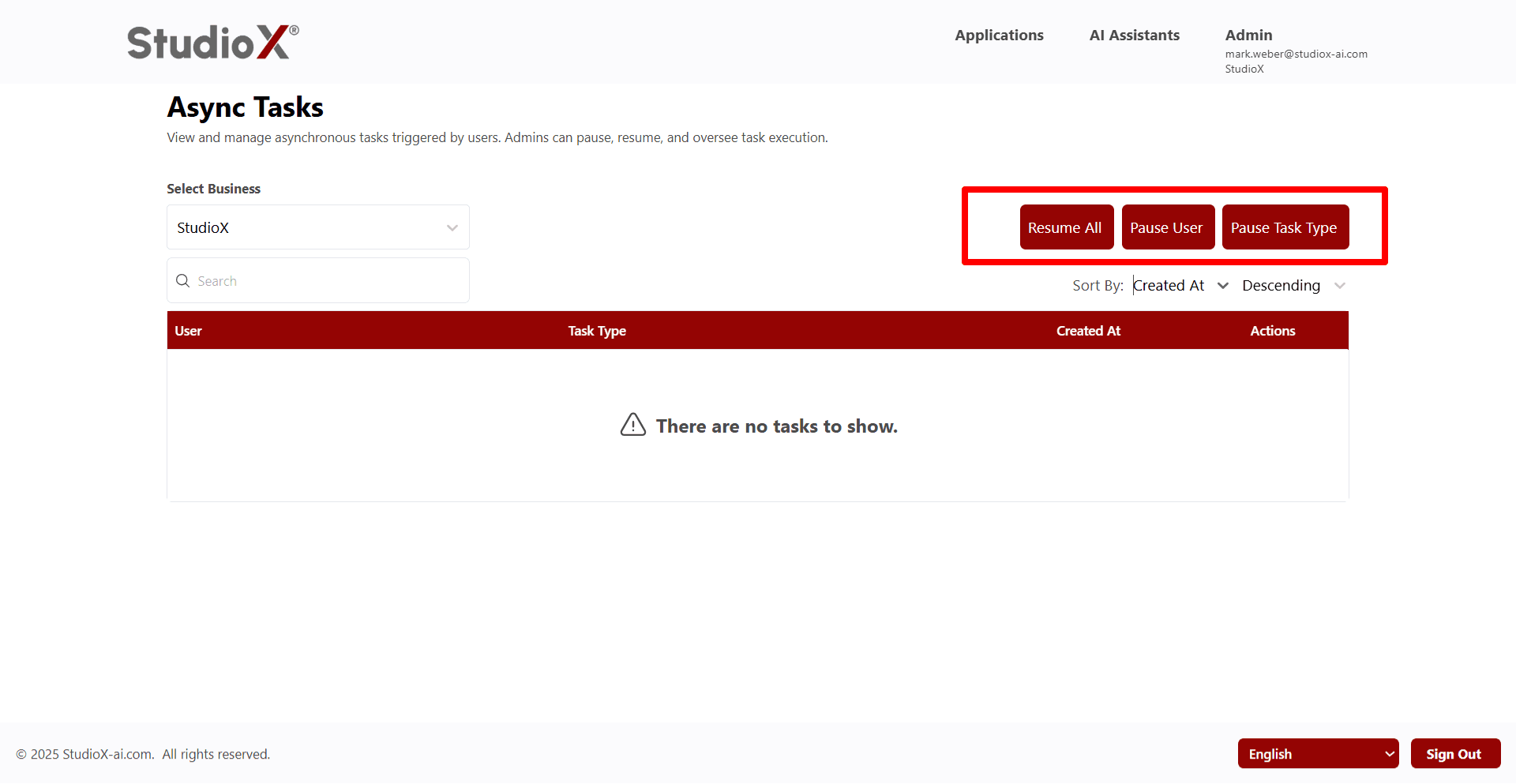
Access Path:
- Login to the Platform
- Go to Admin in the header navigation
- It shows a menu that has multiple options. Select Async Tasks
Admins can monitor all background processes, pause specific users or task types, and resume operations as needed for optimal system performance.
Asynchronous Tasks Workflow
The workflow involves monitoring system tasks, managing user activities, and controlling task execution through various administrative actions.
Administrative Capabilities
- Pause and resume tasks for individual users or entire task types
- Monitor and oversee task execution across the system
- Track user activities and background processes
- Control different types of tasks system-wide
Business Selection
Business-admins can switch between different businesses to manage asynchronous tasks specific to each business context.
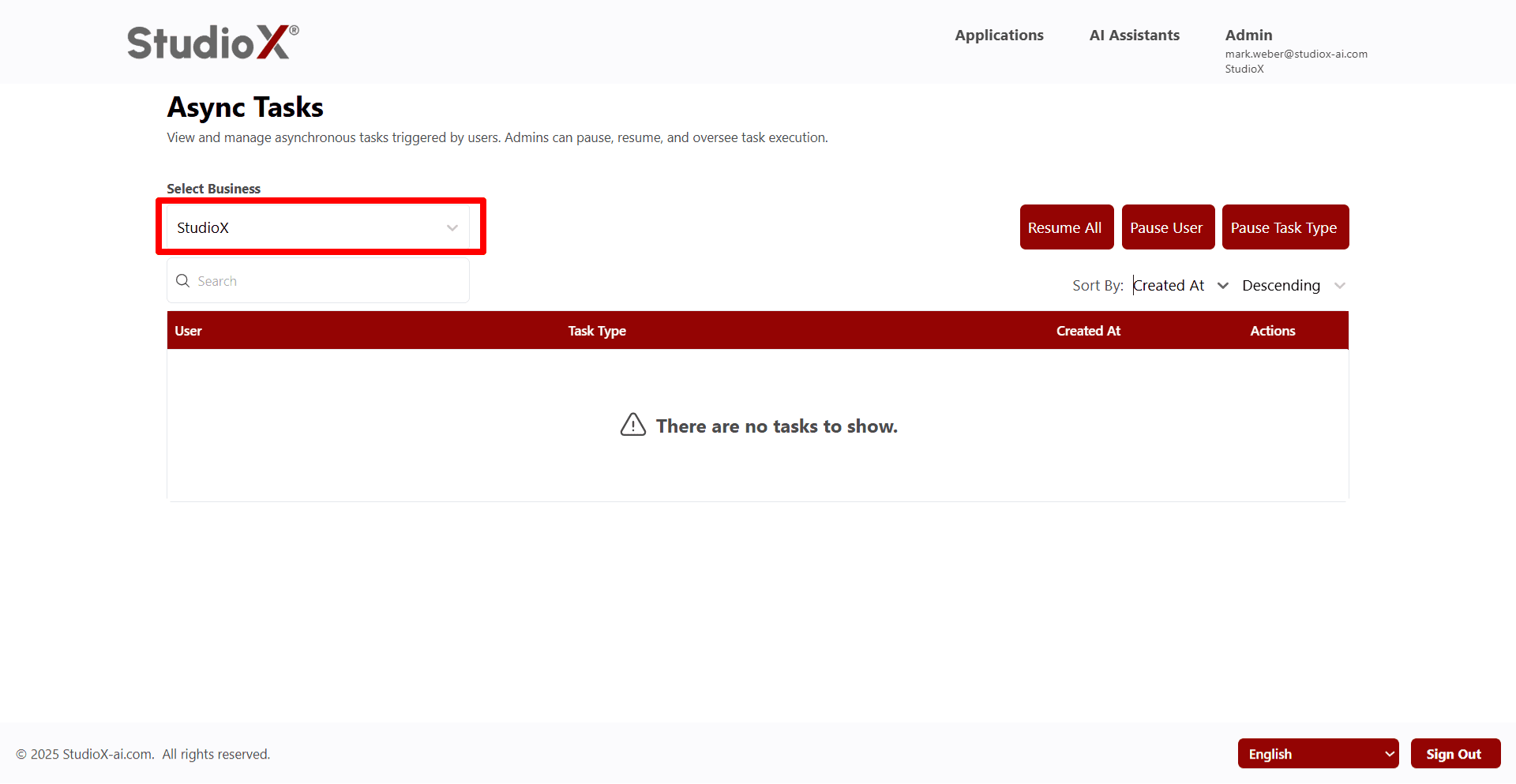
- Use the dropdown selector to switch between businesses
- Tasks are displayed and managed within the selected business context
- Each business has its own set of asynchronous tasks and users
Task Management Actions
Three primary actions are available for managing asynchronous tasks: Resume All, Pause User, and Pause Task Type.
Available Management Actions
- Resume All - Restart all paused tasks for the selected business
- Pause User - Suspend tasks for individual users or multiple users
- Pause Task Type - Suspend specific types of tasks system-wide
Resume All Tasks
The Resume All function allows admins to restart all paused tasks for the currently selected business.
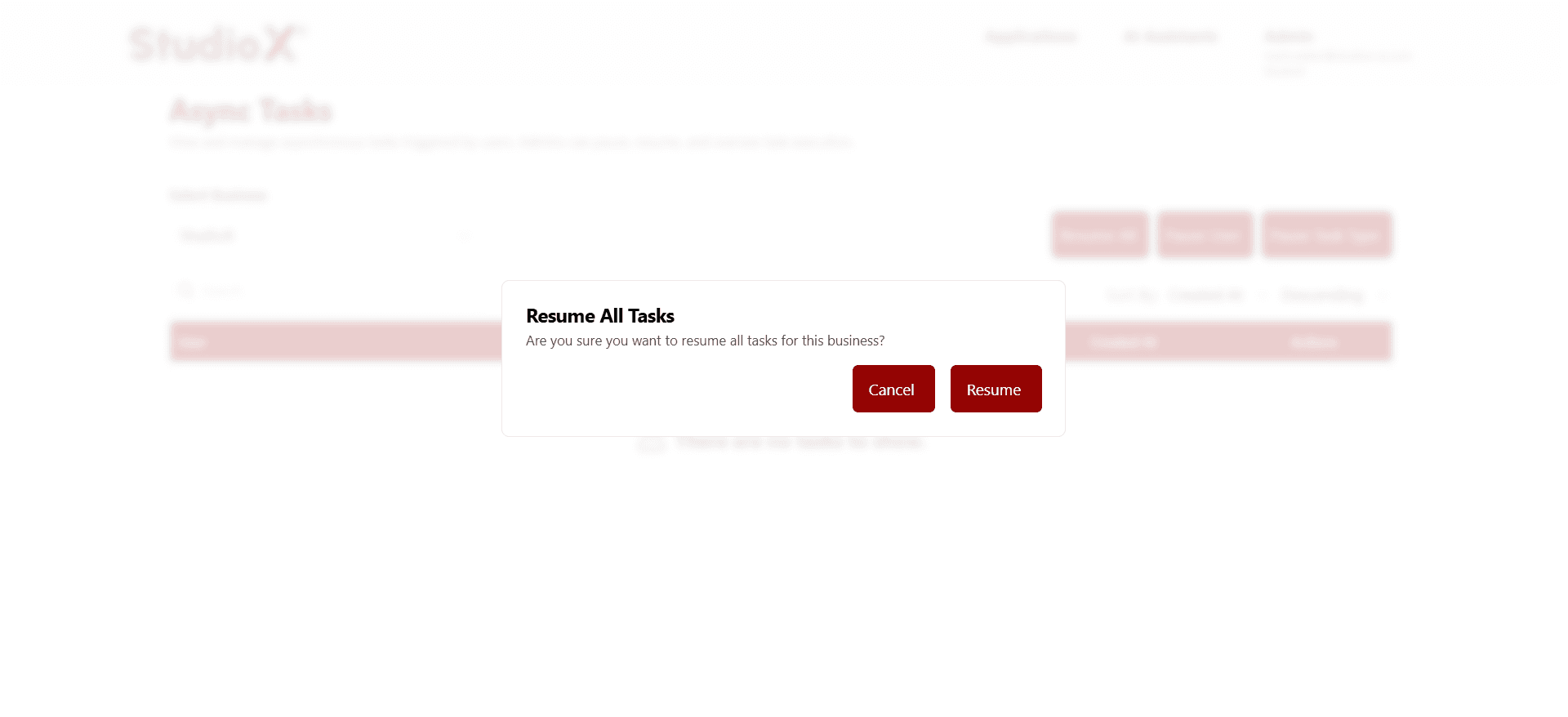
Resume All Process:
- Click the 'Resume All' button
- Confirm the action in the confirmation dialog
- All paused tasks for the business will resume execution
This action affects all tasks across the entire business, providing a quick way to restore normal operations.
Pause User
The Pause User functionality allows admins to suspend task execution for individual users or select multiple users for bulk actions.
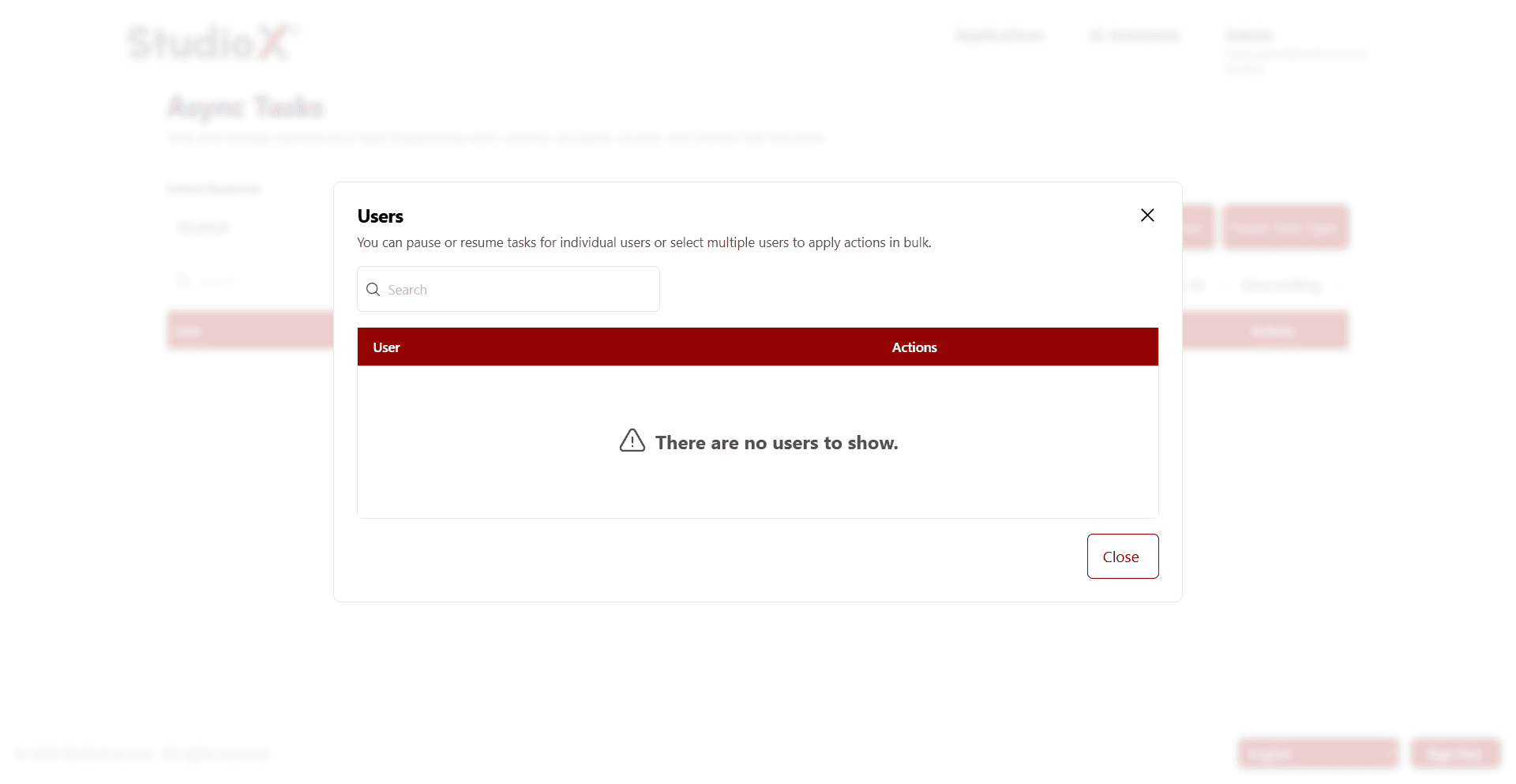
Pause User Features
- Search functionality to quickly locate specific users
- Select individual users to pause their tasks
- Select multiple users for bulk pause operations
- Apply actions to multiple users simultaneously
This provides granular control over user activities and helps manage system resources effectively.
Pause Task Type
The Pause Task Type feature allows admins to suspend specific types of tasks across the entire system.
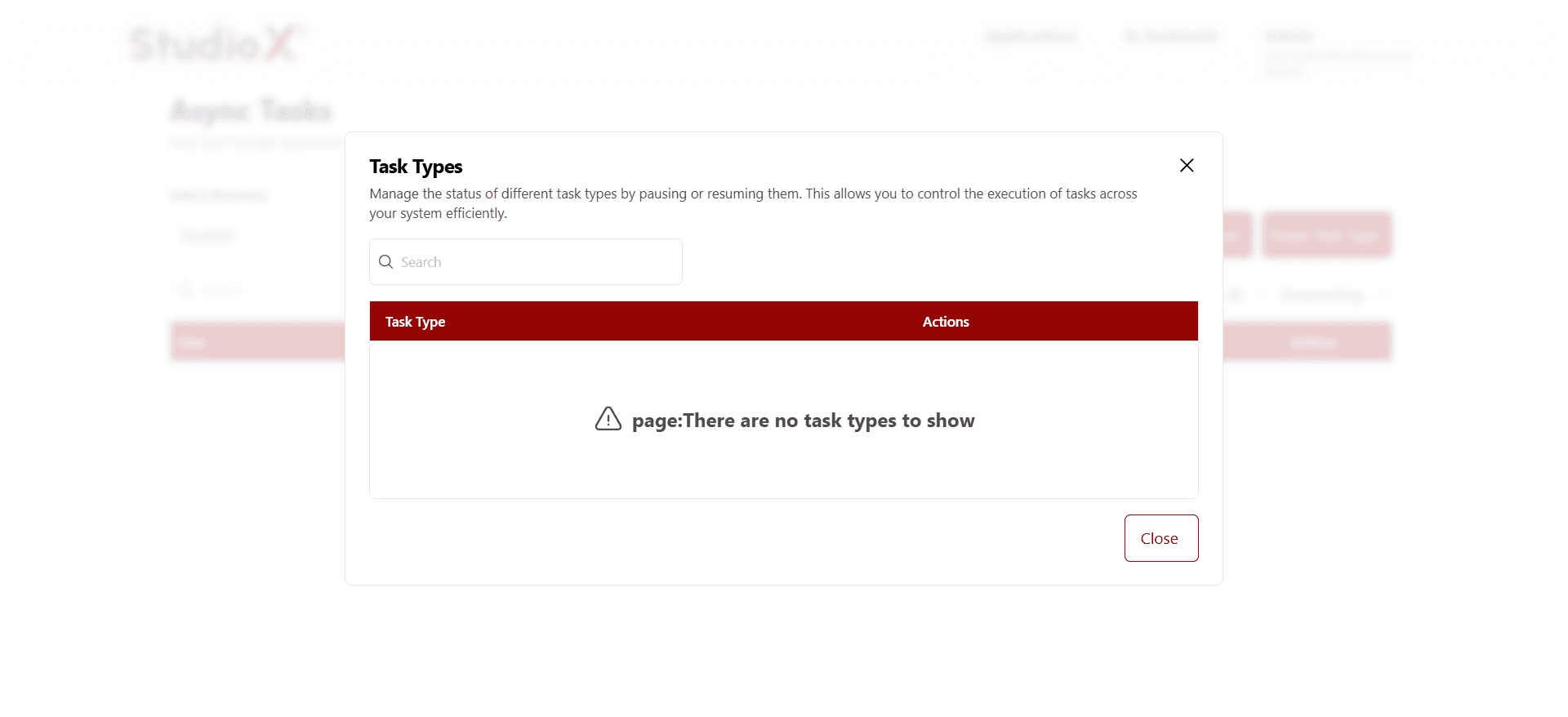
Task Type Management Features
- Search through available task types
- Pause specific types of tasks system-wide
- Control task execution at the system level
- Efficiently manage system resources by task category
This allows for system-wide control and helps optimize performance by managing resource-intensive task types.
Search Functionality
Search functionality helps locate specific tasks, users, or task types quickly within the asynchronous tasks interface.
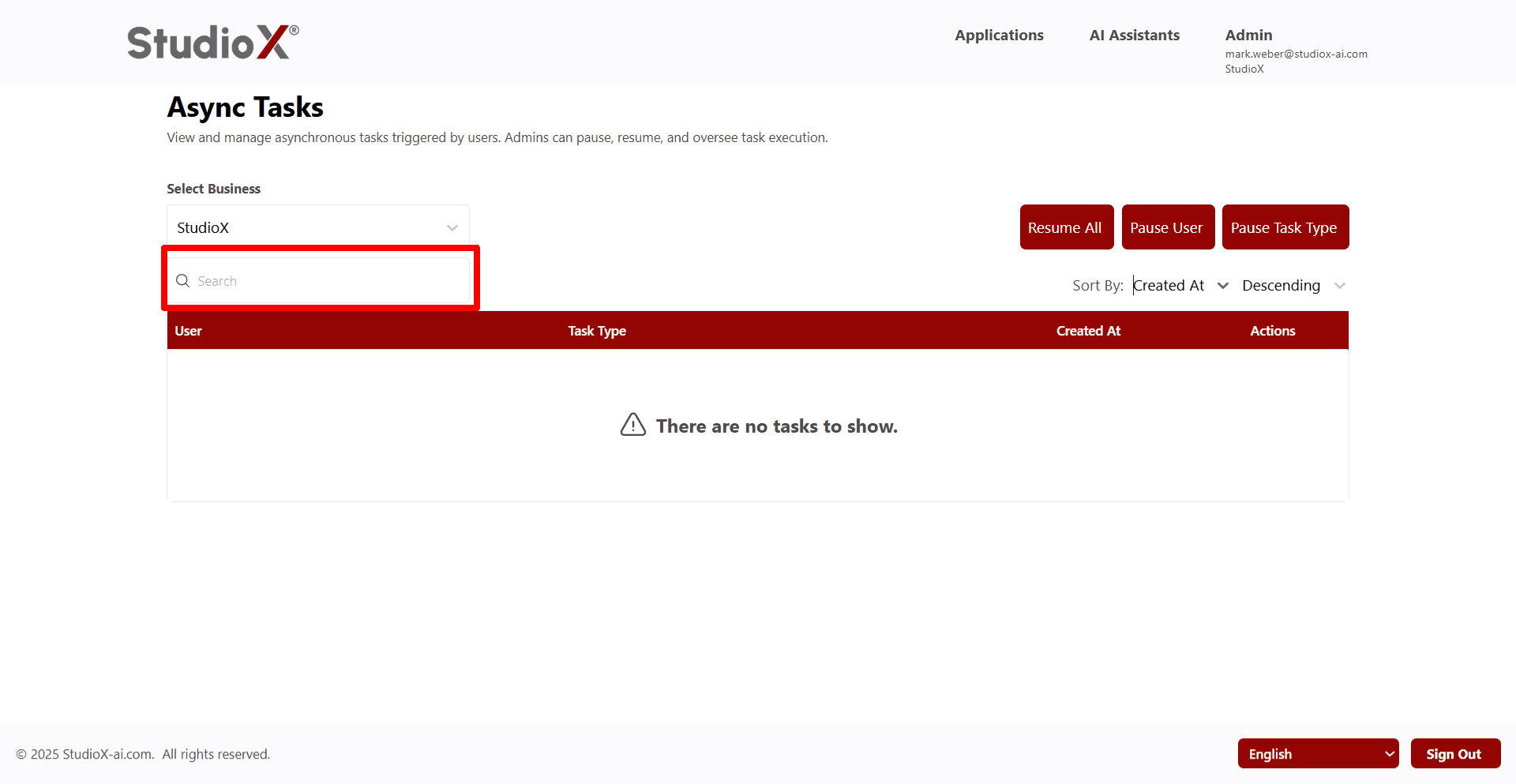
- Search tasks by user name
- Search tasks by task type
- Quickly locate specific tasks without browsing the entire list
Sort Functionality
Sort functionality allows organizing the task list by different criteria for better management and overview.
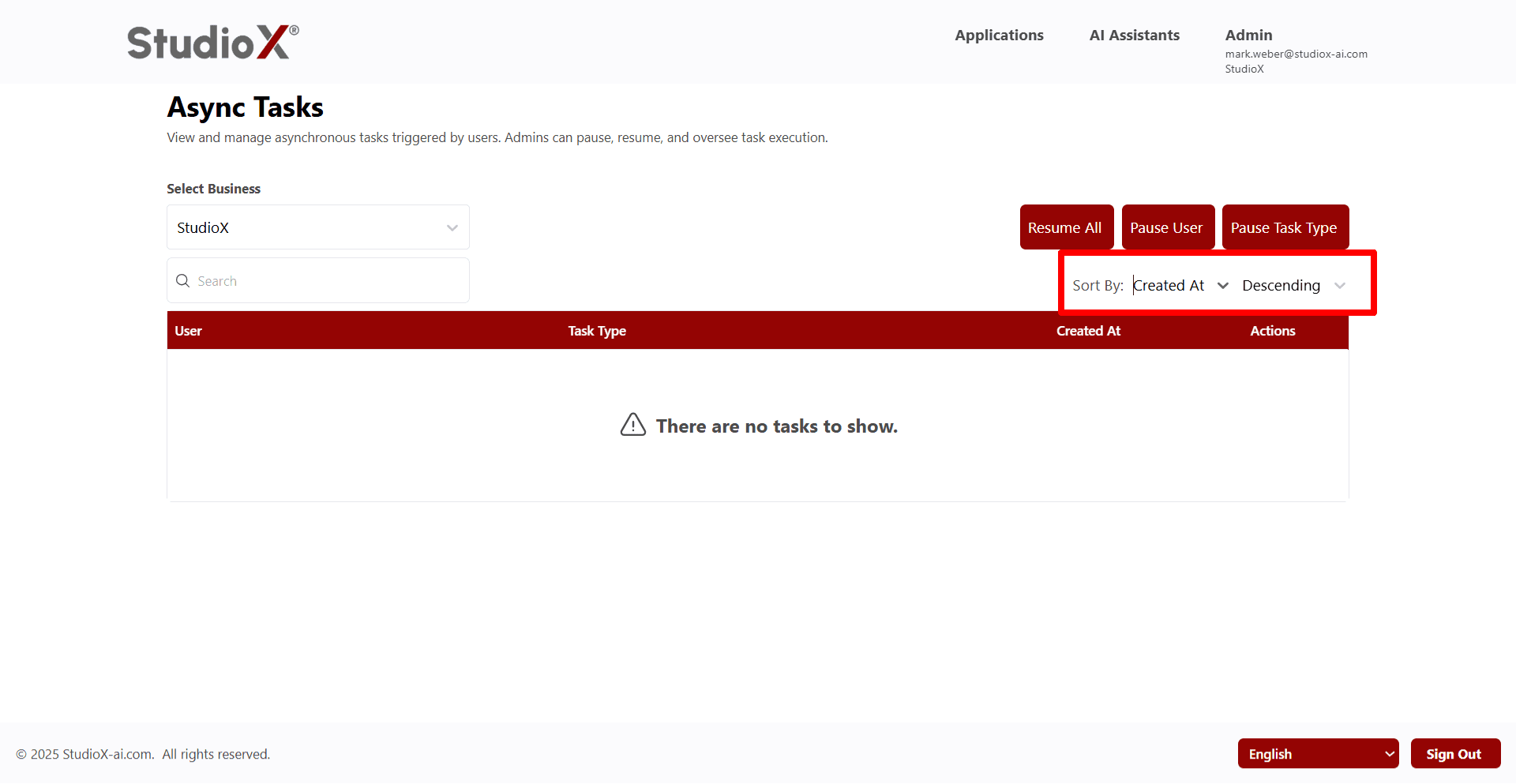
Sort Options
- Sort by Created At (date)
- Sort by user name
- Sort by task type
- Choose ascending or descending order
Table Structure
The asynchronous tasks are displayed in a structured table format showing key information about each task.
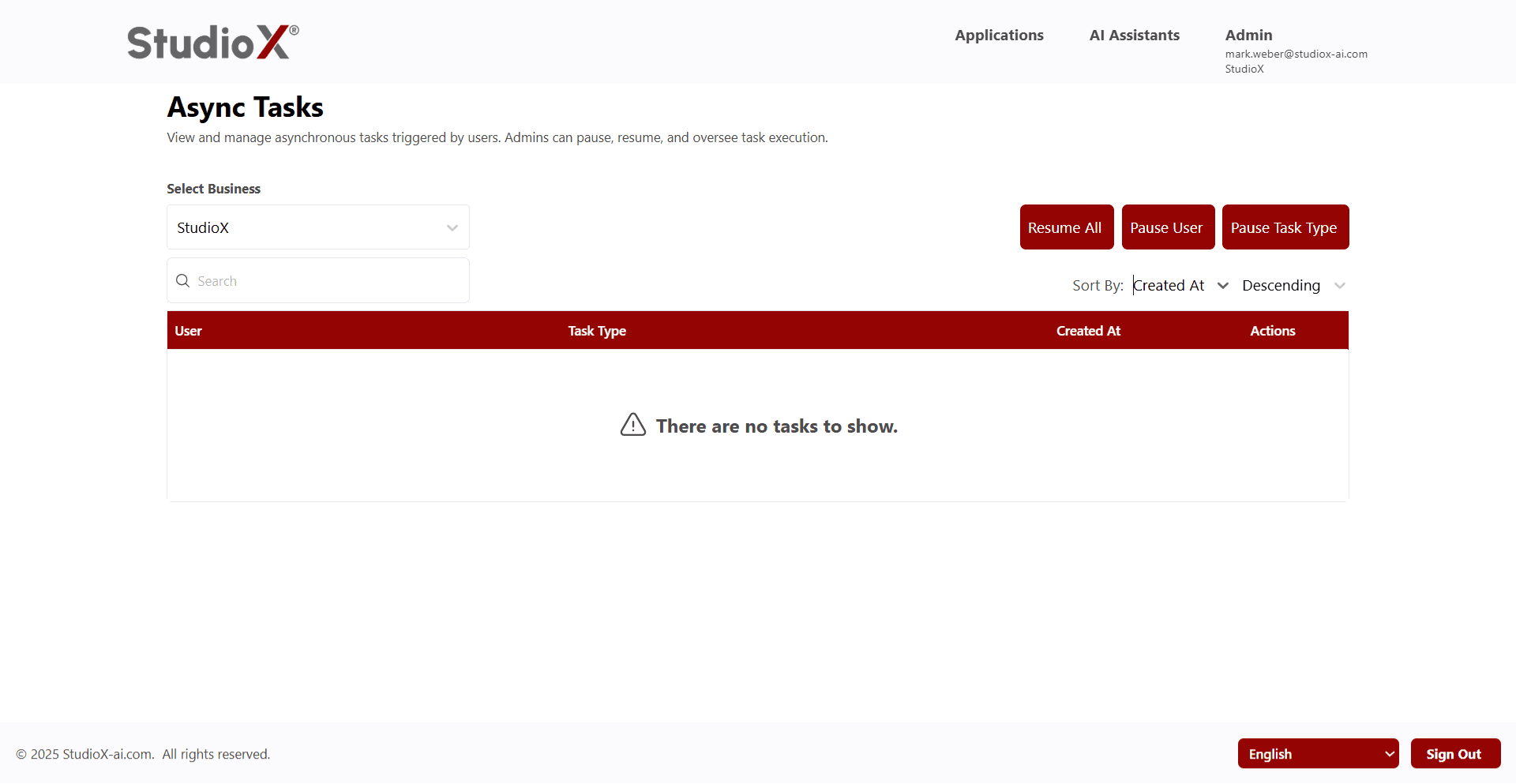
Table Columns
- User - Shows which user triggered the task
- Task Type - Displays the type/category of the task
- Created At - Date when the term was added
- Actions - Edit and Delete options
When no tasks are available, the table displays 'There are no tasks to show' message.