Transcribe
Capture every word effortlessly: this app transcribes audio and video recordings with accuracy, and offers real-time transcription for live sessions.
Table of Contents
Overview
This transcribe app makes it easy to turn audio and video recordings into written text. It listens to what's being said and writes it down accurately. Whether you're uploading a recording or running a live session, the app can transcribe everything in real time.
Access Path:
- Login to the Platform
- Navigate to Applications
- Select the Productivity tab
- click_transcribe
Key Features
- Audio and video file transcription with multiple format support
- Real-time transcription for live meetings and sessions
- Built-in translation capabilities with multiple language options
- Automatic speaker identification and numbering
- AI-powered chat functionality to query transcription content
- Real-time vocalization of transcribed text
Getting Started
After you login, you can find this app (Transcribe) in the 'productivity' tab. On the app dashboard you will see two tabs - 'All Transcribes' and 'Details'.
Two Main Transcription Options
- Live Transcribe: Real-time transcription for ongoing meetings or conversations
- Upload Audio: Upload pre-recorded audio or video files for transcription
Supported File Formats: MP3, MP4, WAV, and OGG formats
Workflow
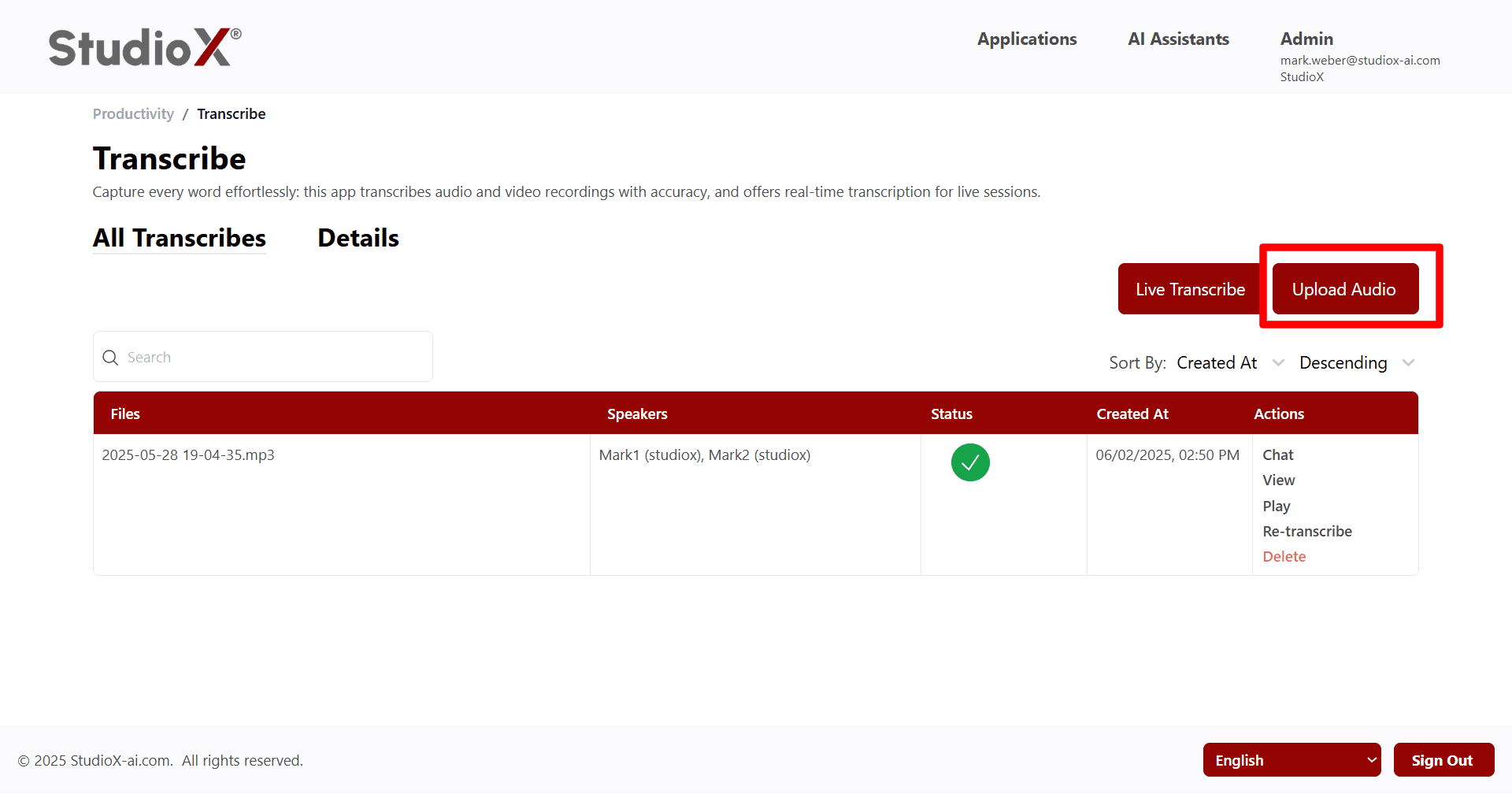
The Transcribe application provides two main interfaces for managing your transcription tasks. The main dashboard displays your transcription history and provides access to all functionality.
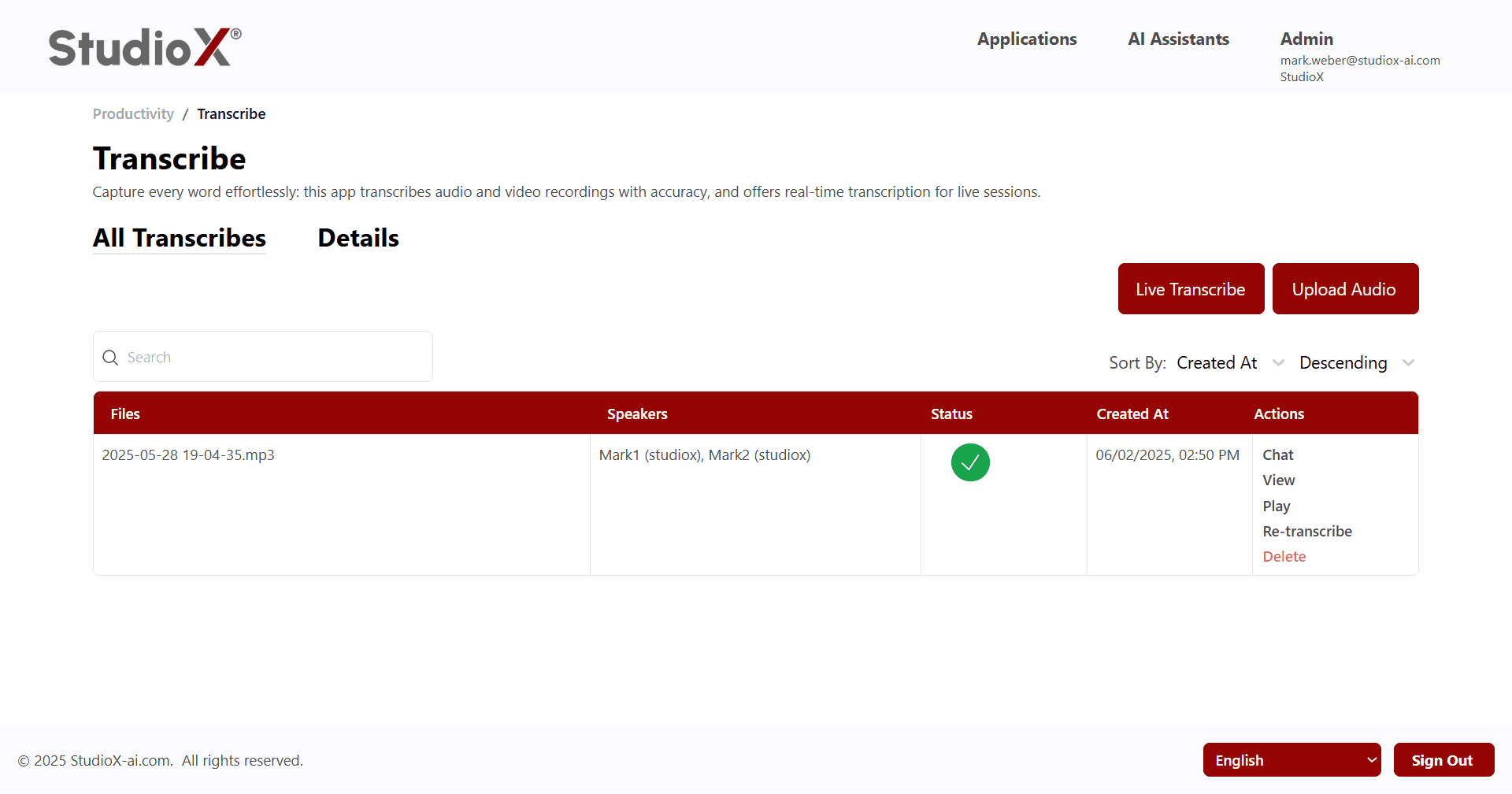
The interface is organized into two main tabs: 'All Transcribes' for managing your transcription library, and 'Details' for viewing detailed transcription results.
All Transcribes
The All Transcribes tab displays your complete transcription history in a table format, allowing you to manage all your transcription files from one central location.
From this view, you can search, sort, and perform various actions on your transcriptions including chat, view, play, re-transcribe, and delete operations.
Live Transcribe
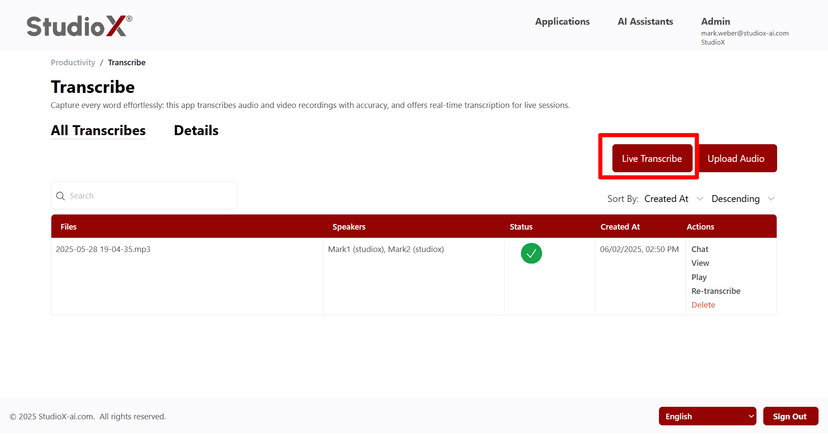
To use the live transcription feature, click on the Live Transcribe button, then tap the microphone icon to begin speaking. You can also pause the transcription at any time during speech.
Live Transcribe Button
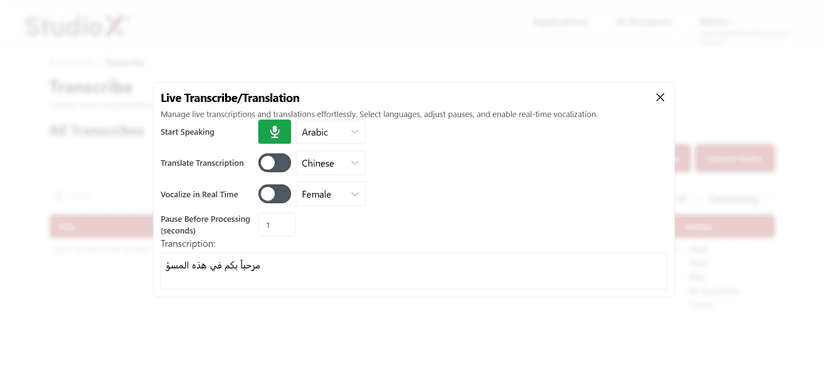
Live Transcribe Settings
Live Transcribe Features
- Language Selection: Choose the language you'll be speaking from the dropdown menu
- Translation Option: Toggle 'Translate Transcription' and choose the desired translation language
- Vocalize in Real Time: Enable real-time vocalization and choose between male or female voice
- Pause Before Processing: Set pause duration in seconds before processing begins
Live Transcription Active
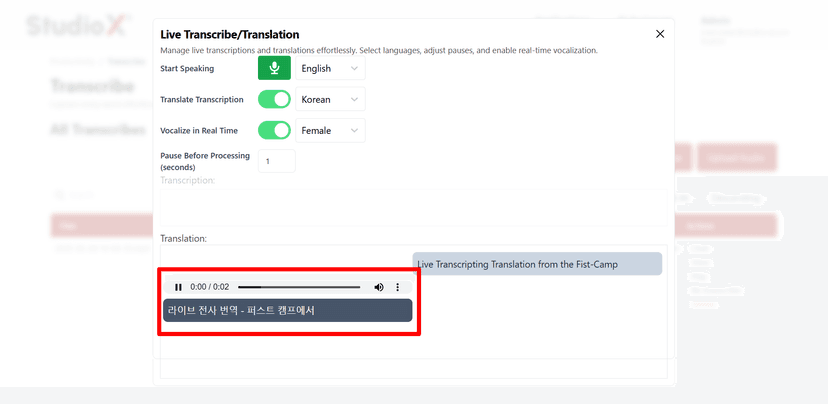
Live Transcription with Audio Controls
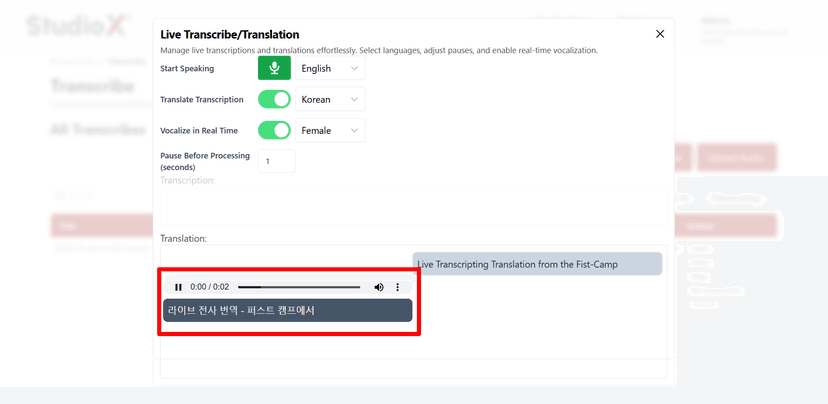
Live Transcription Tips: Speak clearly and allow for natural pauses. The system will automatically detect speech patterns and provide real-time transcription and translation if enabled.
Upload Audio
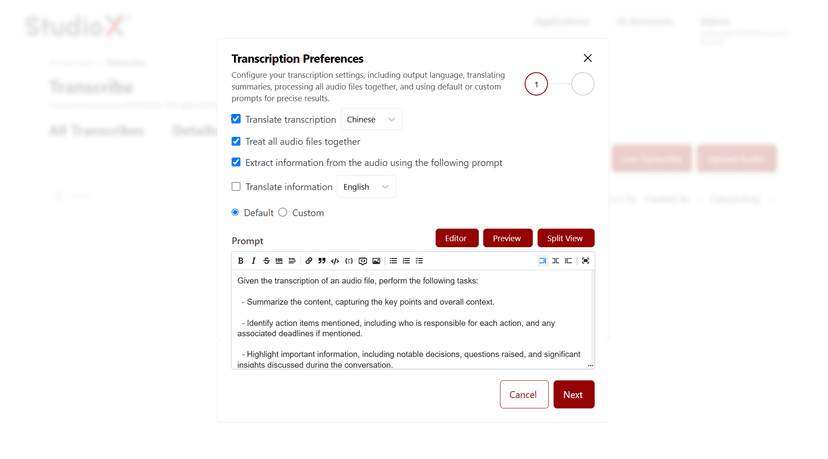
To upload audio for transcription, click the Audio Upload button. You can then configure your transcription settings, including selecting the output language, enabling translated summaries, choosing whether to process all audio files together, and using either default or custom prompts for more accurate results.
Transcription Preferences
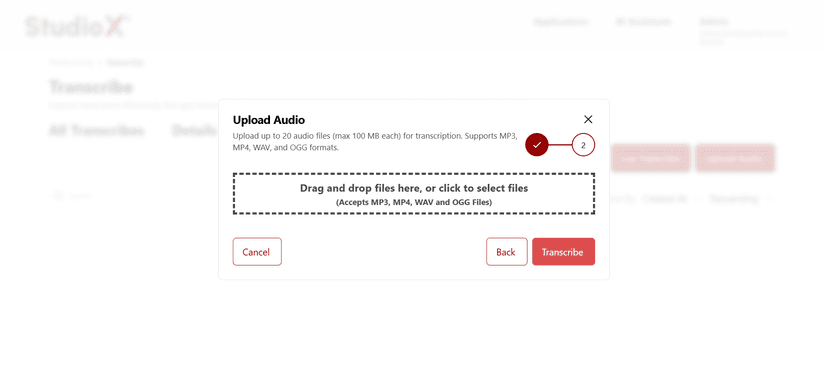
Upload Audio Files
Upload Configuration Options
- Translation Option: Enable translation and select target language from dropdown
- Treat All Audio Files Together: Process multiple files as a single transcription session
- Extract Information Using Prompt: Use AI prompts to extract specific information from audio content
- Custom Prompt: Define custom prompts for specialized transcription requirements
Upload Limitations: Upload up to 20 audio files (max 100 MB each) in formats including MP3, MP4, WAV, and OGG.
Search and Sort
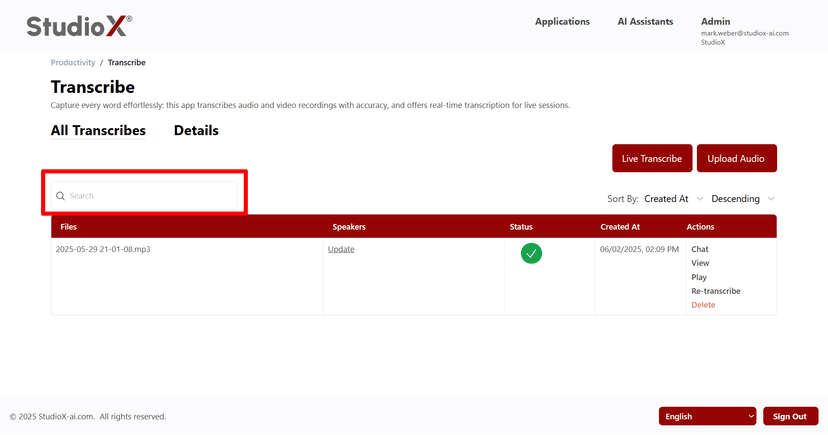
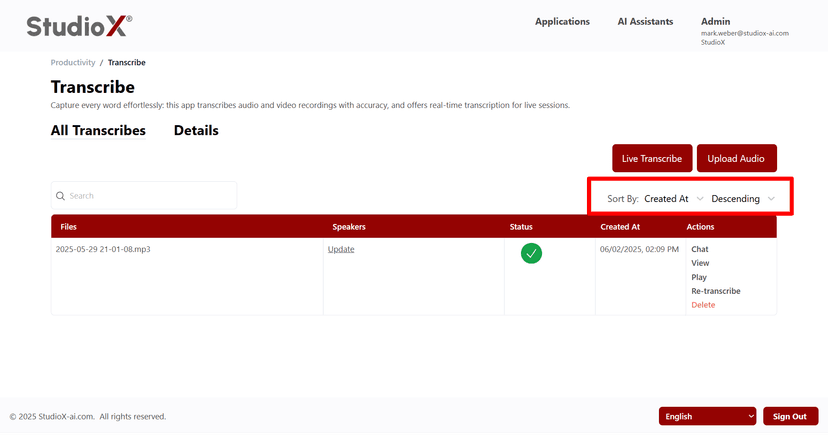
You can use the search bar at the top to look for transcriptions by file name. You can sort your transcriptions by Created At or file name, in ascending or descending order — so you always find what you need fast.
Search Functionality
Sort Functionality
Search Options
- Search by file name
- Search within transcription content
Sort Options
- Sort by creation date
- Sort by file name
- Ascending or descending order
Table Structure
In the table view structure, you can see all the important details of your transcriptions organized in a clear, easy-to-read format.
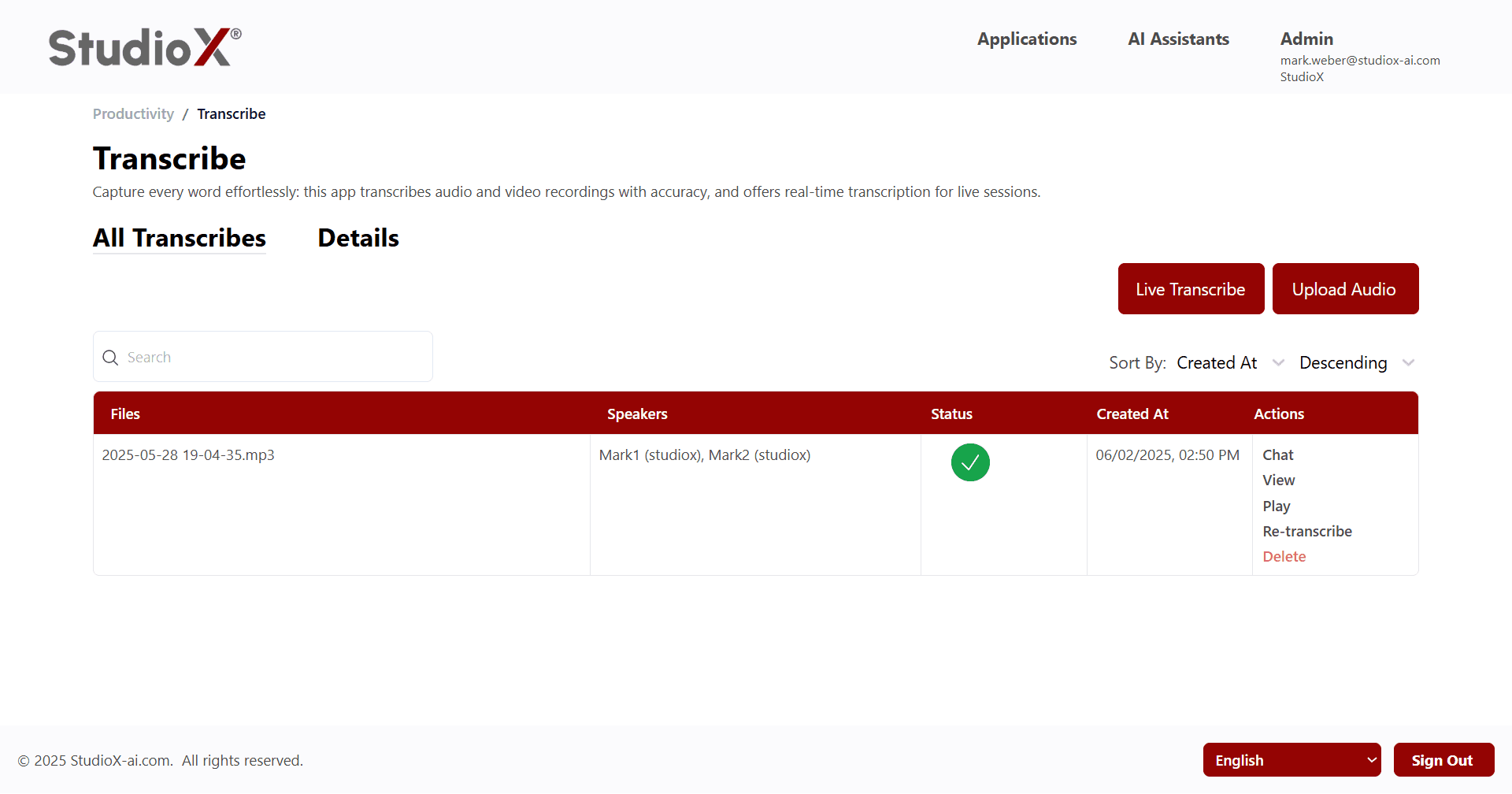
Table Columns
- Files: Displays file names and formats of uploaded audio/video files
- Speakers: Shows identified speakers with options to update their information
- Status: Indicates processing status (in progress or completed)
- Created At: Shows date and time of transcription creation
- Actions: Provides access to various transcription operations
Transcription Actions
Each transcription row provides access to multiple actions through the Actions menu, allowing you to interact with your transcriptions in various ways.
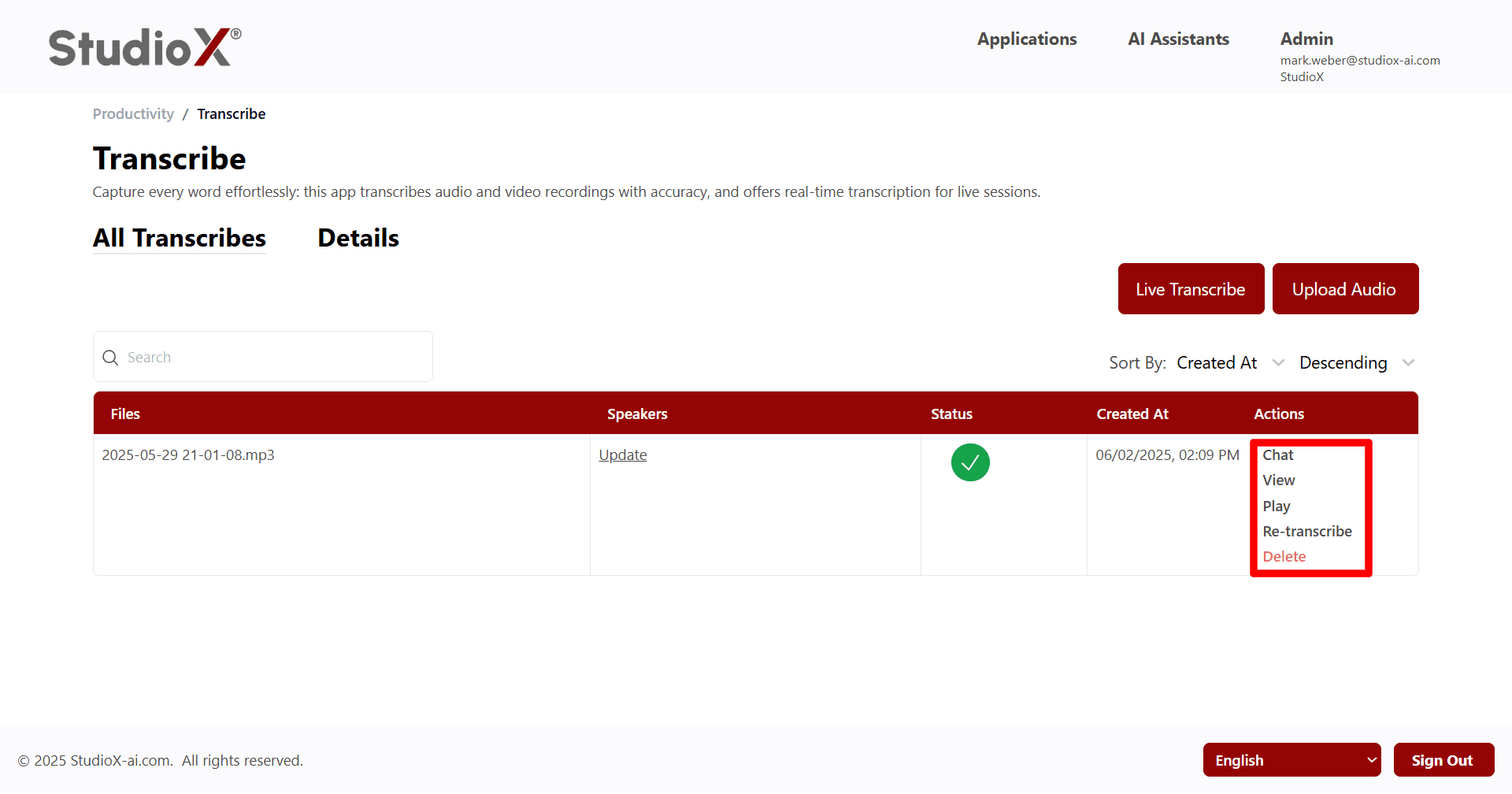
Available Actions
- Chat: Open AI-powered chat to query the transcription content
- View: View complete transcription details and content
- Play: Listen to the original audio file with playback controls
- Re-transcribe: Re-process the audio file with updated settings
- Delete: Permanently remove the transcription from your library
Speaker Management
Update the speaker details for transcriptions by adding or editing their name and company information. Your current speakers are listed as Speaker 0, Speaker 1, and so on, indicating the order of the speakers.
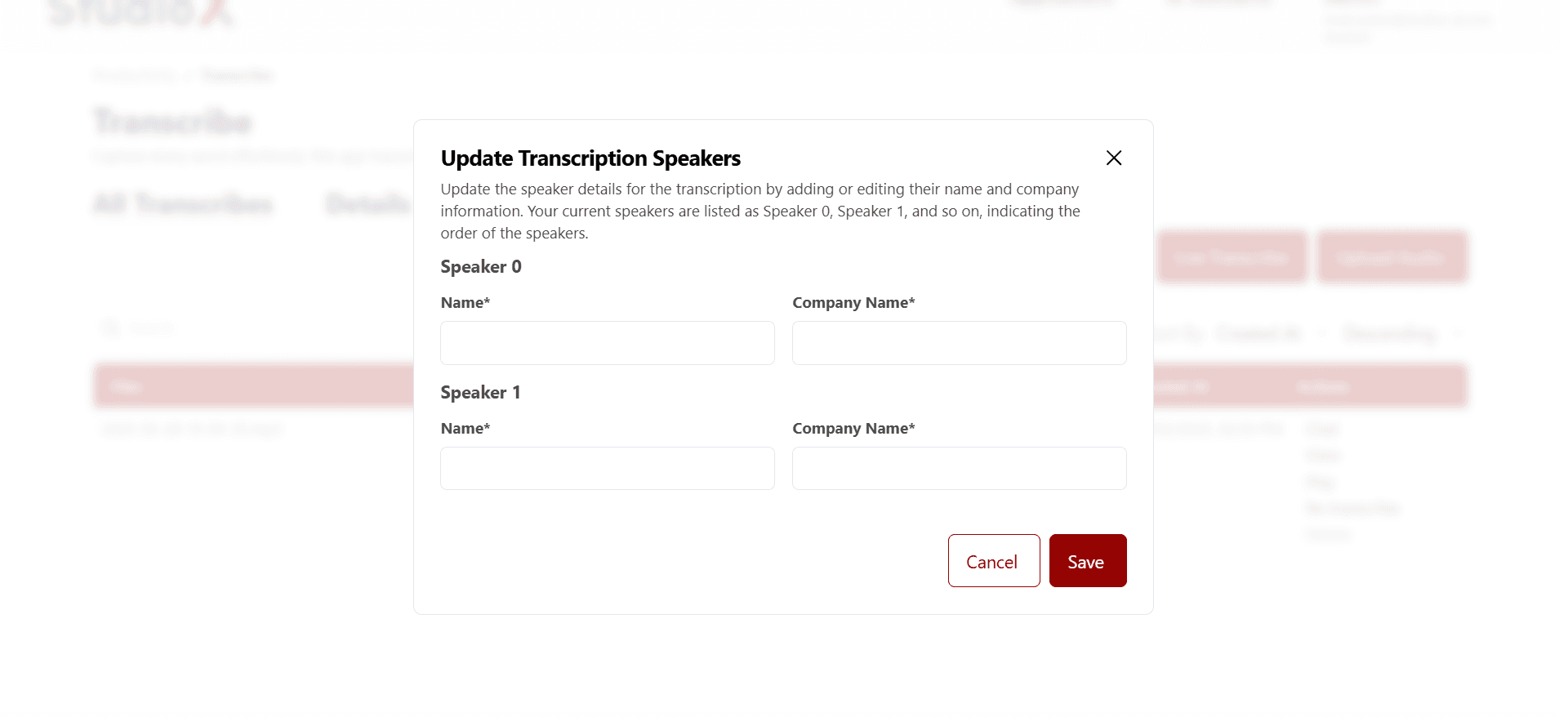
Speaker Management Features
- Automatic speaker identification and numbering
- Edit speaker names and company information
- Add company details for each speaker
- Speakers ordered by appearance in transcription
Speaker Identification: Speakers are automatically numbered in order of appearance (Speaker 0, Speaker 1, etc.). You can customize these labels with actual names and company information.
Chat Functionality
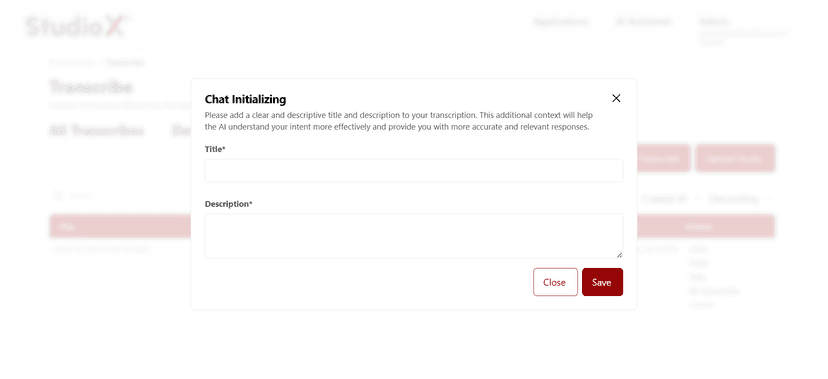
You can initialize chat by clicking on the chat button from action buttons and then add a clear and descriptive title and description to your transcription. This additional context will help the AI understand your intent more effectively and provide you with more accurate and relevant responses.
Chat Initialization
Chat Interface
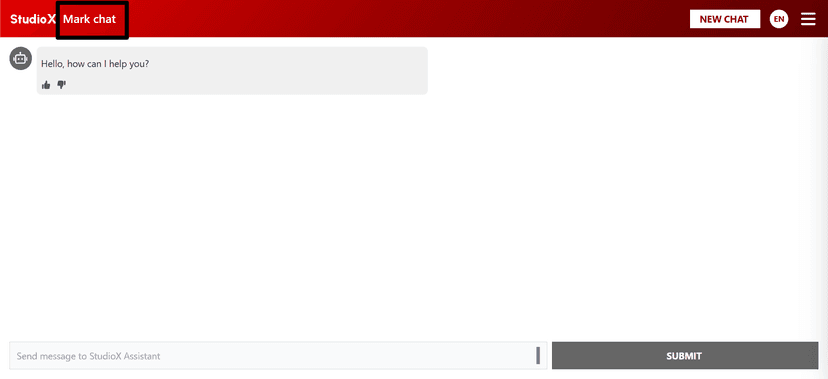
Chat Features
- Ask questions in natural language about the transcription
- Get instant, relevant answers based on transcription content
- Provide feedback using thumbs-up or thumbs-down
- AI understands context and provides relevant responses
Chat Query Examples:
- What were the main action items discussed?
- Who mentioned the budget concerns?
- Summarize the key decisions made in this meeting
Audio Playback
Listen to your original audio files directly within the application using the built-in audio player with full playback controls.
Playback Controls
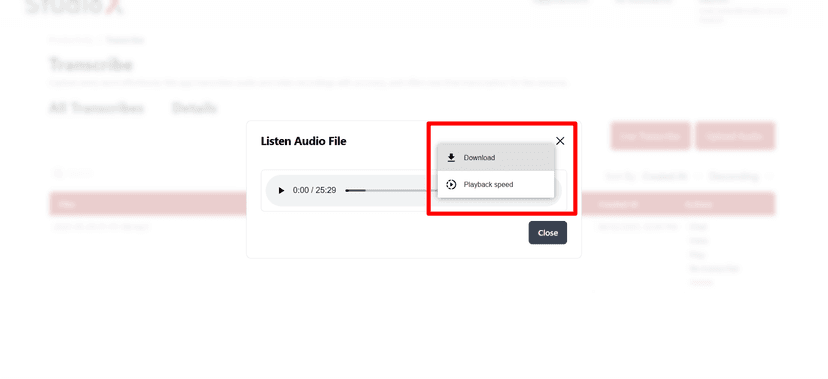
Playback Interface
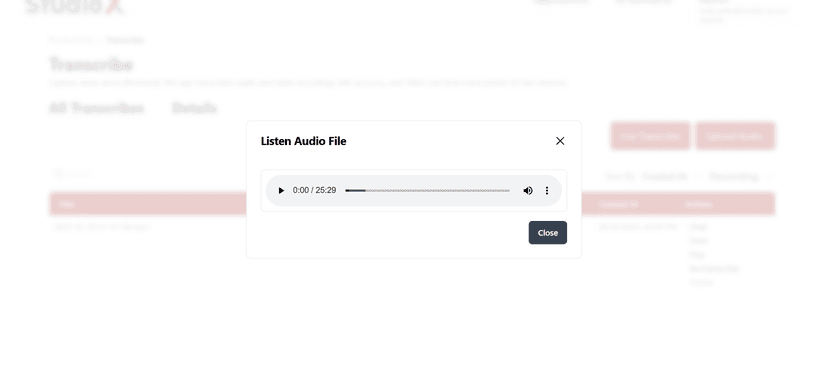
Playback Features
- Play, pause, and seek through audio content
- Adjustable playback speed settings
- Download audio files directly
- Current time and total duration display
Re-transcribe
You can easily re-transcribe your files with just one click if you want to update the transcription with different settings or improved accuracy.
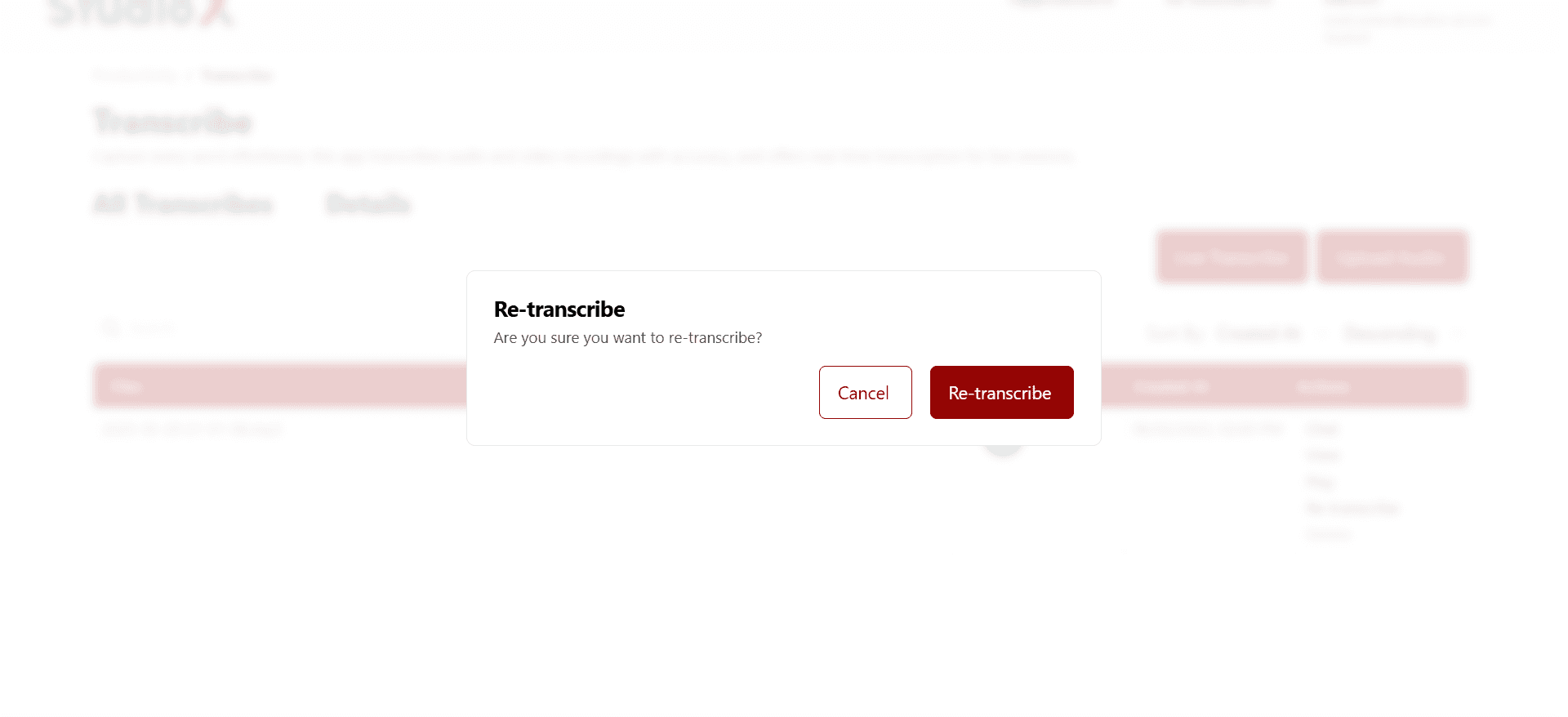
Re-transcription Process: Re-transcribing will process the audio file again with current settings. This is useful when you want to apply different language settings or improved processing algorithms.
Details View
In the details table, you will find the file name, the duration of the file, the transcription text, and the translated text. You can copy and download both the transcription and translated texts.
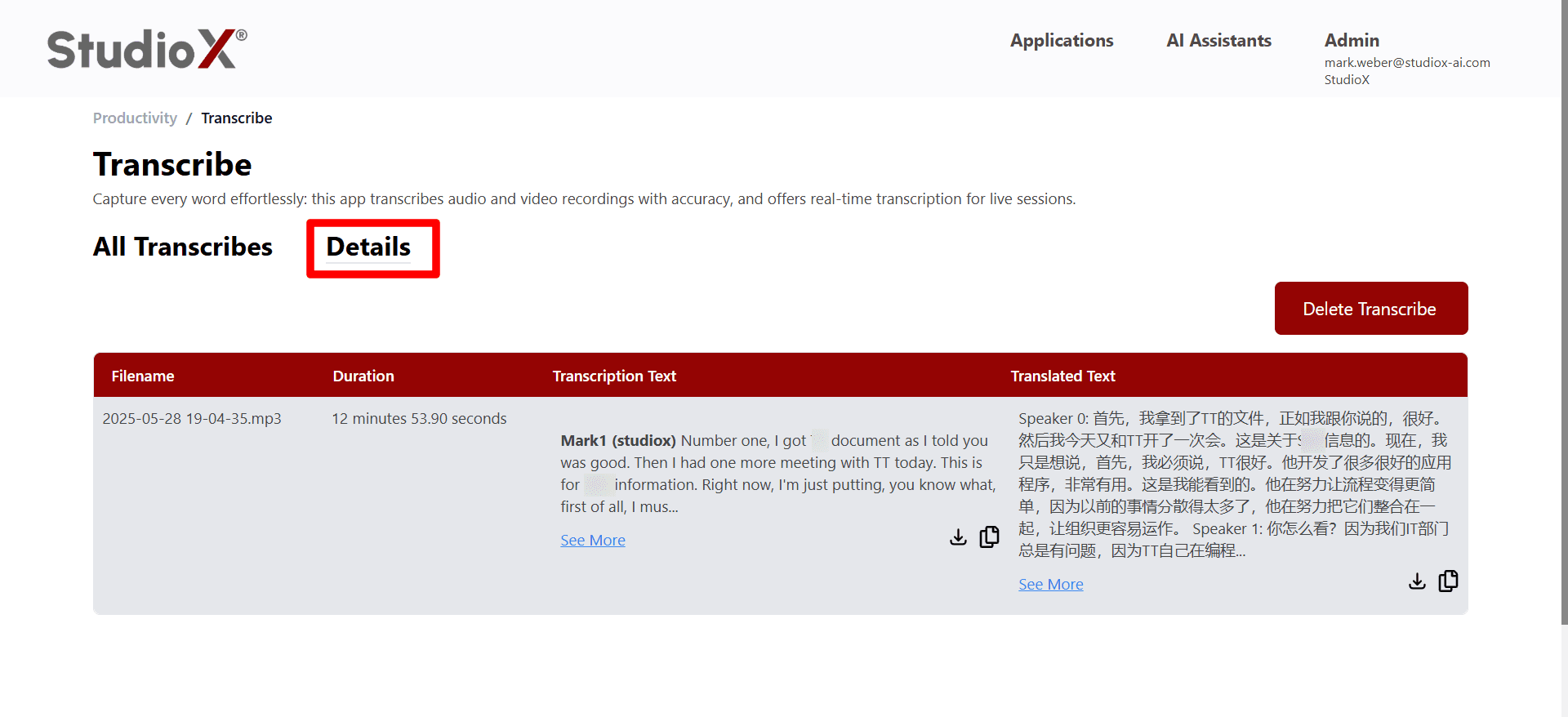
Details Sections
- Filename Information: Complete file details including name and format
- Duration Information: Total length of the audio/video file
- Transcription Text: Complete transcribed text with speaker identification
- Translated Text: Translated version of the transcription (if translation was enabled)
- Download Options: Copy or download both transcription and translated texts
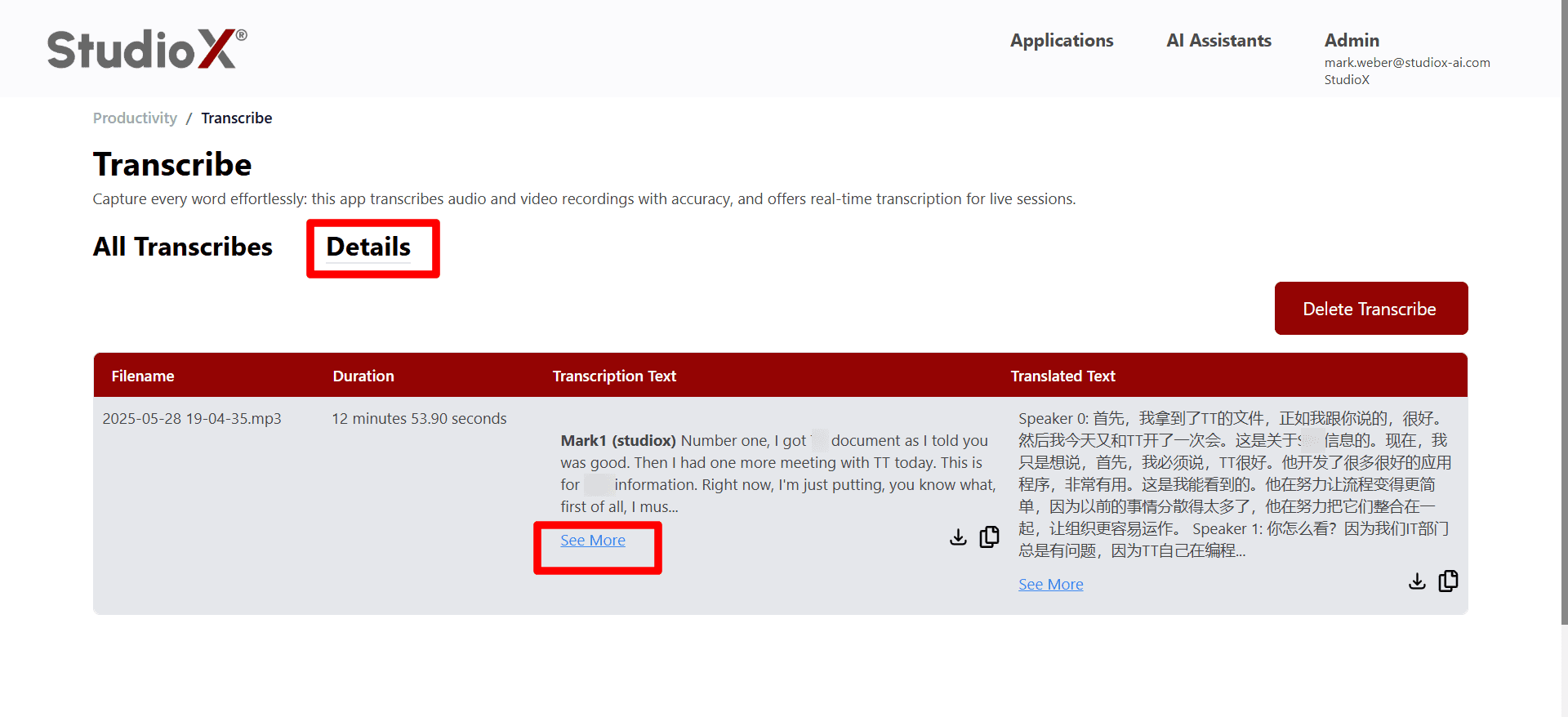
Viewing Complete Content: Click 'See More' under each section to view the complete transcription or translated text. Use the copy and download buttons to save the content.