Table of Contents
Overview
The Task Management application helps you keep track of everything related to your projects. Whether you need to manage bugs, work on new features, or monitor the overall progress of your projects, this comprehensive tool makes it easy to stay organized and productive.
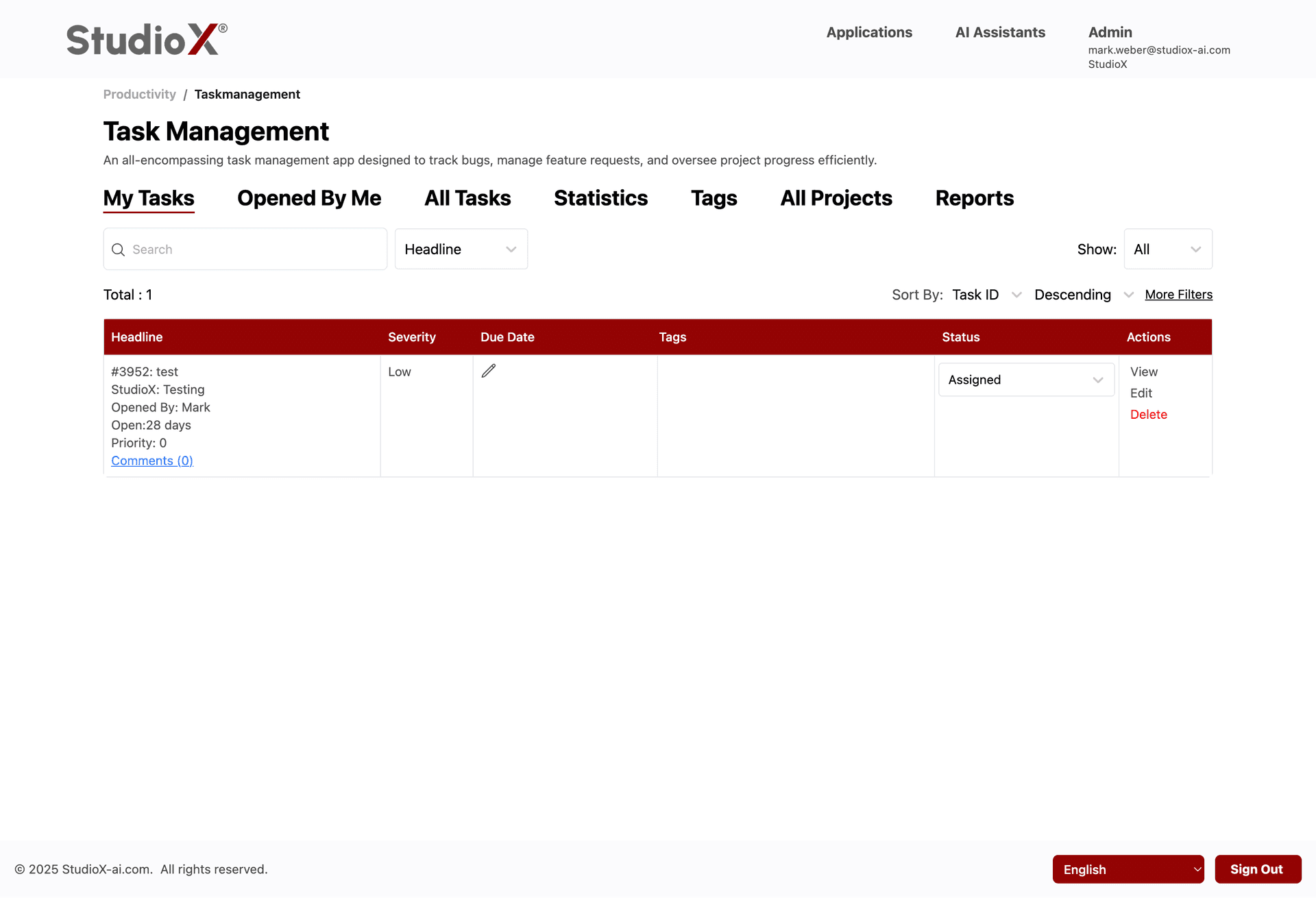
Access Path:
- Login to the Platform
- Navigate to Applications
- Select the Productivity tab
- Click Task Management
Key Features
- Comprehensive task and bug tracking with detailed metadata
- Organize tasks by project for better structure
- Customizable status workflows for efficient task progression
- Team collaboration with assignment and comment systems
- Detailed analytics and statistics for project insights
- Automated reporting with daily and weekly schedules
Getting Started
Getting started with Task Management is straightforward. The application provides a comprehensive dashboard where you can view all your tasks in one place, with sections for tasks assigned to you, tasks you've opened, and tasks across different projects.
Typical Workflow Steps
- Create or select a project to organize your work
- Add tasks with detailed information including priority, severity, and type
- Assign tasks to team members and set due dates
- Track progress through customizable status workflows
- Monitor progress with built-in analytics and reporting
Navigation Tabs
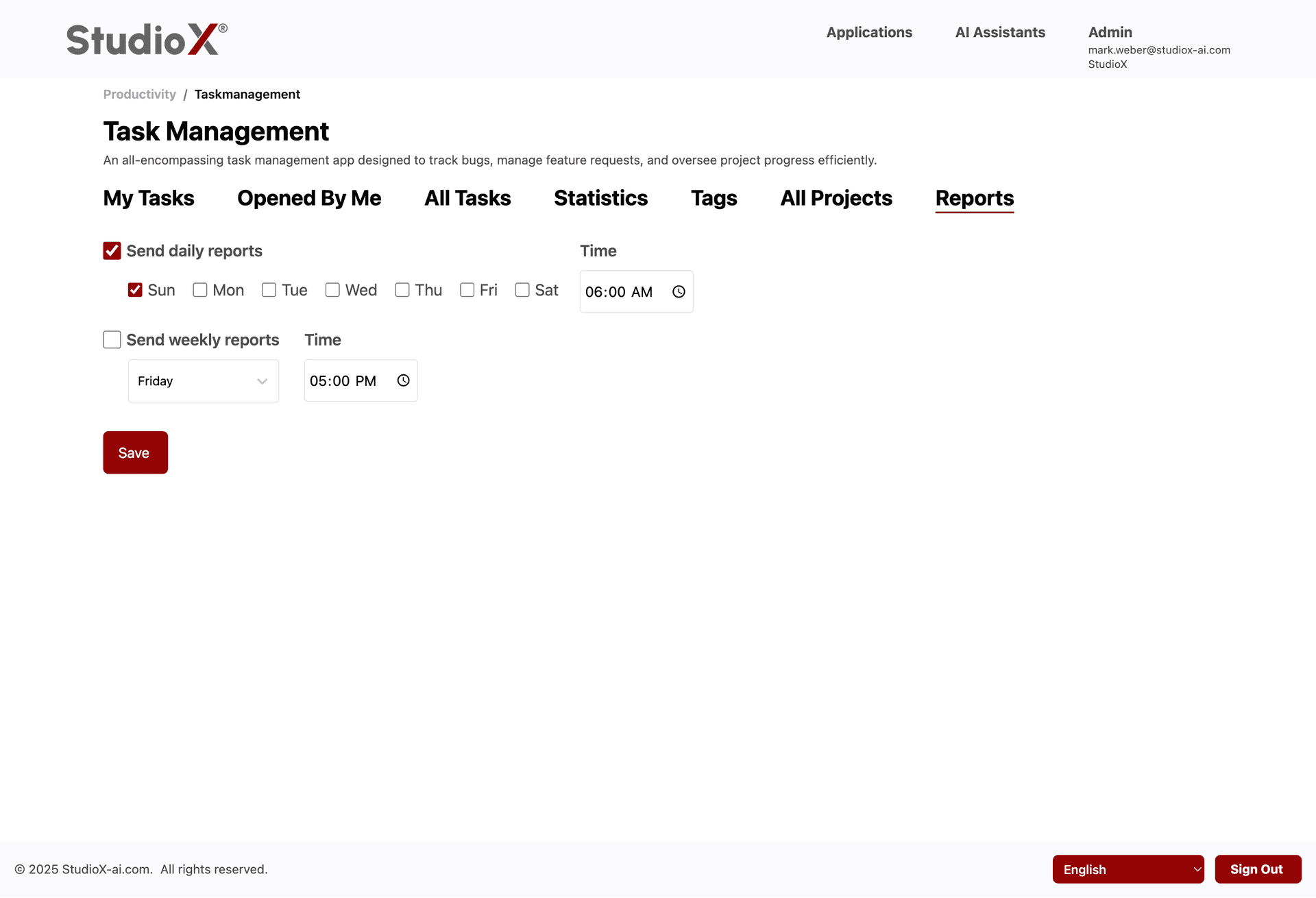
The Task Management application is organized into seven main tabs, each providing different views and functionality for managing your tasks and projects.
Available Tabs
- My Tasks: View tasks assigned to you with filtering and search capabilities
- Opened By Me: See tasks you've created and track their progress
- All Tasks: Comprehensive view of all tasks across projects with bulk actions
- Statistics: Detailed analytics and metrics for projects and team performance
- Tags: Visual representation of task and bug distributions with export options
- All Projects: Project management interface for creating and organizing projects
- Reports: Configure automated daily and weekly reporting schedules
My Tasks
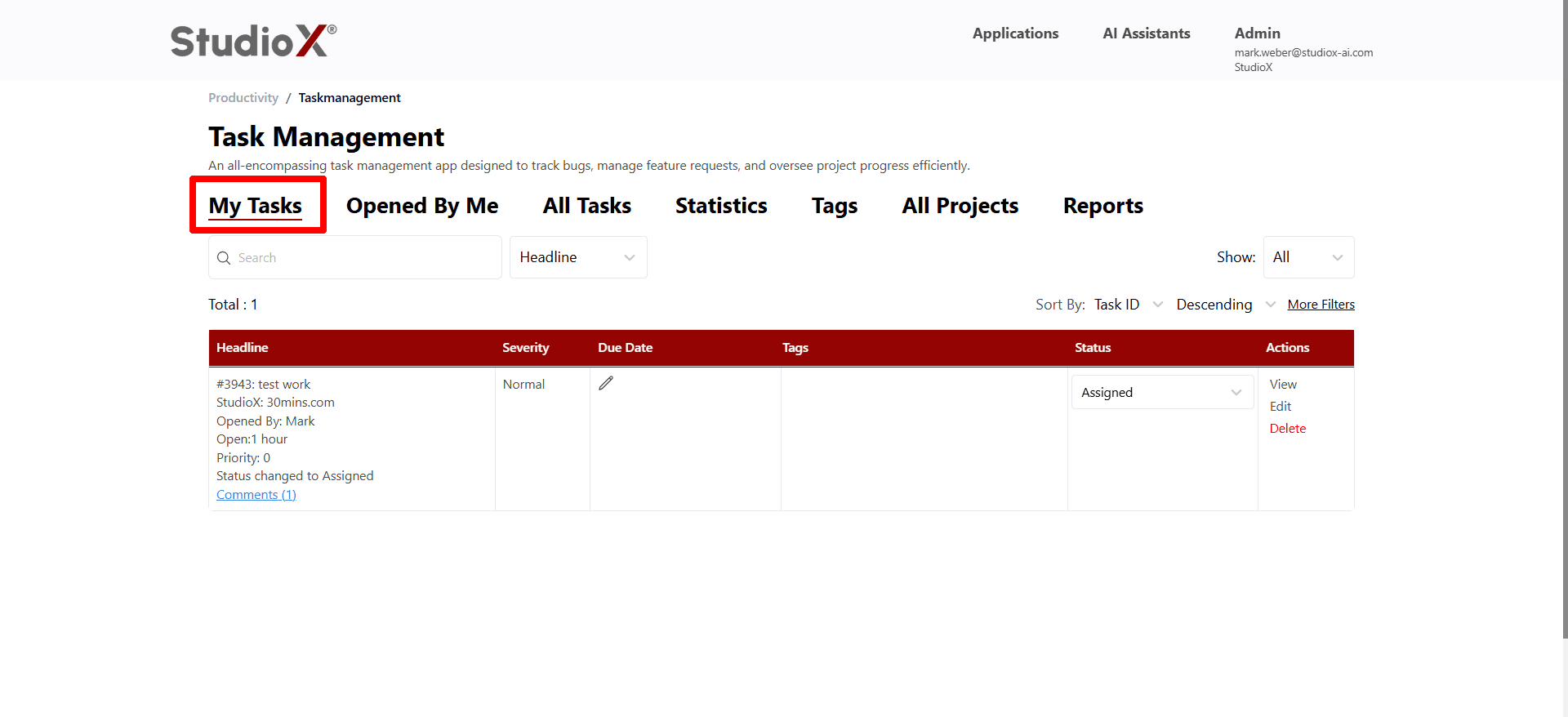
The My Tasks view shows all tasks assigned to you, providing a focused workspace for managing your current responsibilities and workload.
My Tasks Features
- Clear view of all tasks assigned to you
- Priority and severity indicators for task prioritization
- Due date tracking with visual indicators
- Easy status updates and progress tracking
- Direct access to task comments and collaboration
Opened By Me
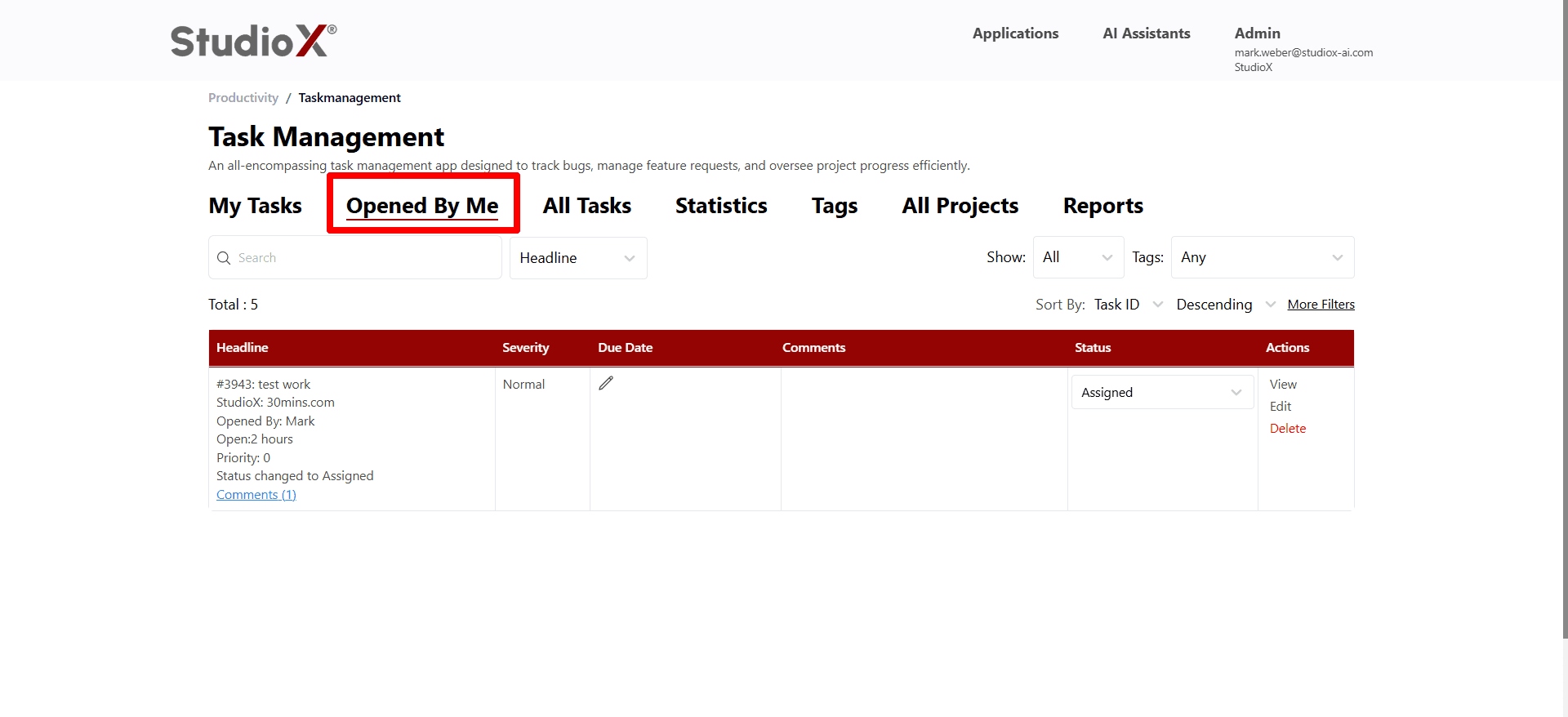
This view displays all tasks you've created, allowing you to monitor their progress, manage assignments, and ensure they're moving through the workflow appropriately.
Opened By Me Features
- Overview of all tasks you've initiated
- Track who tasks are assigned to and their current status
- Monitor progress and resolution times
- Manage comments and collaborate with assignees
All Tasks
The All Tasks view provides a comprehensive overview of all tasks across projects, with powerful filtering, searching, and bulk action capabilities for efficient task management.
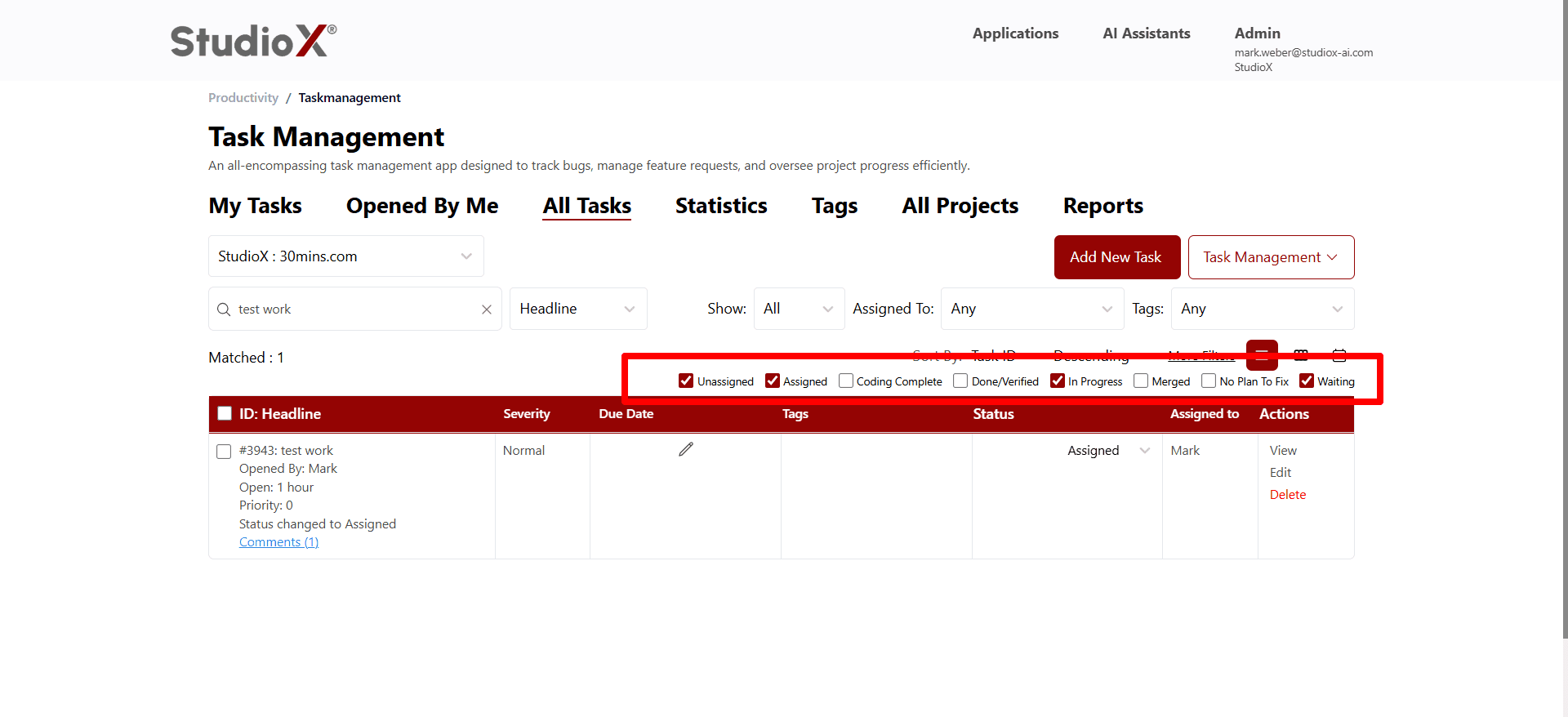
Table Columns
- Headline: Task title and ID with priority and status information
- Severity: Task severity level (Normal, High, Critical, etc.)
- Due Date: When the task is due for completion
- Tags: Associated tags for categorization and filtering
- Status: Current workflow status of the task
- Assigned To: Team member responsible for the task
- Actions: Available actions like View, Edit, and Delete
Creating Tasks
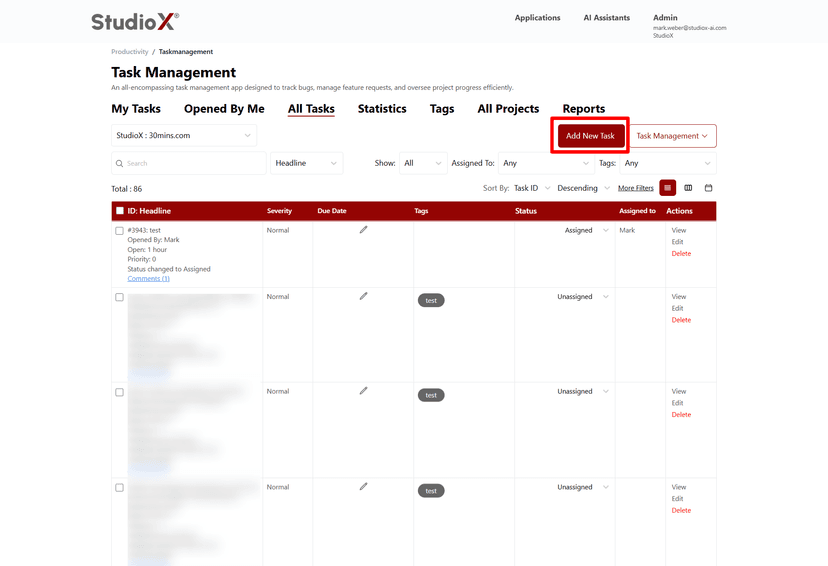
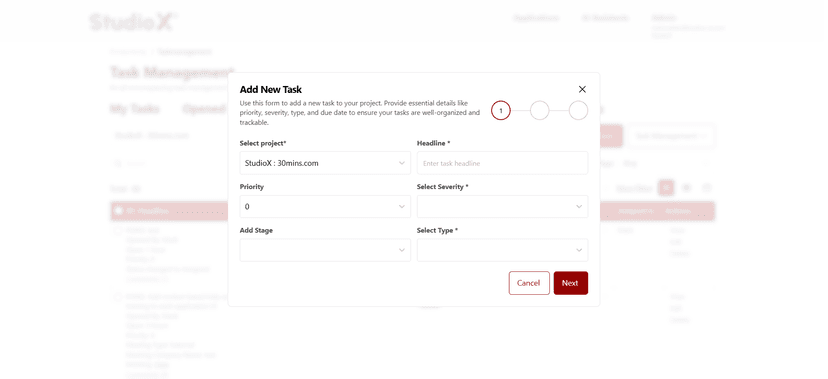
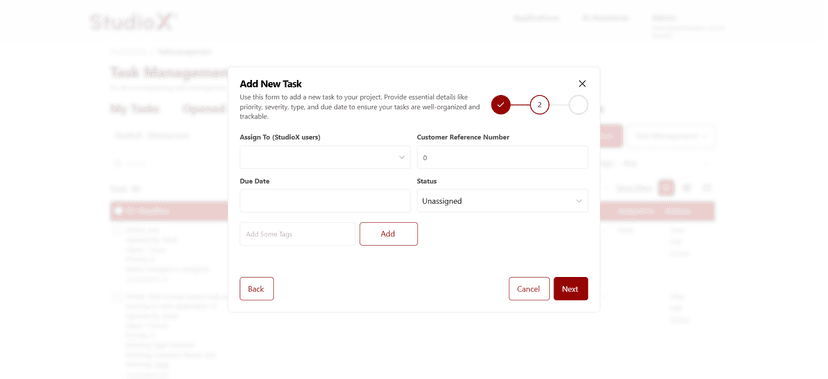
Creating new tasks is a straightforward process using the 'Add New Task' button. The form guides you through multiple steps to ensure all necessary information is captured.
Add Task Button
Task Form - Step 1
Task Form - Step 2
Task Form - Step 3
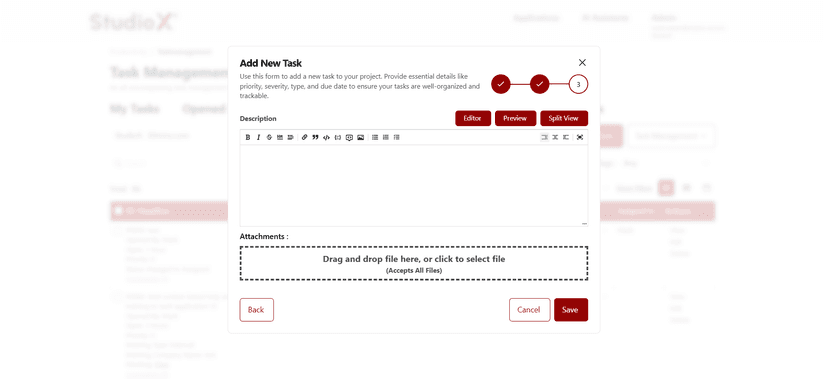
Task Creation Fields
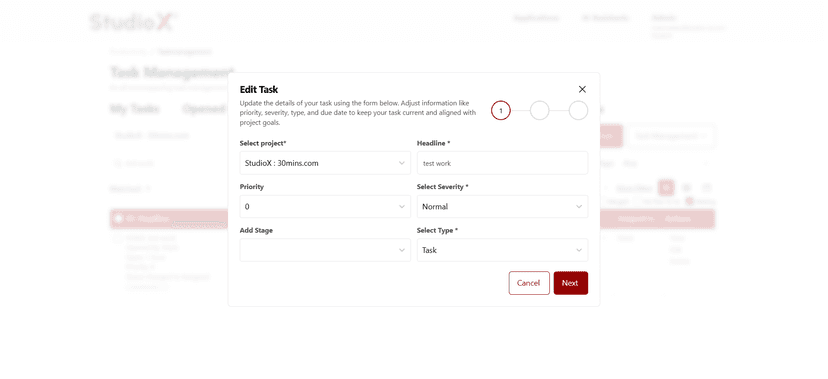
- Select Project: Choose which project this task belongs to
- Task Headline: A clear, descriptive title for the task
- Priority: Numerical priority level for task ordering
- Severity: Impact level (Normal, High, Critical)
- Task Type: Category of work (Task, Bug, Feature, etc.)
- Assign To: Team member responsible for completing the task
- Due Date: When the task should be completed
- Task Status: Initial status in the workflow
- Tags Visualization: The Tags tab provides visual charts and analytics for task categorization, helping you understand the distribution of work types and identify patterns in your project data.
- Description: Detailed description with rich text formatting
- Attachments: Upload relevant files and documents
Editing Tasks
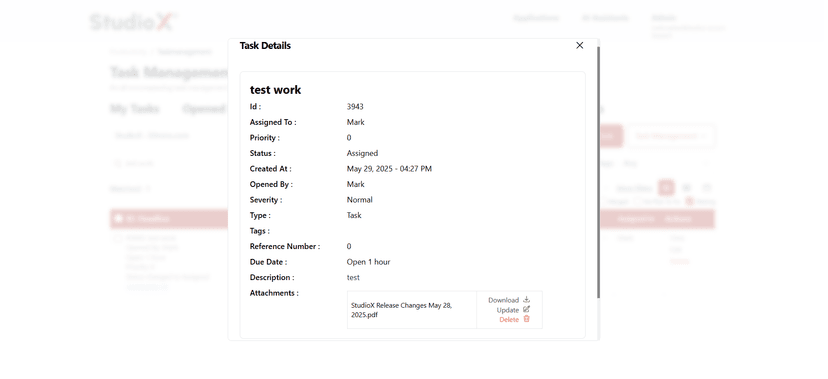
Tasks can be edited to update information, change assignments, modify status, or add additional details. The edit interface provides the same comprehensive form as task creation.
Edit Task Form
Task Details View
What You Can Edit
- Update task descriptions with rich text formatting
- Change task assignments and due dates
- Update task status through the workflow
- Modify deadlines and scheduling
- Add, update, or remove file attachments
- Add or modify tags for better organization
Task Management Actions
The Task Management dropdown provides powerful bulk actions for handling multiple tasks efficiently, including export, transfer, assignment, and deletion operations.
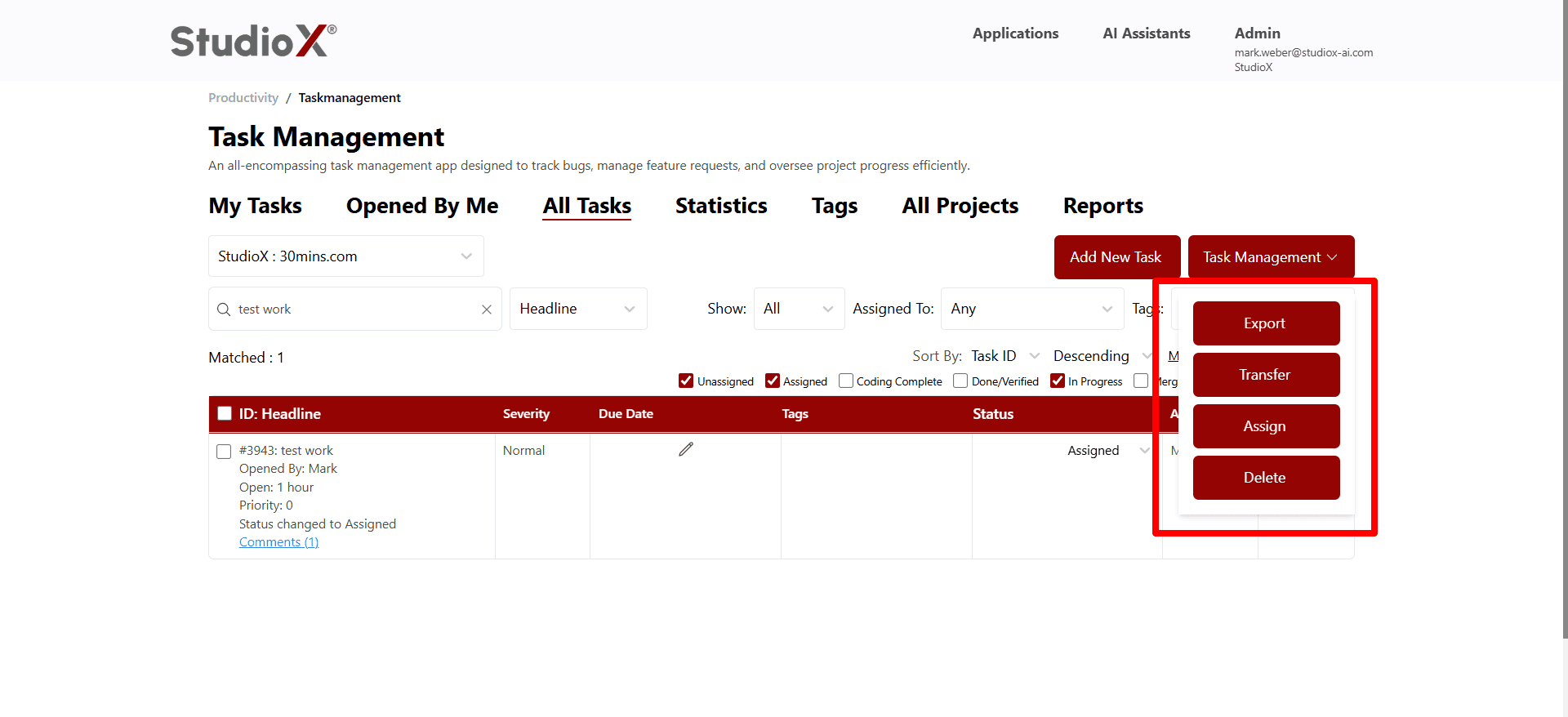
Available Bulk Actions
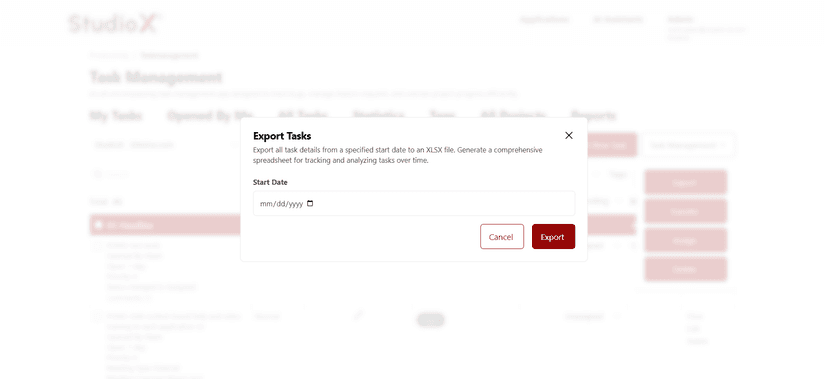
- Export: Export task data to Excel files for analysis and reporting
- Transfer: Move selected tasks between projects while preserving all details
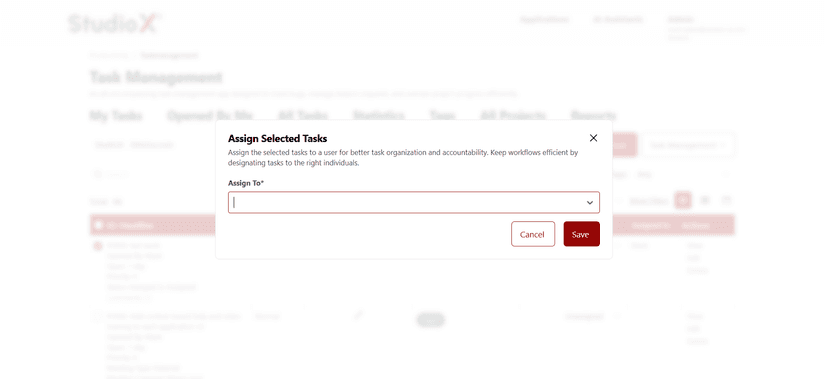
- Assign: Bulk assign multiple tasks to team members
- Delete: Remove selected tasks with confirmation prompts
Export Dialog
Assignment Dialog
Search and Filtering
Powerful search and filtering capabilities help you quickly find the tasks you need using multiple criteria and advanced filters.
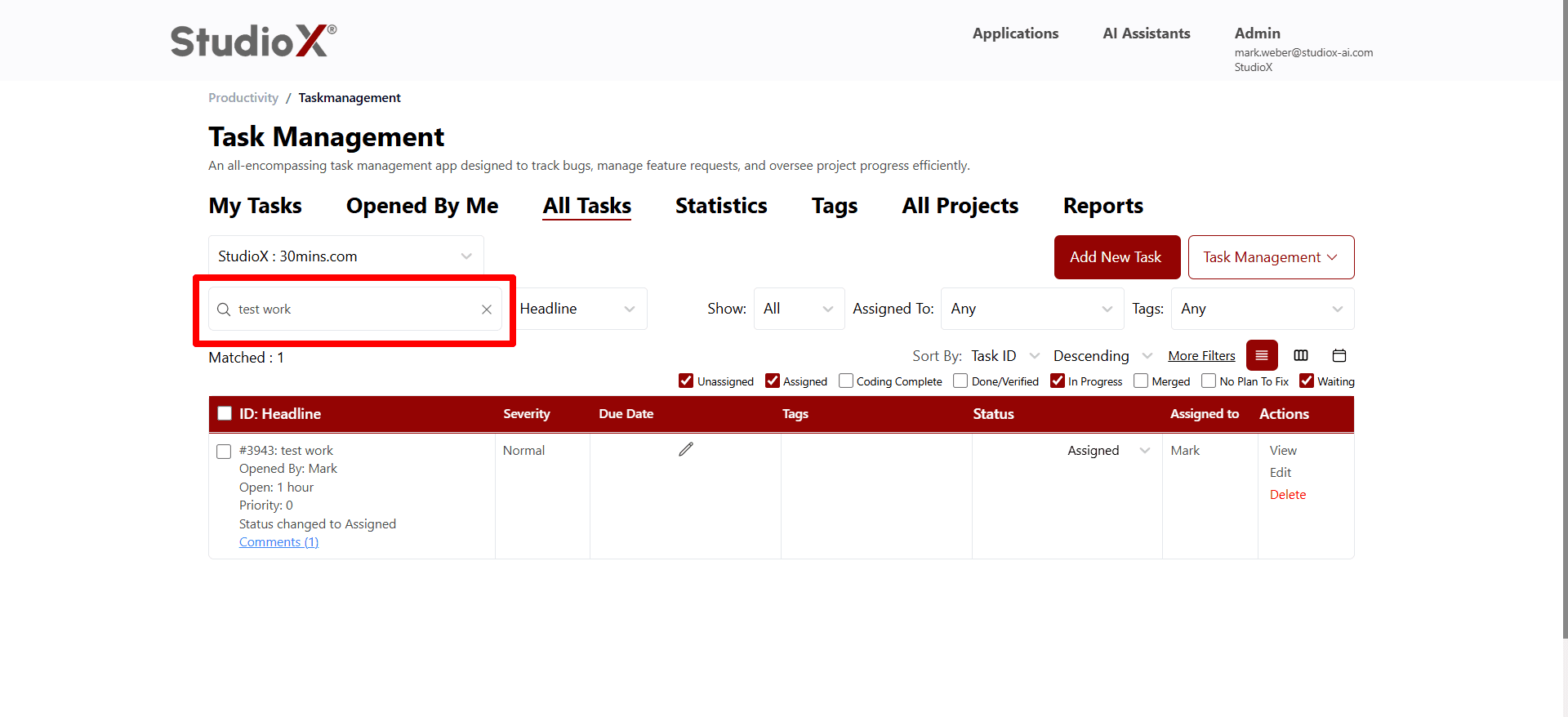
Search Options
- Search by task headline or title
- Search within task descriptions
- Search by specific task ID numbers
- Search by assigned team member
Filter Options
- Filter by workflow status
- Filter by assigned team member
- Filter by associated tags
- Filter by severity level
- Filter by specific projects
Status Management
The task management system uses a comprehensive status workflow to track tasks through their entire lifecycle, from creation to completion.
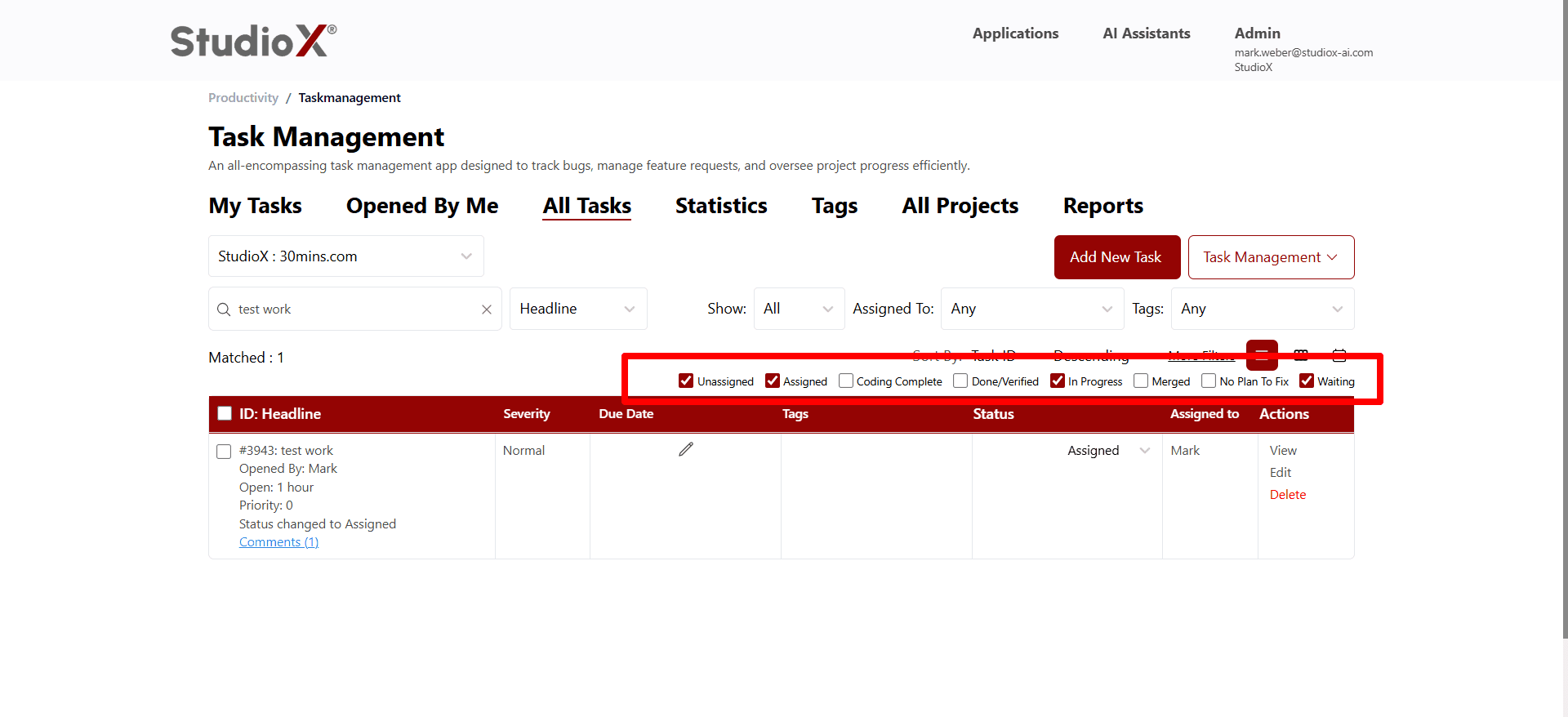
Available Status Options
- Unassigned: Task has been created but not yet assigned to a team member
- Assigned: Task is assigned to a team member and ready for work
- Coding Complete: Development work is finished and ready for review
- Done/Verified: Task is completed and has been verified or tested
- In Progress: Work is actively being performed on the task
- Merged: Code changes have been merged into the main branch
- No Plan To Fix: Task will not be addressed in the current timeline
- Waiting: Task is waiting for external dependencies or information
Project Switching
When working with multiple projects, you can easily switch between them using the project selector dropdown, which refreshes the view to show only tasks from the selected project.
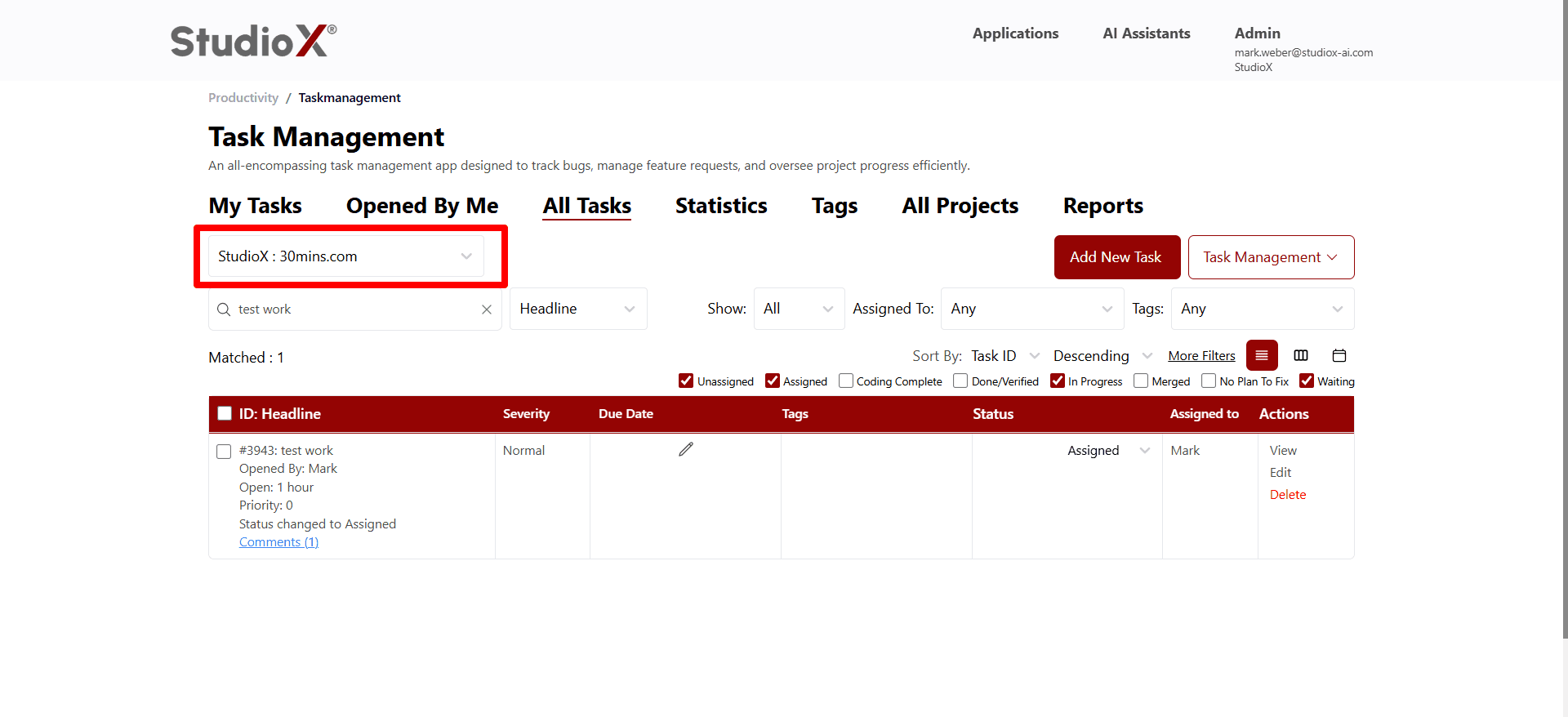
Project Context: All task views are filtered by the currently selected project, ensuring you see only relevant information for your current work context.
Statistics Dashboard
The Statistics tab provides comprehensive analytics and metrics about your projects, tasks, and team performance, helping you make informed decisions about resource allocation and project planning.
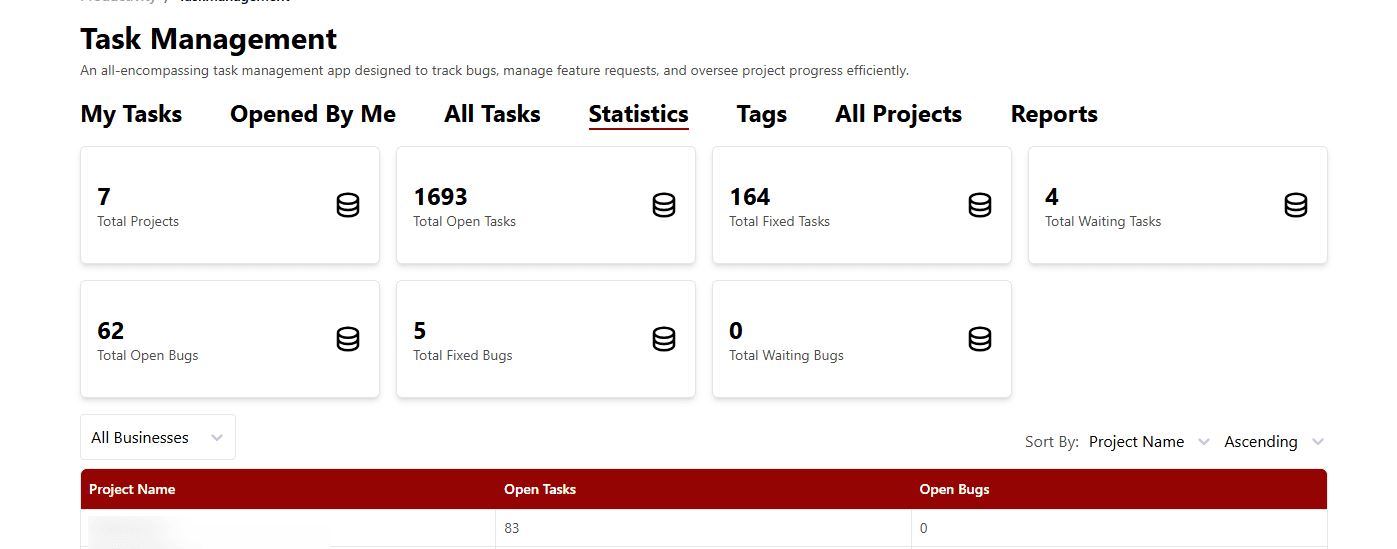
Key Metrics
- Total number of active projects
- Total open tasks across all projects
- Total completed/fixed tasks
- Total tasks in waiting status
- Total open bugs requiring attention
- Total resolved bugs
- Total bugs waiting for action
Detailed Breakdowns
- Task and bug counts broken down by individual projects
- Work distribution across team members
- Overview of unassigned tasks and bugs
Tags Visualization
The Tags tab provides visual charts and analytics for task categorization, helping you understand the distribution of work types and identify patterns in your project data.
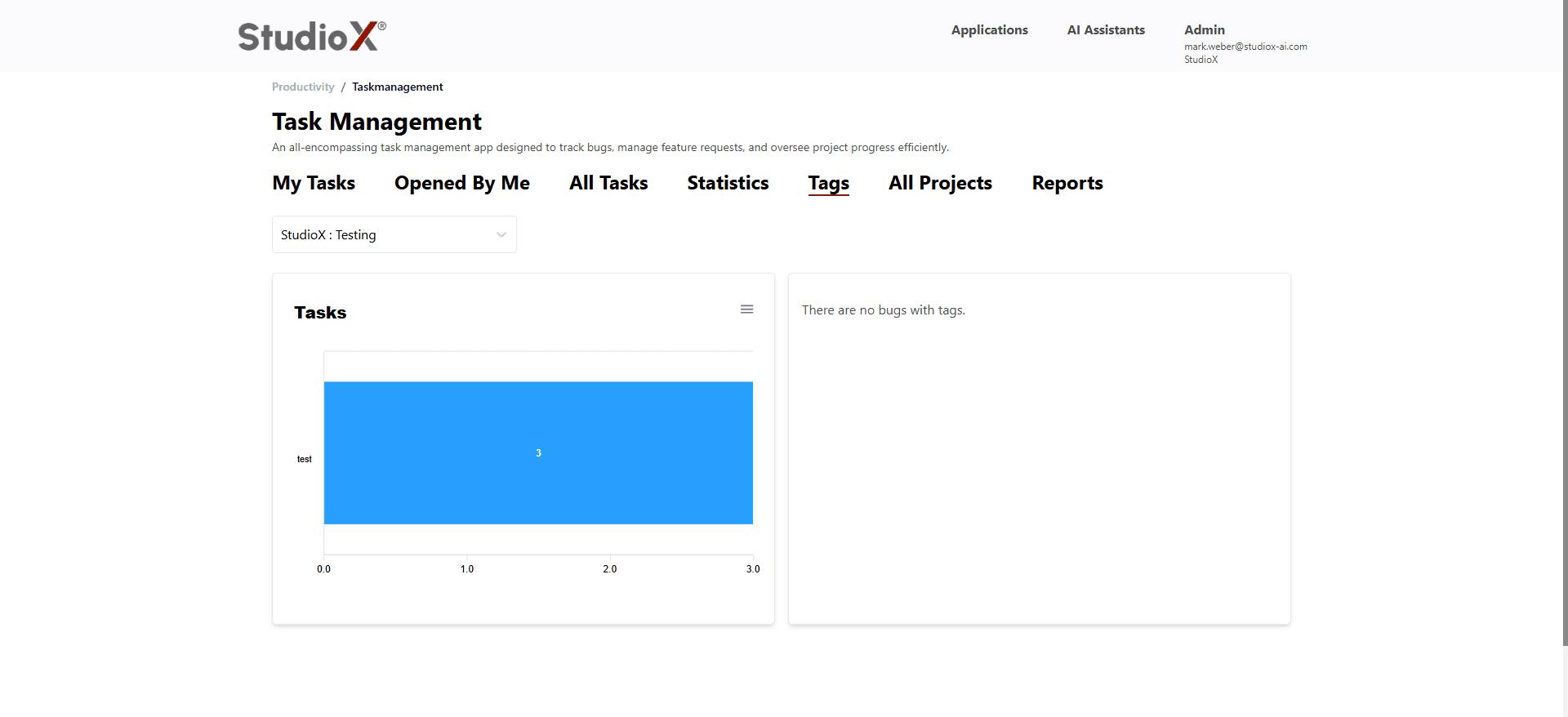
Tags Features
- Interactive charts showing task and bug distributions
- Separate views for tasks and bugs
- Export charts in SVG, PNG, or CSV formats
- Filter charts by specific projects
All Projects
The All Projects tab allows you to manage your project portfolio, create new projects, and organize your work into logical groups for better task management.
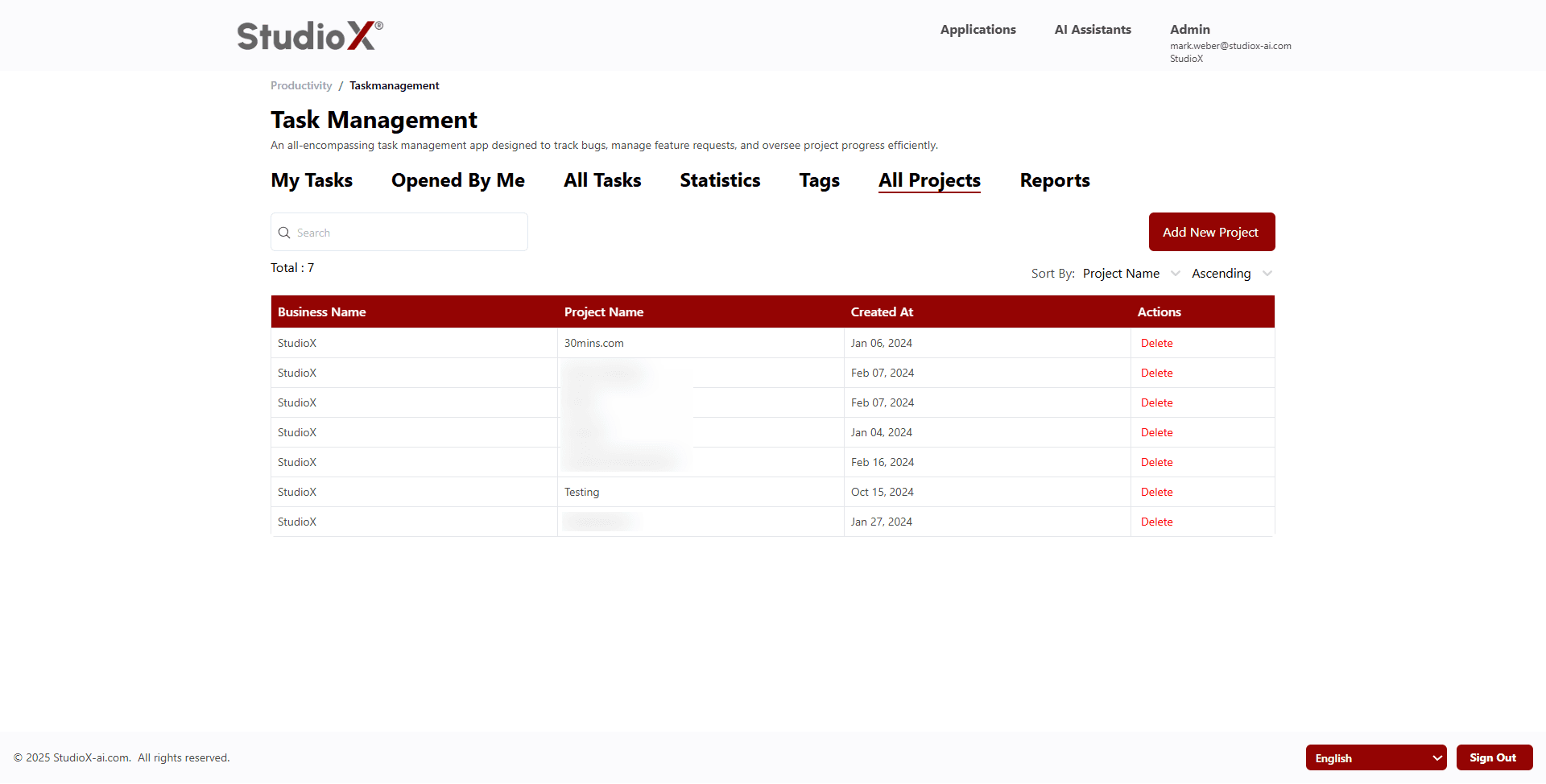
Project Management Features
- Create new projects with business associations
- Organize tasks by project for better structure
- Associate projects with specific businesses
- Remove completed or cancelled projects
Automated Reports
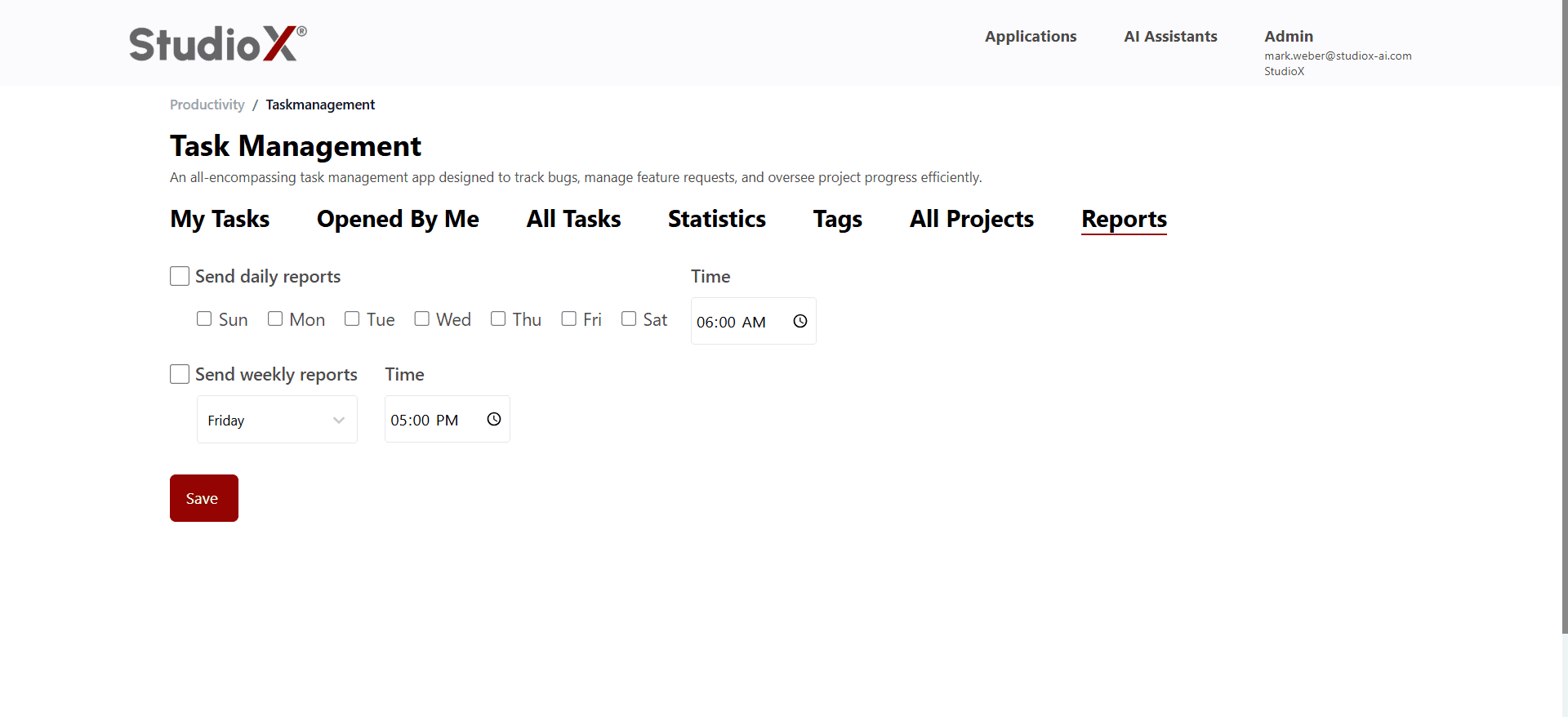
Configure automated daily and weekly reports to keep stakeholders informed about project progress, task completion rates, and team productivity metrics.
Report Types
- Daily Reports: Daily email summaries of task activity and progress
- Weekly Reports: Comprehensive weekly reports with detailed analytics
Automated Delivery: Reports are automatically generated and sent via email according to your configured schedule, ensuring stakeholders stay informed without manual intervention.
Calendar View
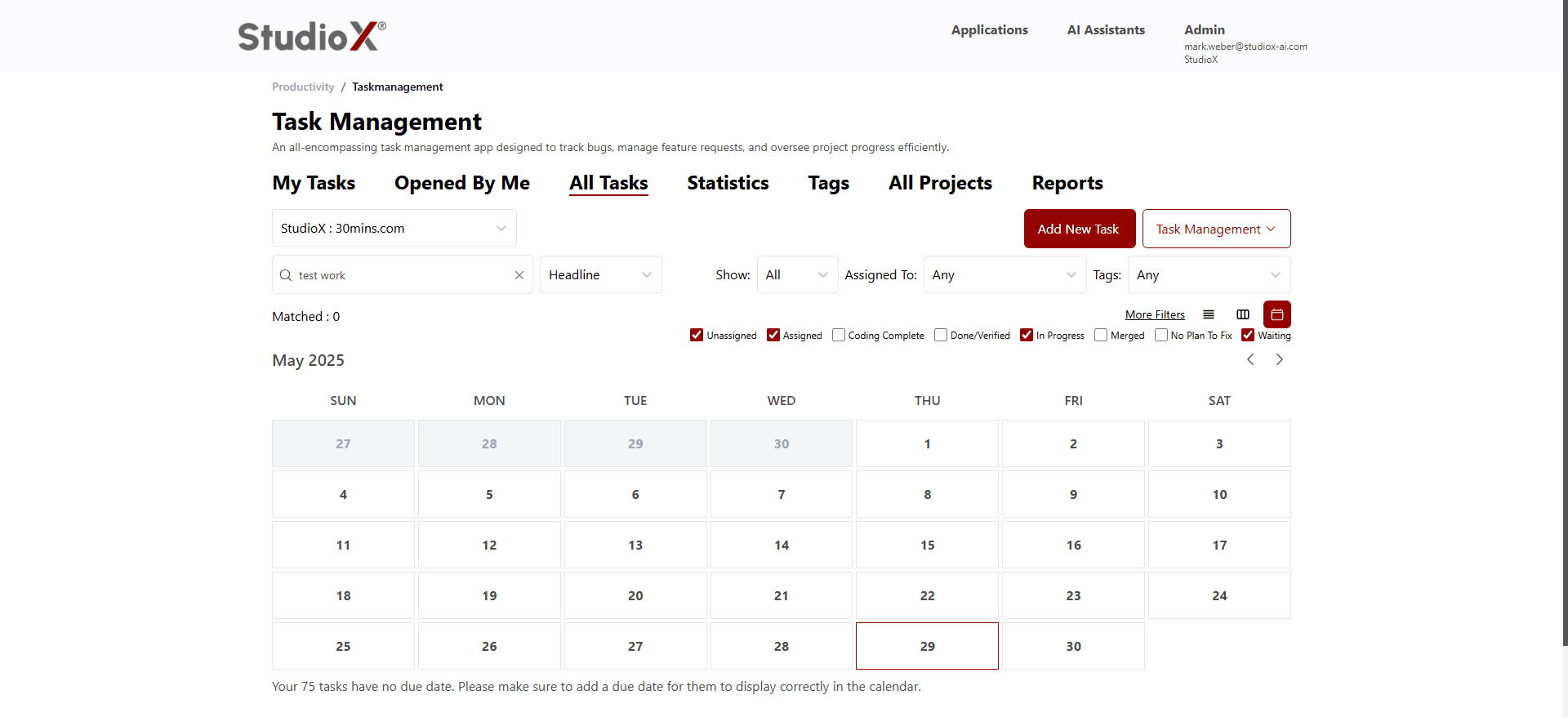
The calendar view provides a timeline perspective of your tasks, showing due dates and helping you plan work schedules more effectively.
Calendar Features
- Visual representation of task due dates
- Navigate between months to see upcoming deadlines
- Schedule tasks and plan workloads
- Track approaching deadlines and overdue items
Due Date Requirement: Tasks must have due dates assigned to appear in the calendar view. Tasks without due dates will show a reminder message.
Pagination and Display
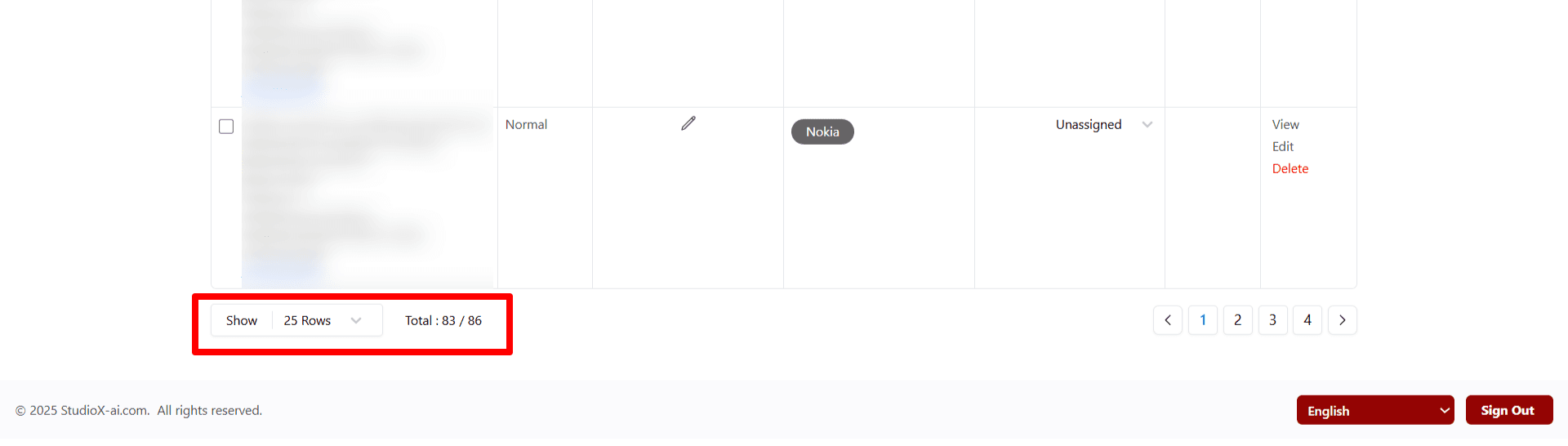
Large task lists are paginated for better performance and usability, with customizable page sizes and easy navigation between pages.
Pagination Options
- Adjustable items per page (25, 50, 100)
- Easy navigation between pages
- Display of total items and current page position
Performance Tip: For better performance with large datasets, use filters to reduce the number of items displayed and consider smaller page sizes for faster loading.