Rooms
Create multilingual chat rooms with real-time translation and voice transcription for seamless global communication.
Table of Contents
Overview
Rooms allows you to create chat rooms and invite anyone to join while breaking down language barriers. The app automatically translates what you say or type so everyone can understand each other, no matter what language they speak. Perfect for international teams, global meetings, and multicultural conversations.
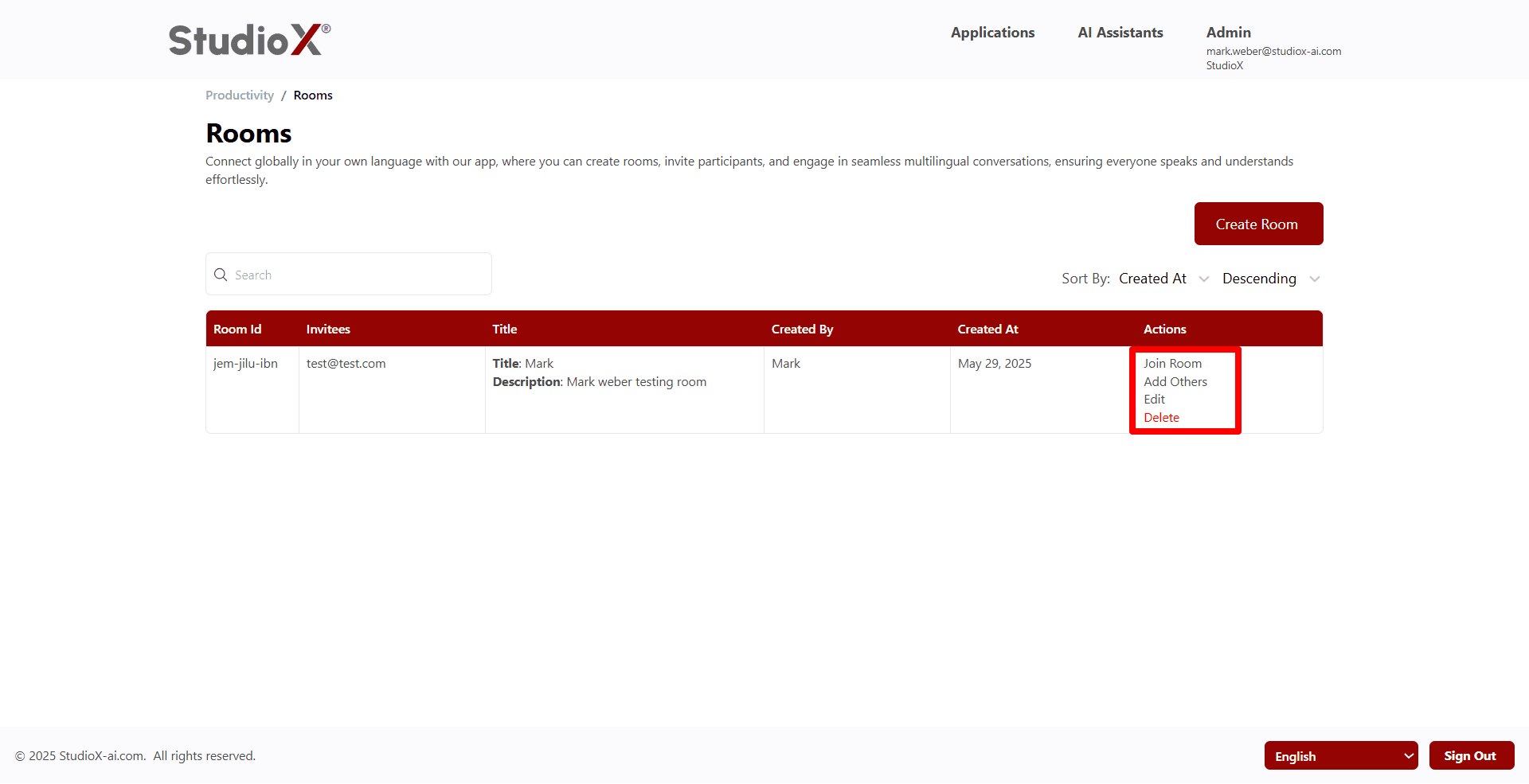
Access Path:
- Login to the Platform
- Navigate to Applications
- Select the Productivity tab
- Click on Rooms
Key Features
- Create multilingual chat rooms with automatic translation
- Real-time voice and text translation
- Live voice transcription and messaging
- Easy room sharing via email invitations or direct links
- Works alongside Google Meet, Microsoft Teams, and other platforms
Getting Started
Follow this simple workflow to start communicating across languages with ease.
Workflow Steps
- Create a new room with title and description
- Add attendees by email or share the room link
- Join the room and select your preferred language
- Start speaking - your words are translated in real-time
Platform Compatibility: Works alongside Google Meet, Microsoft Teams, and other conferencing tools
Create Room
Click 'Create Room' to open a form where you can enter room details and invite participants for multilingual conversations.
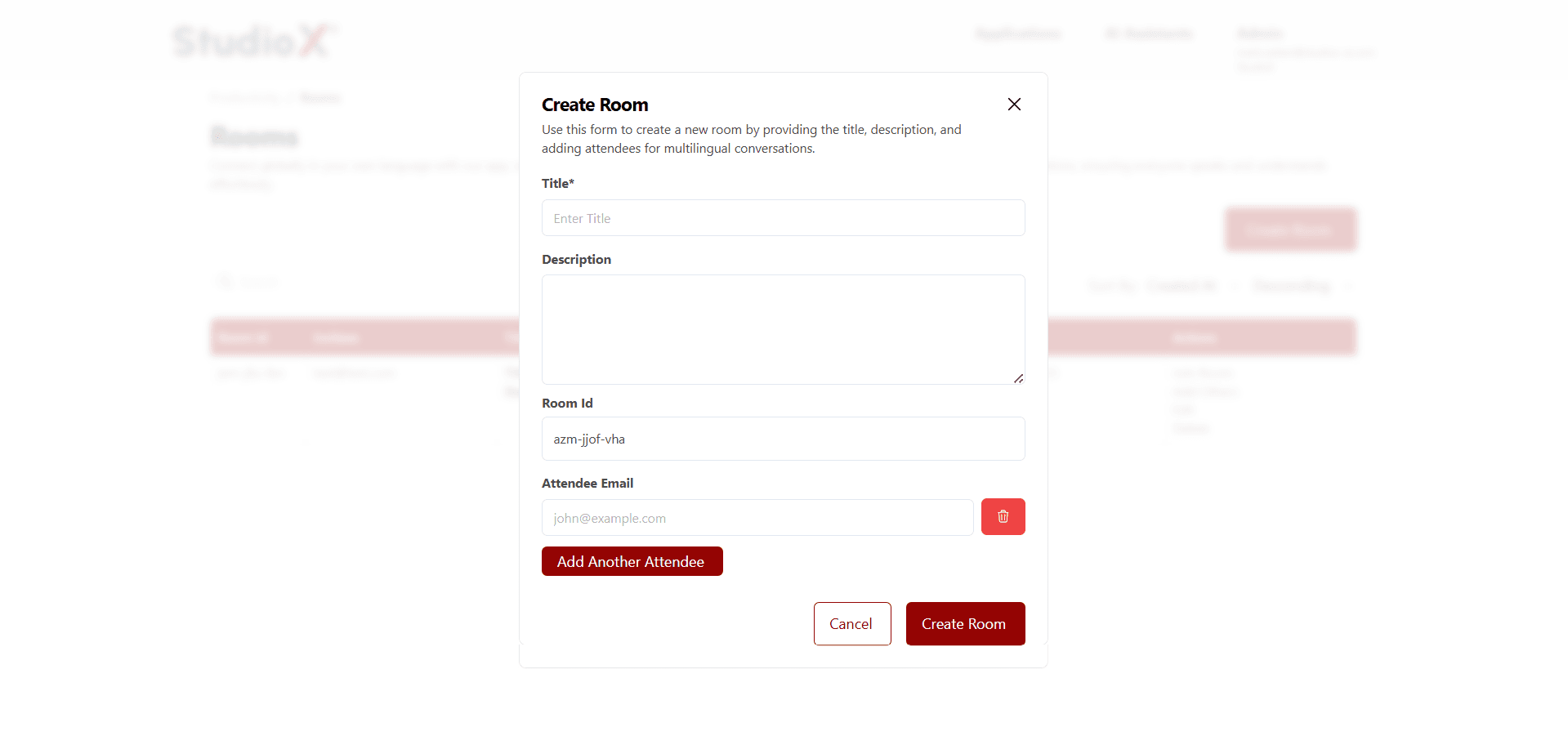
Room Creation Fields
- Title: Required field for room identification
- Description: Optional description of the room's purpose
- Room ID: Automatically generated unique identifier
- Attendee Emails: Add participant email addresses for invitations
Room Management
Manage room participants and invitations through the attendee management system.
Attendee Management
Add Attendee
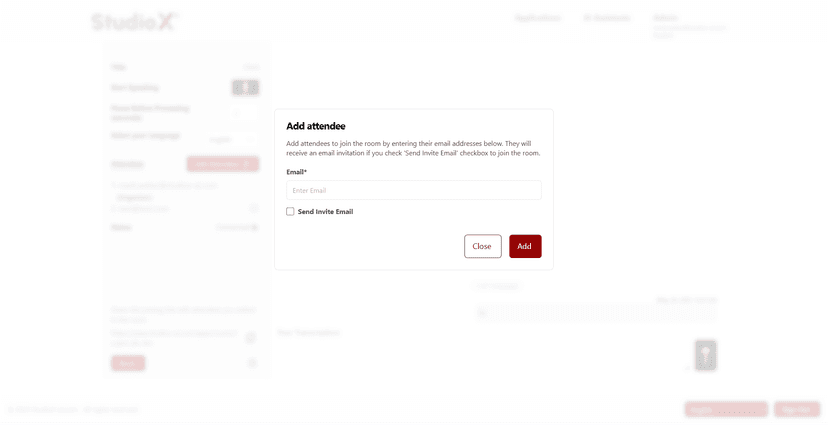
Send Invite
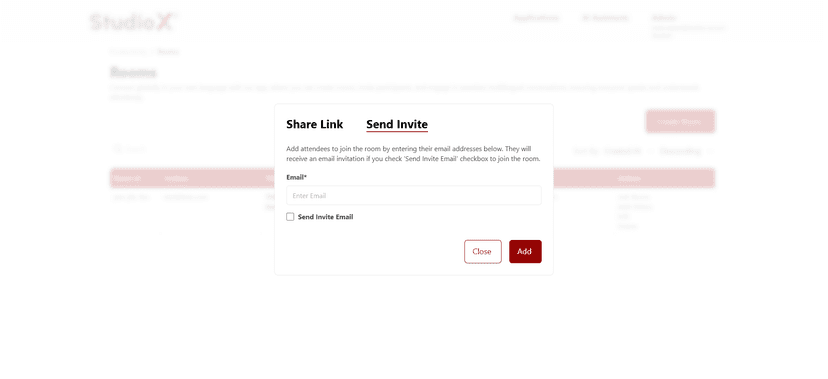
Table Structure
All rooms are displayed in a comprehensive table format showing room details and available actions.
Table Columns
- Room ID: Unique identifier for the room
- Invites: Number of invitations sent
- Title: Room title and description
- Created By: User who created the room
- Created At: Room creation date and time
- Actions: Available actions for the room
Search and Sort
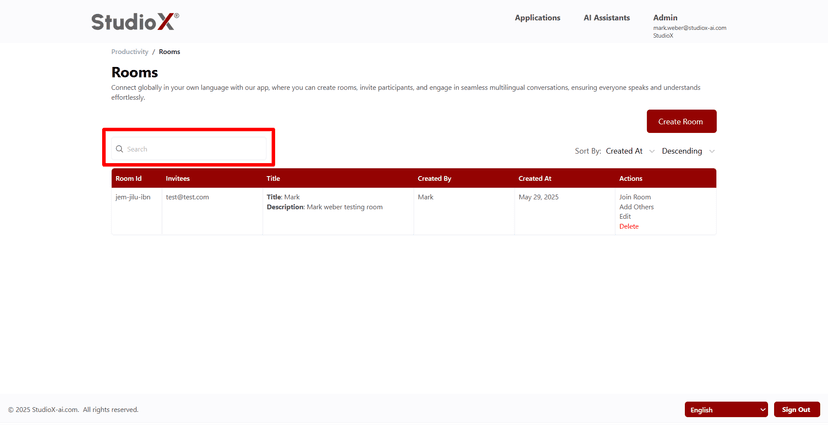
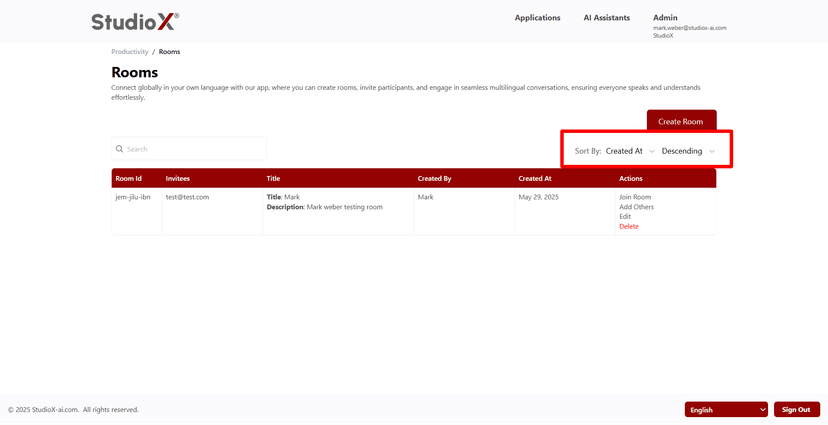
Use the search bar to find rooms by title or description. Sort rooms by creation date or title in ascending or descending order.
Search Functionality
Sort Functionality
Search Options
- Search by room title
- Search by room description
- Search by room ID
Sort Options
- Sort by creation date
- Sort by room title
- Choose ascending or descending order
Room Actions
Each room has multiple action options available for comprehensive room management.
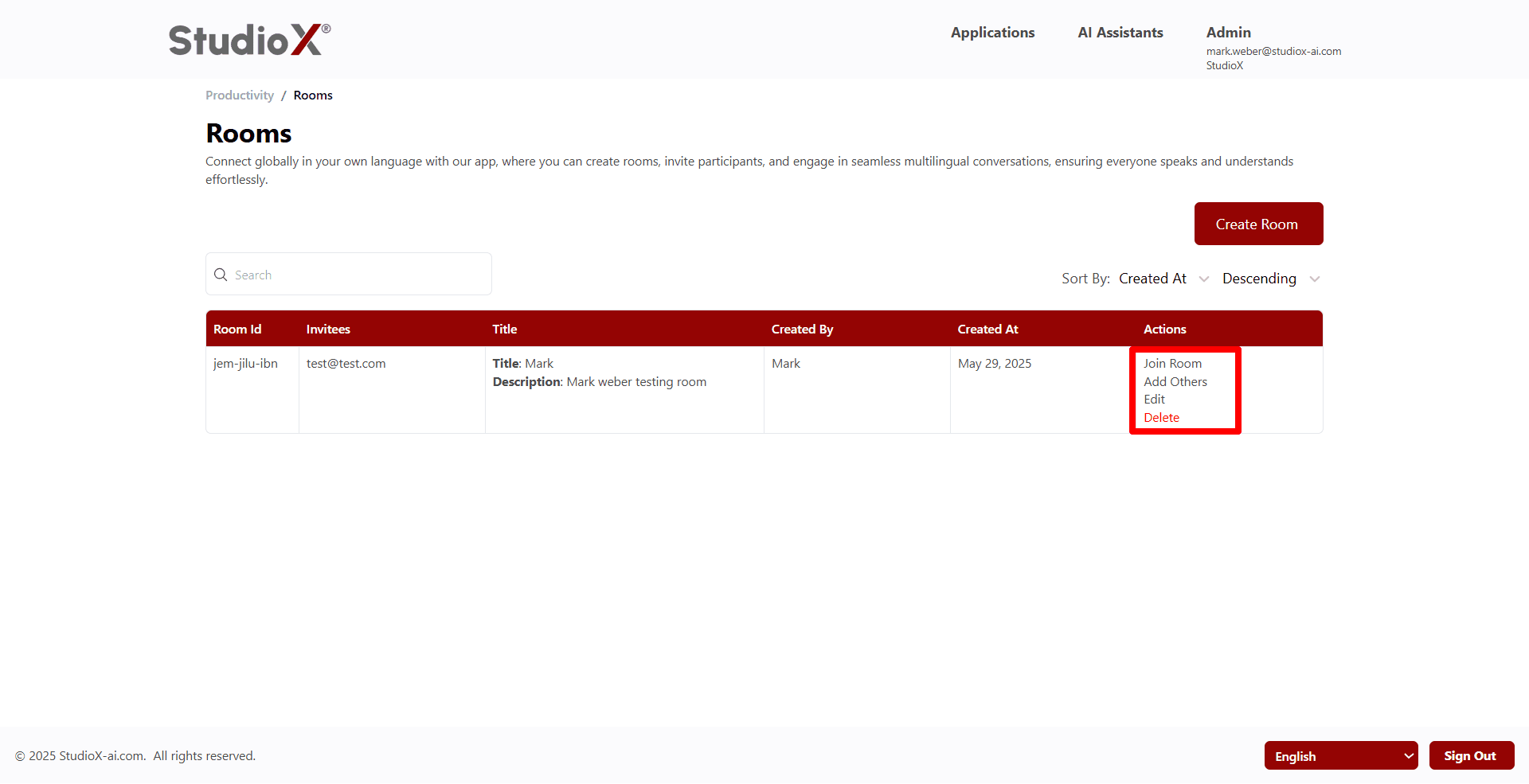
Available Actions
- Join Room: Enter the room and start participating
- Add Others: Invite additional participants to the room
- Edit: Modify room details and attendees
- Delete: Permanently remove the room
Join Room
Click 'Join Room' to enter the conversation interface where you can start speaking and see live translations.
Join Room Features
- Microphone control for voice input
- Live transcription of spoken words
- Language selection for your preferred output
- Add and manage attendees from within the room
- Share room link with others
Language Settings
Select your preferred language for both input and output. The system will translate your speech into other participants' chosen languages.
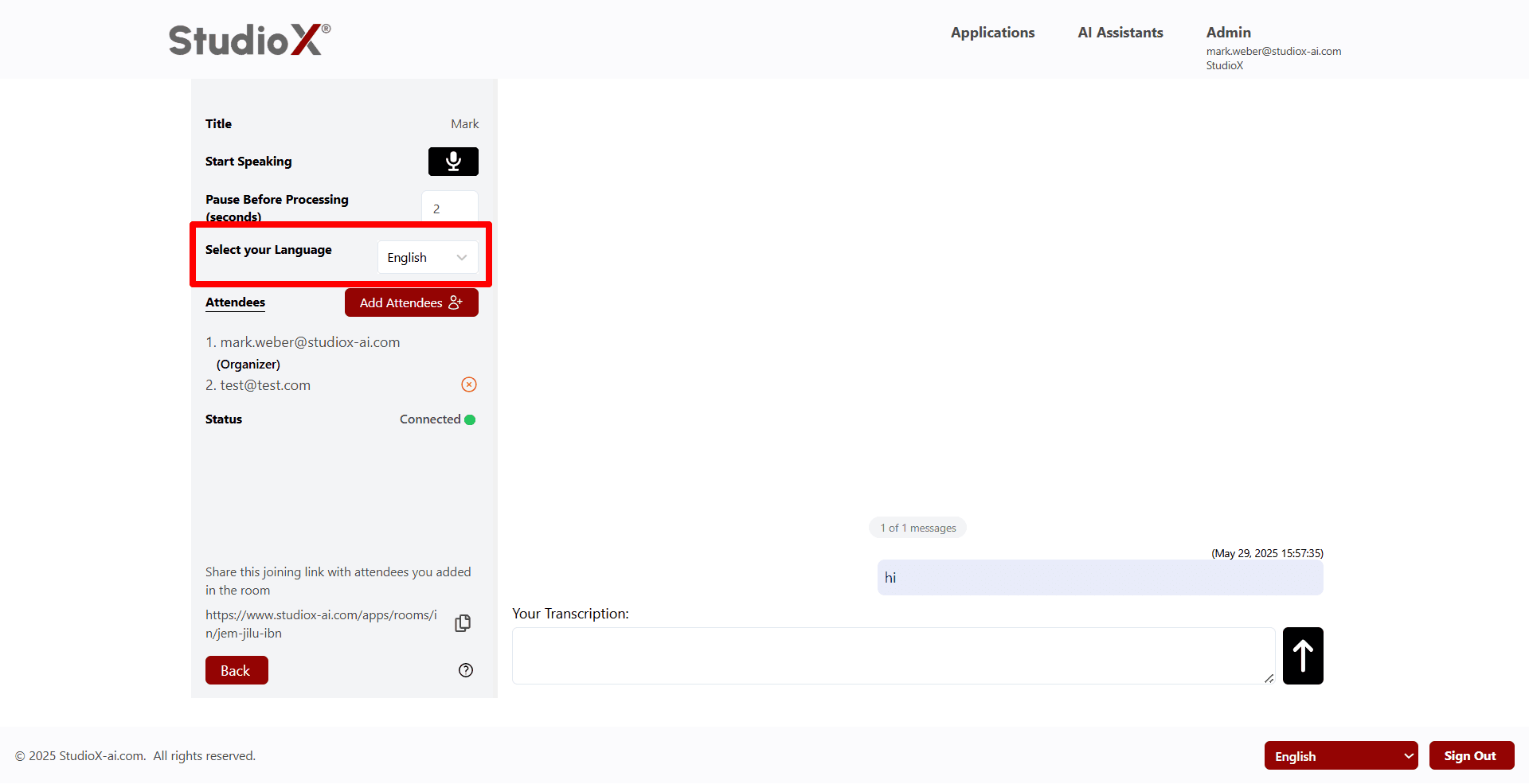
Language Flexibility: You can change your language setting at any time during the session
Real-time voice and text translation
Experience seamless communication as your speech is automatically transcribed and translated for all participants in real-time.
Voice to Text
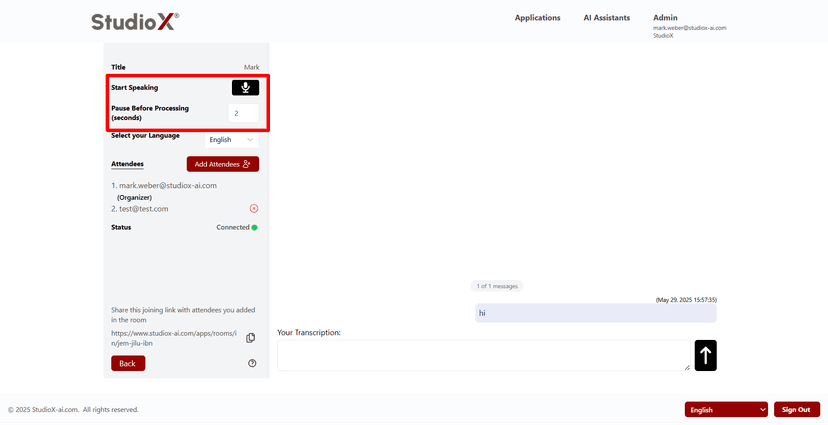
Translation Example
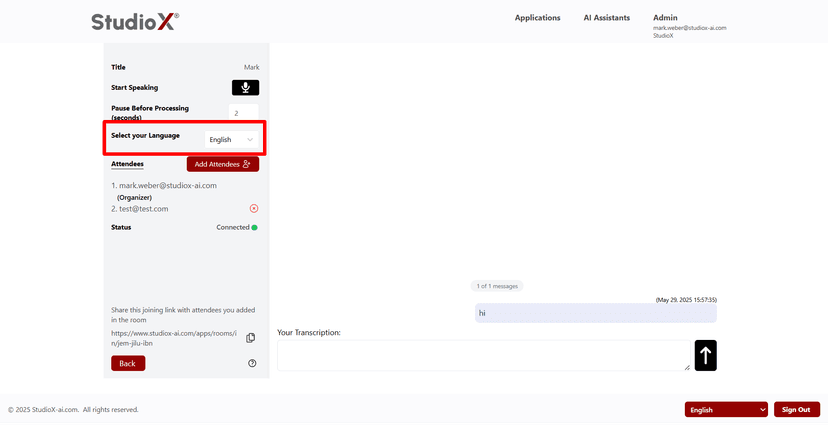
Translation Features
- Real-time speech processing and translation
- Support for multiple languages simultaneously
- Automatic language detection
- Complete message history with translations
Sharing Features
Share your room with participants through multiple methods including email invitations and direct link sharing.
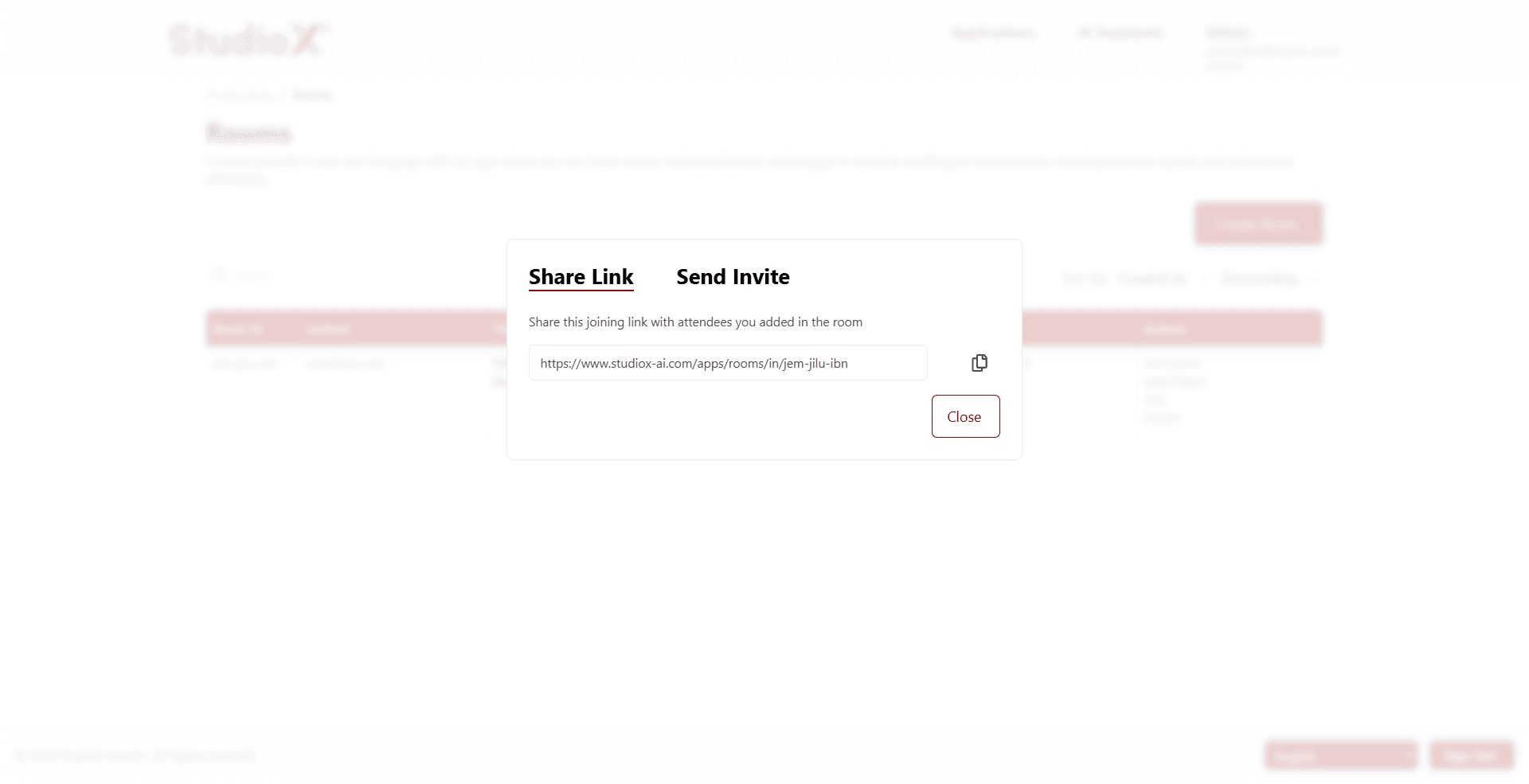
Sharing Methods
- Send email invitations directly from the app
- Share room link via any communication platform
- Copy room link for easy sharing
- Use alongside existing meeting platforms
Edit Room
Modify room details, update descriptions, and manage participant lists through the edit room interface.
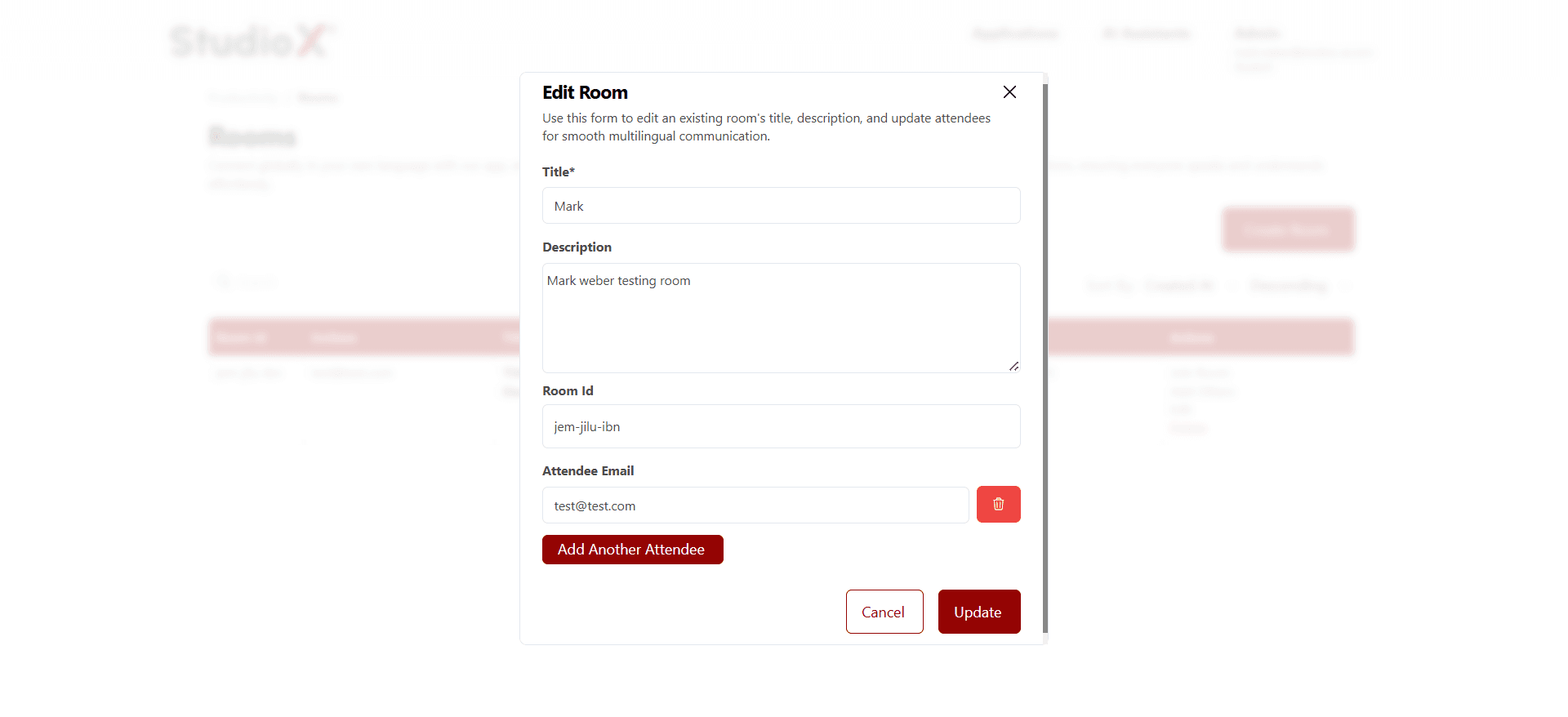
Editable Fields
- Update room title
- Modify room description
- Edit attendee list
- Add or remove participants
Delete Room
Permanently remove a room when it's no longer needed. This action cannot be undone.
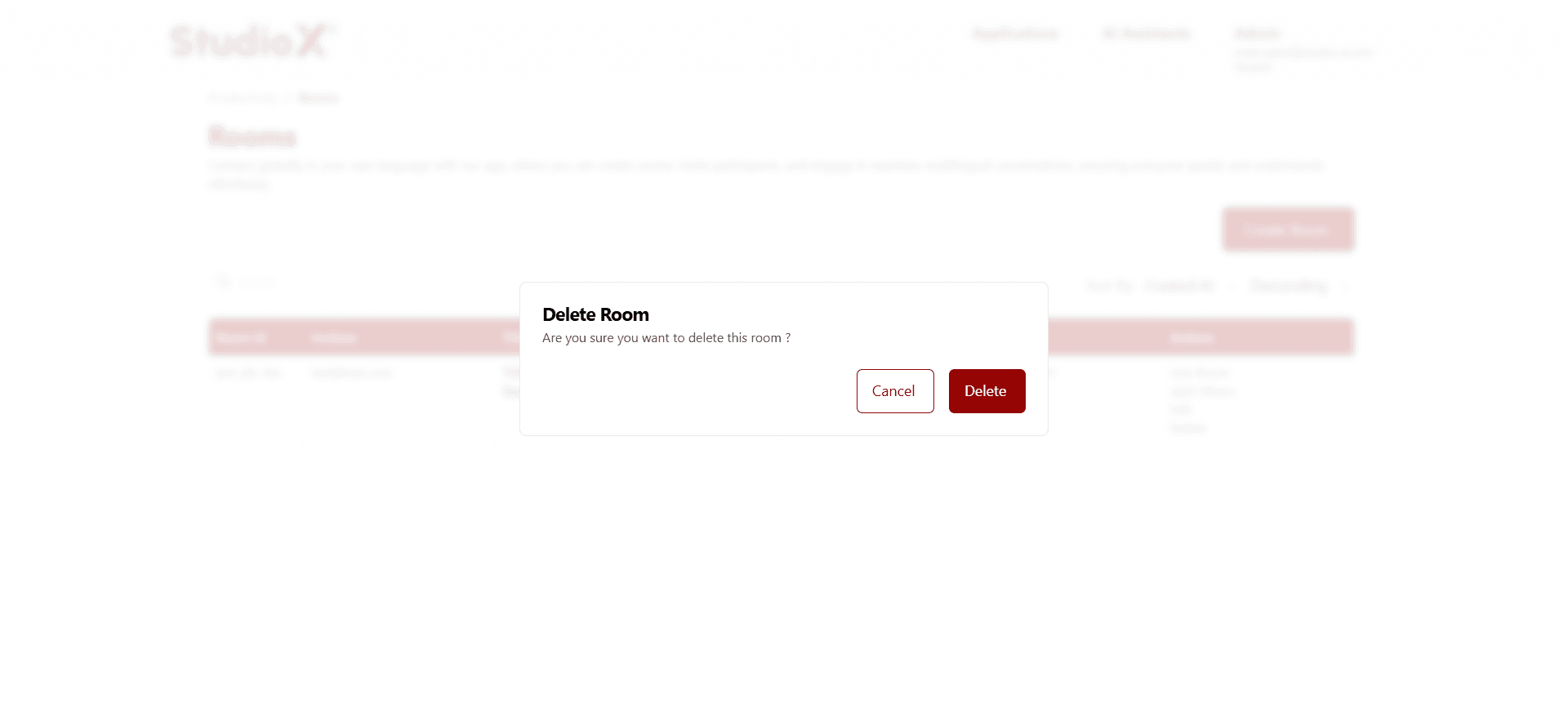
Warning: Deleting a room is permanent and cannot be undone. All room data and message history will be lost.