Meeting Support
Upload, analyze, and manage your meetings with AI-powered summaries, action items, and collaborative features.
Table of Contents
Overview
Meeting Support helps you stay on top of your meetings easily. Upload your meeting audio or add a transcript, and the app will quickly create a clear summary for you. It highlights action items so you know what to do next. After your meeting summary is ready, you can share it with everyone you invited. They will see the summary and action items without doing anything extra. This keeps everyone on the same page and saves you time. You can also chat with our bot about the meeting. Ask questions like 'What are the action items?' or 'What was said about the deadline?' The bot will answer based on the meeting content.
Access Path:
- Login to the Platform
- Navigate to Applications
- Select the Productivity tab
- Click on Meeting Support
Key Features
- Upload text, audio, or video recordings
- AI-powered meeting summaries and insights
- Automatic action items extraction
- Chat with AI about meeting content
- Share summaries with team members
- Set up automatic sharing for future meetings
Getting Started
Follow this simple workflow to start managing your meetings with AI assistance.
Workflow Steps
- Upload your meeting audio file or text transcript
- Configure meeting details and prompt type
- AI processes and generates summary with action items
- Review and manage action items
- Share summaries with team members
Supported Formats: MP3, MP4, WAV, OGG audio files, and text transcripts
Workflow
After you login, you can find this app (Meeting Support) in the 'productivity' tab. On the app dashboard you will see two tabs - 'All Meetings' and 'View Meeting Details'.
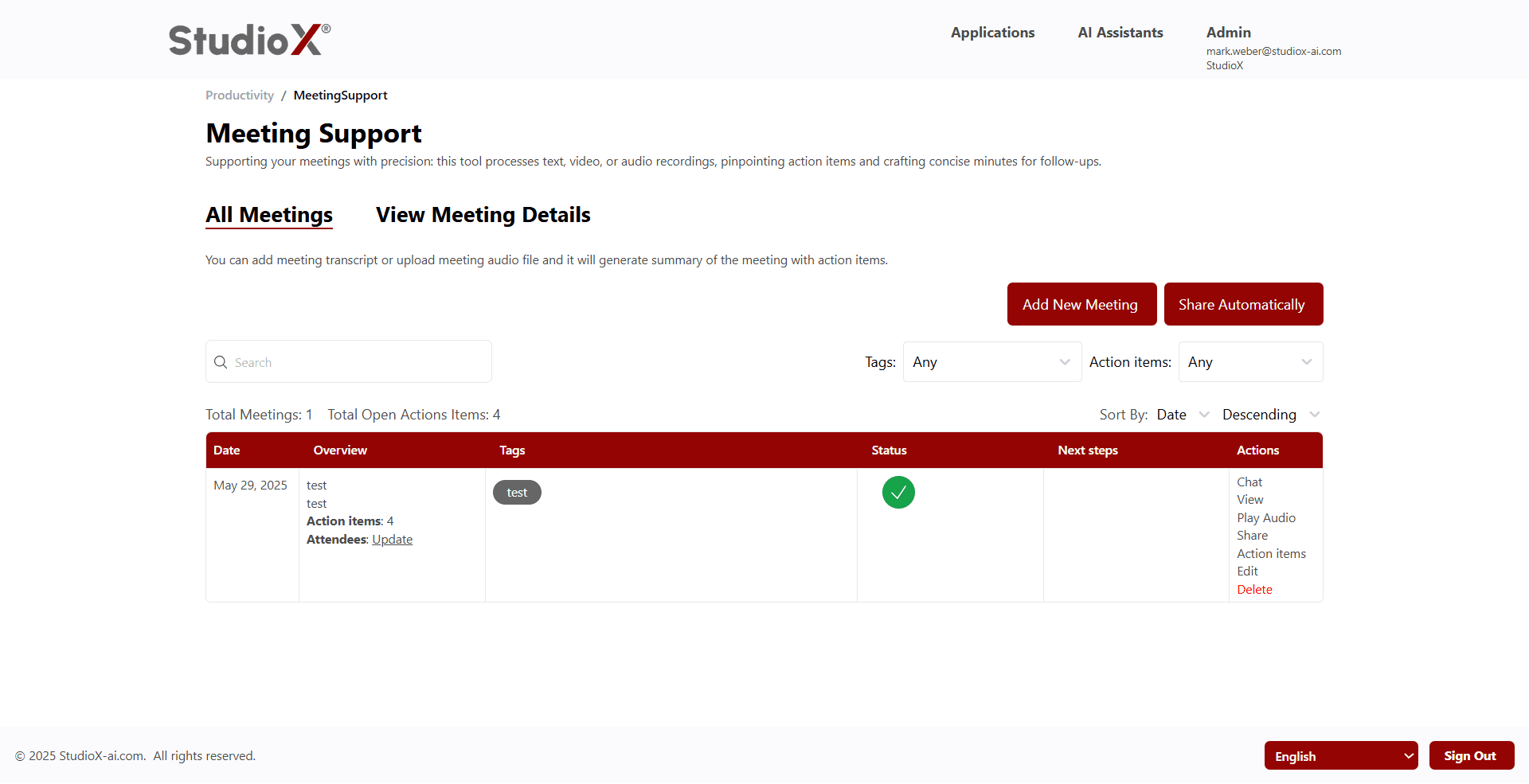
The interface consists of two main tabs: 'All Meetings' for overview and management, and 'View Meeting Details' for detailed analysis.
All Meetings
Meeting supports an app where you stay on top of your meetings. Just upload your text, audio, or video recordings, and it will pick out key tasks and write clear, short meeting notes you can use for follow-ups.
View all your meetings in a comprehensive table with search, sort, and filtering capabilities.
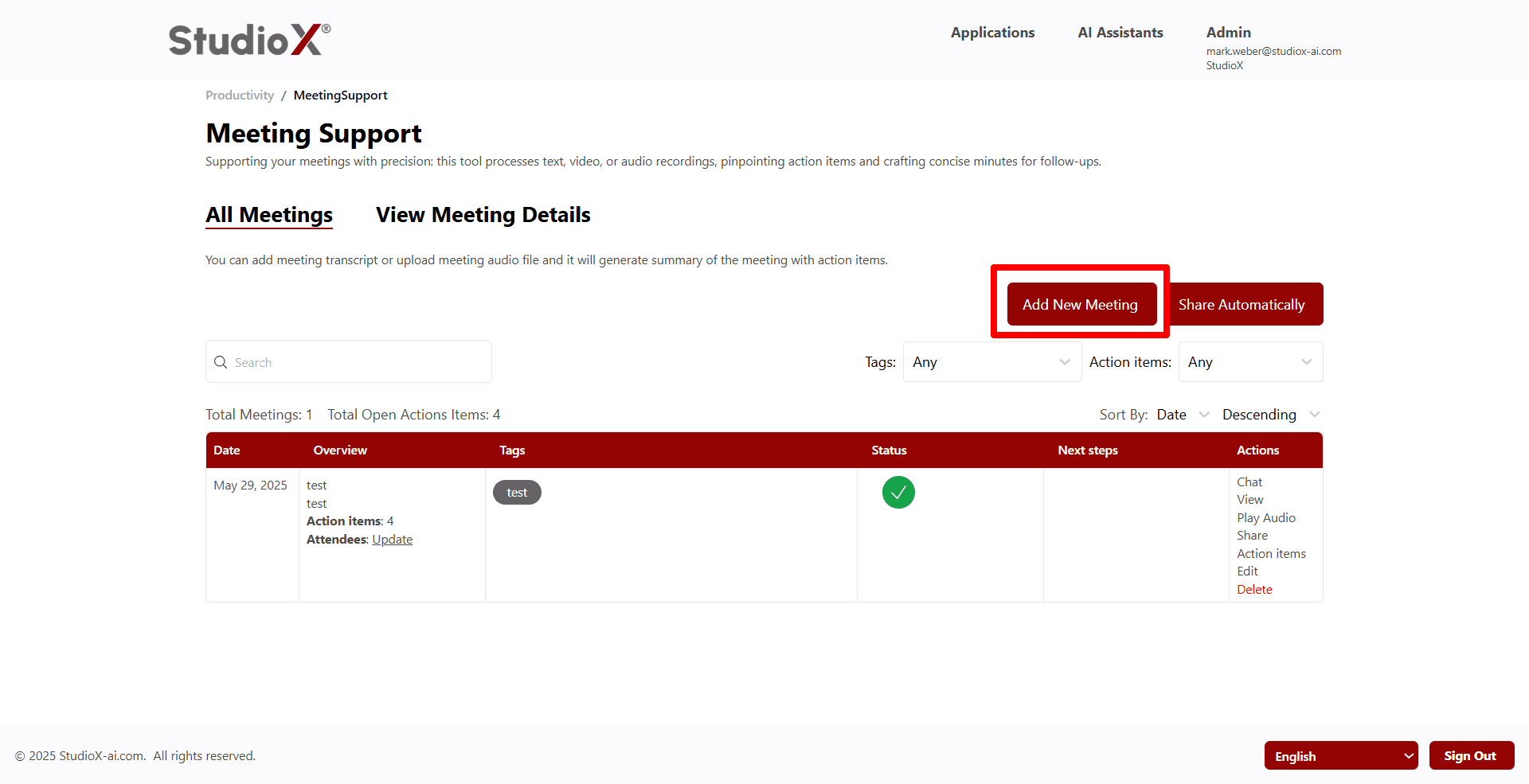
Add New Meeting
Click the 'Add New Meeting' button to start uploading a new meeting for analysis.
Upload Meeting
Follow these steps to upload a new meeting for AI analysis and summary generation.
Upload Process
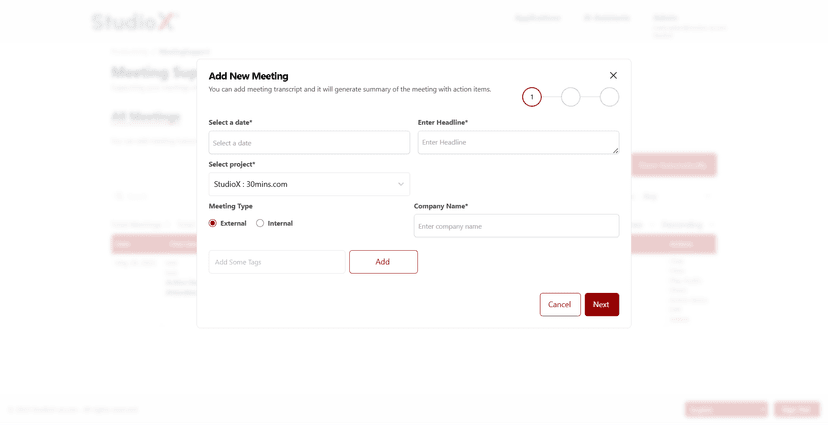
Basic Information
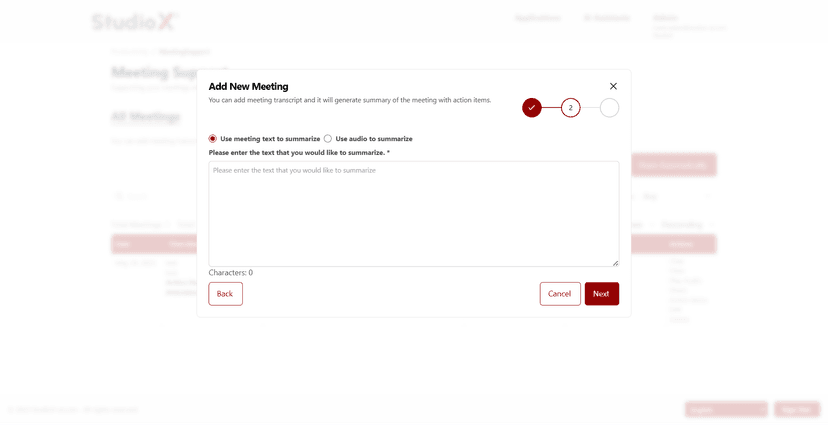
Upload Content
Select Prompt
Step 1: Basic Details
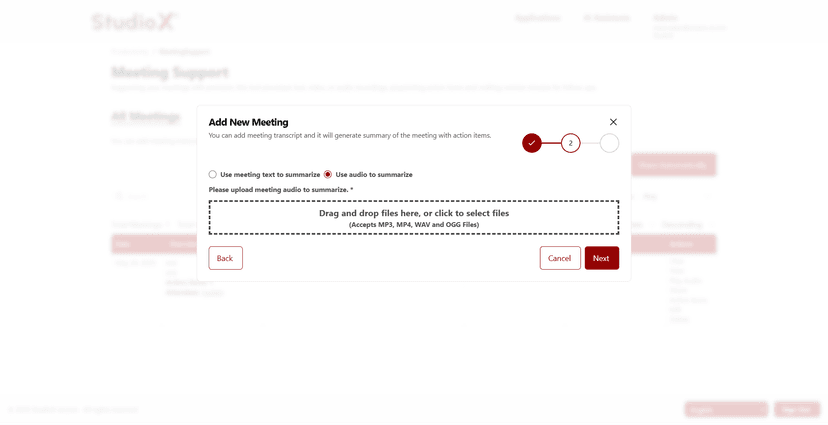
Step 2: Upload Options
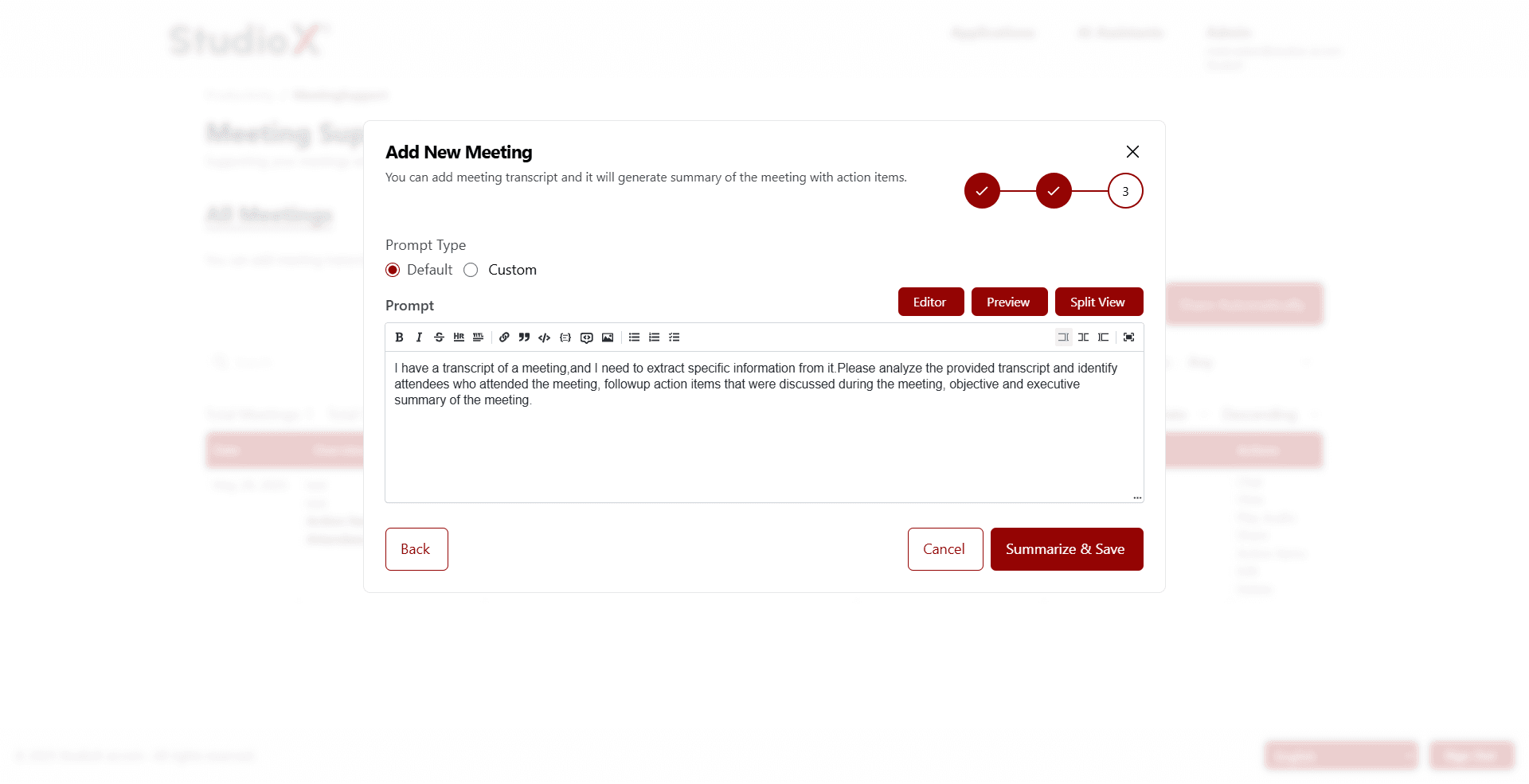
Step 3: Prompt Selection
Upload Requirements:
- Meeting date is required
- Headline/title must be provided
- Project selection is required
- Meeting content (text or audio) is required
Upload Options
- Use meeting text: Paste or type the meeting transcript directly
- Upload audio file: Upload MP3, MP4, WAV, or OGG audio files
Prompt Types
- Default Prompt: Uses standard AI prompt for meeting analysis
- Custom Prompt: Create your own custom prompt for specific analysis needs
Share Automatically
You can share meetings automatically with others. To enable this, follow these steps:
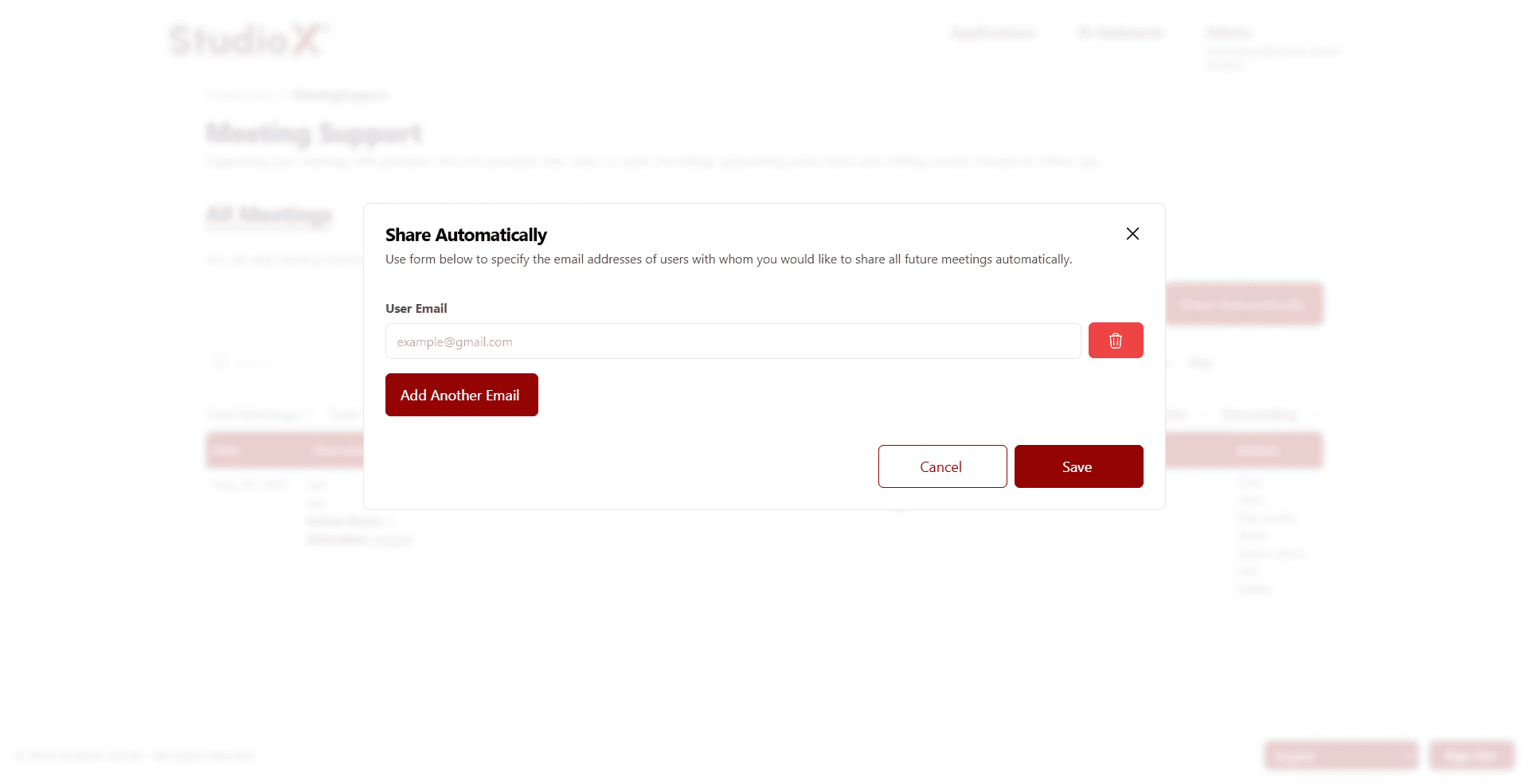
Auto Share Setup
- Click Share Automatically
- Enter the user's email address
- Click Save
Automatic Sharing Benefits: The meeting will now be shared with that user every time you upload a new meeting. You can also select specific tags and action items to share.
Search and Sort
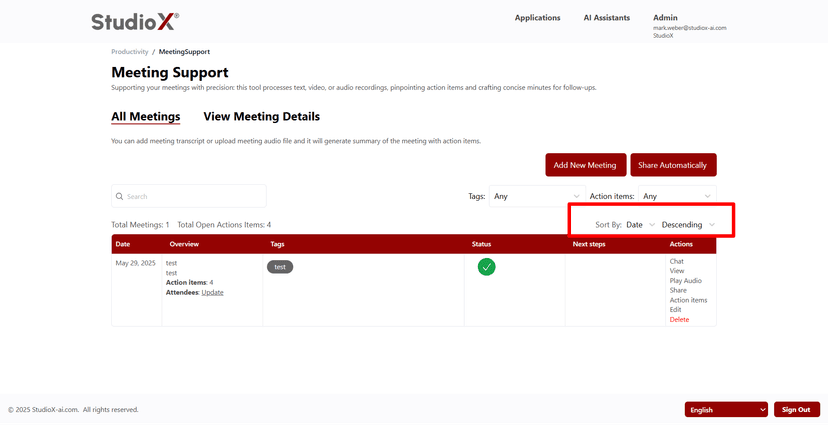
Use the search bar at the top to find meetings or tags by description. Sort meetings by clicking on column headers such as date or headline.
Search Functionality
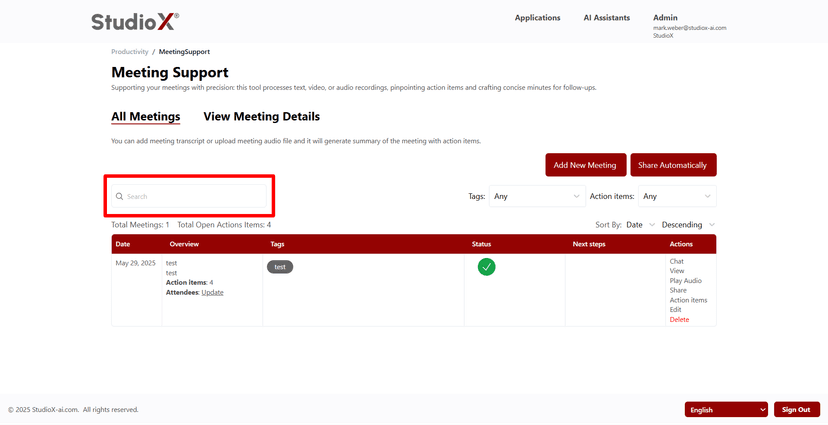
Sort Functionality
Search Options
- Search by meeting title or content
- Search by tags
- Search by description
Sort Options
- Sort by date
- Sort by headline
- Toggle between ascending and descending order
Table Structure
In the table view, you can see the uploaded date, an overview, action item tags, and the file status—such as Completed or In Progress. You can also access next steps and available actions.
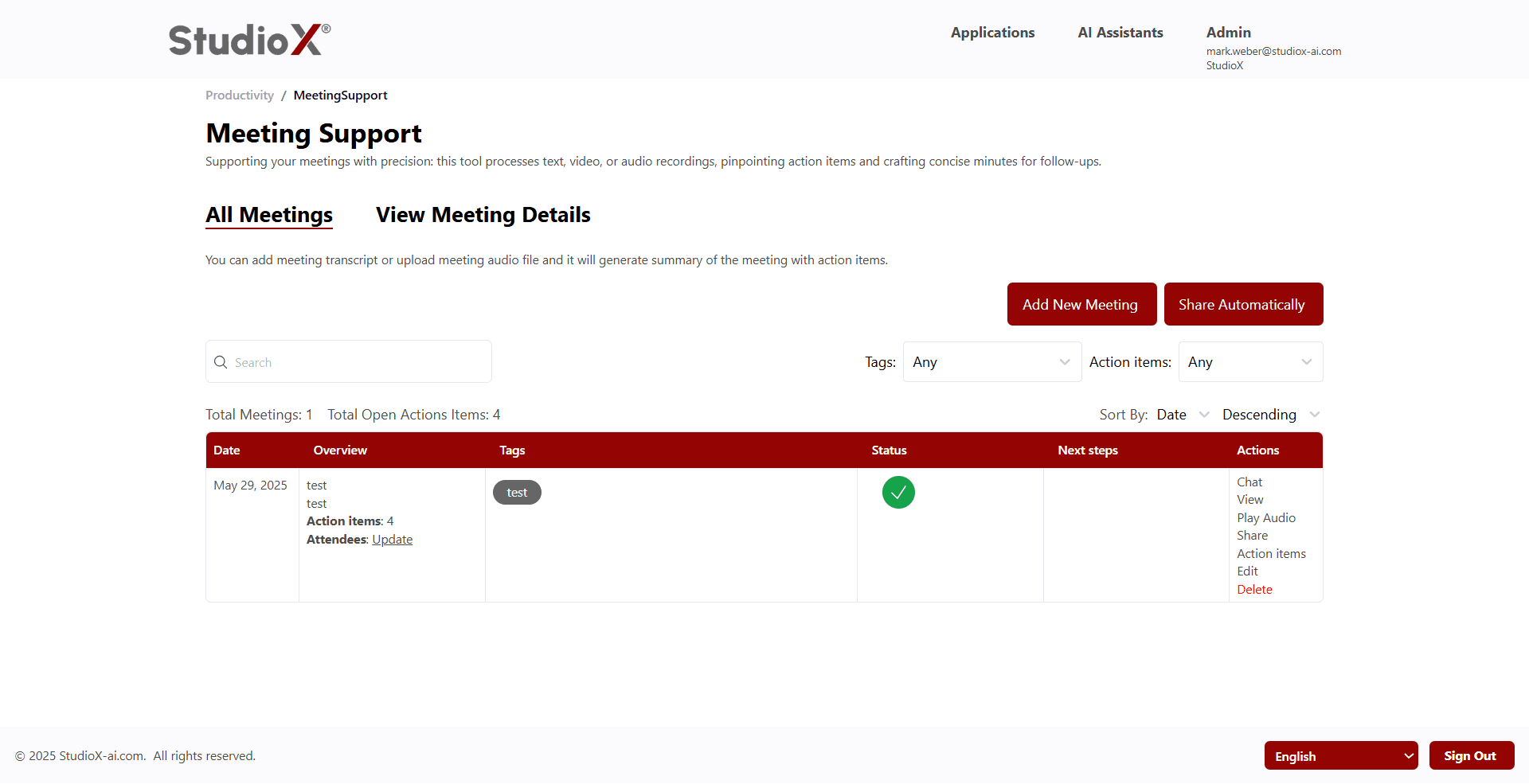
Table Columns
- Date: Meeting date and upload time
- Overview: Meeting title, description, action items count, and attendees
- Tags: Associated tags for categorization
- Status: Processing status (Completed or In Progress)
- Next Steps: Upcoming actions or follow-ups
- Actions: Available actions for the meeting
Meeting Totals
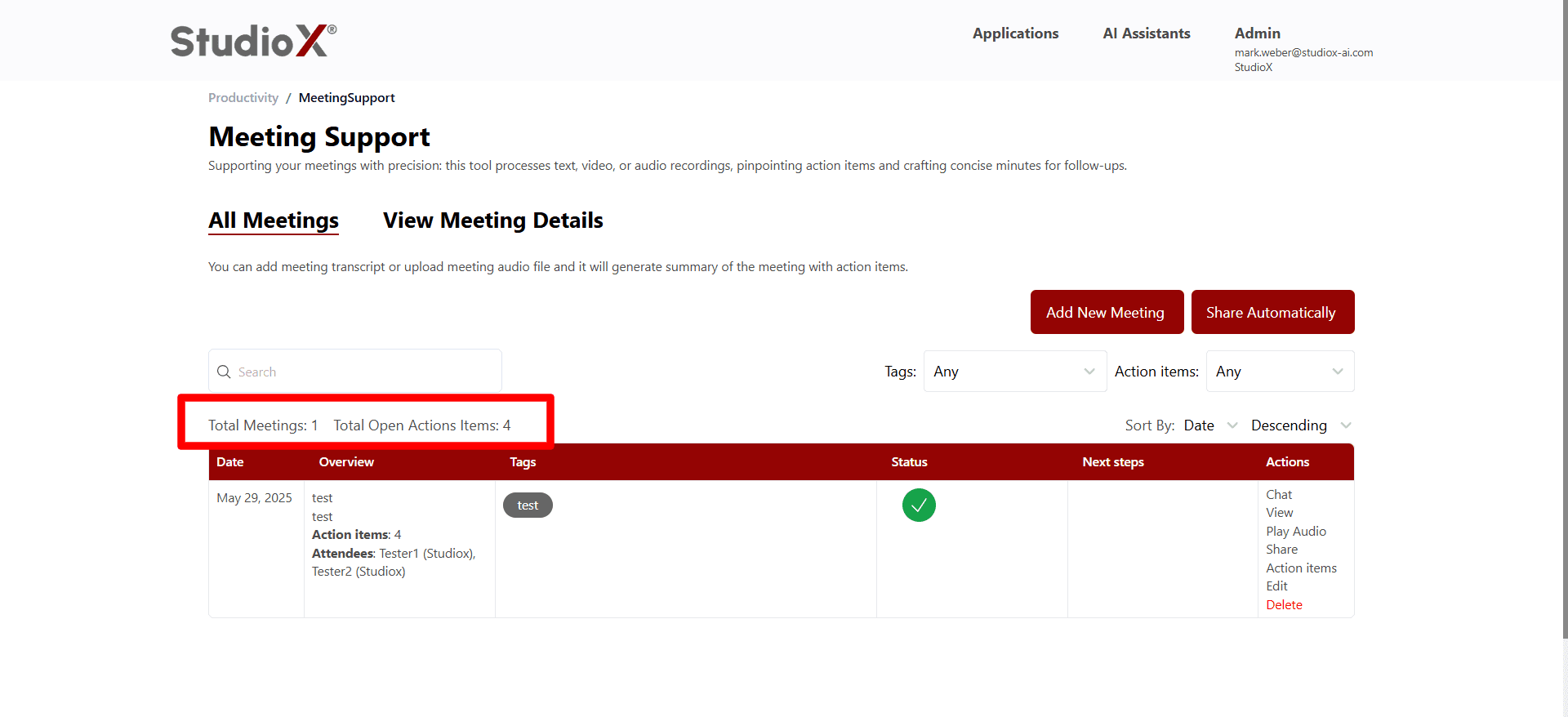
View total number of meetings and total open action items at the top of the interface.
Meeting Actions
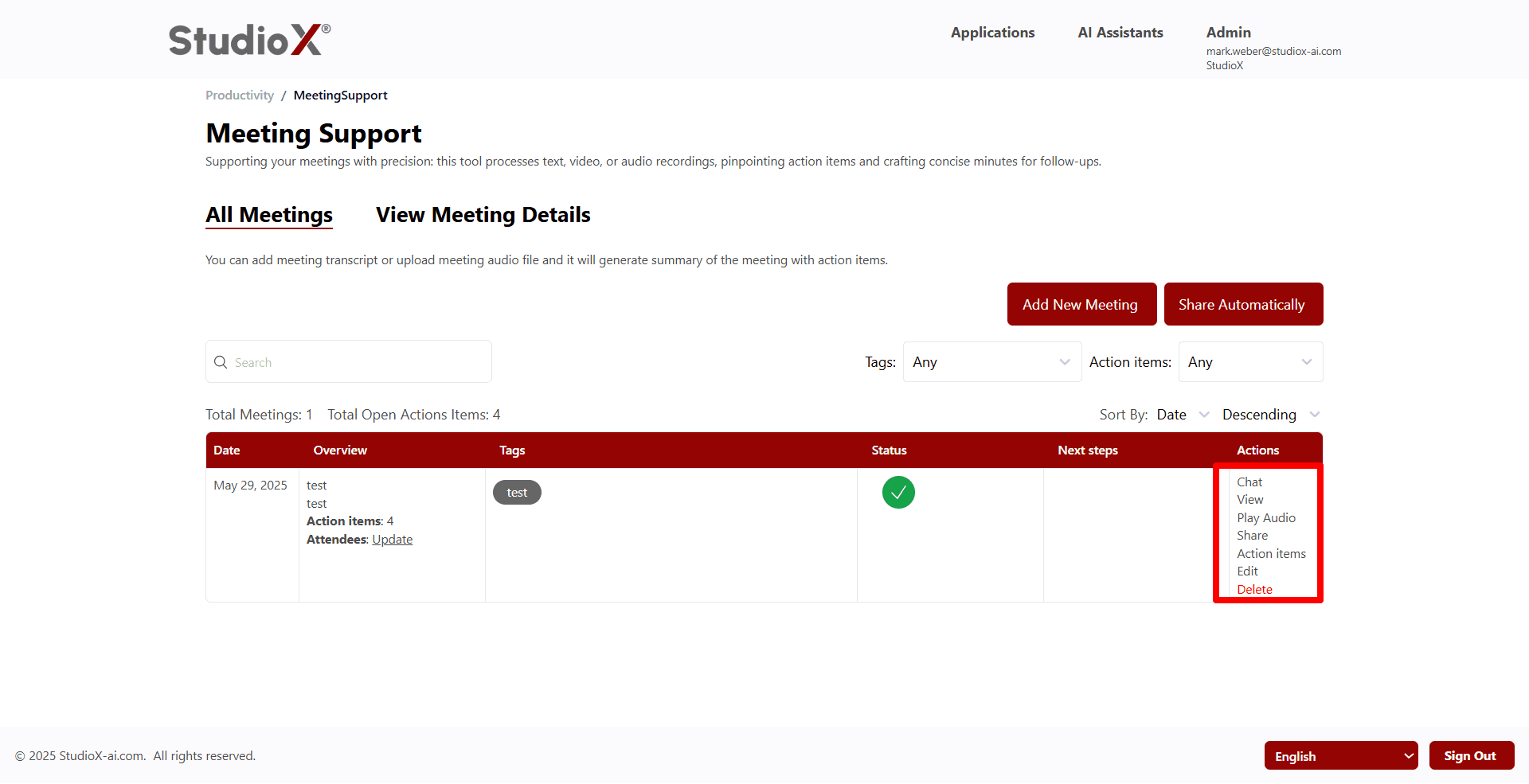
Each meeting has multiple action options available for comprehensive management.
Available Actions
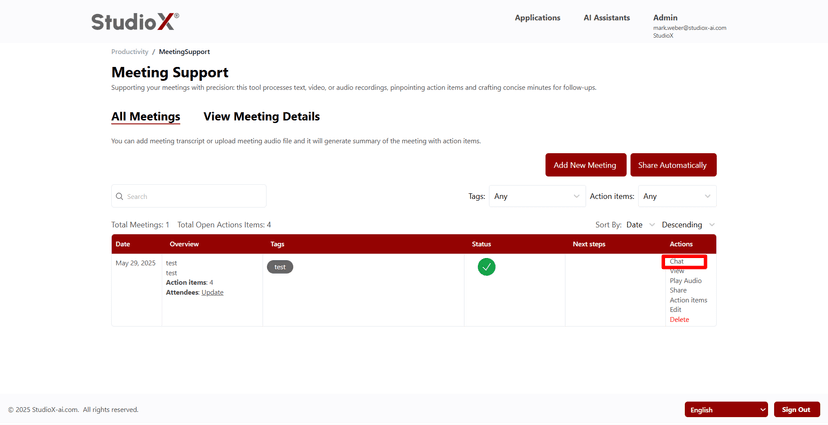
- Chat: Start a conversation about the meeting content
- View: View detailed meeting information and summary
- Play Audio: Listen to the original meeting audio
- Share: Share the meeting summary with others
- Action Items: Manage and track action items
- Edit: Edit meeting details and summary
- Delete: Permanently remove the meeting
Chat Functionality
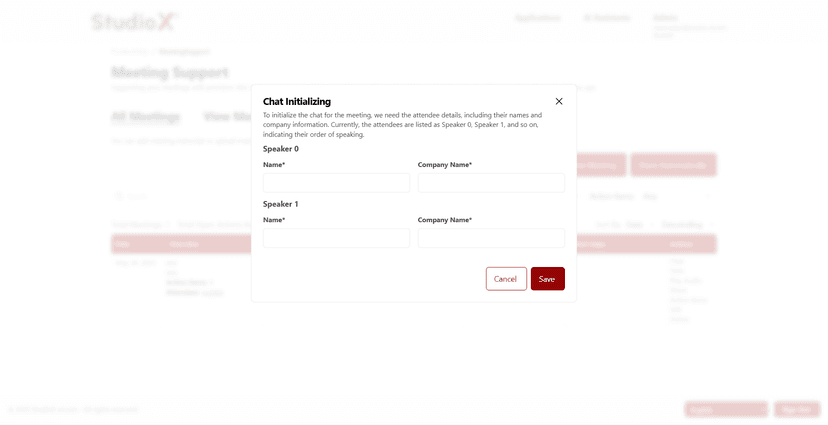
You can click on 'Chat' from the action menu, and a new chat page will open. There, you can ask questions related to the meeting, such as specific details or any other relevant information.
Chat Button
Chat Initialization
Chat Interface
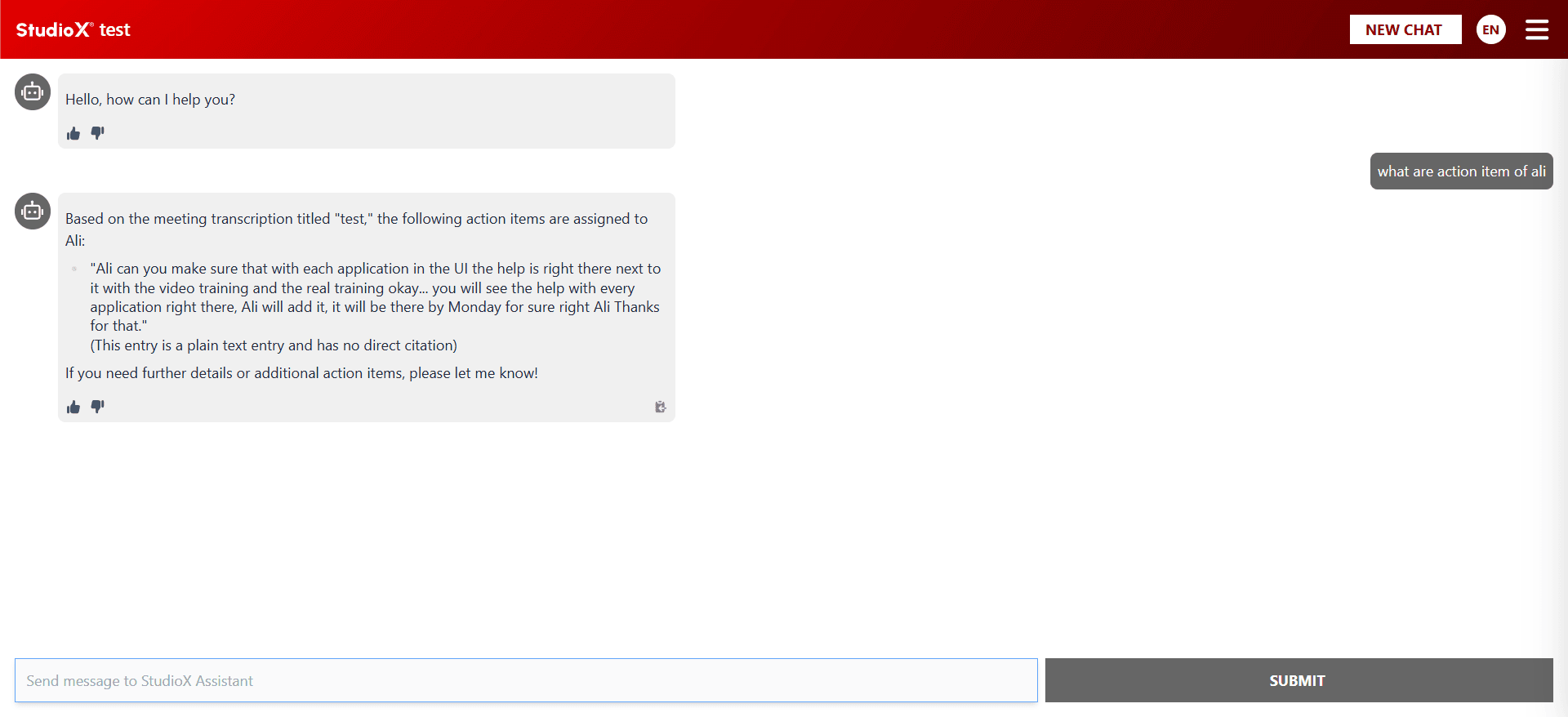
Chat Features
- Ask questions in natural language
- Get specific details from the meeting
- Query about action items and deadlines
- Context-aware responses based on meeting content
Example Queries:
- What are the action items?
- What was said about the deadline?
- Who is responsible for the documentation?
View Meeting Details
In the 'View Meeting Details' section, you can see the headline, company name, date, shared users, and transcription - for the selected meeting. The transcription includes detailed information about who said what, along with an executive summary and action items in a structured table view.
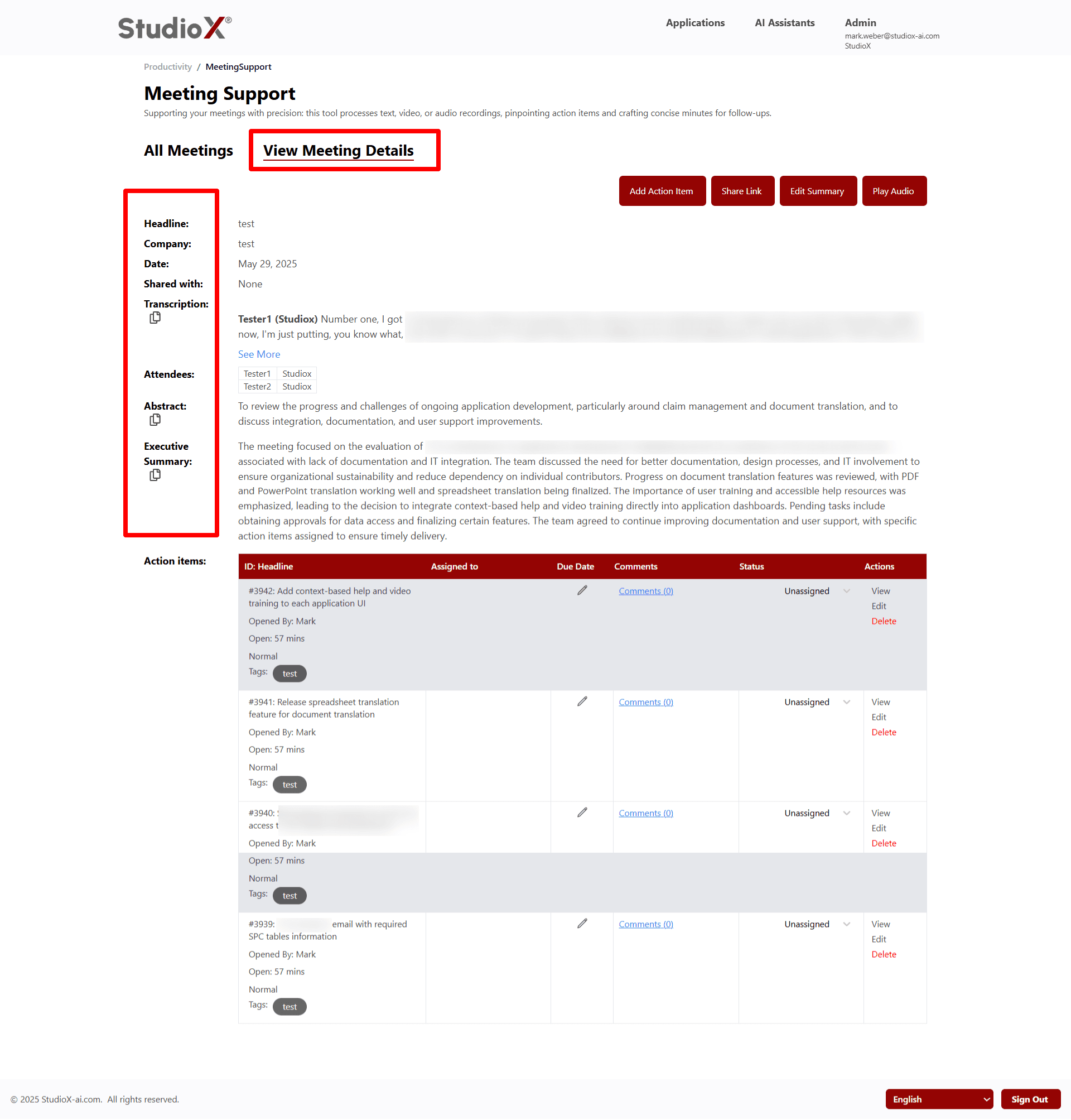
Detail Sections
- Meeting Information: Basic meeting details including headline, company, date, and sharing status
- Transcription: Full meeting transcript with speaker identification
- Attendees: List of meeting participants
- Abstract: Brief summary of meeting objectives and outcomes
- Executive Summary: Detailed summary of key points and decisions
- Action Items: Structured table of extracted action items
Top Action Buttons
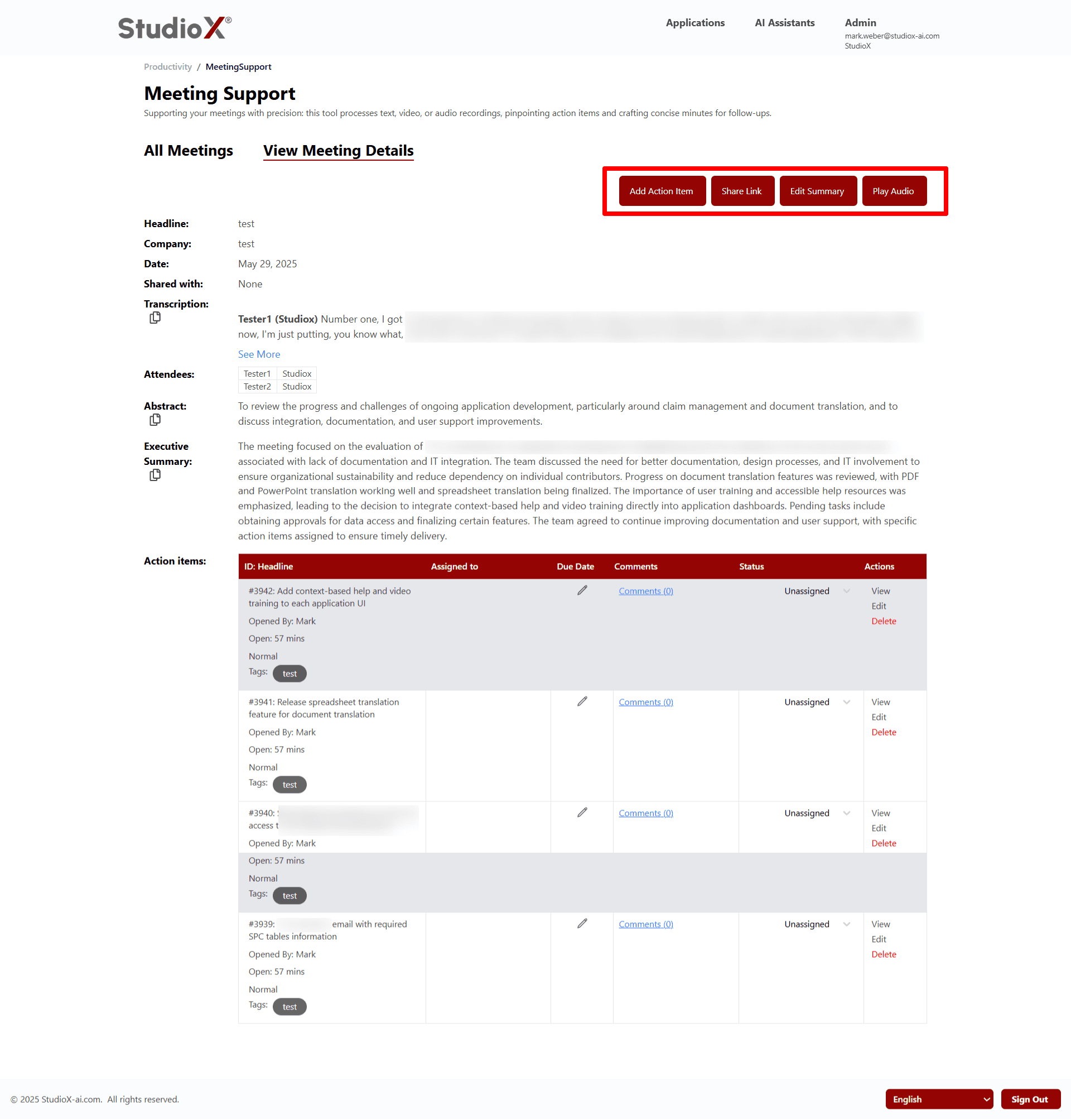
Quick access buttons for adding action items, sharing link, editing summary, and playing audio.
Action Items Management
The action items table includes comprehensive management capabilities for tracking and organizing meeting follow-ups.
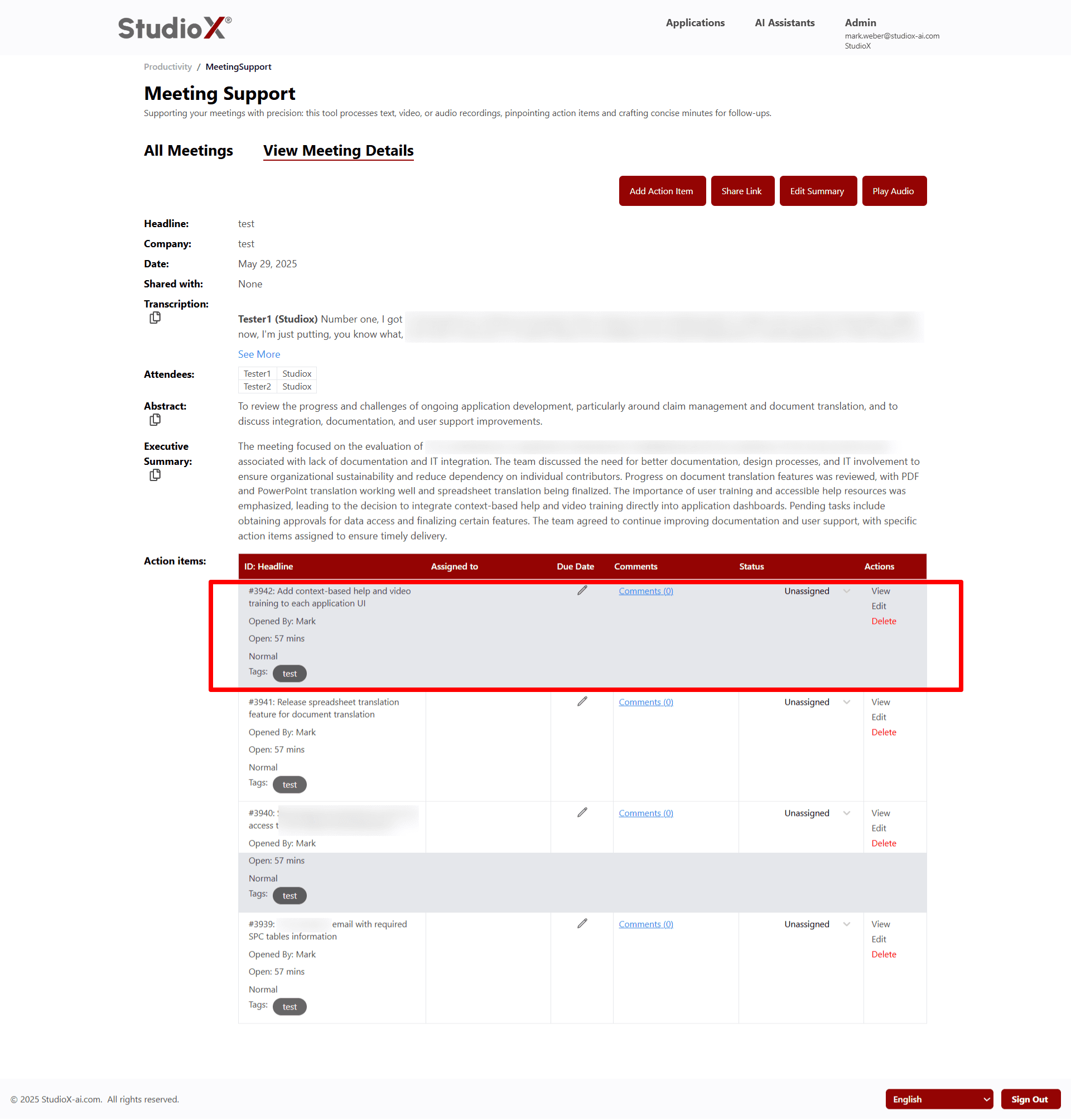
Action Items Table Columns
- ID / Headline: Unique identifier and description of the action item
- Assigned To: Person responsible for completing the action
- Due Date: Target completion date for the action
- Comments: Additional notes and discussion about the action
- Status: Current progress status of the action item
- Actions: Available management actions (View, Edit, Delete)
Status Options
- Unassigned
- Assigned
- Coding Complete
- Done/Verified
- In Progress
- Merged
- No Plan To Fix
- Waiting
Add Action Item
Create new action items with detailed information and assignment details.
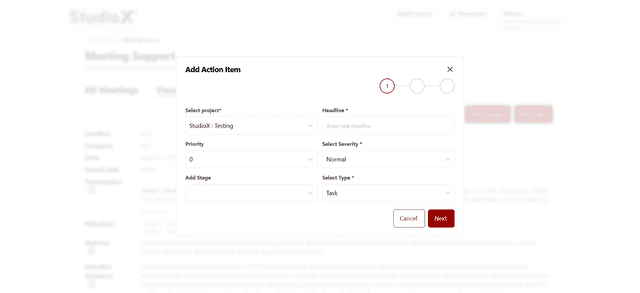
Step 1: Basic Information
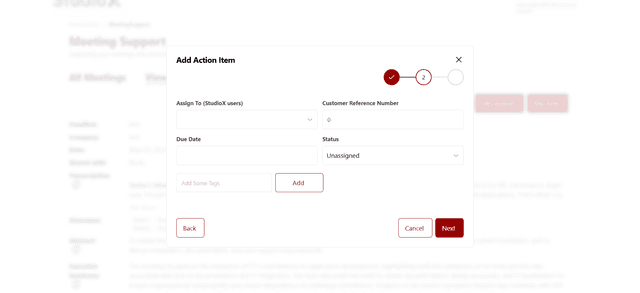
Step 2: Assignment Details
Step 3: Description & Attachments
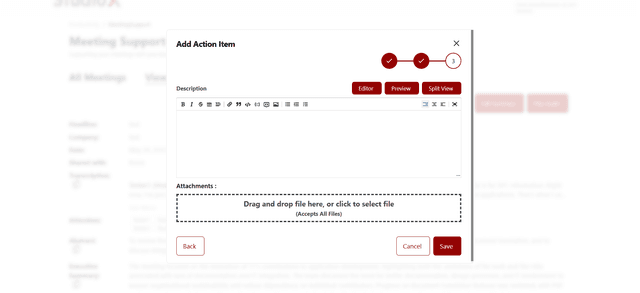
Action Item Creation Steps
- Select project, enter headline, set priority and severity
- Assign to user, set due date, select status, and add tags
- Add detailed description and attach relevant files
Required Fields:
- Project selection is mandatory
- Headline/title must be provided
- Severity level must be selected
- Action item type must be specified
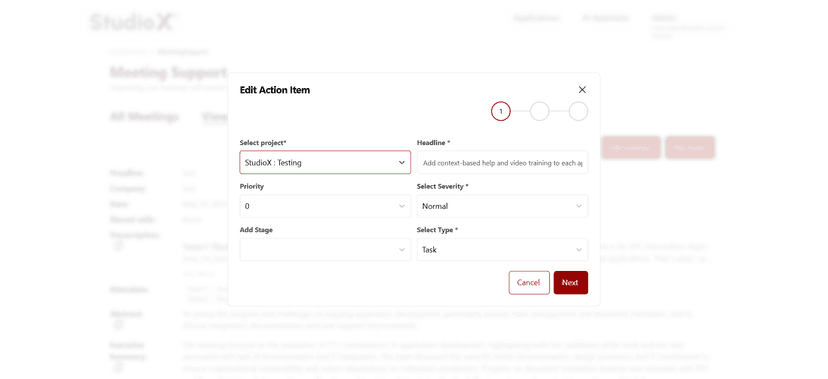
Edit Action Item
Each individual action item can be edited to update information, assignments, and status.
Edit Action Button
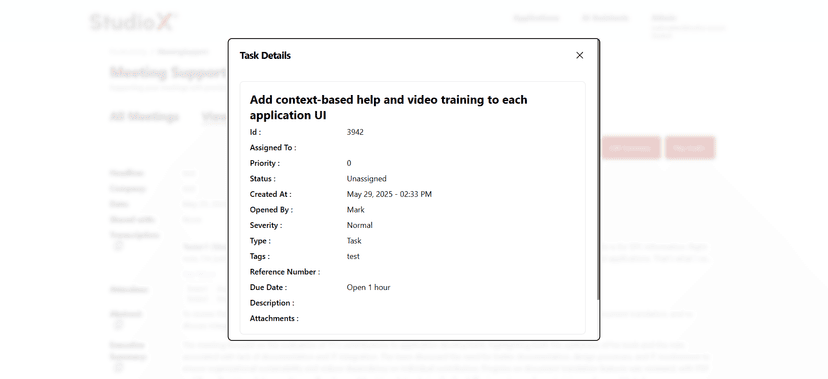
Task Details View
Editable Fields
- Project assignment
- Headline and description
- Priority level
- Severity classification
- Development stage
- Action item type
Delete Action Item
Remove action items that are no longer needed or relevant.
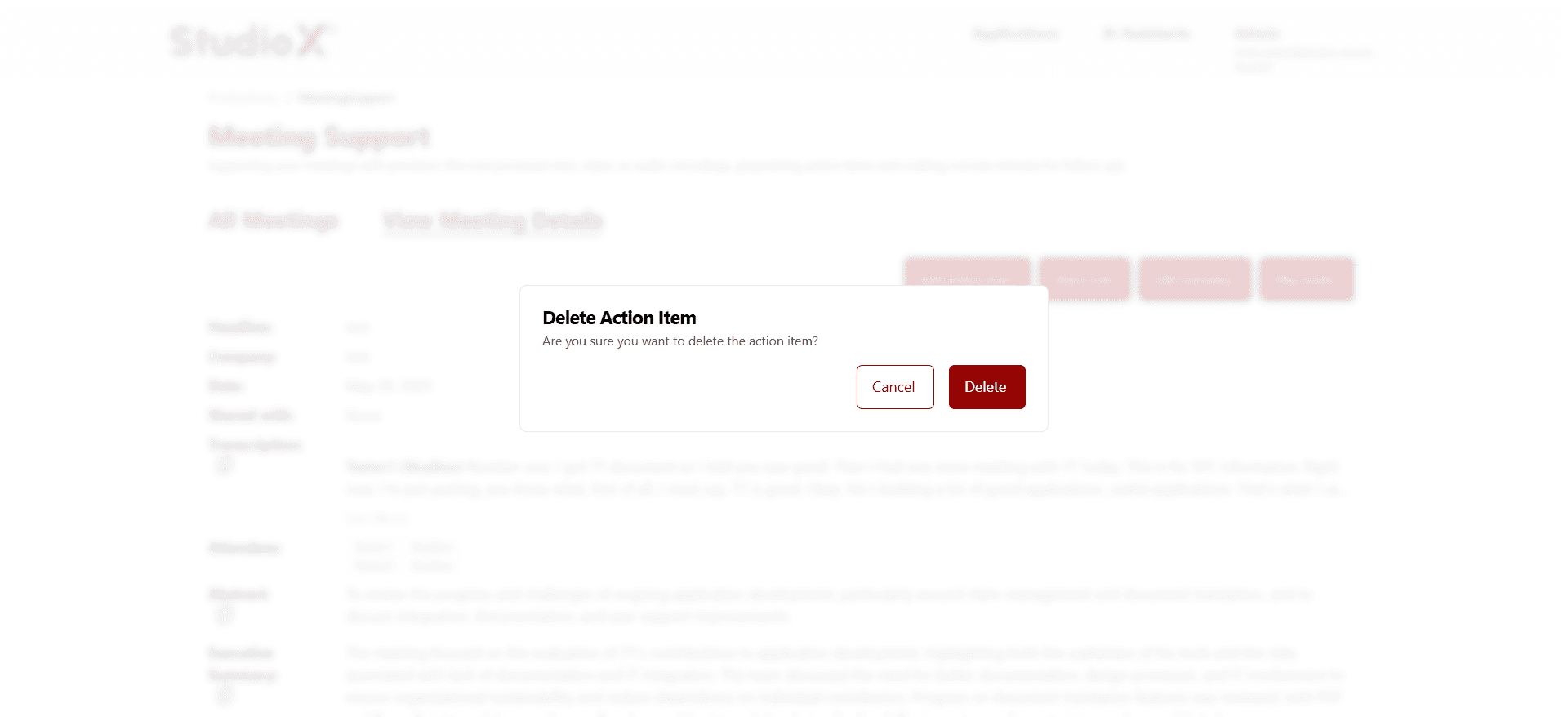
Warning: Deleting an action item is permanent and cannot be undone.
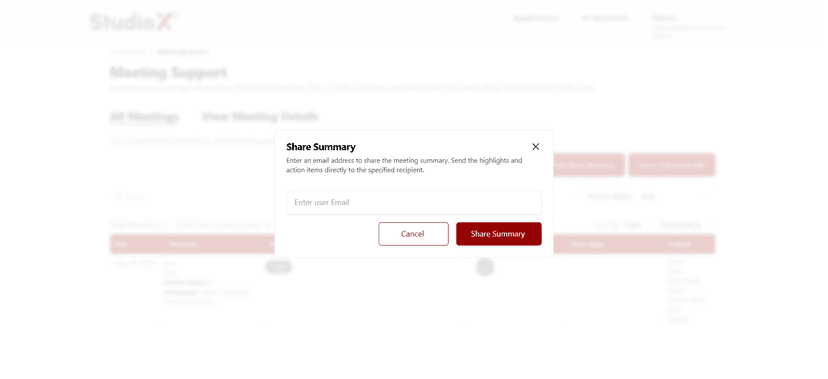
Share Summary
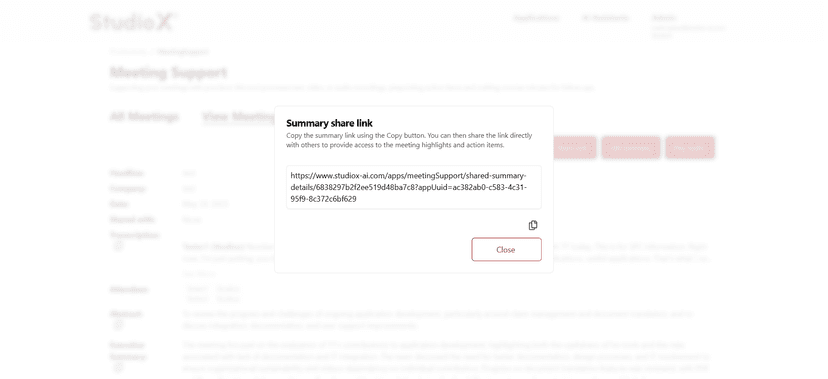
Share meeting summaries and highlights with team members via email or direct links.
Share Dialog
Share Link
Sharing Options
- Send summary via email to specified recipients
- Copy shareable link for easy distribution
- Provide direct access to meeting highlights and action items
Play Audio
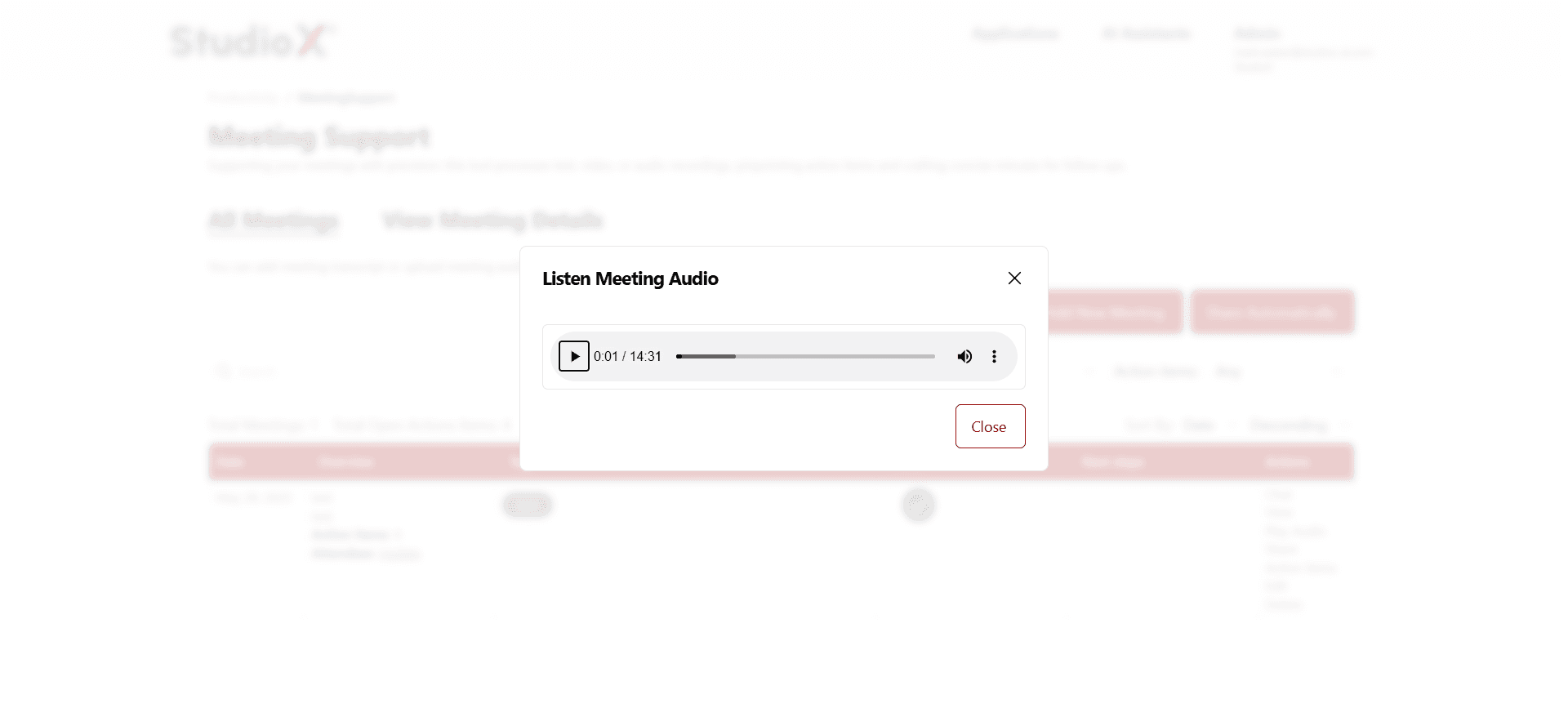
Listen to the original meeting audio with full playback controls and timeline navigation.
Audio Features
- Full audio playback with play/pause controls
- Timeline scrubbing and navigation
- Current time and total duration display
- Volume control and muting options
Note: Audio playback is only available for meetings uploaded with audio files.
Comments System
Add, view, and manage comments on action items for better collaboration and tracking.
Comments Features