Chat with Excel
Upload, analyze, and chat with your Excel spreadsheets using AI-powered insights and natural language queries.
Table of Contents
Overview
Chat with Excel allows you to upload Excel files (xls or xlsx) and interact with them through natural language. Instead of manually analyzing complex spreadsheets, simply ask questions and get clear, concise answers. The AI can provide summaries, find specific details, and help you understand your data quickly and efficiently.
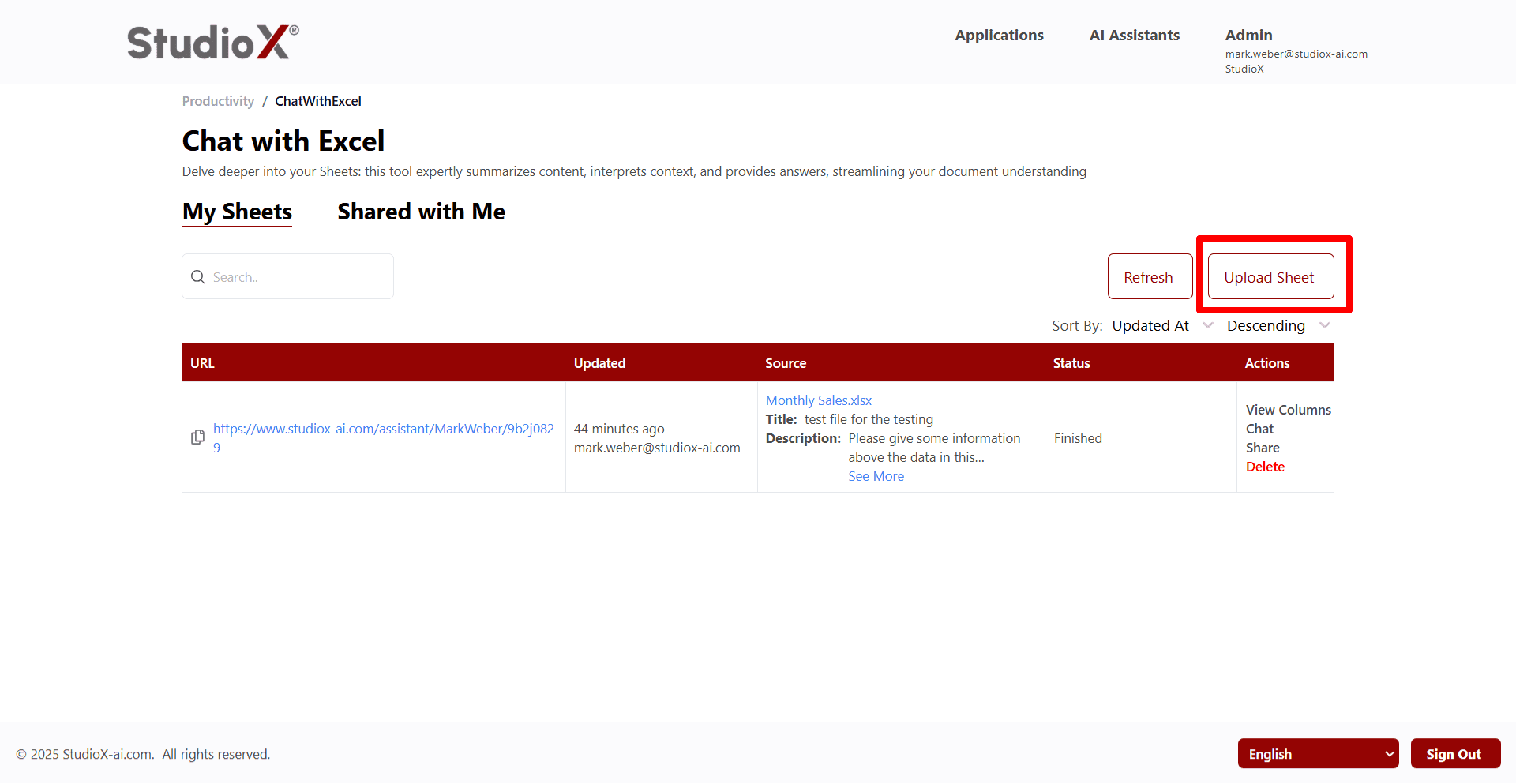
Access Path:
- Login to the Platform
- Navigate to Applications
- Select the Productivity tab
- Click on Chat with Excel
Key Features
- Upload and analyze Excel files up to 100MB
- Have natural conversations about your data
- Assign specific AI roles for targeted analysis
- Share and collaborate on spreadsheets
- Add custom prompts for specific insights
Getting Started
Follow this simple workflow to start analyzing your Excel data with AI assistance.
Workflow Steps
- Upload your Excel file with title and basic information
- Select important columns and add detailed description
- Start chatting with your data using natural language
- Share your analyzed sheets with team members
File Requirements: Supports .xlsx and .xls files up to 100MB
Upload Process
The upload process consists of four simple steps to configure your Excel sheet for optimal AI analysis.
Upload Steps
Upload File & Title
Select Columns
Add Description
Assign Role
1. Upload Your Excel Sheet
Start by clicking 'Upload Sheet' and select your Excel file. Provide a descriptive title to help identify the sheet later.
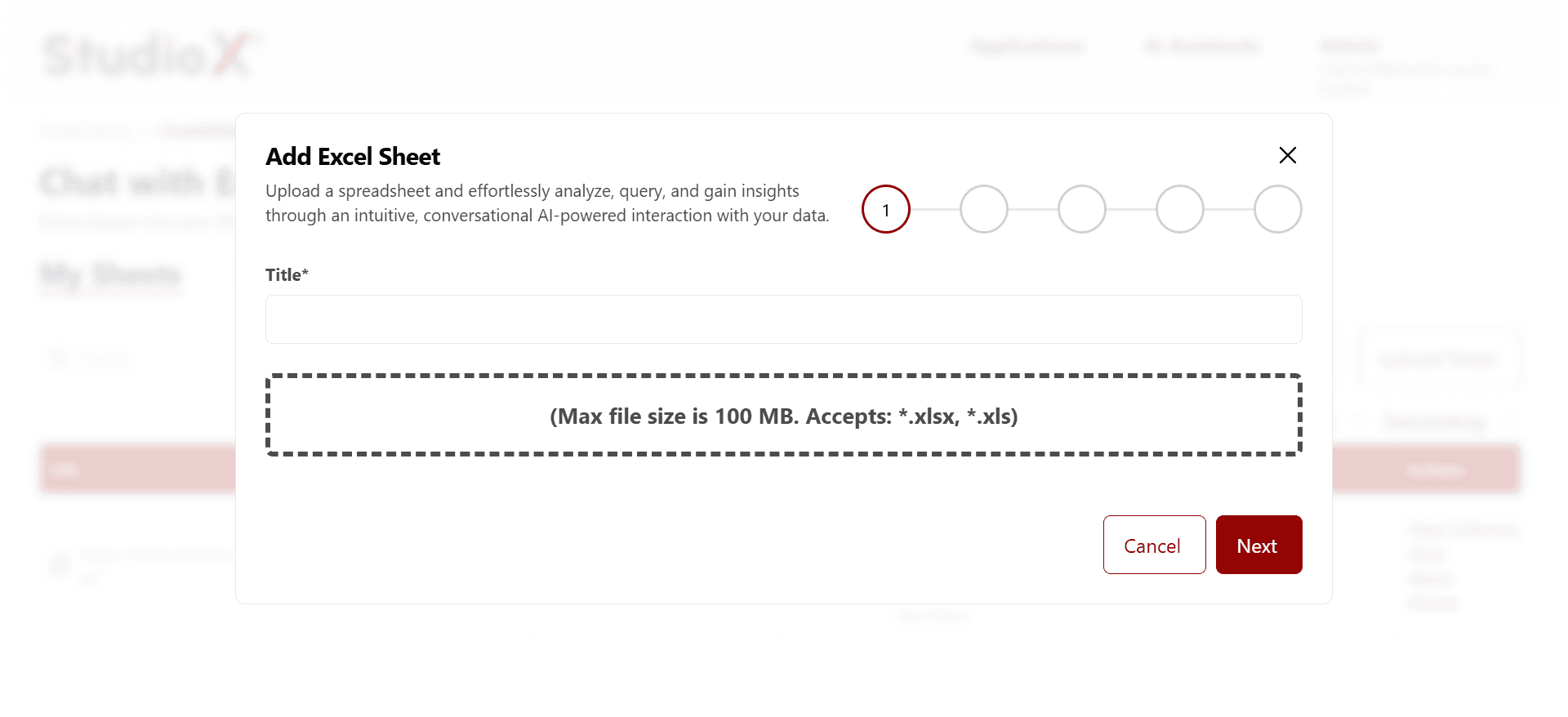
Upload Requirements:
- Maximum file size: 100MB
- Supported formats: .xlsx, .xls
- Title is required for identification
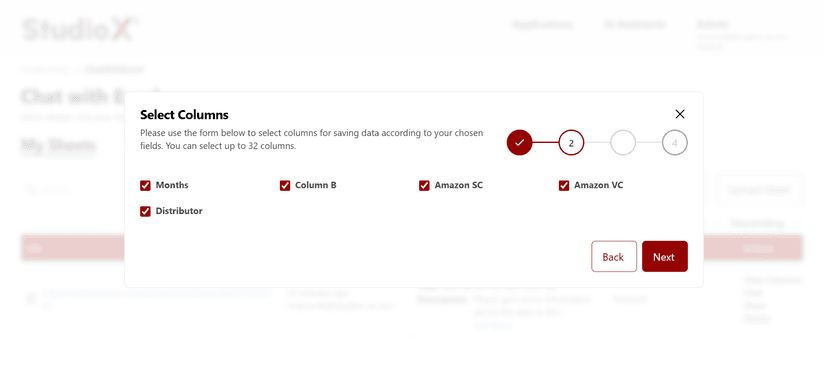
2. Select Columns
Choose up to 32 columns from your spreadsheet that contain the most important data for analysis. This helps the AI focus on relevant information.
Column Selection Interface
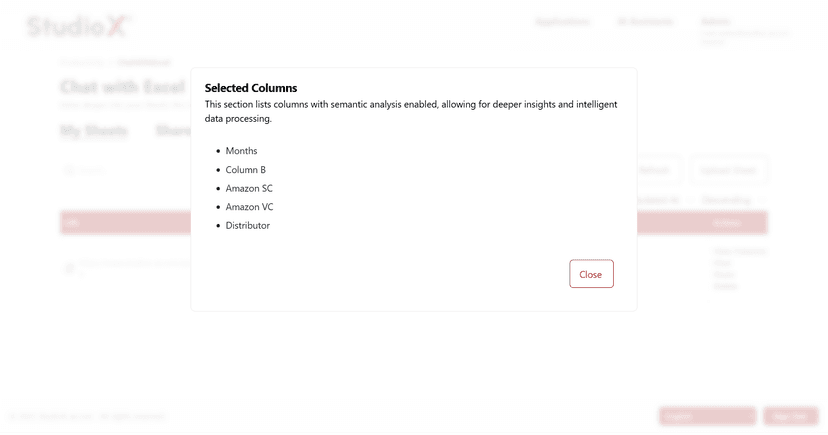
Selected Columns View
Column Selection Tips
- You can select up to 32 columns maximum
- Choose columns with the most important data
- Selected columns enable semantic analysis for deeper insights
3. Add Description
Provide a detailed description (minimum 30 characters) explaining what your spreadsheet contains. This helps the AI understand the context and provide better analysis.
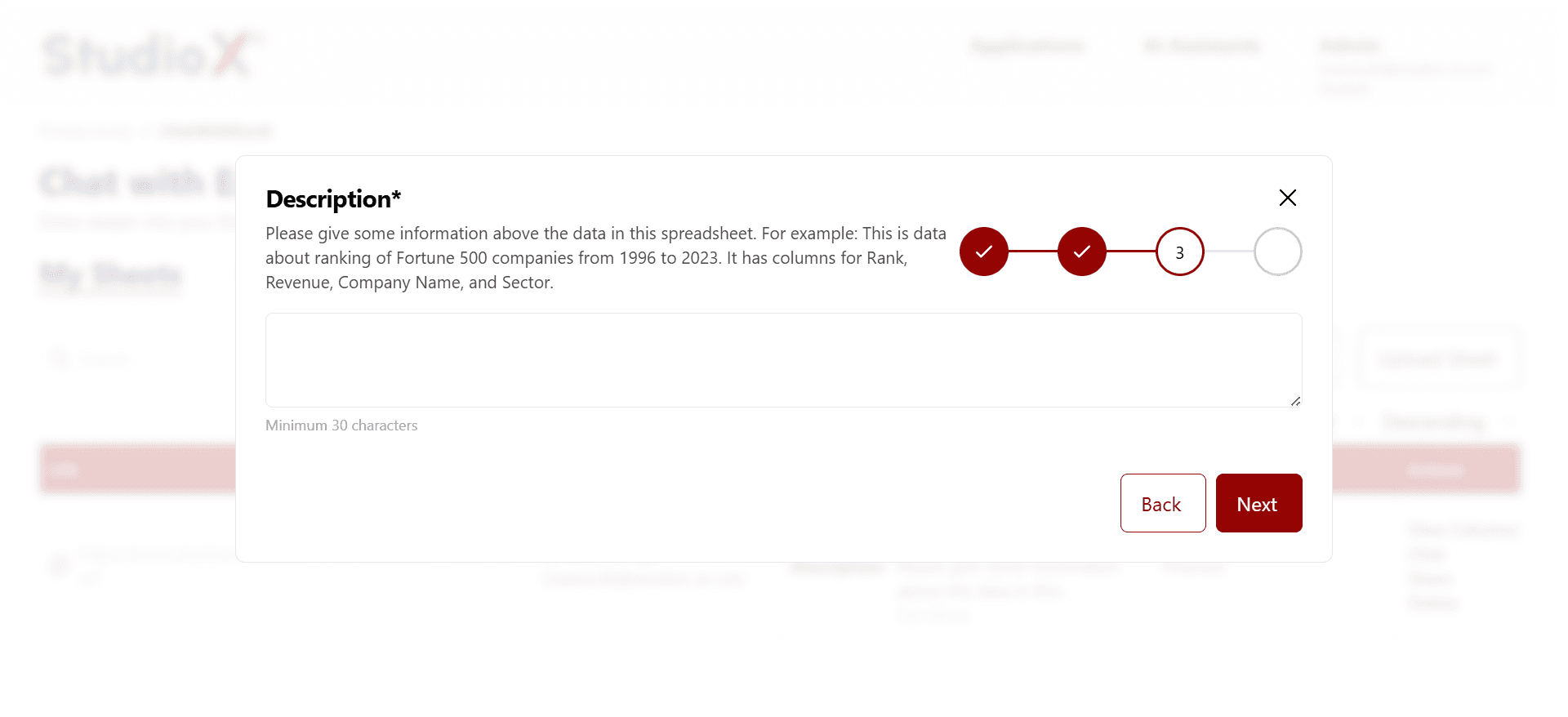
Description Requirements
- Minimum 30 characters required
- Describe what data the spreadsheet contains
- Include context about time periods, business purpose, etc.
4. Assign AI Role
Assign a specific role to the AI assistant to guide how it analyzes your spreadsheet. You can choose from predefined roles or create a custom one.
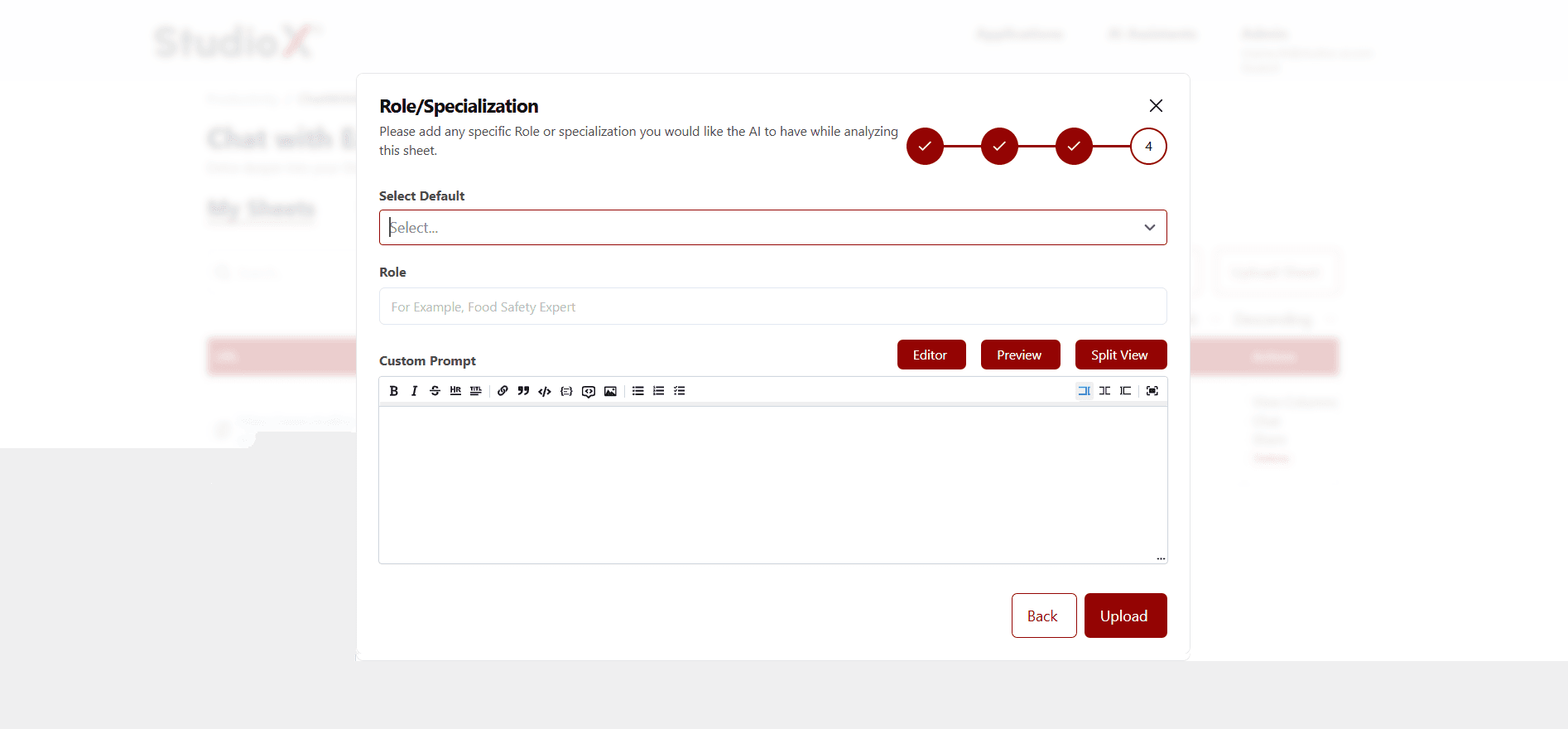
Available AI Roles
- Financial Analyst - for financial data and metrics
- Marketing Expert - for campaign and customer data
- Inventory Manager - for stock and supply data
- Custom Role - define your own specialized role
Add custom prompts for specific insights: Add specific questions or prompts you want the AI to focus on during analysis
My Sheets
The My Sheets tab displays all your uploaded Excel files in an organized table format with comprehensive management options.
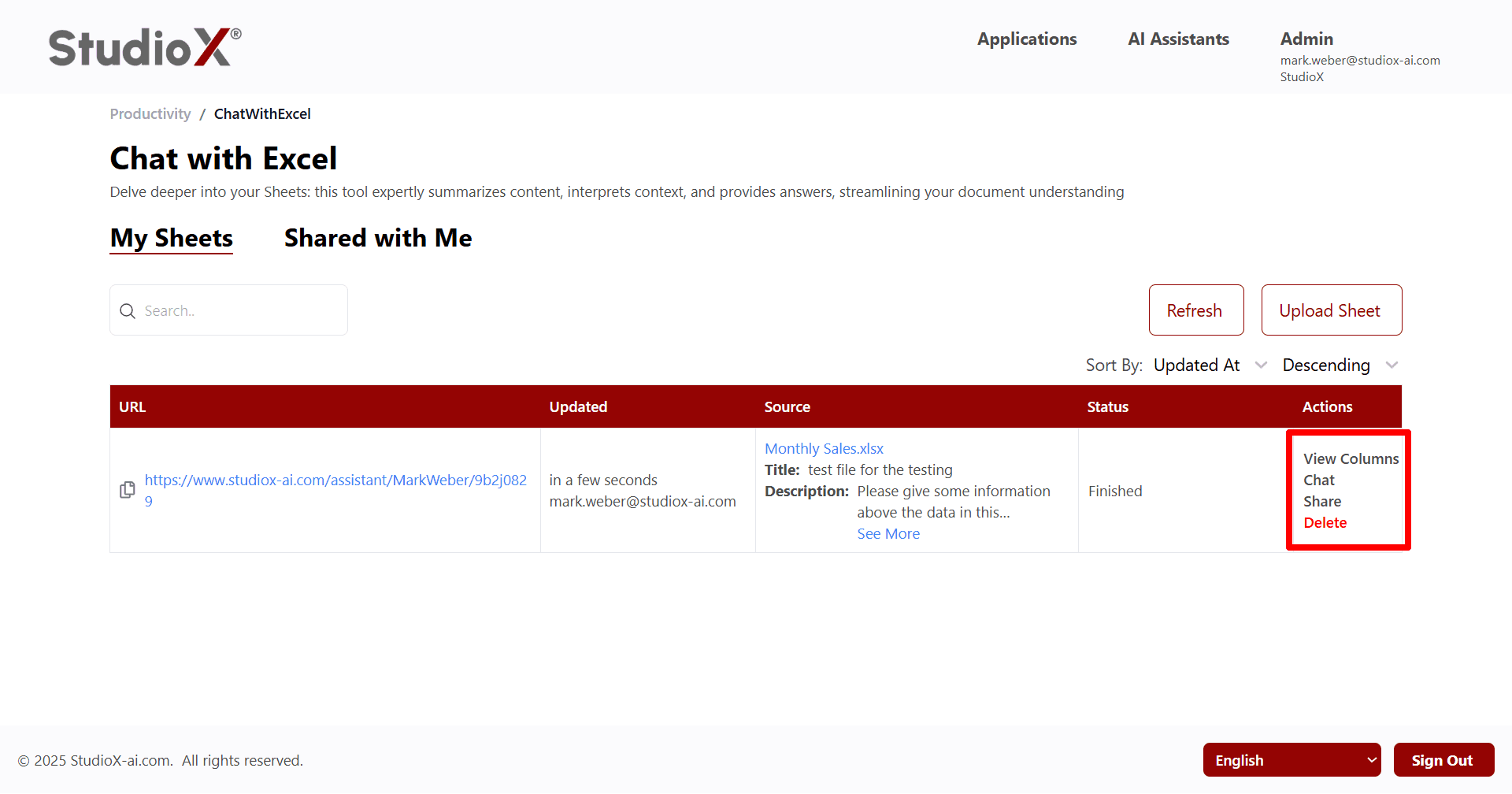
My Sheets Features
- View all your uploaded spreadsheets
- Upload new Excel files easily
- Refresh to see latest updates
- Search and sort your files
Table Structure
The table provides a comprehensive view of all your Excel files with detailed information and action options.
Table Columns
- URL: Copy shareable link for the spreadsheet
- Updated: Shows last update time and user
- Source: File name, title, and description with download option
- Status: Processing status (Finished/In Progress)
- Actions: Available actions for the spreadsheet
Status Indicators: Finished means ready for chat, In Progress means still processing
Search and Sort
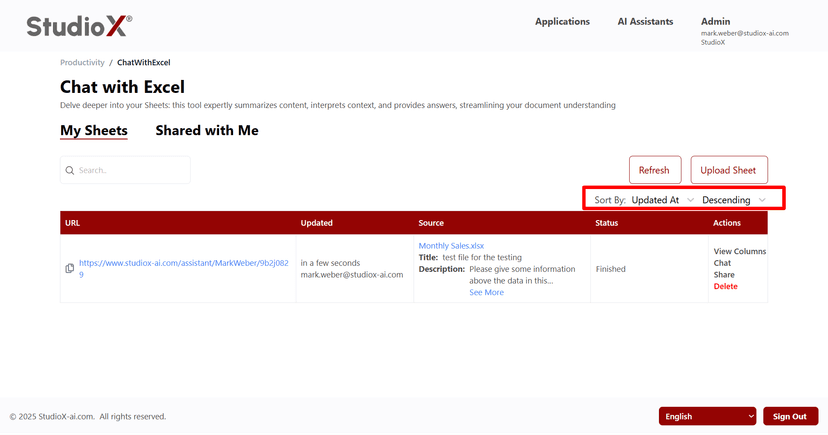
Use the search bar to find sheets by title or description. Click column headers to sort your files in ascending or descending order.
Search Functionality
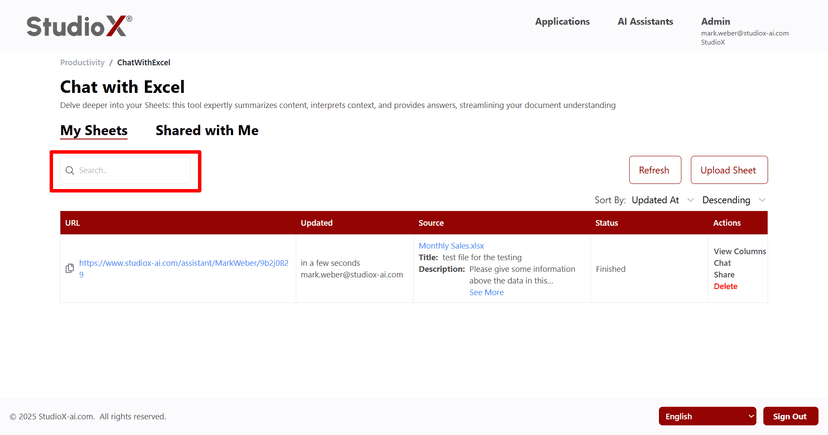
Sort Functionality
Search Options
- Search by sheet title
- Search by description content
- Search by original filename
Sort Options
- Sort by last updated time
- Sort by filename or title
- Choose ascending or descending order
Sheet Actions
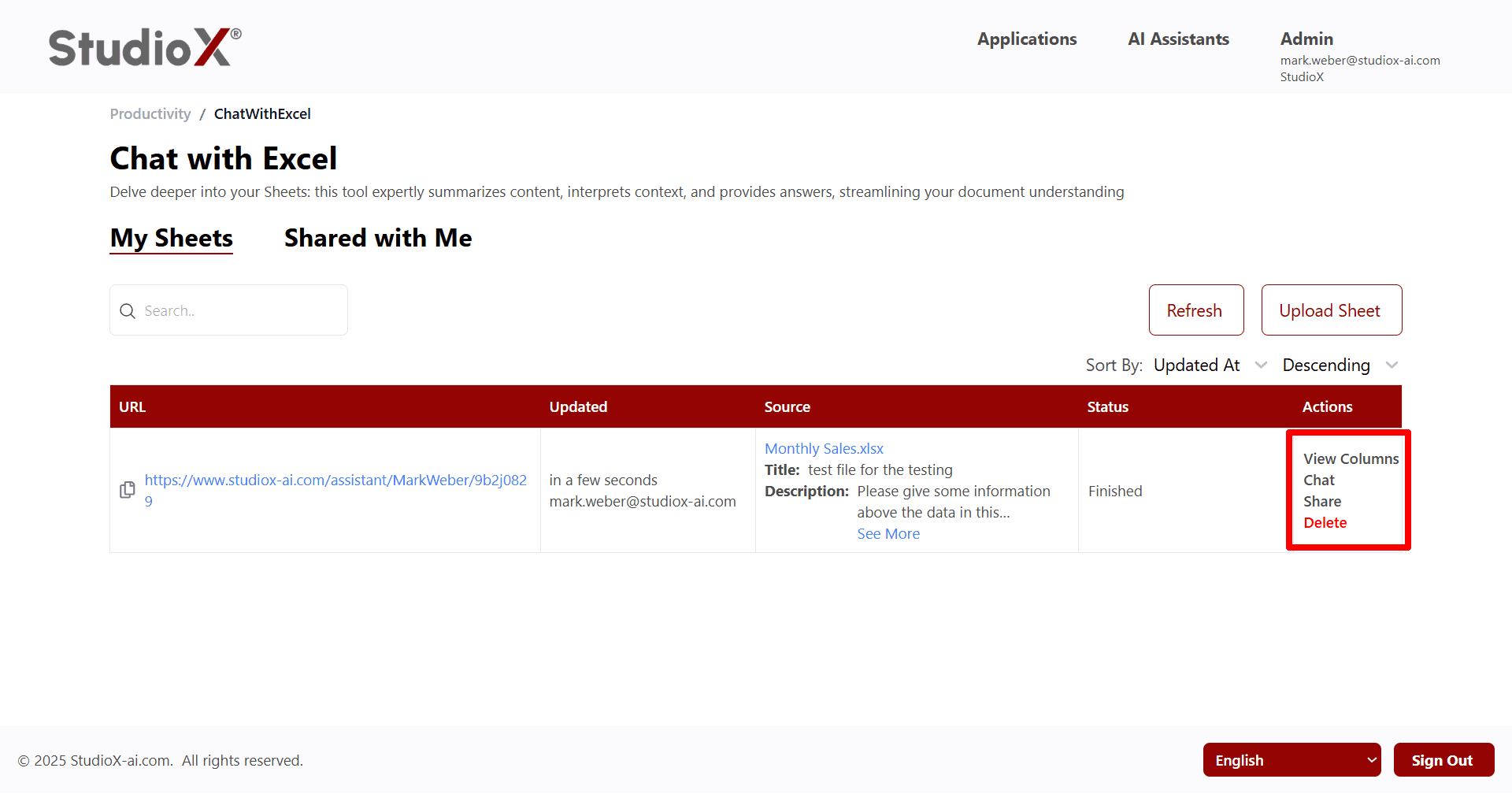
Each spreadsheet has multiple action options available in the Actions column for comprehensive management.
Available Actions
- View Columns: The View Columns dialog shows which columns were selected during upload and have semantic analysis enabled for intelligent data processing.
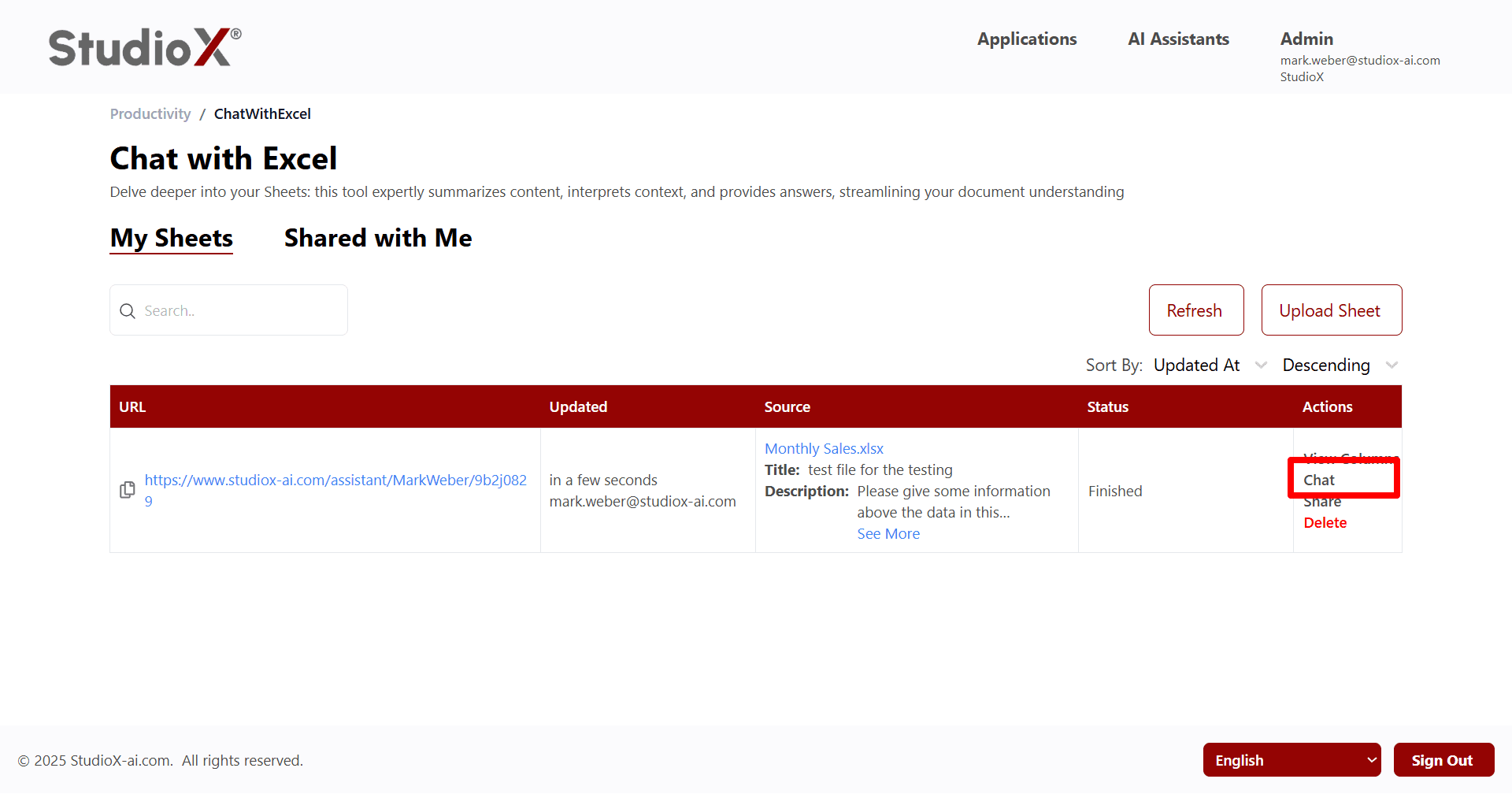
- Chat: Start a conversation with your data
- Share: Share the spreadsheet with others
- Delete: Remove the spreadsheet permanently
View Columns
The View Columns dialog shows which columns were selected during upload and have semantic analysis enabled for intelligent data processing.
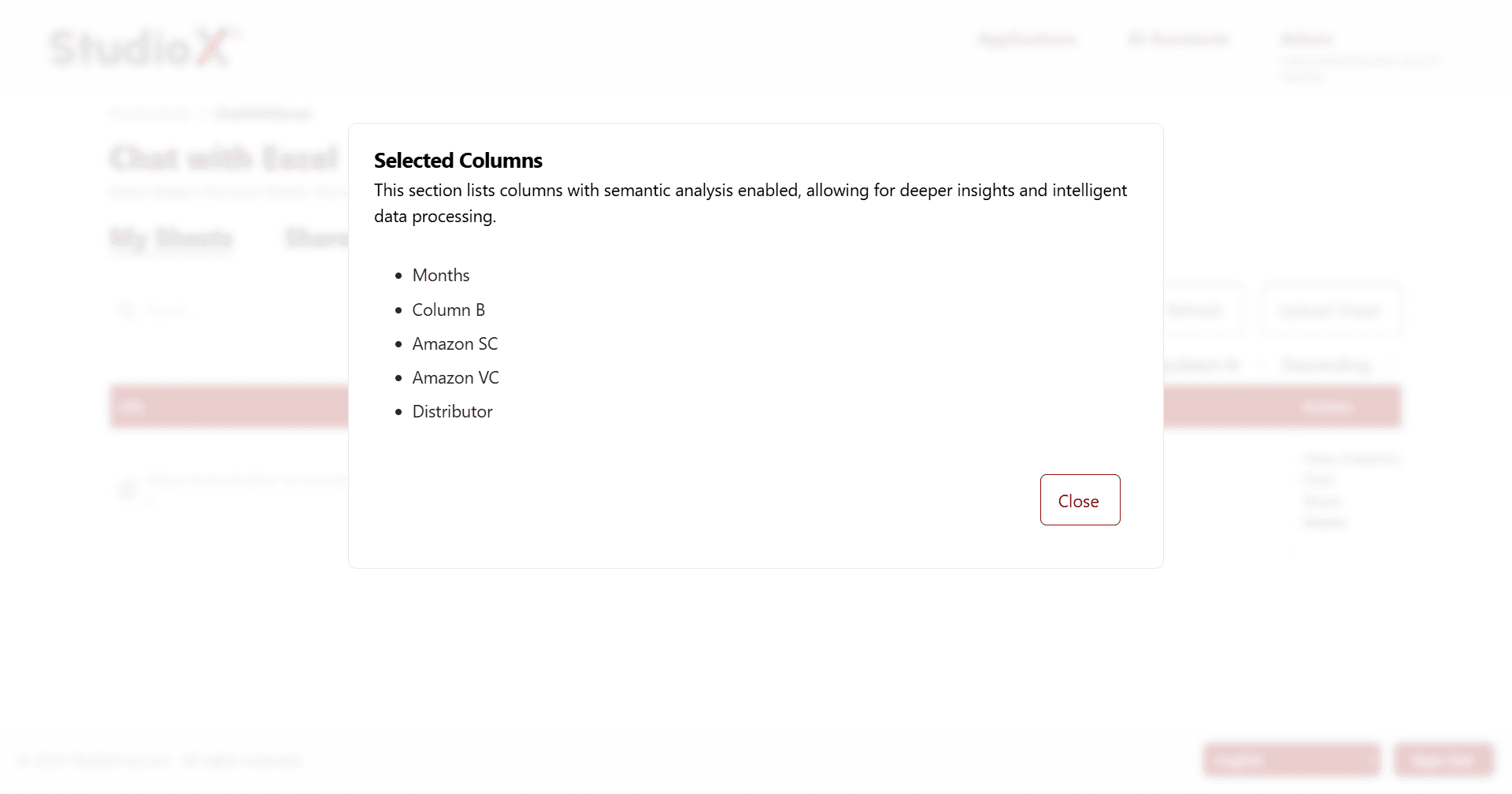
This feature helps you understand which data fields the AI is analyzing and provides transparency in the analysis process.
Chat Functionality
Click the Chat action to start an interactive conversation with your Excel data. The AI will provide detailed analysis and answer questions in natural language.
Chat Features
- Ask questions in plain English
- Get detailed breakdowns and summaries
- Discover trends and patterns in your data
- Ask follow-up questions for deeper analysis
- Provide feedback with thumbs up/down
Example Queries:
- What are the total sales by month?
- Which product had the highest revenue?
- Show me trends in the data over time
Share Features
Share your analyzed spreadsheets with team members or external collaborators using flexible access control options.
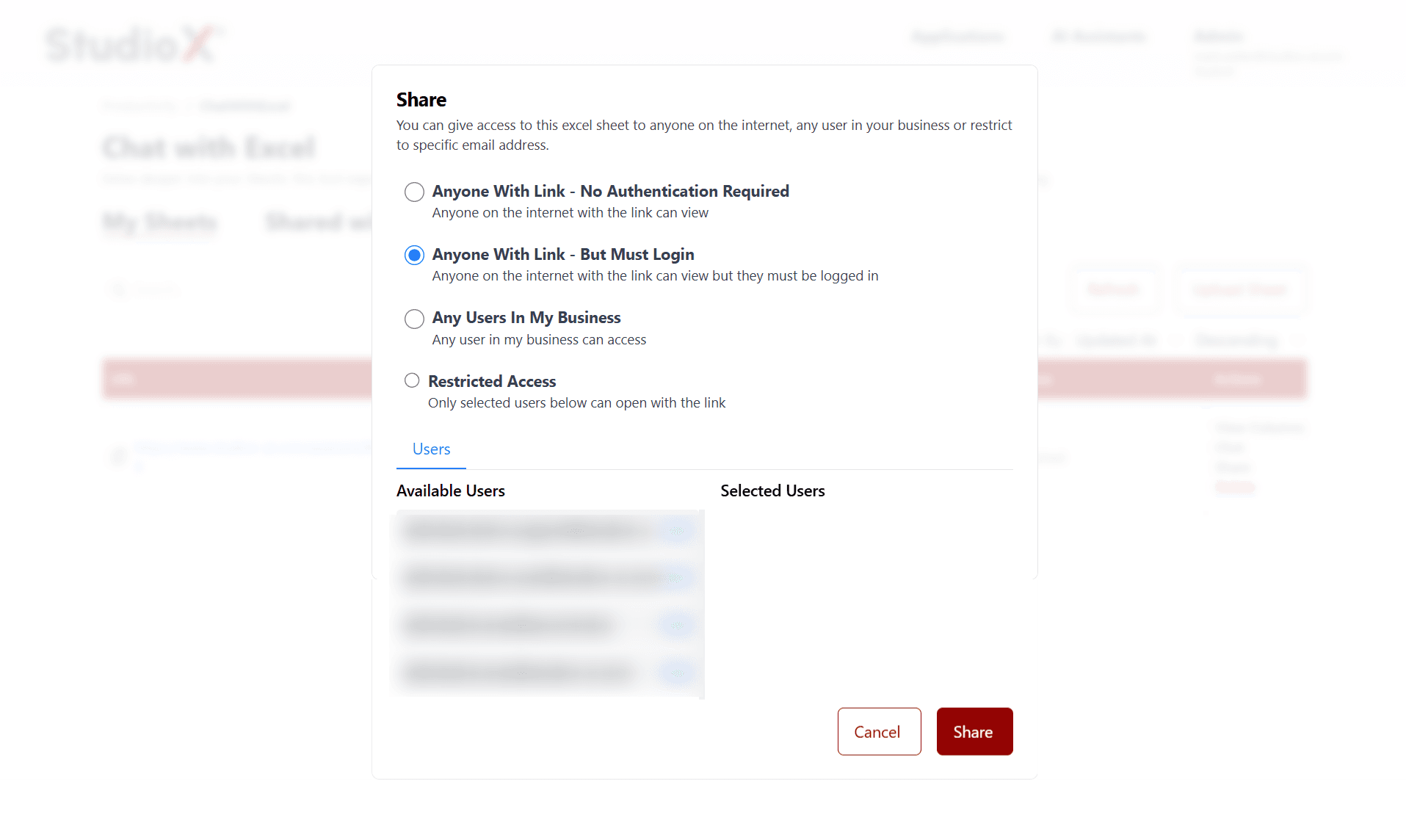
Sharing Options
- Anyone with Link (No Authentication): Anyone with the link can view without logging in
- Anyone with Link (Login Required): Anyone with the link can view but must be logged in
- Business Users Only: Only users in your business can access
- Restricted Access: Only selected users can access the spreadsheet
Delete Sheets
Permanently remove spreadsheets from your account. This action cannot be undone, so please confirm before proceeding.
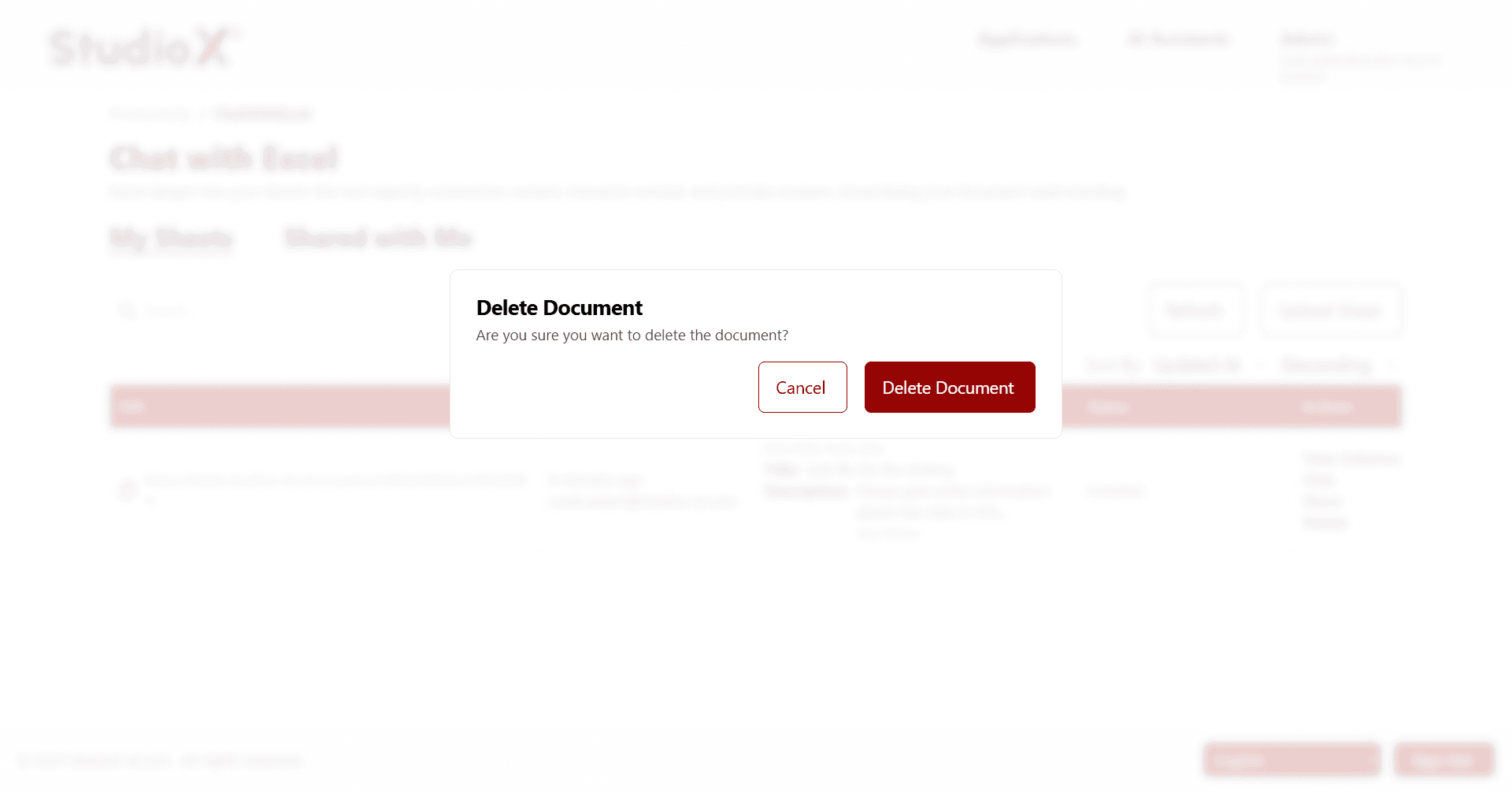
Warning: Deleting a spreadsheet is permanent and cannot be undone. All associated chat history will also be lost.
Refresh to see latest updates
Use the Refresh button to update the view and see the latest changes, new uploads, or status updates for your spreadsheets.
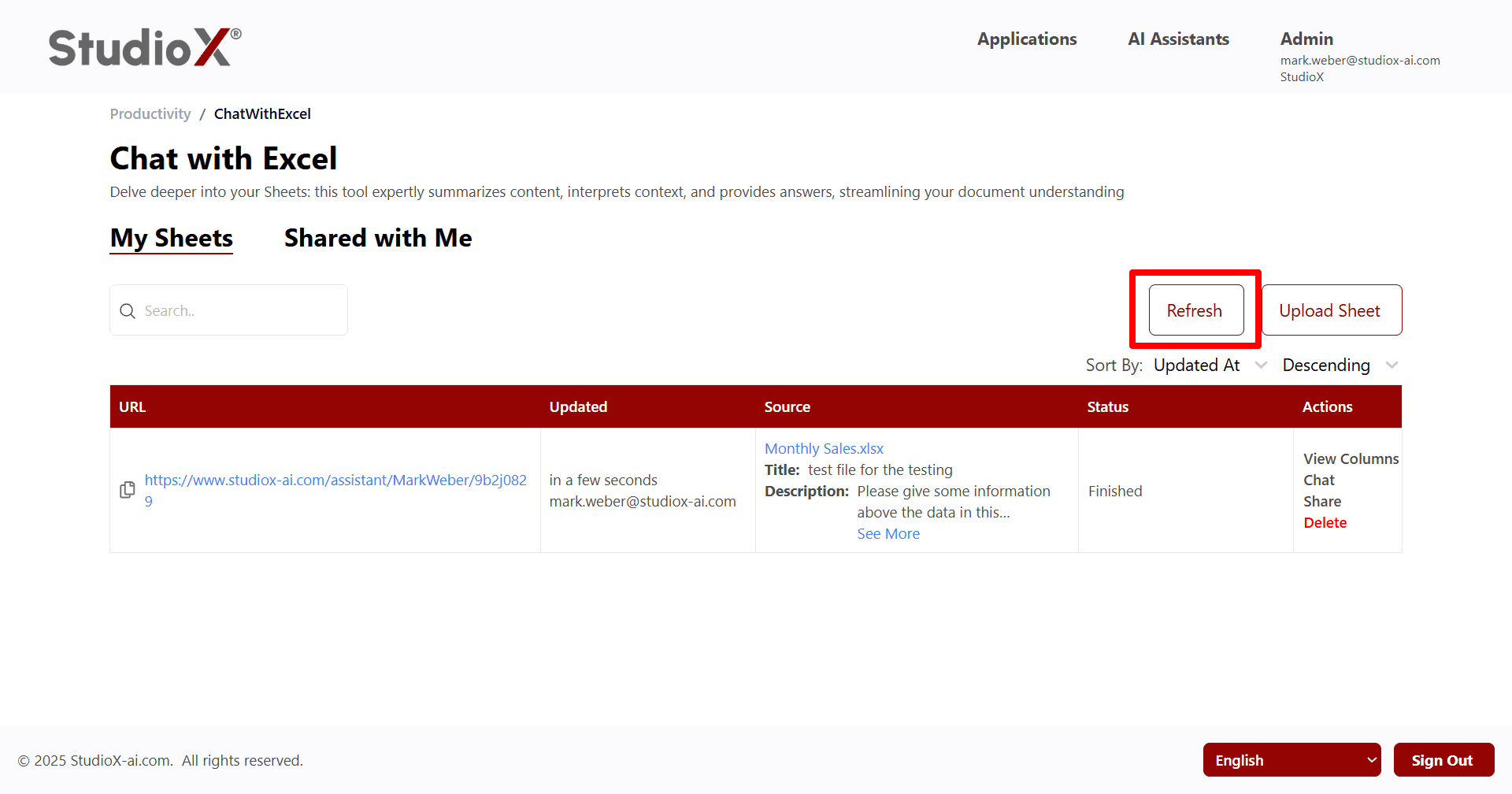
Regular refreshing ensures you always see the most current information and processing status.