Usage Analytics
Monitor your AI assistant's performance, track conversations, analyze feedback, and optimize effectiveness through comprehensive usage analytics.
Table of Contents
Usage Overview
The Usage section provides comprehensive visibility into your AI assistant's activity, effectiveness, and user satisfaction. Whether you're a business admin, support team member, or regular user, this section empowers you to track conversations, analyze feedback, view usage statistics, and act on gaps in the assistant's knowledge. It's the command center for evaluating how well your assistant is serving its audience and where it can improve.
Key Benefits:
- Track conversations and analyze user feedback
- View usage statistics and act on knowledge gaps
- Enable continuous learning and refinement of the assistant
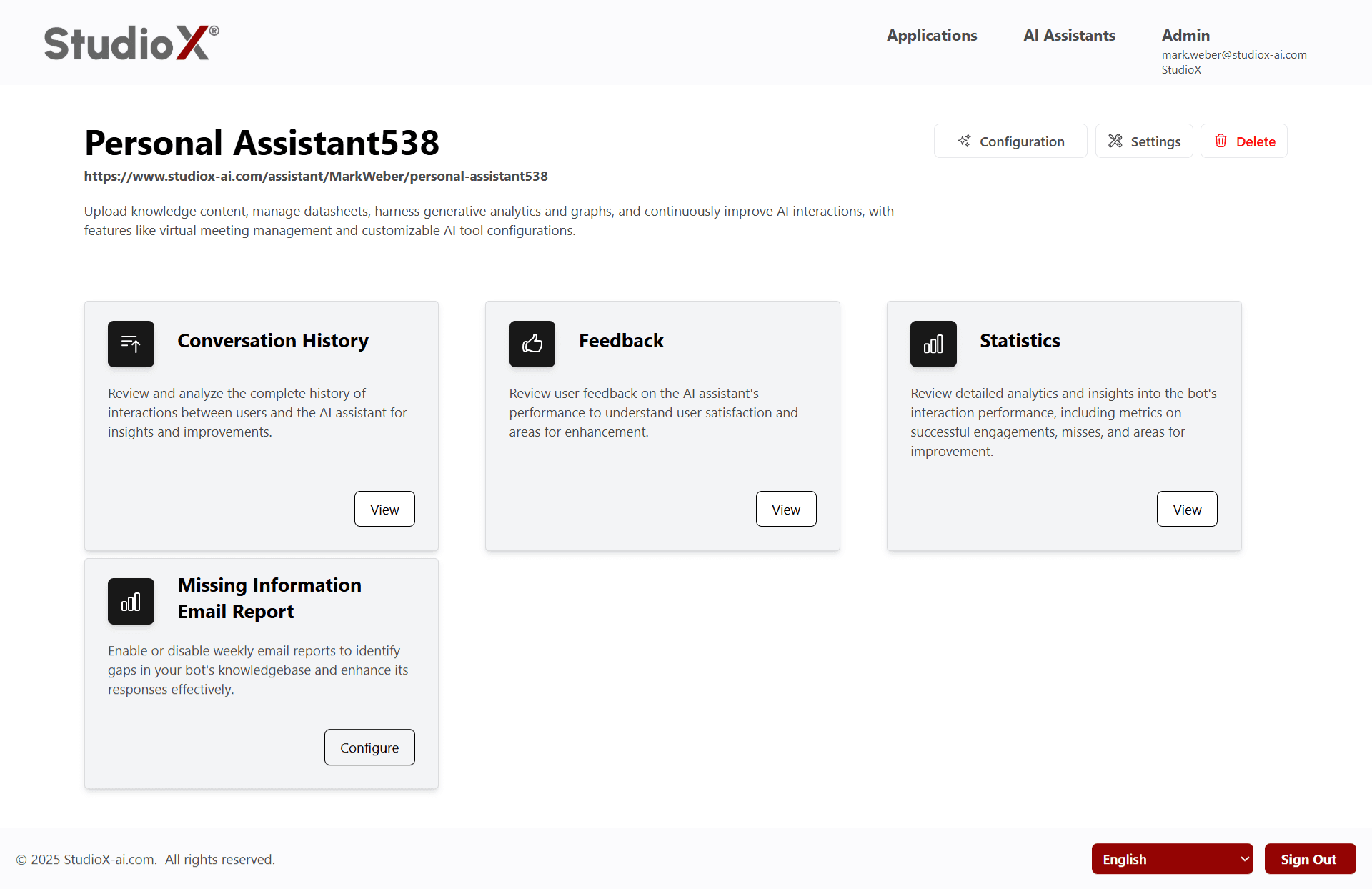
Access Workflow
To access the Usage section, navigate from your dashboard to the specific AI assistant and select the Usage option. This comprehensive interface provides all the tools you need to monitor and improve your assistant's performance.
Access Path: Login → AI Assistants → <Select Assistant> → Usage
Usage Button Access
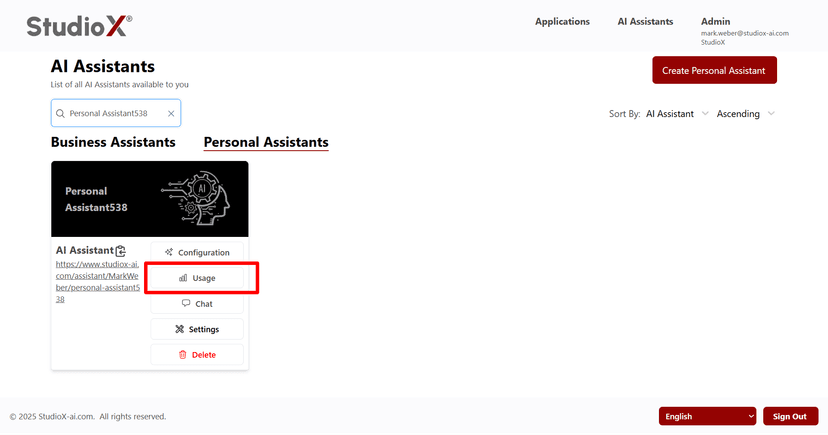
Usage Main Interface
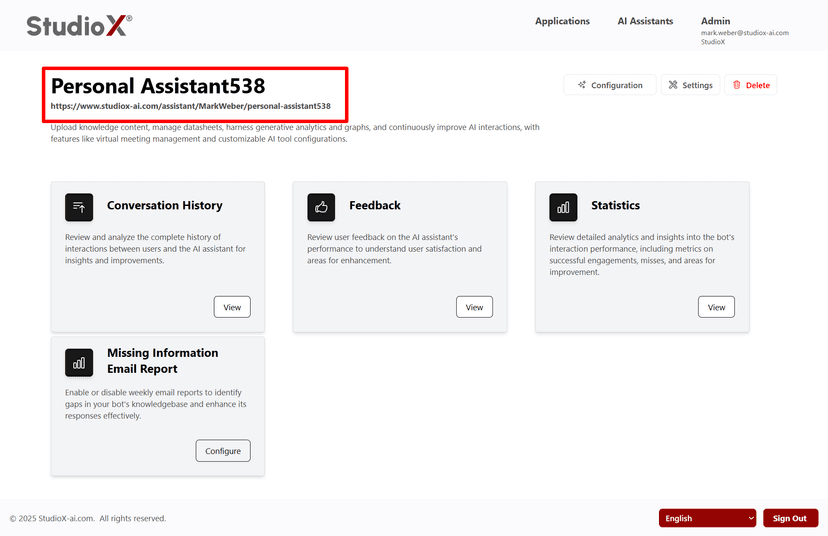
Complete conversation history between user and AI
The Conversation History tab provides a complete archive of every interaction between users and the AI assistant. This is crucial for monitoring quality, identifying areas of confusion, and refining the assistant's knowledge or behavior.
Key Features
- Search conversations by start/end date, title, and creation date
- Filter and sort by created date (ascending/descending) and conversation title
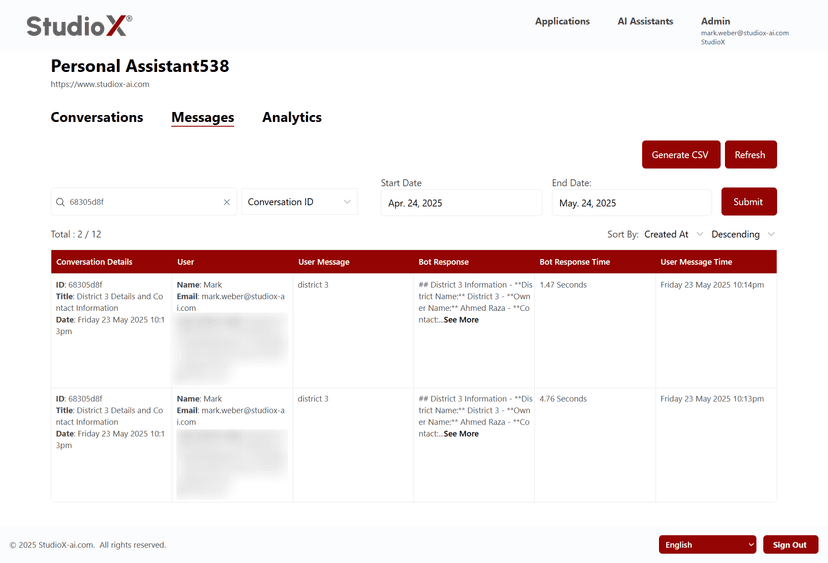
- Search messages by ID, user message, and user email
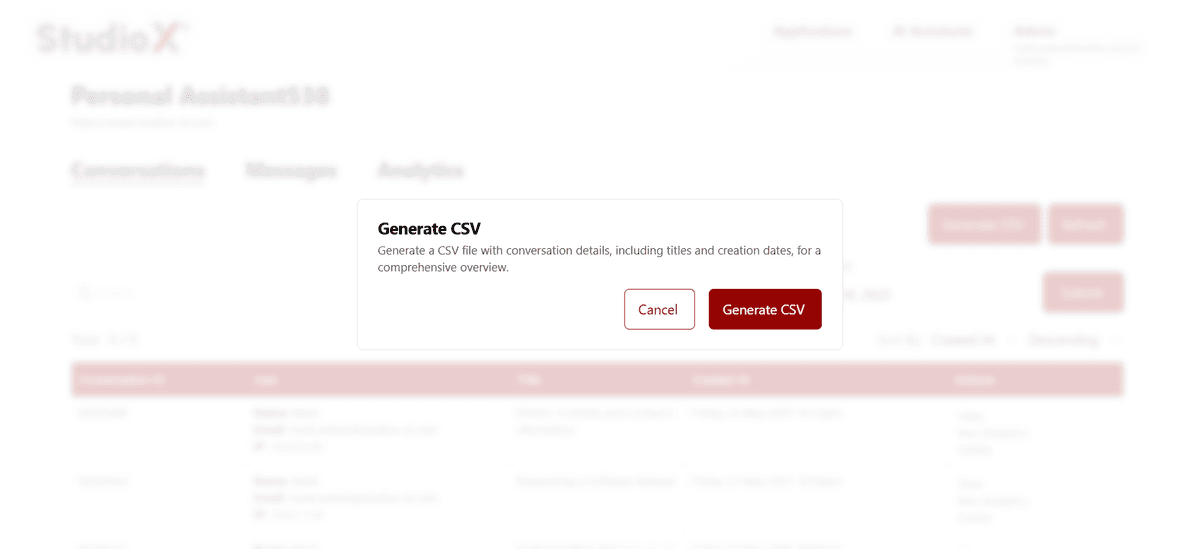
- Export conversation data as CSV or XLSX files
- View analytics such as total messages and detailed conversation metrics
Conversation Search
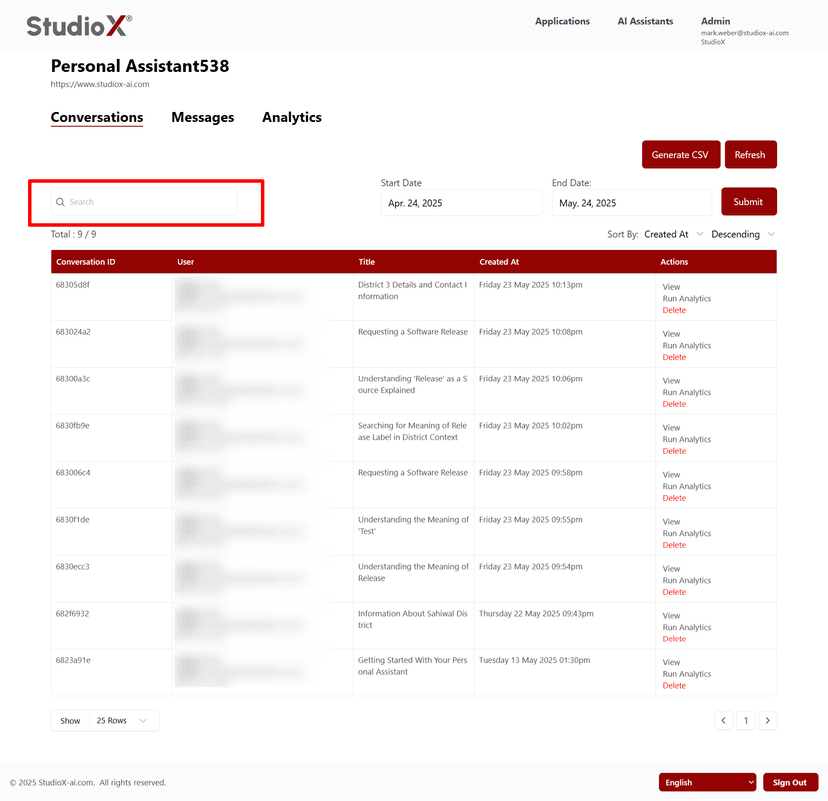
Conversation Details
Export Capabilities
Analytics Integration: Access detailed analytics including total conversations, guest vs logged-in user messages, and assistant usage by session type.
Feedback Management
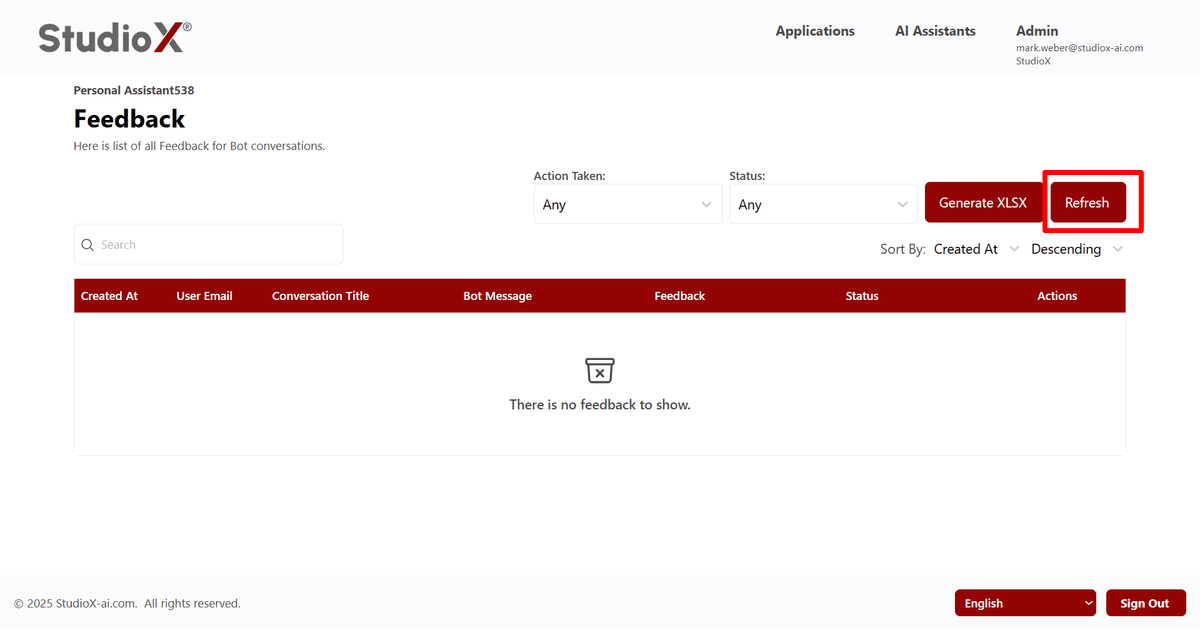
The Feedback section collects and displays user impressions about the assistant's performance. This is a direct channel for understanding satisfaction levels and uncovering pain points that need attention.
Feedback Data Includes
- Creation date and timestamp of feedback
- User email and conversation context
- Bot messages linked to the feedback
- Feedback status (Pending, Reviewed, Actioned)
- Actions taken on the feedback
Search and Filter
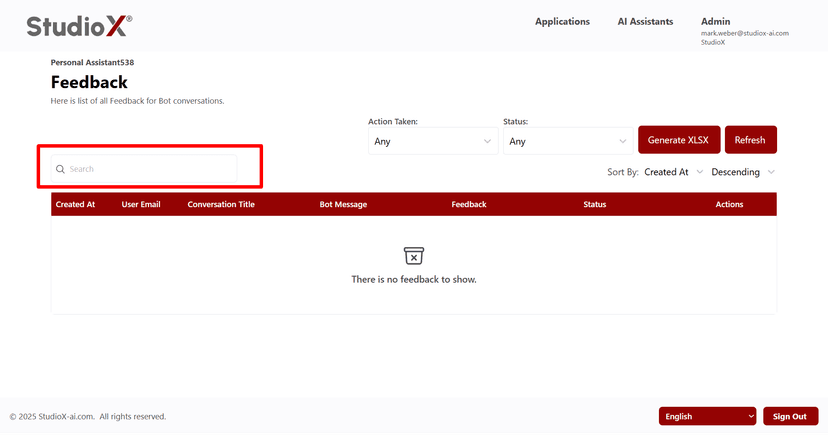
Sorting Options
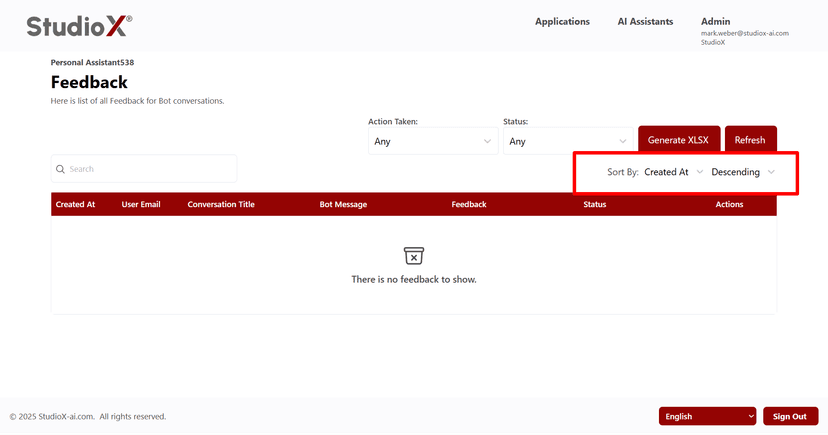
Export and Refresh Tools
Improvement Benefits:
- Address recurring user concerns
- Improve training content based on real feedback
- Enhance assistant reliability and user trust
Statistics & Analytics
The Statistics page delivers actionable analytics about the assistant's performance over time. It turns raw usage data into meaningful insights so your team can make data-driven improvements.
Summary Dashboard
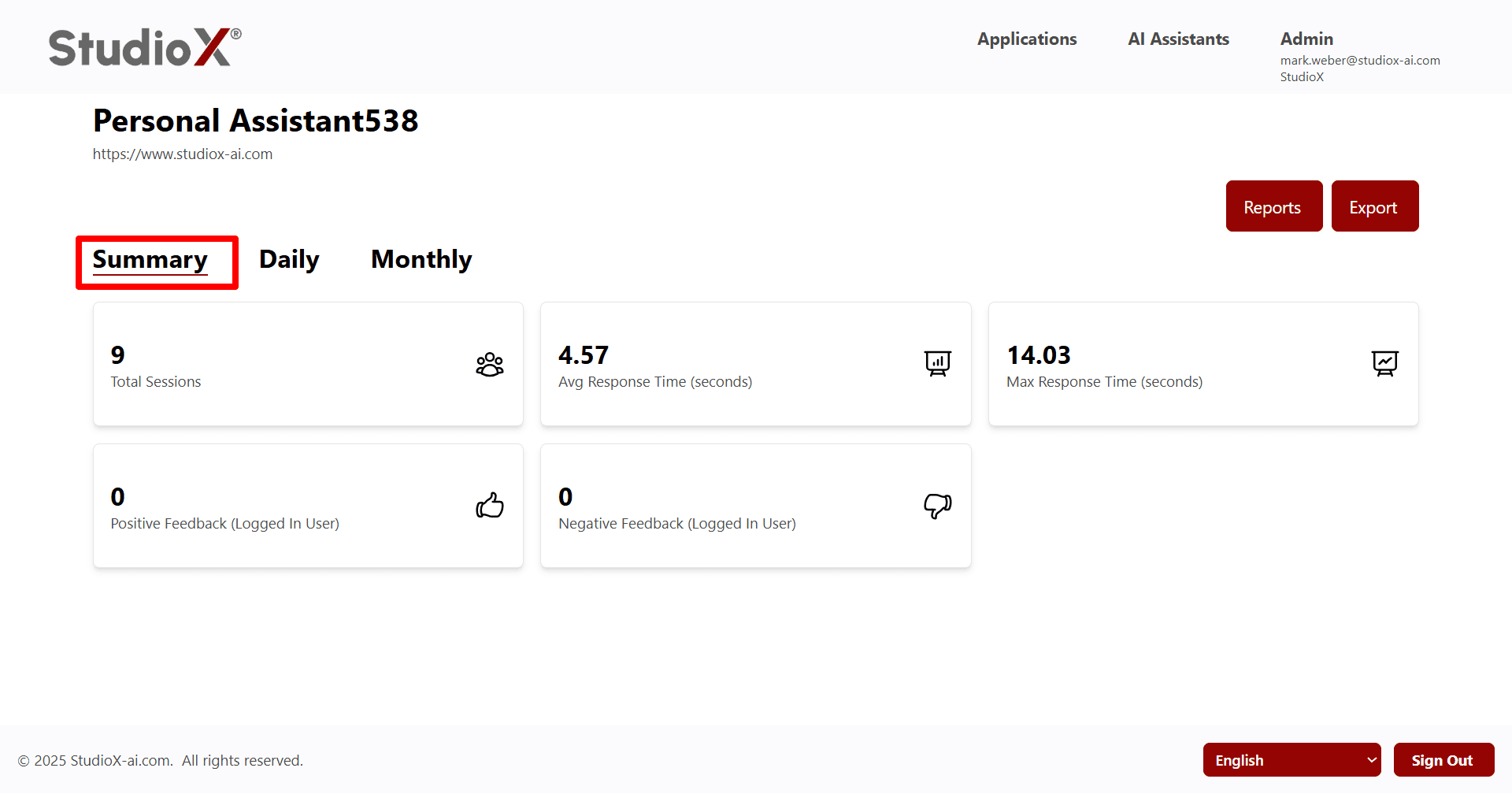
Available Metrics
Summary Metrics
- Total sessions
- Average and maximum response time
- Positive and negative feedback counts
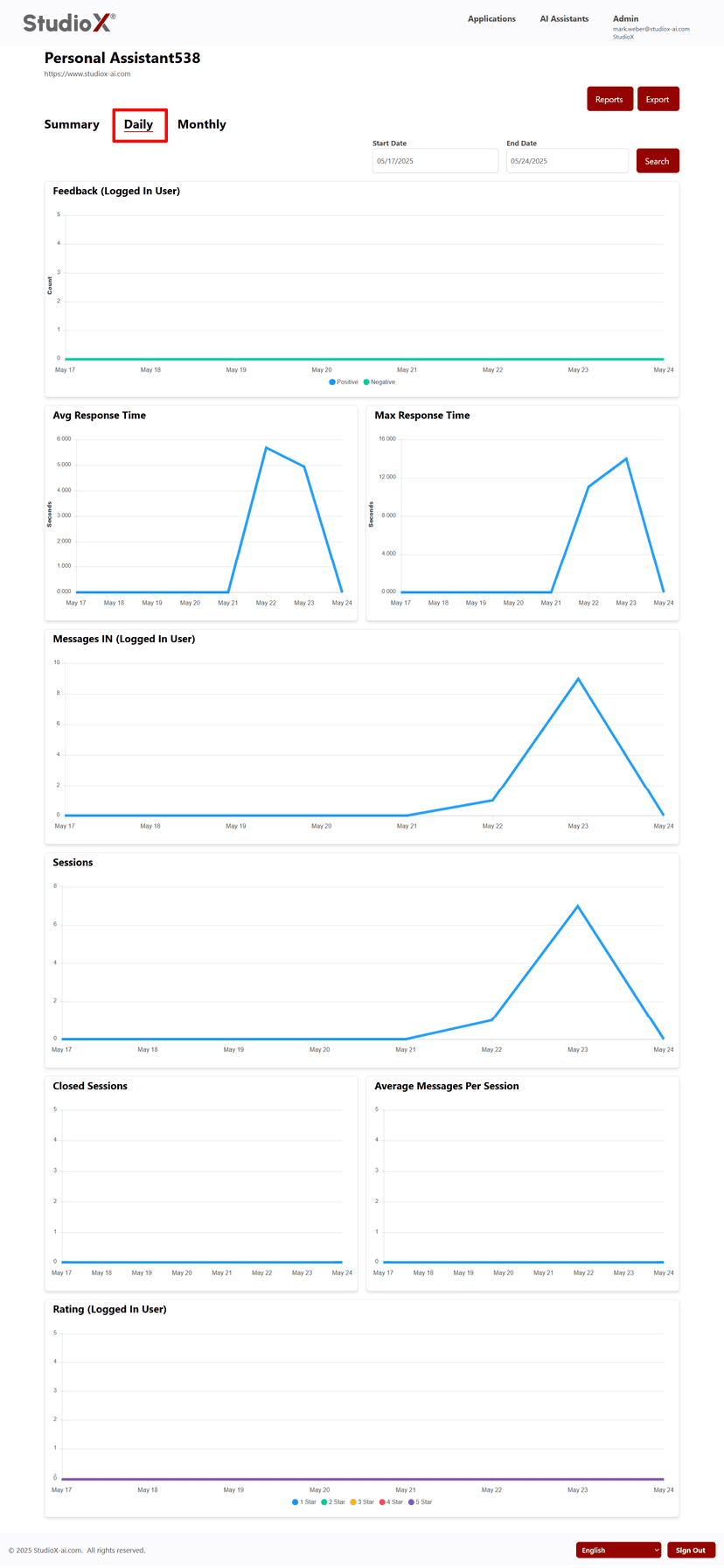
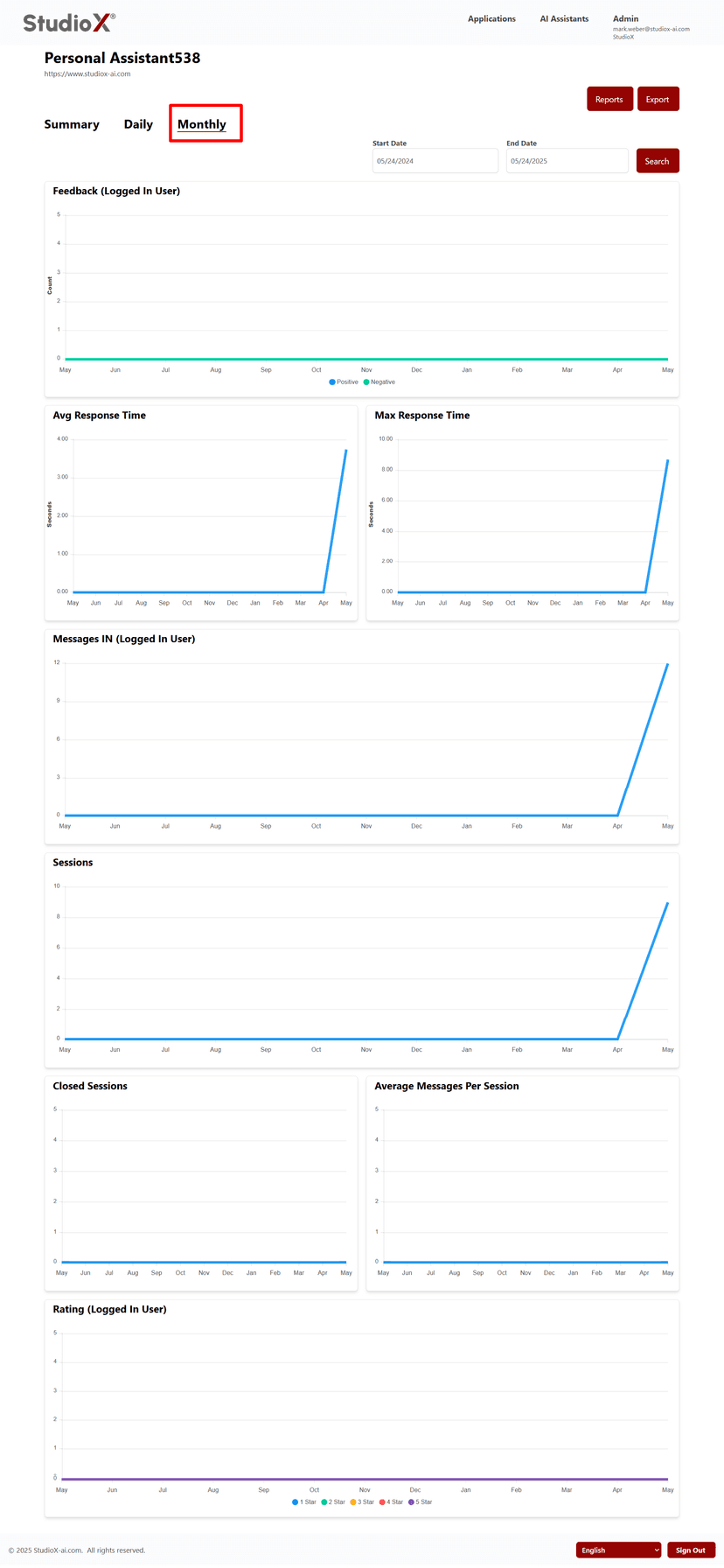
Detailed Breakdowns
- Daily and monthly analytics
- Logged-in user count
- Messages in/out and ratings
- Response time trends
Daily Statistics
Monthly Statistics
Export Bot Reports
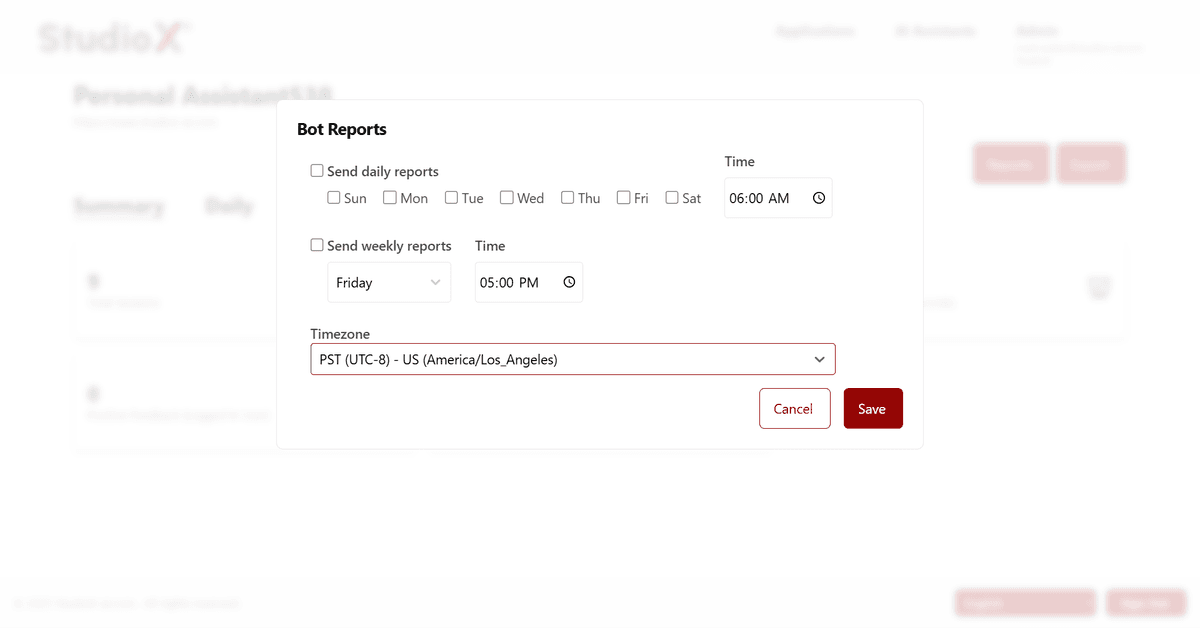
Common Questions Answered:
- How many chats did the bot handle today?
- Did users get fast and relevant responses?
- Which areas of knowledge need reinforcement?
- Are user satisfaction scores improving?
Missing Information Email Report
This proactive feature sends out weekly reports that flag gaps in the assistant's responses - areas where the AI was unsure or failed to provide helpful answers. Keeping this enabled ensures that your bot continues to grow smarter over time.
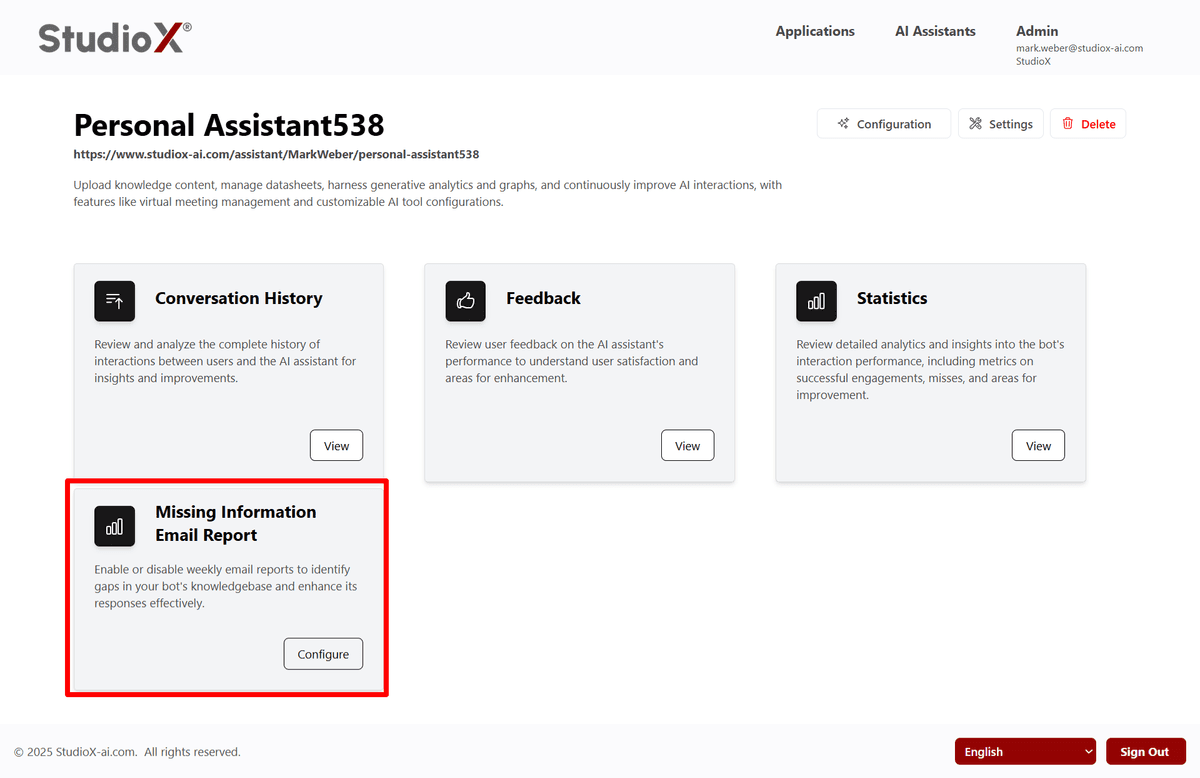
Configuration Options
- Enable or disable weekly email reports
- Alerts highlight unanswered or poorly handled questions
- Track common failure points to update the Knowledge Base accordingly
Bot Reports Configuration
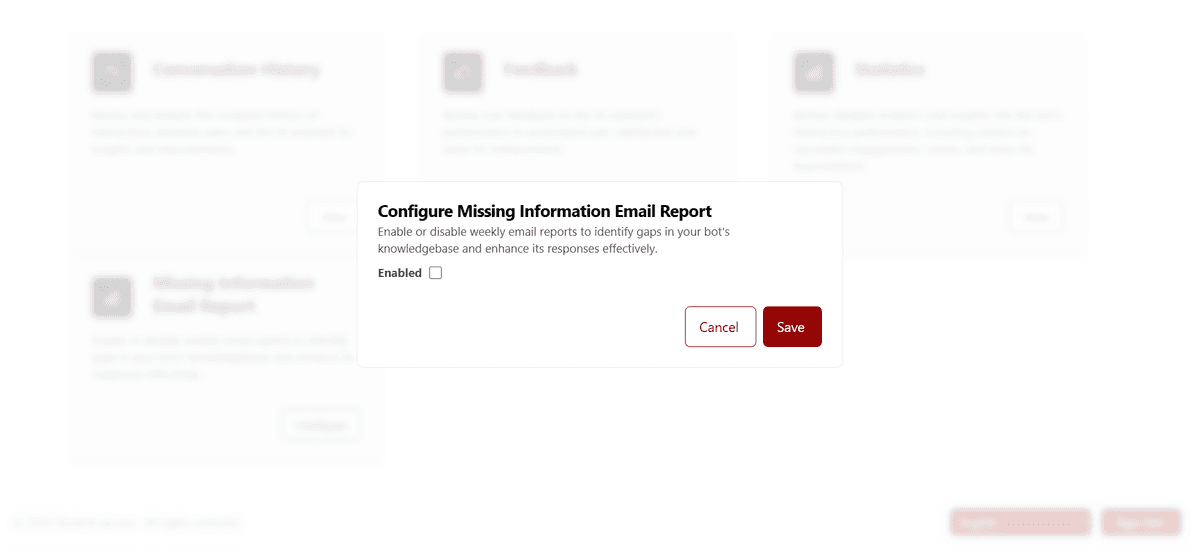
Why This Matters:
- Maintains a feedback loop for improving the assistant
- Helps content managers update sources based on real-world queries
- Prevents repeated failure on the same questions
Usage Analytics Best Practices
Follow these best practices to get the most value from your usage analytics and continuously improve your AI assistant's performance.
Monitoring Tips
- •Review conversation history weekly to identify common user questions and pain points
- •Set up missing information email reports to catch knowledge gaps early
- •Monitor response times and user satisfaction trends regularly
Optimization Strategies
- •Use feedback data to prioritize knowledge base updates and improvements
- •Export analytics data for deeper analysis and reporting to stakeholders
- •Track daily and monthly trends to measure the impact of assistant improvements