Agent Configuration
Configure advanced settings, integrations, and customize your AI assistant's behavior and capabilities.
Table of Contents
Configuration Overview
The AI Assistant Configuration page in the Platform allows users to manage their Business or Personal Assistant comprehensively. From this dashboard, users can view the bot's name, public link, usage statistics, and system-level settings. It provides options to upload knowledge for better responses, enable learning and forgetting features, integrate with ERP systems like OS Ticket, and configure AI tools and roles.
Key Configuration Features
- Upload and manage knowledge sources for enhanced responses
- Enable continuous learning from user interactions
- Automatically forget outdated or irrelevant information
- Integrate with ERP systems like OS Ticket
- Manage AI tools access and permissions
- Configure conversation starters, analytics, and bot features
Workflow
You can access the configuration interface through the AI Assistant section and perform various management actions to optimize your assistant's capabilities.
Access Path:
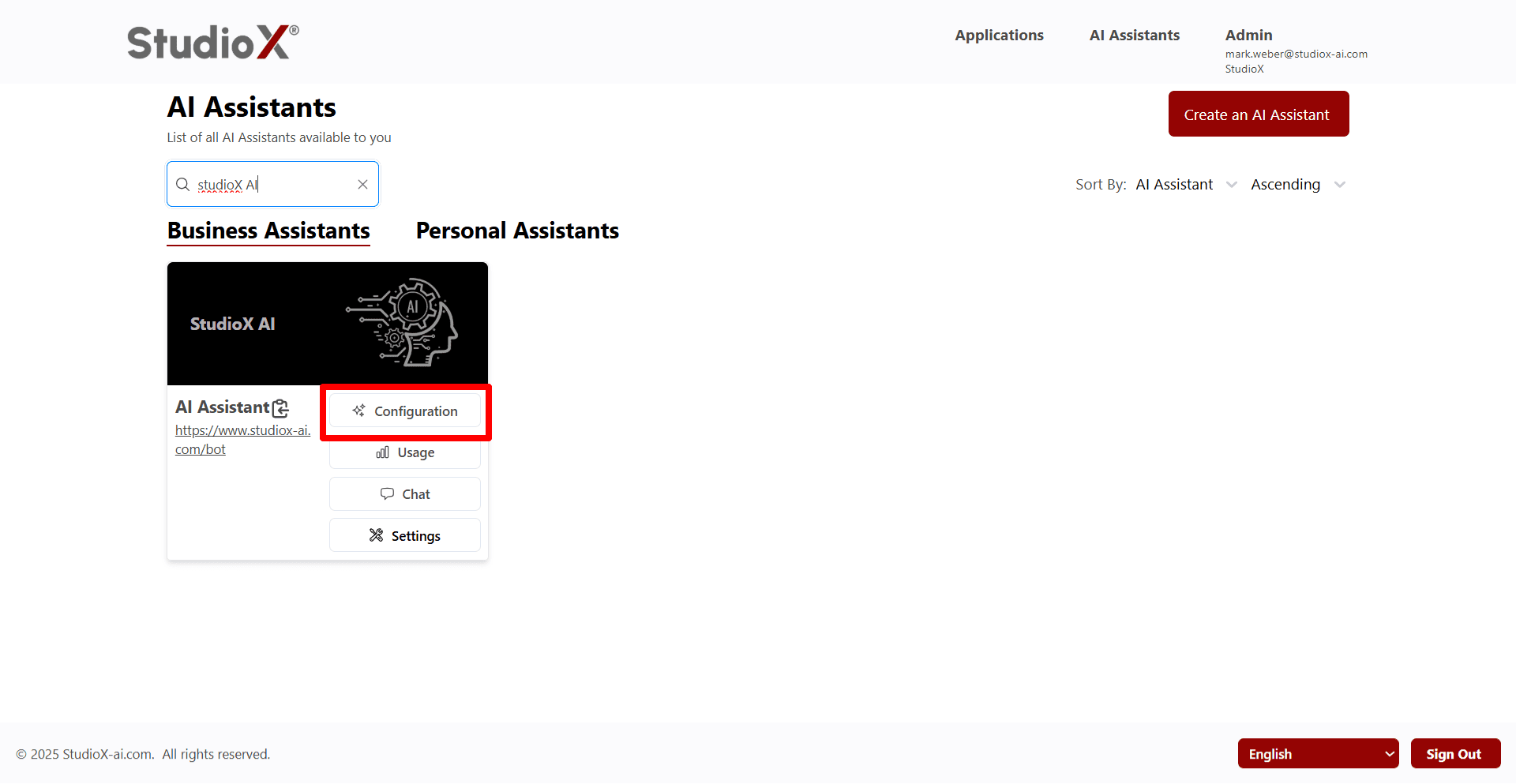
Login → AI Assistant → Business Assistant / Personal Assistant → <your bot> → Configuration
View Assistant Info & Usage
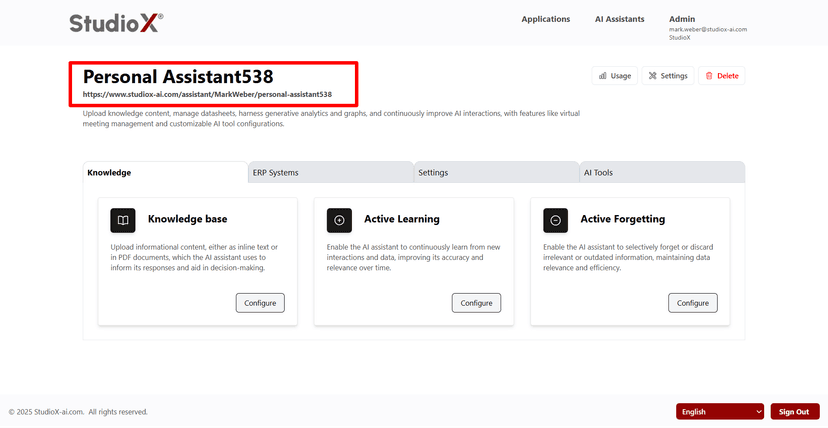
On the Configuration page, users can view essential information about their assistant including bot name, public link, and detailed usage statistics.
Assistant Information Display
Usage Statistics
Assistant Information Features
- Identify your assistant by name and copy its public URL
- Easy copying of shareable public link
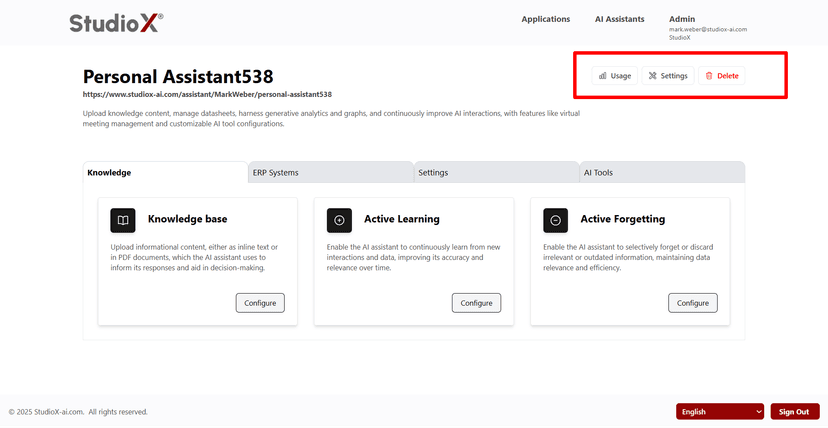
- Click the 'Usage' button to view detailed analytics
- View number of chats, files uploaded, and active users
Knowledge Upload
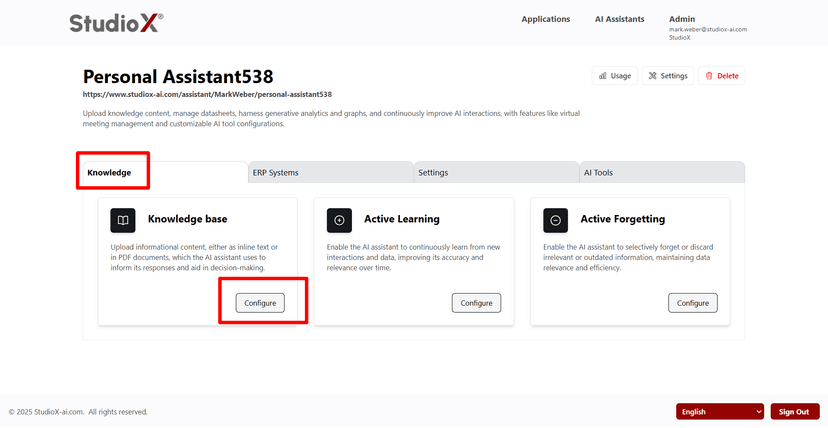
In the Knowledge section, users can add sources to the bot via multiple options to enhance the assistant's understanding of business-specific context and improve response quality.
Knowledge Base Interface
Upload Options
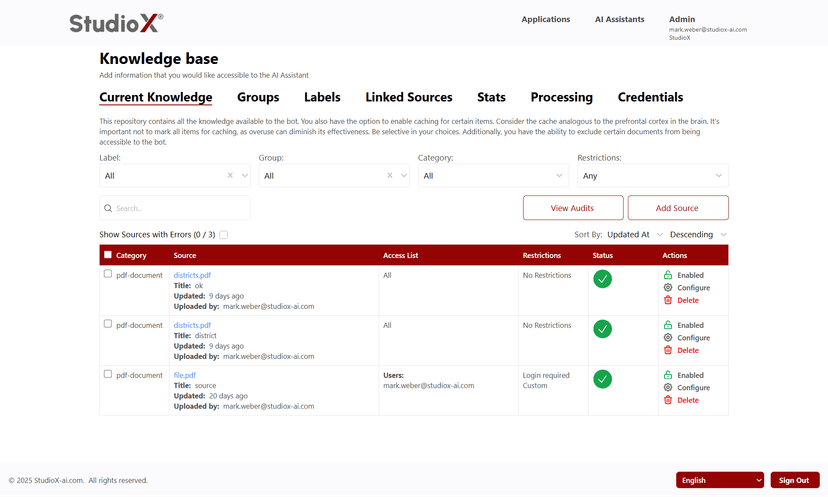
Knowledge Upload Methods
- Text Entry: Write knowledge as plain text directly into the system
- File Uploads: Upload documents (e.g., PDF and many more) for the bot to learn from
Knowledge Benefits: This content becomes part of the bot's brain, enhancing its understanding of business-specific context and improving response quality.
Active Learning
Enable Active Learning to let your assistant automatically learn from ongoing interactions. Over time, the assistant adapts and improves response quality based on user behavior and submitted queries.
Active Learning Overview
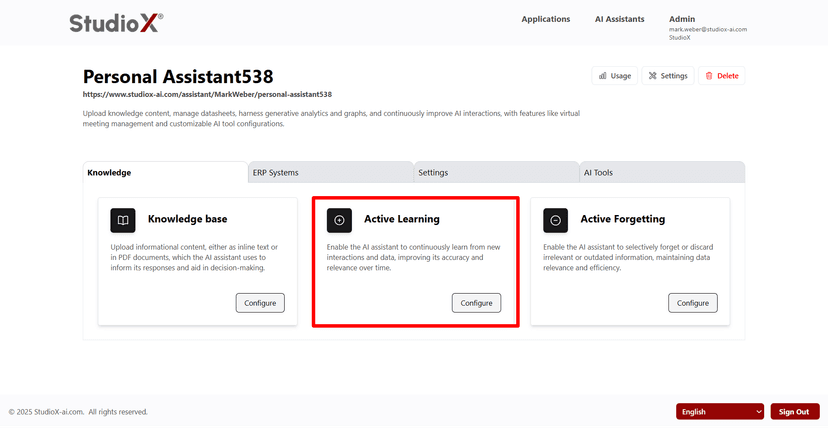
Learning Management Details
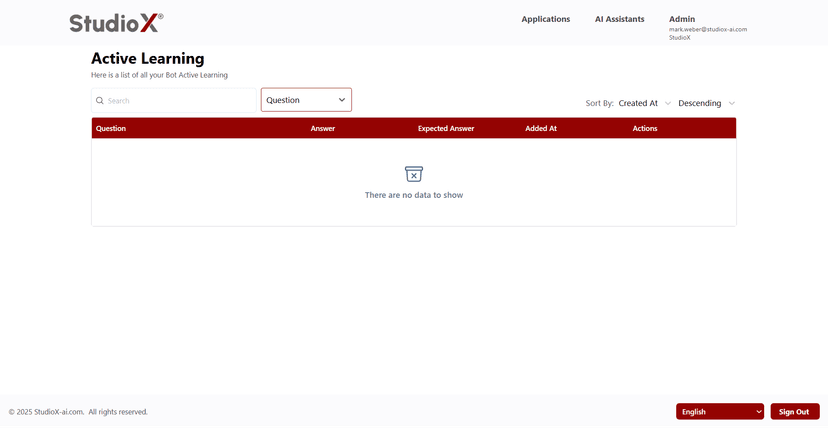
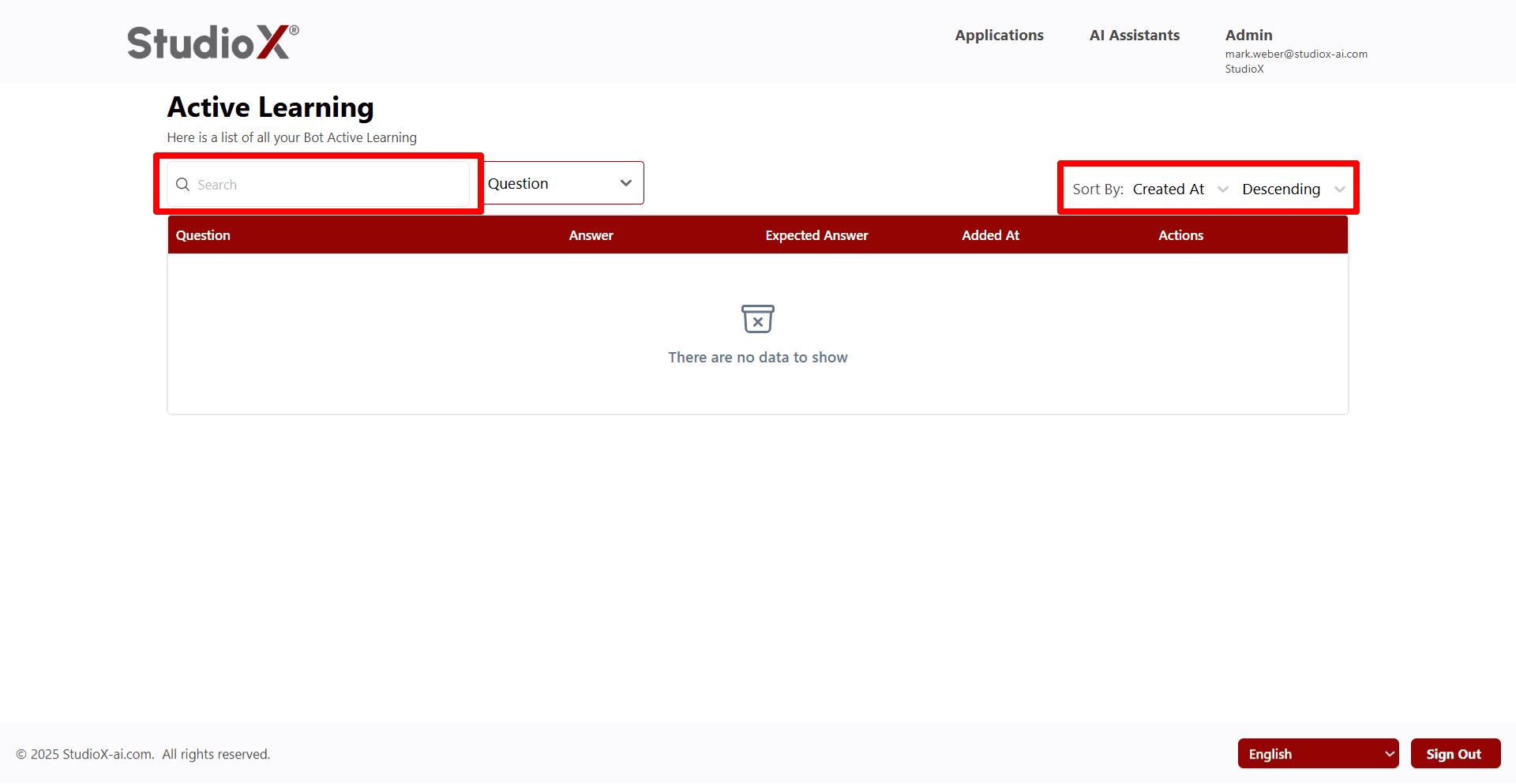
Active Learning Capabilities
- Enable/disable learning functionality
- Create question-answer pairs manually
- Sort knowledge entries (ascending/descending)
- View result previews and performance metrics
- Search and filter learning data efficiently
Active Learning Benefits: Continuous improvement of response accuracy and relevance based on real user interactions and feedback.
Active Forgetting
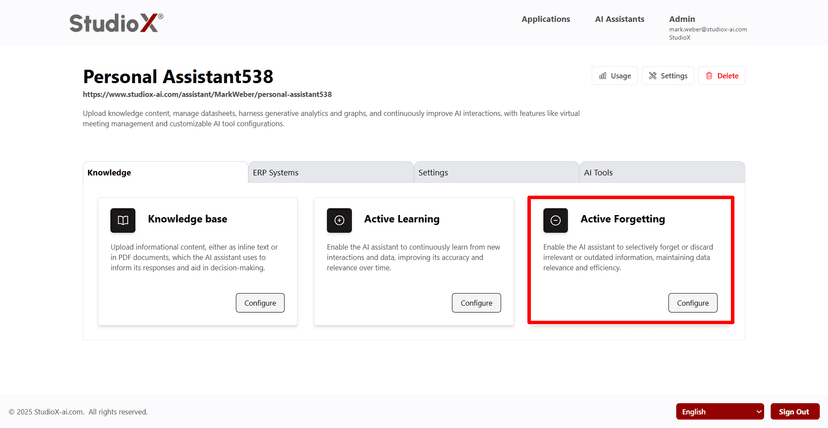
Active Forgetting ensures the assistant forgets outdated or irrelevant data. This helps maintain clean, current knowledge and prevents outdated information from influencing responses.
Active Forgetting Overview
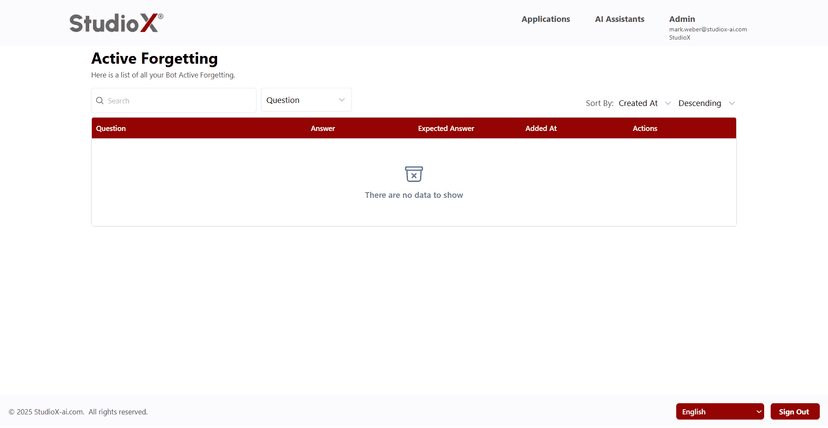
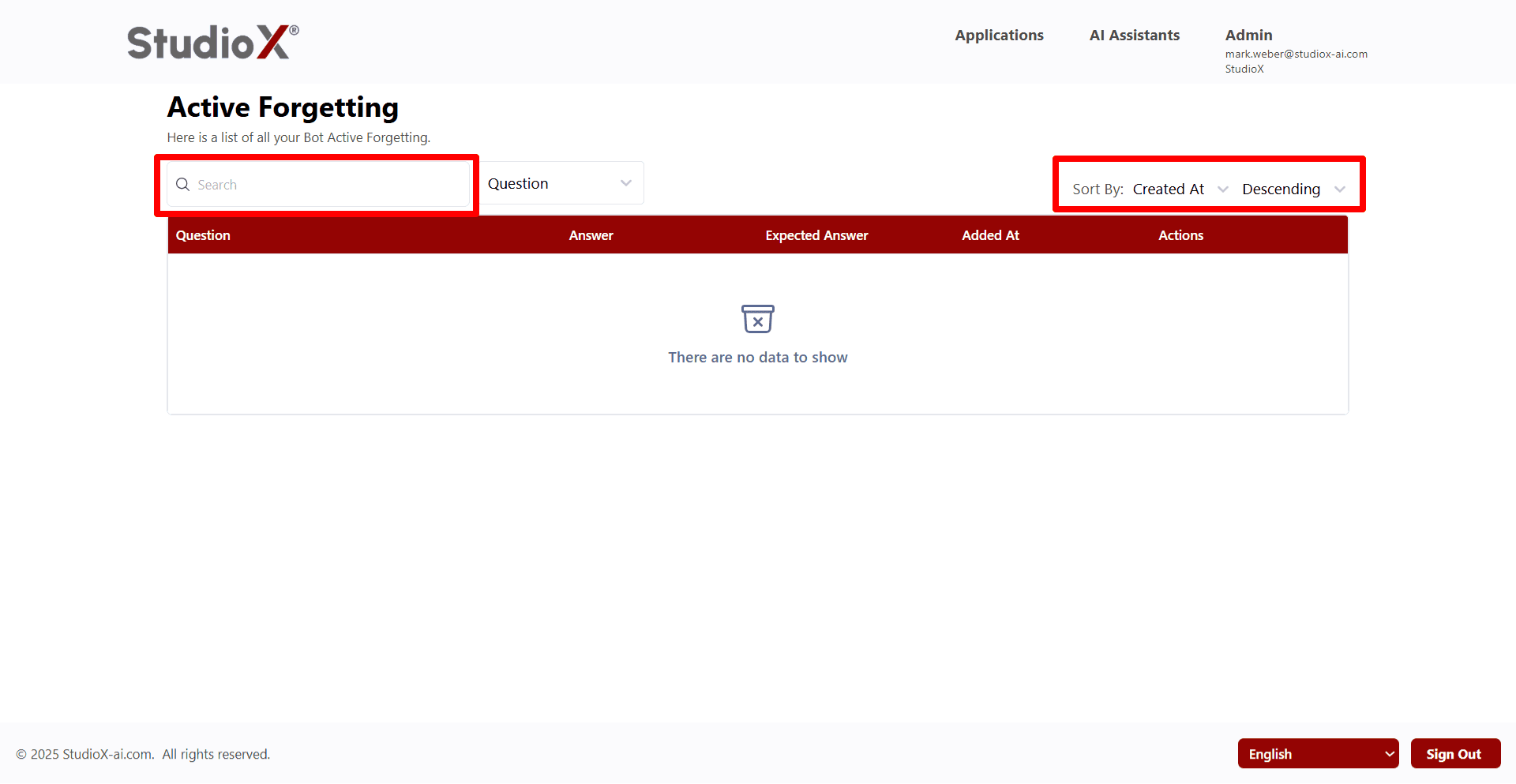
Forgetting Management Details
Active Forgetting Capabilities
- Enable/disable forgetting functionality
- Manually remove outdated Q&As
- Sort entries by date or relevance
- Maintain clean, current knowledge base
Active Forgetting Benefits: Maintains data relevance and efficiency by automatically discarding irrelevant or outdated information.
ERP System Integration
The Platform supports integration with ERP systems, enabling your assistant to create and manage support tickets seamlessly. Configure system connections for enhanced workflow automation.
ERP Systems Overview
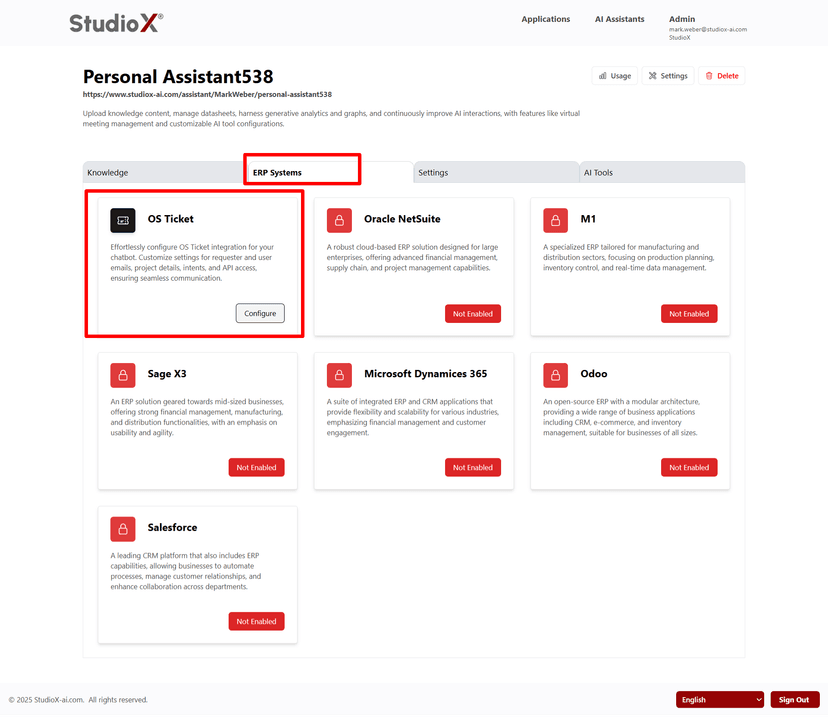
OS Ticket Integration
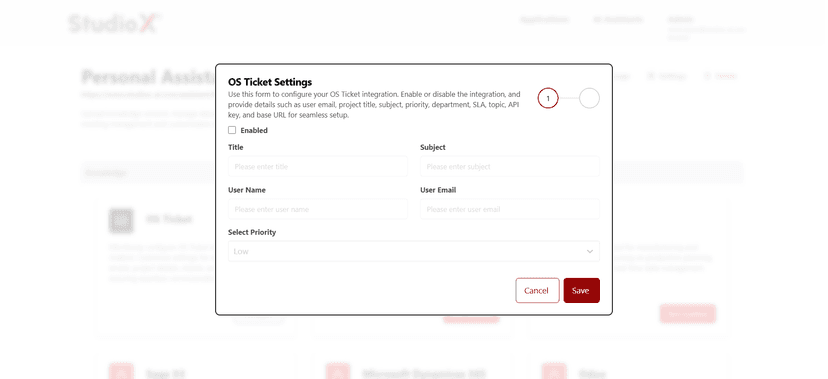
OS Ticket Integration Capabilities
- Configure requester/user email formats
- Define project-specific intents and workflows
- Use API access to authenticate and control integration
- View or manage ticket history linked to conversations
- Create and manage support tickets seamlessly
ERP Integration: Integration capabilities extend beyond OS Ticket to support various ERP systems based on business requirements.
Settings Configuration
This section allows business admins to fine-tune how the assistant behaves during interactions with comprehensive customization options.
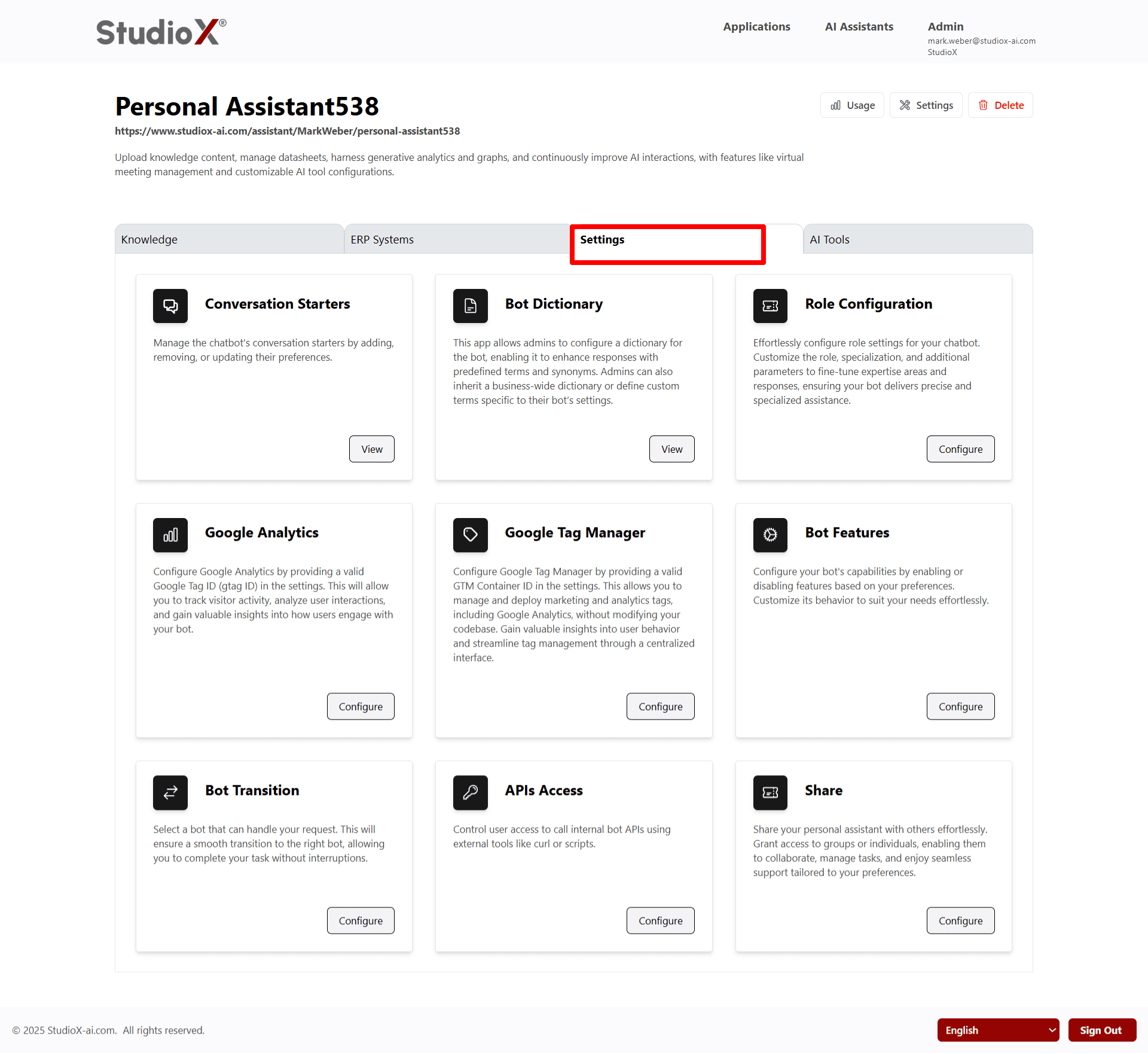
Available Configuration Settings
Conversation Starters
Set default messages to initiate chats and guide user interactions
Bot Dictionary
Define or inherit term sets for enhanced understanding
Role Configuration
Assign feature access to specific roles and users
Google Analytics
Configure analytics tracking for visitor activity and insights
Google Tag Manager
Set up tag management for marketing and analytics integration
Bot Features
Enable/disable transitions, auto-summary, and specialized capabilities
Additional Configuration Options
Bot Transition
Select a bot that can handle your request for smooth transitions
APIs Access
Control user access to call internal bot APIs using external tools
Share Assistant
Share your personal assistant with others and manage collaboration
AI Tools Management
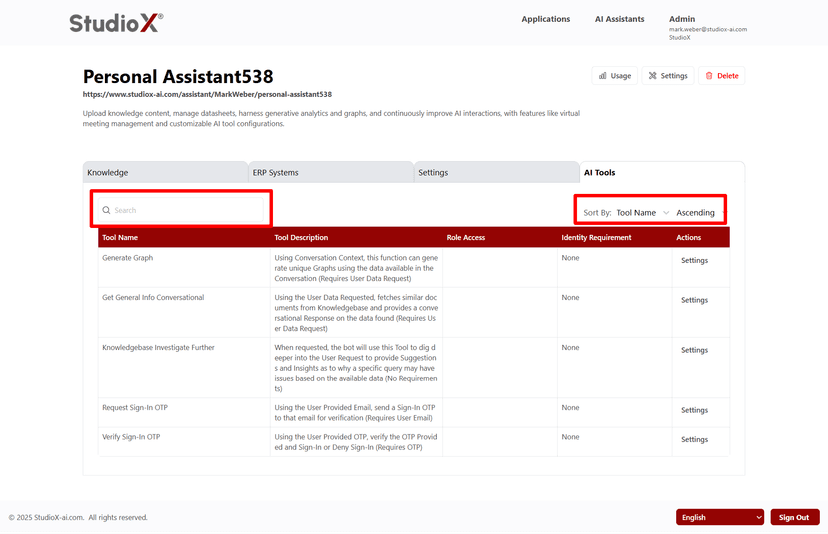
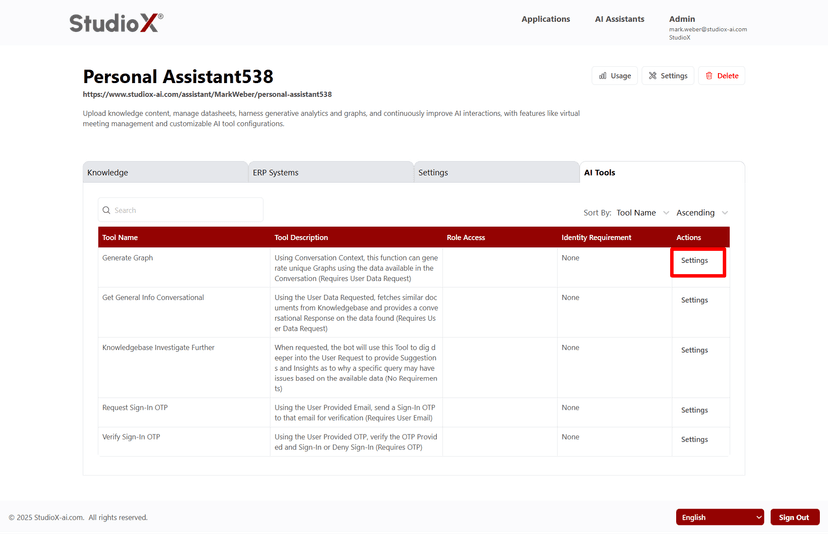
Admins can control how AI tools within the assistant are accessed and by whom, providing granular control over tool availability and permissions.
AI Tools Interface
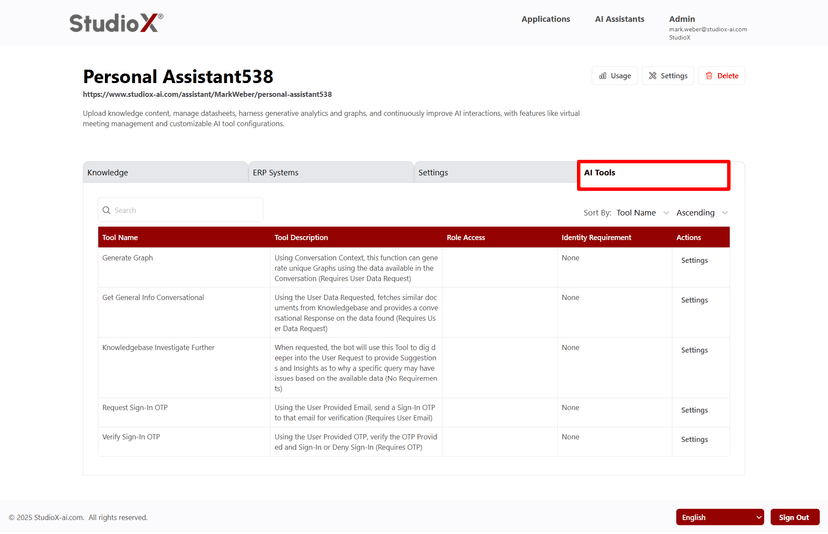
AI Tools Settings
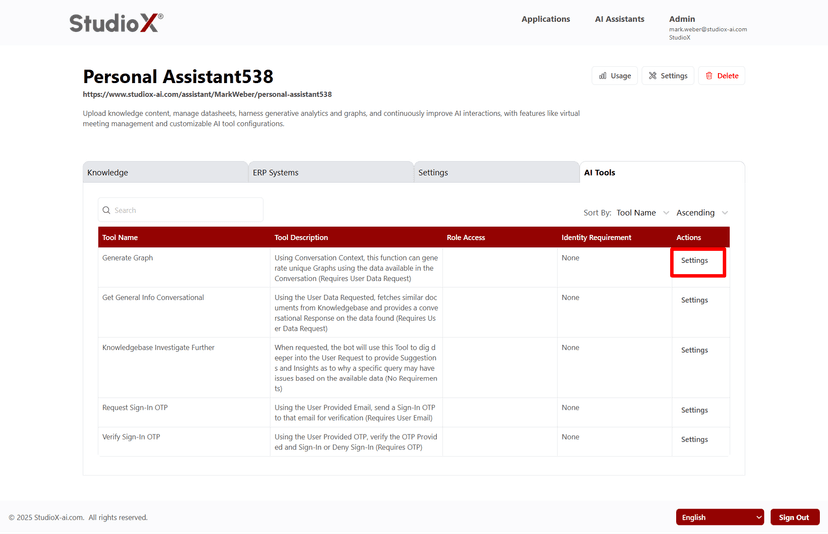
Search and Sort Tools
Tool Settings Detail
AI Tools Management Features
- Search Tools: Find tools by name or description efficiently
- Tool Descriptions: View functionality and capabilities of each tool
- Team and user access controls: Assign roles (e.g., Business Admin), teams, or individual users
- Identity Requirements: Specify if tools require user identity verification
AI Tools Access Control: Fine-grained control over tool access ensures security and appropriate usage based on user roles and requirements.