Chat Interface
Understand how to interact with your AI assistants through the chat interface and manage conversations.
Table of Contents
Overview
The Chat with Your Assistant page in the Platform allows users to interact with their Personal or Business Assistant for help, tasks, or queries. Users can change languages, view chat history, search past chats using filters, and access knowledge base sources to enhance their conversations.
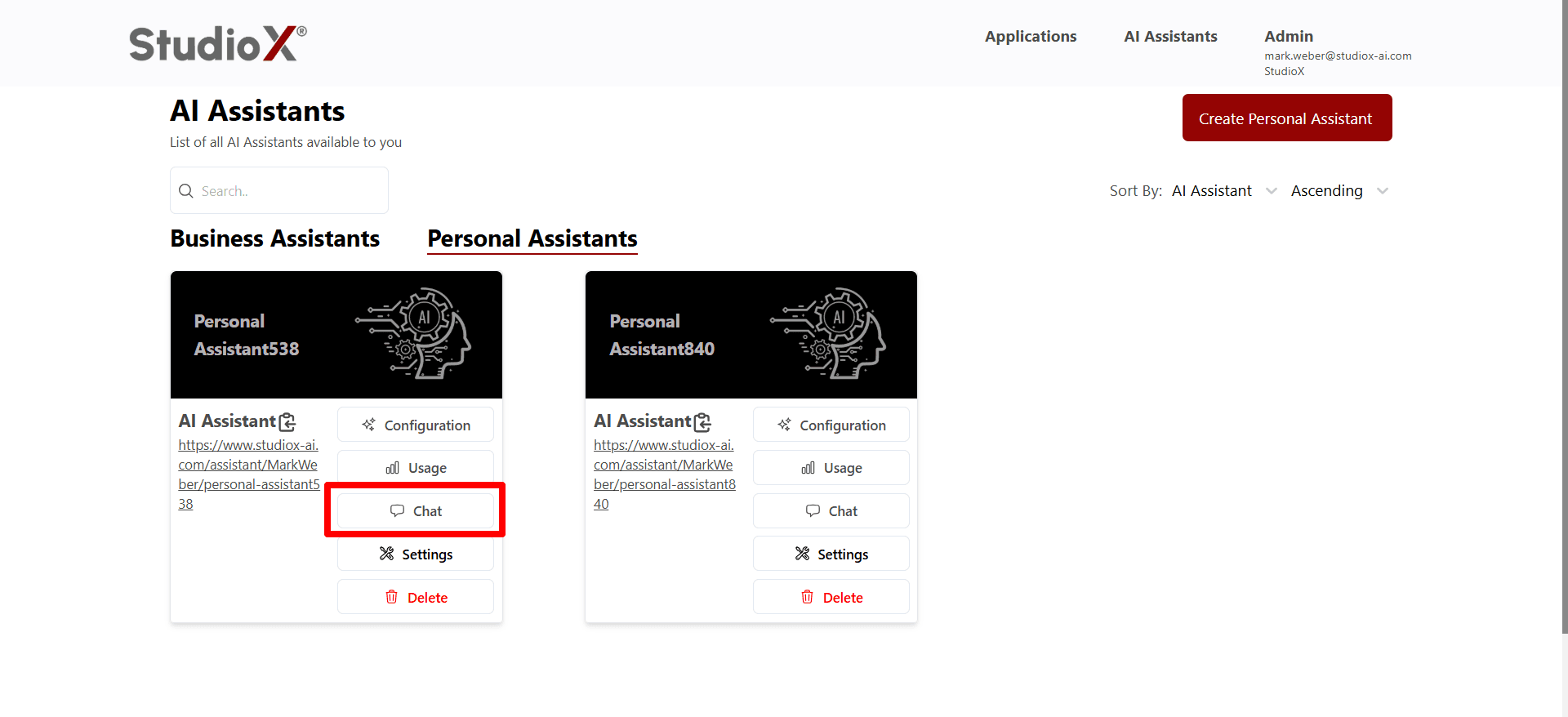
Workflow
You can access the chat interface through the AI Assistant section and perform various actions to enhance your conversation experience.
Access Path:
Login → AI Assistant → Business/Personal Assistant → <your bot> → Chat
From the chat interface, you can perform actions such as changing language, accessing chat history, starting new conversations, and selecting knowledge sources.
Change Language
You can change the assistant's interface language to your preference. Click on the Language Selector in the chat toolbar. Choose your desired language (e.g., English, Arabic). All interface text and buttons will immediately update to the selected language.
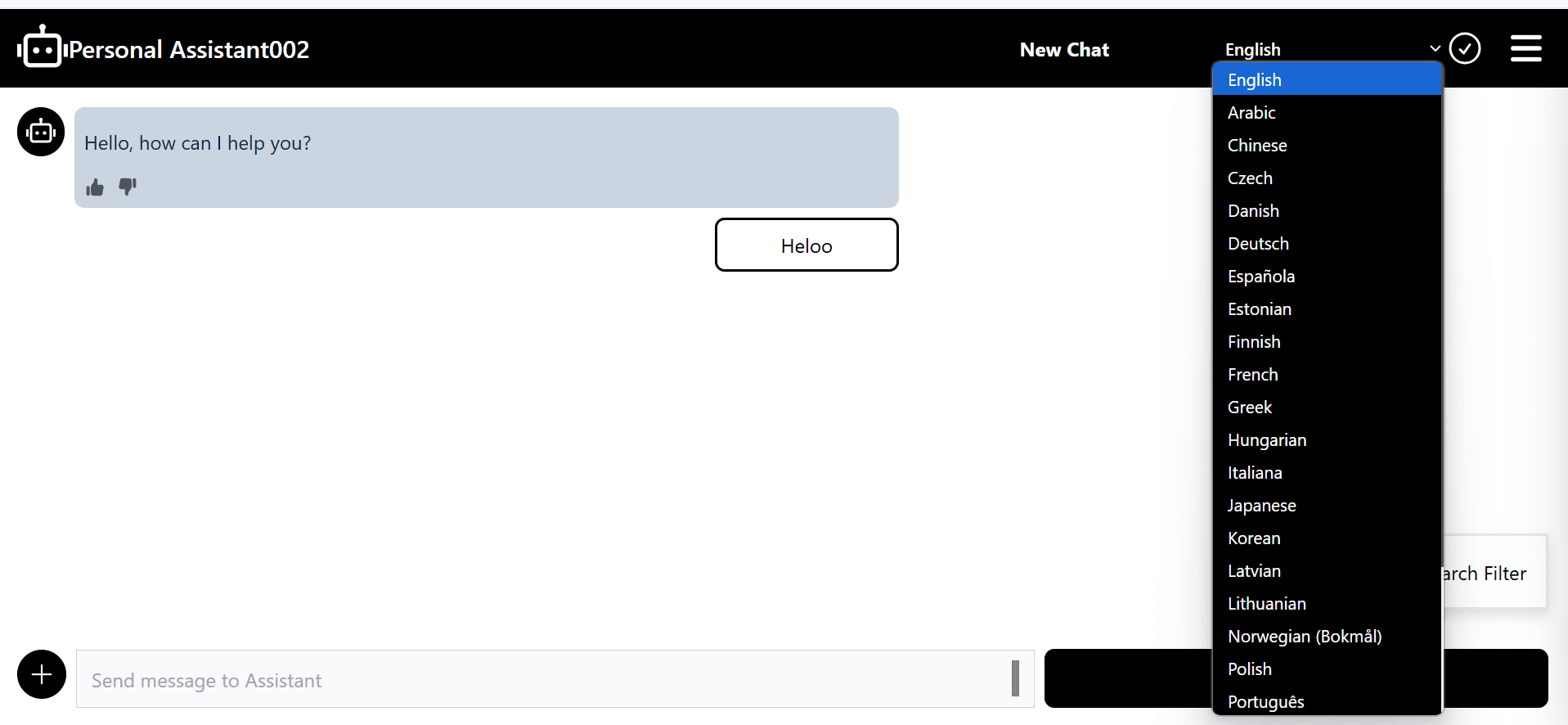
How to Change Language:
- Click on the Language Selector in the chat toolbar
- Choose your desired language from the dropdown menu
- All interface text and buttons will immediately update to the selected language
Chat History
The Chat History feature helps you revisit past conversations. Click the Chat History icon to open previous chats. Users can rename, reopen, or delete any chat. You can continue the conversation by reopening any previous thread.
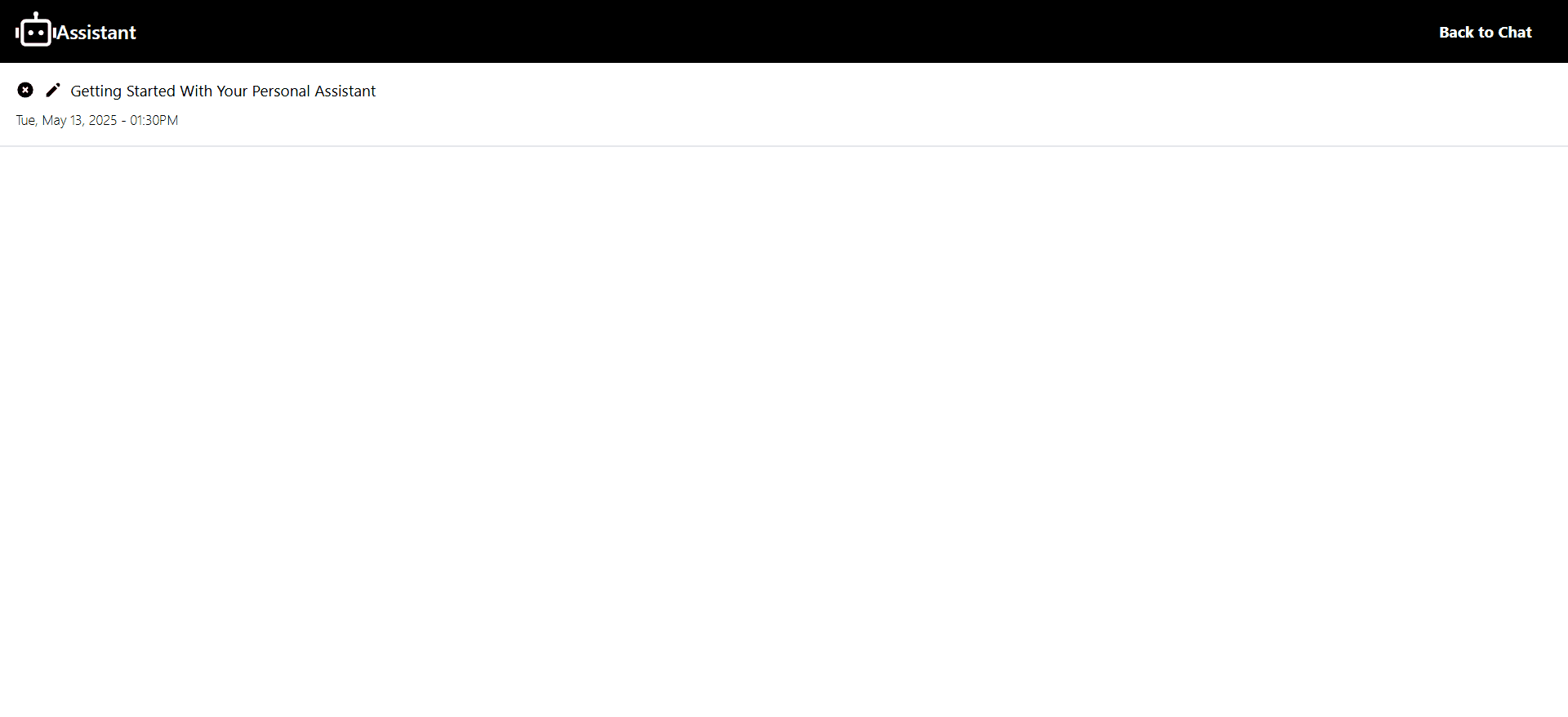
Chat History Features
- View all previous conversations in chronological order
- Rename chat threads for better organization
- Reopen any previous chat to continue the conversation
- Delete unwanted chat history to keep your interface clean
Start New Chat
Click the New Chat button to begin a new conversation thread. This clears previous context and opens a fresh session, allowing you to start with a clean slate for new topics or discussions.
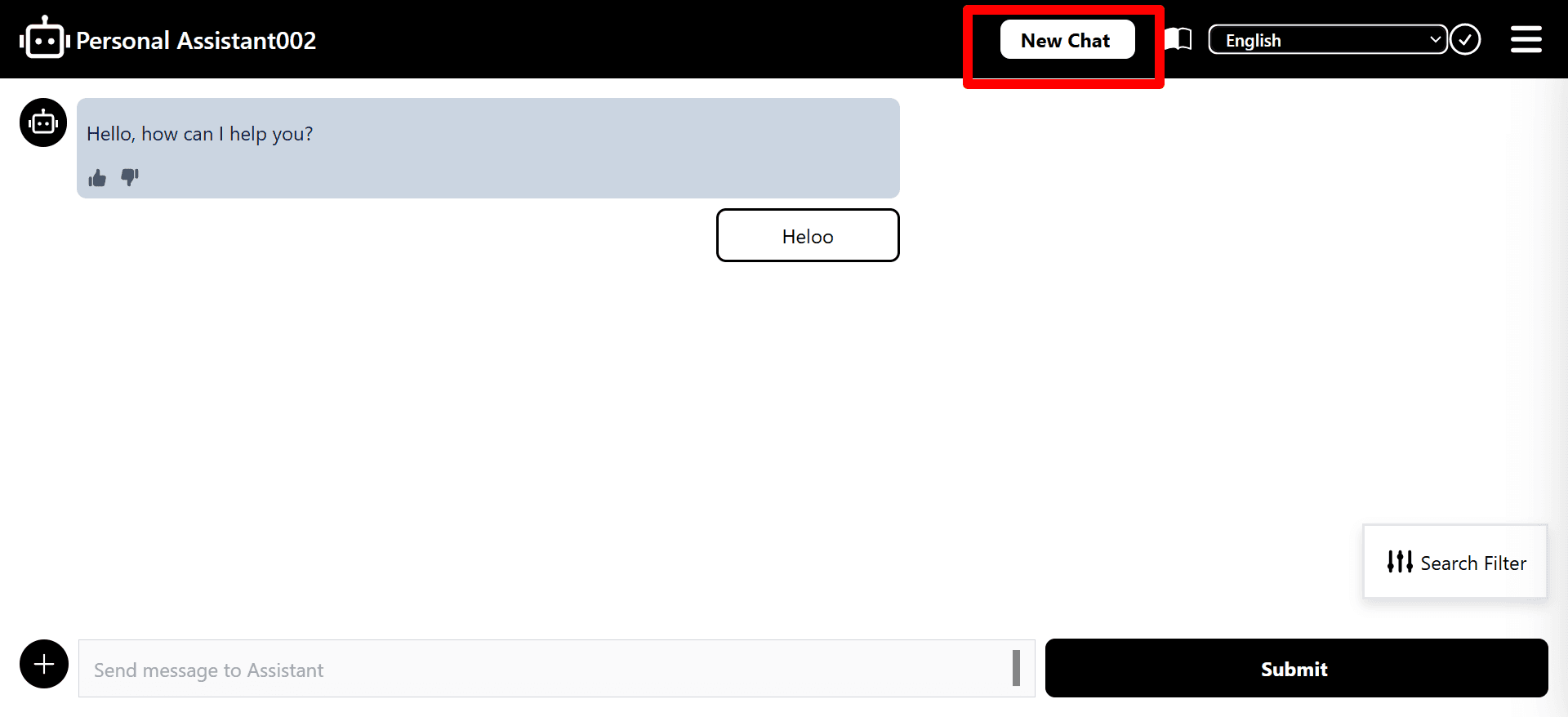
Benefits of Starting New Chat:
- Clears previous conversation context for fresh discussions
- Helps organize different topics into separate conversations
- Provides a clean starting point for new queries or tasks
Knowledge Base Access
Access and utilize your assistant's knowledge base by selecting specific sources for your conversations. You can filter and choose from various knowledge sources to get more targeted and accurate responses.
Knowledge Base in Chat
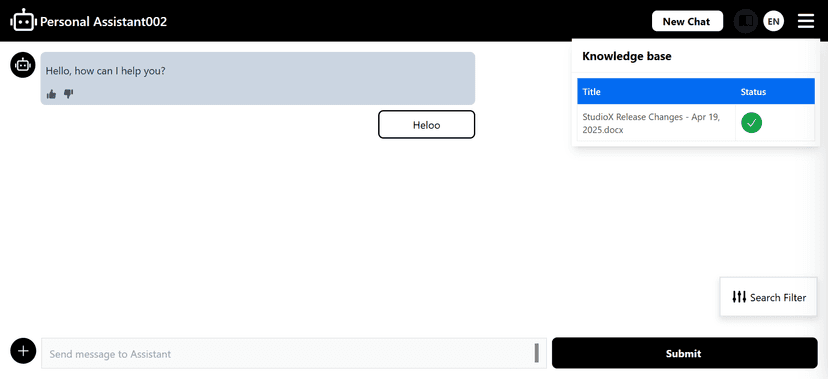
Knowledge Base Icon
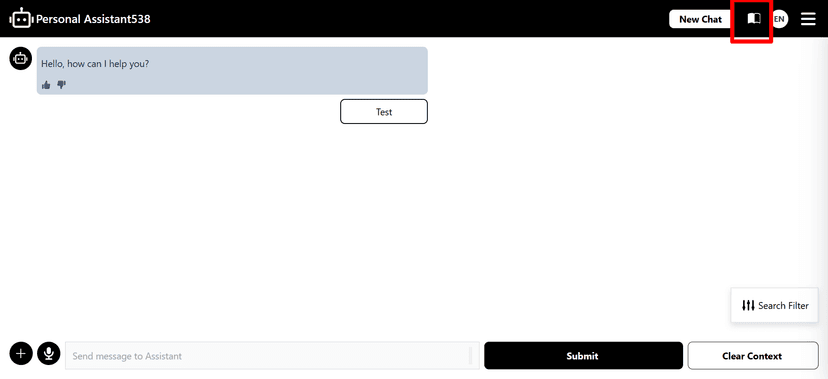
Select Knowledge Source
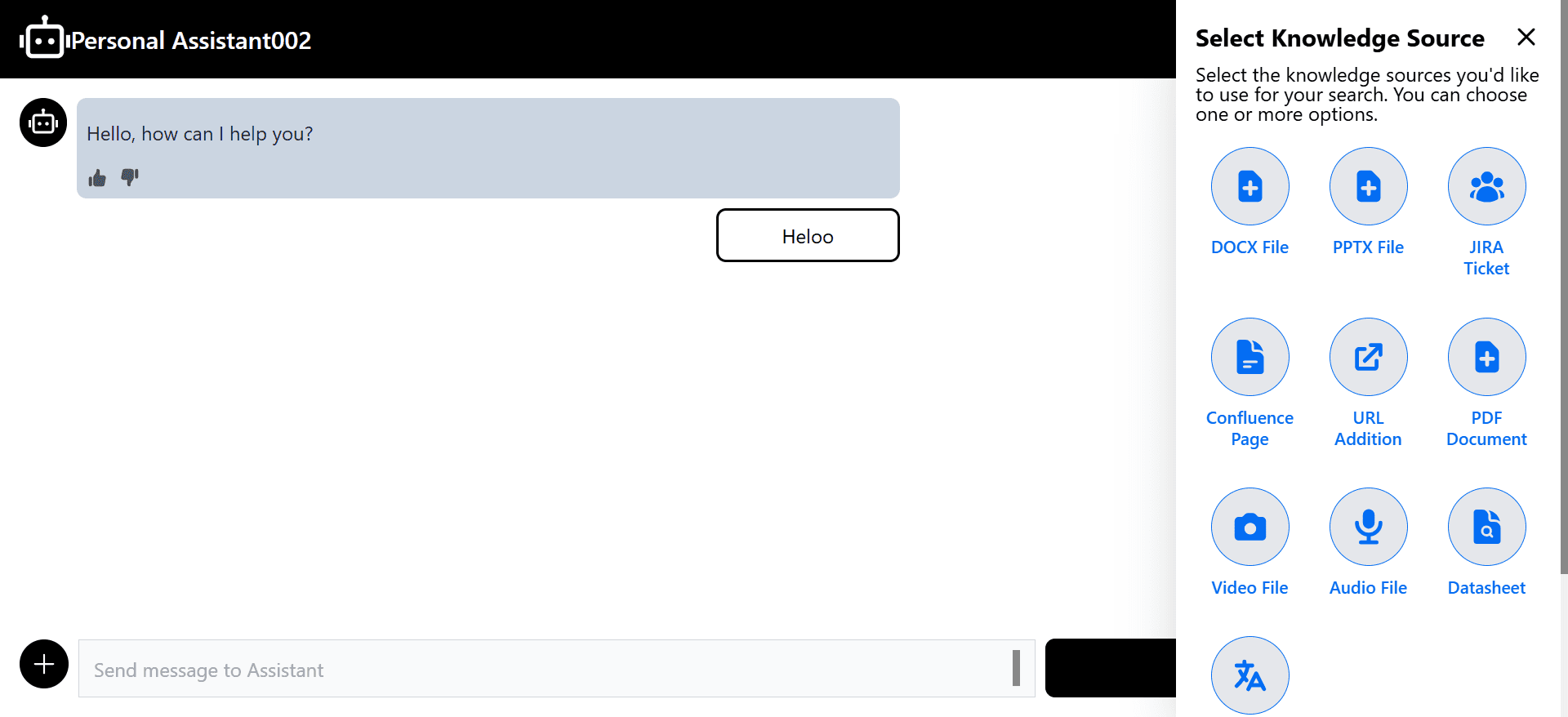
Upload Source Options
Add Source Dialog
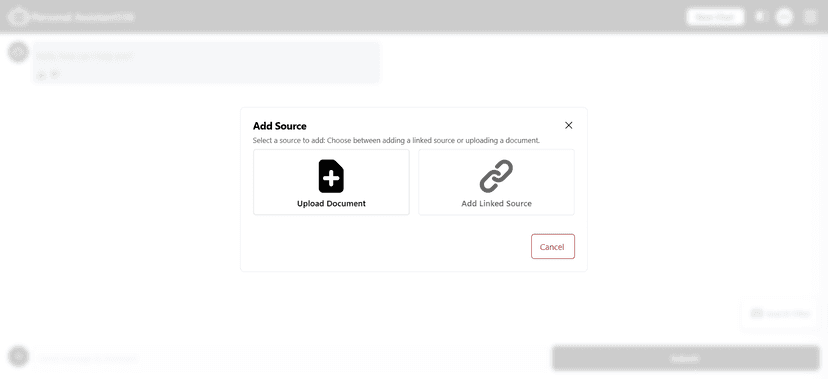
Source Type Selection
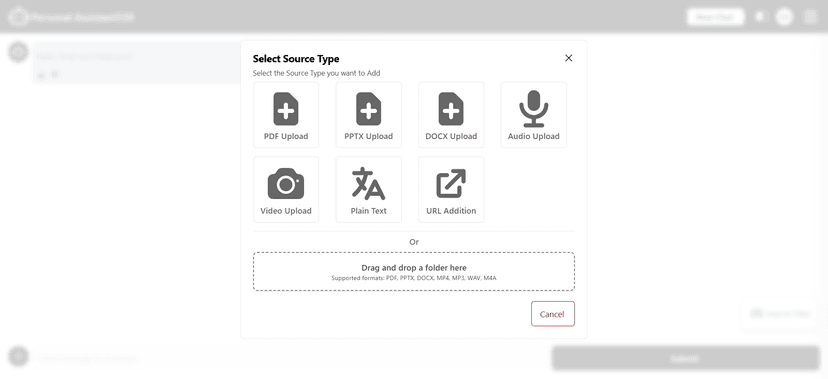
Supported Knowledge Sources
DOCX Files
PPTX Files
Jira Tickets
Confluence Pages
URL Additions
PDF Documents
Video Files
Audio Files
Datasheets
Workflow:
- Click the Search Filter button to access knowledge sources
- Select the specific knowledge sources you want to use
- Choose from document types, URLs, or integration sources
- Your assistant will use these sources to provide more accurate responses