Basic Settings
Manage fundamental settings like assistant name, URL, and deletion options.
Table of Contents
Overview
The Bot Basic Settings page allows users to personalize and manage their Personal Assistant or Business Assistant in the Platform. These settings provide essential customization options for configuring your AI assistant's identity and accessibility.
Workflow
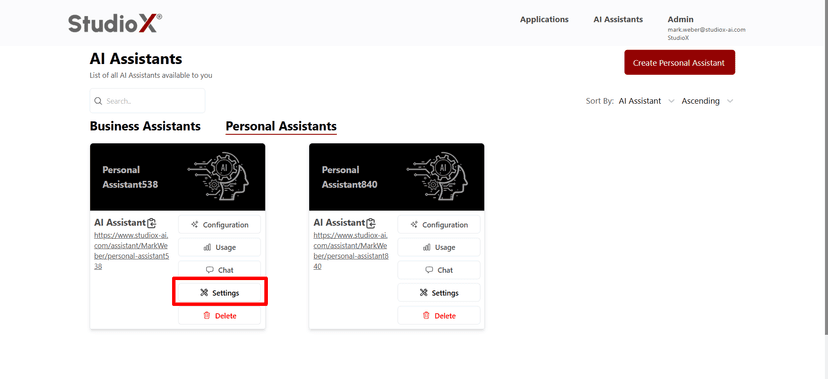
You can access the Bot Basic Settings through the AI Assistant interface for both Personal and Business Assistants.
Access Path:
Login → AI Assistant → Business Assistant / Personal Assistant → <your bot> → Settings
These settings offer customization options such as renaming your bot, setting a shareable URL, and deleting the assistant when no longer needed.
Personal Assistant Settings
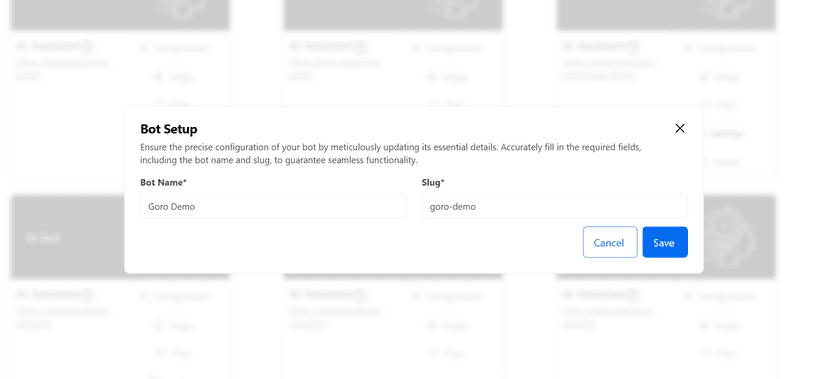
Business Assistant Settings
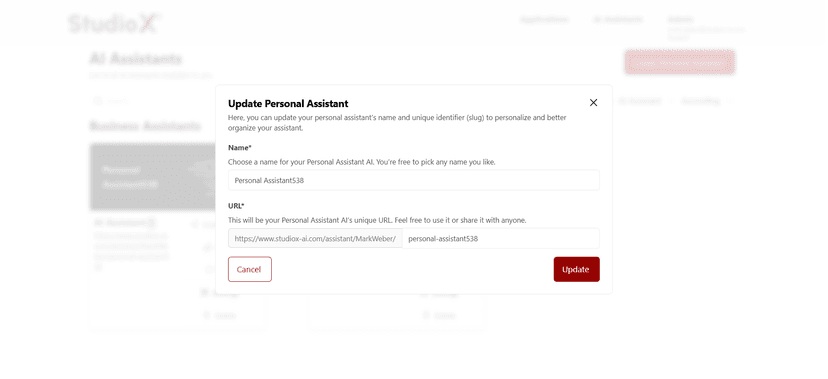
Bot Settings Interface
Change Bot Name
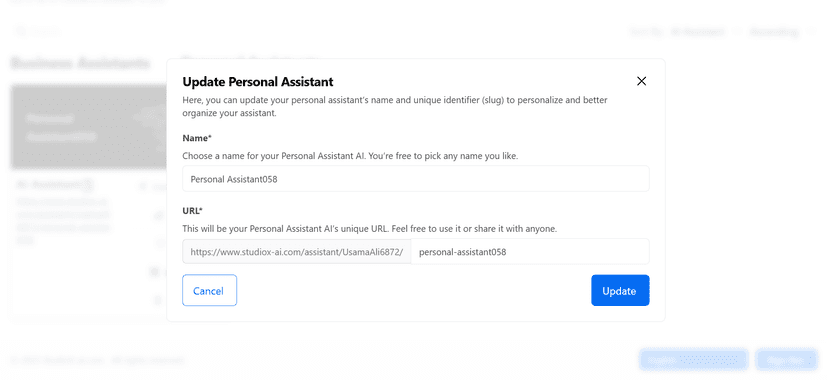
Users can update the name of their assistant to reflect its purpose or to personalize the experience. Enter a new name in the Bot Name field. This name will be visible when interacting with or managing the assistant.
Personal Assistant Name Change
Business Assistant Name Change
How to Change Bot Name:
- Navigate to your bot's Settings page
- Enter a new name in the Bot Name field
- Save the changes to update your assistant's name
Set Shareable URL
Create a custom, shareable link for your assistant to make it accessible to others. Enter a unique suffix in the Bot URL field or Slug to generate a personalized URL that can be shared with colleagues or team members.
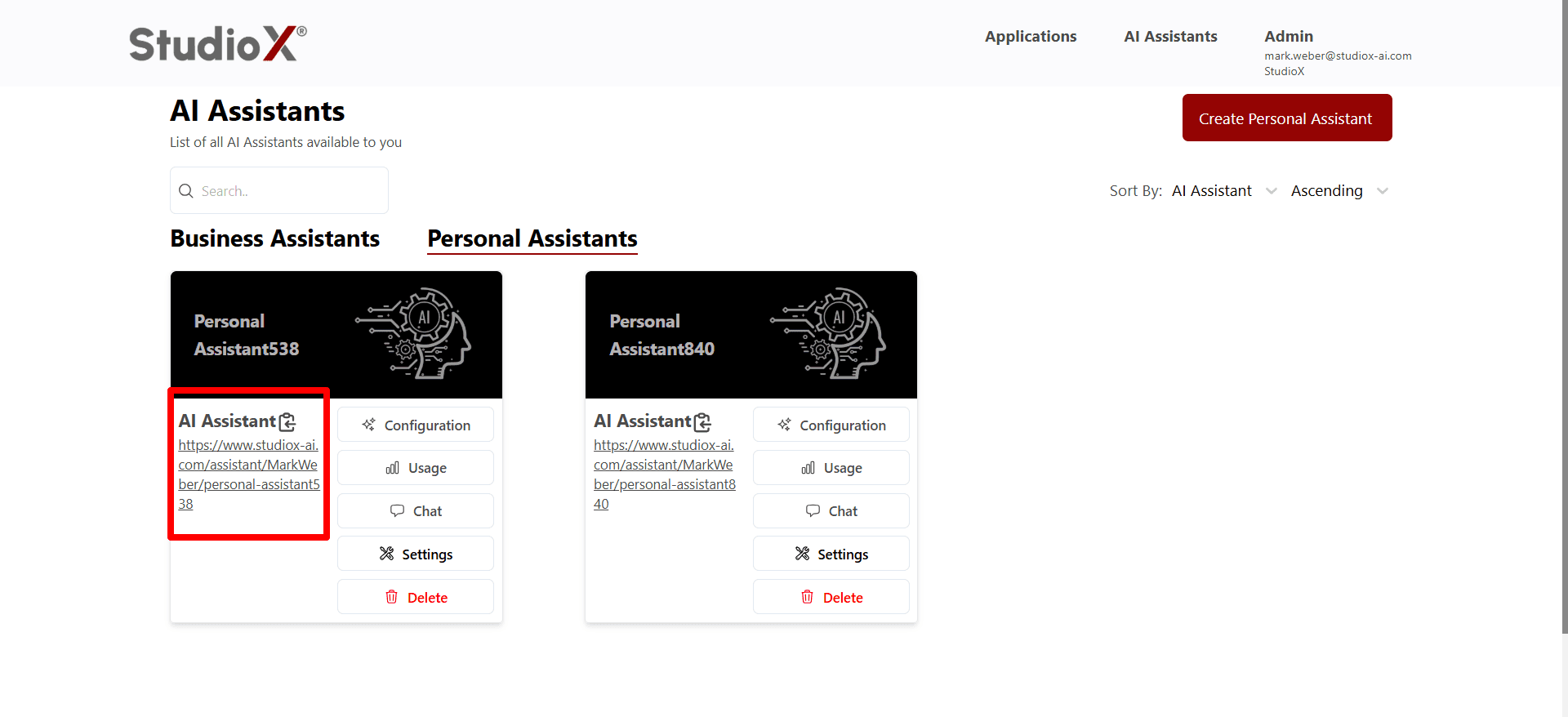
Benefits of Shareable URLs:
- Easy sharing with team members and collaborators
- Custom, memorable URLs for your assistant
- Professional presentation for business use cases
Delete Assistant
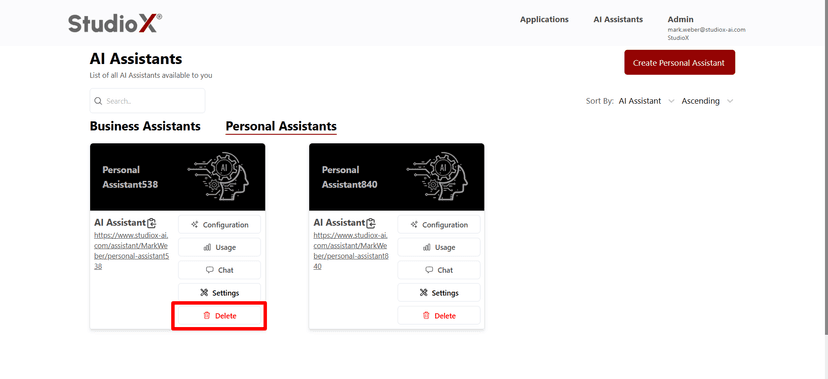
To remove a bot permanently, use the Delete option. This action will permanently remove the bot and all its associated data, including conversations, configurations, and settings.
Delete Button Location
Delete Confirmation Dialog
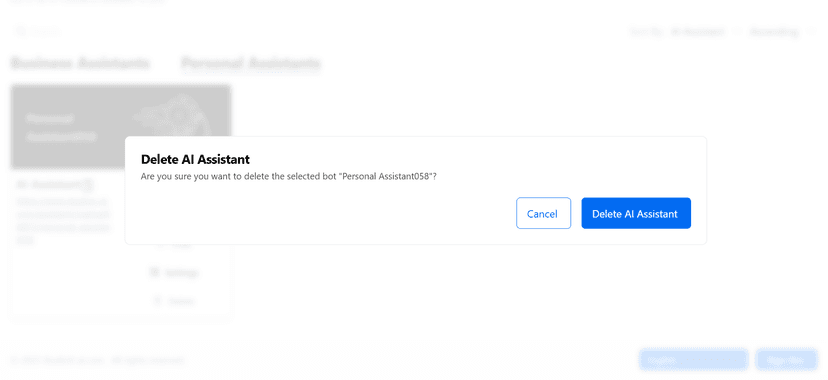
Warning: Bot once deleted cannot be recovered. This action is permanent and irreversible.
Deletion Process:
- Click the Delete button in the Bot Basic Settings
- Review the confirmation prompt carefully
- Confirm deletion to permanently remove the assistant and all associated data